Why Manual Reporting Wastes Your Best Analyst's Time
Every organization runs on reports. Weekly revenue summaries, monthly marketing dashboards, daily sales pipeline updates, quarterly board decks — these reports drive decisions at every level. The problem is that building these reports manually consumes an absurd amount of skilled employee time. A marketing analyst who spends Monday morning compiling last week's metrics into an email is an analyst who is not analyzing anything. A sales manager who spends Friday afternoon assembling pipeline data for the leadership team is a manager who is not coaching reps or closing deals.
The True Cost of Manual Reporting
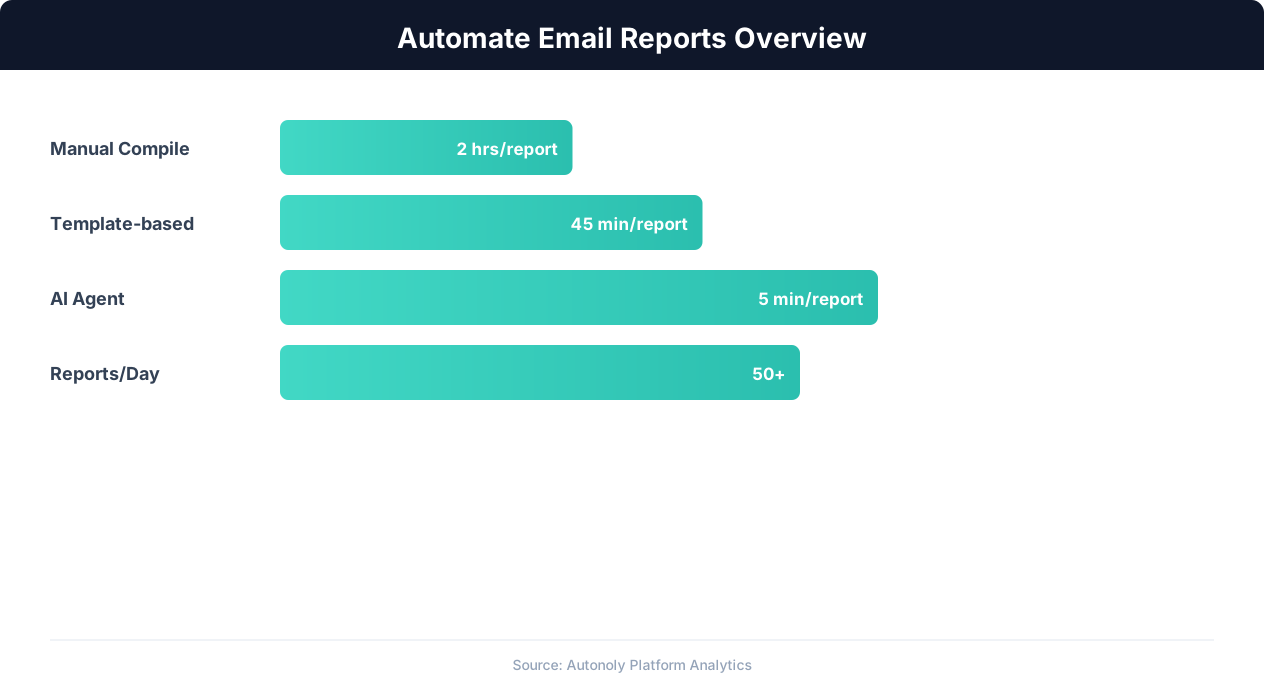
Manual reporting involves multiple time-consuming steps: logging into each data source, extracting the relevant metrics, organizing the data into a coherent format, calculating period-over-period changes, writing commentary and highlights, formatting the report for readability, and distributing it to the right people. For a moderately complex weekly report pulling data from 3-4 sources, this process takes 1-3 hours each cycle.
Across an organization, the cumulative reporting burden is significant. Consider a typical mid-size company: the marketing team produces a weekly performance report (2 hours), the sales team produces a weekly pipeline update (1.5 hours), the operations team produces a daily inventory summary (30 minutes x 5 = 2.5 hours/week), and the finance team produces a weekly revenue report (2 hours). That is 8 hours per week — a full workday — spent on mechanical report compilation rather than analysis and action.
The Consistency Problem
Manual reports are inconsistent. Different people format data differently, calculate metrics differently, and emphasize different aspects of the data. When the regular report writer is on vacation, the substitute produces a report that looks different, covers different metrics, and may calculate figures using a different methodology. This inconsistency undermines trust in the data and makes trend comparison across reports unreliable.
The Timeliness Problem
Manual reports are always late. The Monday morning report does not arrive until Tuesday because the analyst needed Monday to compile it. The end-of-week pipeline update comes on Monday morning because the manager could not finish it Friday. By the time a manual report reaches stakeholders, the data is already a day or more stale. For fast-moving operations like e-commerce, a day-old inventory report may already be inaccurate.
What Automated Reports Solve
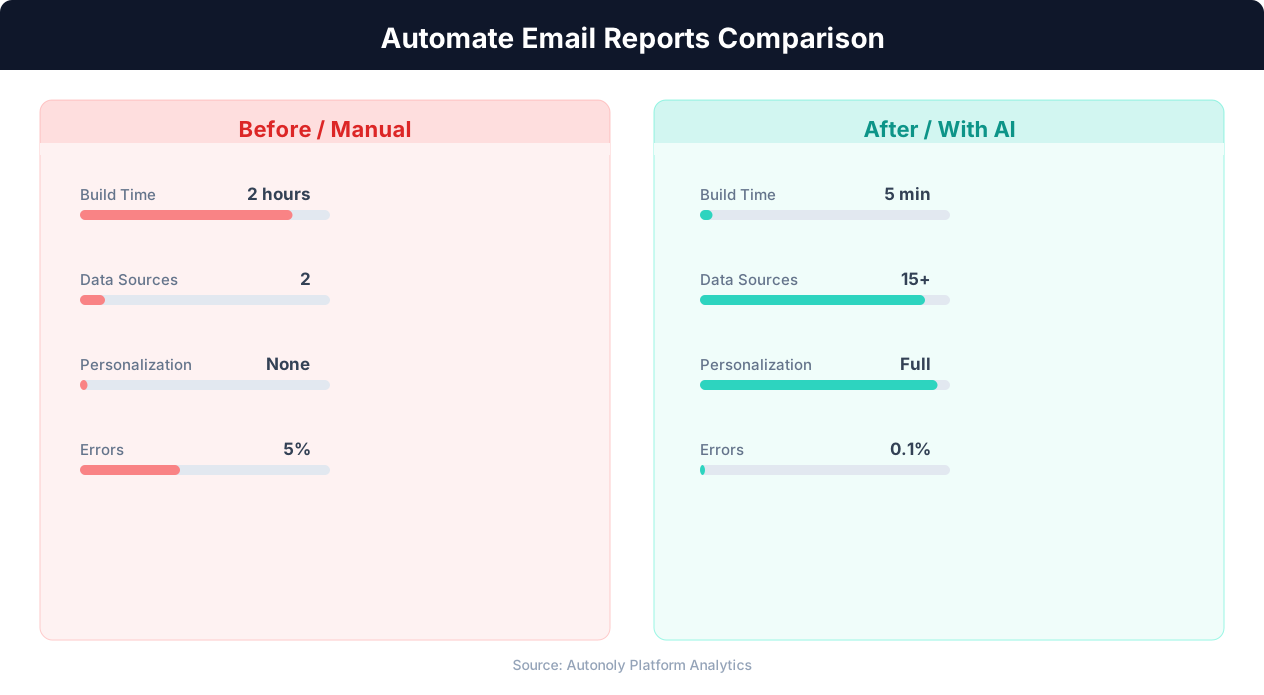
An automated email report compiles itself and delivers itself on a precise schedule. Data flows from source systems into a report template, calculations happen automatically, and the formatted report arrives in stakeholders' Gmail or Outlook inboxes at the same time every week — whether the regular analyst is in the office or on a beach. Building one is the same pattern as our guide to an automated weekly email digest. The report format is identical every time, metrics are calculated consistently, and the data is as fresh as the source systems allow.
Automated reporting frees your analysts and managers to do what they are actually skilled at: interpreting data, identifying opportunities, and making decisions. The compilation step — the tedious part — is handled by software that does not get tired, does not make copy-paste errors, and never forgets to include a metric.
Designing Reports People Actually Read
Before building the automation, design a report format that delivers maximum insight with minimum reading time. The best automated reports are scanned in under 60 seconds and read in under 5 minutes. They surface the most important information immediately and provide detail for those who want to dig deeper.
The Inverted Pyramid Structure
Borrow from journalism: put the most important information first. The top of your email report should contain a summary dashboard — 3-5 key metrics with their current values, period-over-period changes, and status indicators (on-track, warning, critical). A busy executive should get the full picture from this summary without scrolling.
Below the summary, provide section-level detail for each business area: revenue breakdown by product or channel, marketing performance by campaign, sales pipeline by stage, or operations metrics by category. Each section should be self-contained — a reader interested in marketing can jump to the marketing section without reading the sales section.
Visual Formatting for Email
Email reports must be formatted with HTML that renders correctly across email clients (Gmail, Outlook, Apple Mail). Key formatting principles:
- Use tables for data. HTML tables render consistently across email clients, unlike CSS-based layouts that break in Outlook. Use simple table structures with clear headers, alternating row colors, and right-aligned numbers.
- Color-code status. Green for positive trends, red for negative, gray for neutral. This visual coding enables 1-second comprehension of each metric's direction.
- Include trend arrows. A simple up/down arrow next to each metric (↑ or ↓) communicates direction faster than a percentage change number alone.
- Keep text minimal. Automated reports should be data-forward, not narrative-heavy. Use brief bullet points for highlights and exceptions rather than full paragraphs.
- Include a link to the full data. For stakeholders who want to dig deeper, include a link to the Google Sheet, dashboard, or BI tool where the underlying data lives.
Choosing the Right Metrics
Every report should include metrics that drive action. Vanity metrics (total page views, total followers) take up space without informing decisions. Actionable metrics tell you what to do: conversion rate (optimize the funnel), cost per acquisition (adjust ad spend), inventory turnover (reorder products), and pipeline velocity (accelerate deals). Limit each report section to 5-8 metrics — more than that and readers stop absorbing information.
Period-Over-Period Comparison
Raw numbers without context are meaningless. "Revenue was $42,000 this week" tells you nothing unless you know whether that is good or bad. Include comparisons: week-over-week change ("up 12% from last week"), year-over-year change ("up 45% vs. same week last year"), and target comparison ("87% of weekly target"). These comparisons transform numbers into insights.
Exception Highlighting
The most useful reports highlight exceptions — metrics that deviate significantly from expectations. A metric that is on track does not need attention; a metric that is 30% below target does. Automated reports can calculate deviation thresholds and highlight only the metrics that require action, making the report a prioritized to-do list rather than a data dump.
Aggregating Data from Multiple Sources
Most business reports pull data from several systems. Revenue comes from Stripe, orders from Shopify, traffic from Google Analytics, leads from HubSpot, and expenses from QuickBooks. Aggregating this data into a single report traditionally requires logging into each system, exporting data, and manually combining it. Automating this aggregation is the core of email report automation.
The Data Collection Pipeline
An automated report workflow starts with a data collection phase that queries each source system through its API. Autonoly's visual workflow builder makes this visual: each data source is a node on the canvas, connected to data processing nodes that transform the raw data, feeding into a final node that assembles the report.
A typical data collection pipeline for a weekly business report:
- Revenue data: Query Stripe's API for charges and refunds in the reporting period. Calculate total revenue, net revenue, average order value, and refund rate.
- Order data: Query Shopify's API for orders in the reporting period. Calculate total orders, orders by product category, fulfillment rate, and shipping performance.
- Traffic data: Query Google Analytics for sessions, page views, bounce rate, and traffic sources. Calculate conversion rate by combining traffic data with order data.
- Lead data: Query HubSpot for new leads, lead sources, lead-to-opportunity conversion rate, and pipeline value. Calculate week-over-week changes.
- Custom data: Query Google Sheets for data that lives in spreadsheets — competitor prices, inventory counts, manual KPIs, or data from tools without APIs.
Data Transformation and Calculation
Raw API data needs processing before it becomes report content. Transformation steps include:
- Aggregation: Sum daily values into weekly totals. Count distinct customers, products, or events.
- Period comparison: Retrieve the same metrics from the previous period and calculate percentage changes.
- Normalization: Standardize currencies, time zones, and naming conventions across sources so metrics are comparable.
- Threshold evaluation: Compare each metric against defined targets or thresholds to determine status (on-track, warning, critical).
Handling Data Freshness
Different data sources update at different rates. Stripe data is real-time, Google Analytics has a 24-48 hour processing delay, and manual spreadsheet data depends on when someone last updated it. Your report should account for these differences — either by scheduling the report to run after the slowest source has updated, or by noting the data freshness for each section ("Traffic data as of Saturday midnight").
Error Handling in Data Collection
API calls can fail due to rate limits, authentication expiration, or server issues. A robust report automation workflow includes retry logic for transient failures, fallback values for non-critical data (show "N/A" instead of breaking the entire report), and error notifications that alert you when data collection fails so you can investigate before the report sends with incomplete data.
Configure the workflow to distinguish between critical data (revenue, orders) and supplementary data (social media metrics, competitor pricing). If critical data fails, hold the report and send an alert. If supplementary data fails, send the report with available data and note the missing section.
Building the Email Template and Formatting
The email template defines how your aggregated data appears in recipients' inboxes. A well-designed template is reusable across report cycles, renders correctly in all email clients, and presents data in a scannable format.
HTML Email Template Structure
Email HTML is a constrained environment — many CSS properties that work in browsers are unsupported in email clients, especially Outlook. Build your template using table-based layouts with inline styles for maximum compatibility. The basic structure includes:
<!-- Report header with title and date range -->
<table width="600" cellpadding="0" cellspacing="0">
  <tr>
    <td style="background:#1a1a2e; color:#fff; padding:20px;">
      <h1 style="margin:0; font-size:22px;">
        Weekly Business Report
      </h1>
      <p style="margin:5px 0 0; opacity:0.8;">
        Feb 24 - Mar 1, the current year
      </p>
    </td>
  </tr>
</table>

<!-- KPI Summary Section -->
<table width="600" cellpadding="10">
  <tr>
    <td style="text-align:center; border:1px solid #eee;">
      <div style="font-size:28px; font-weight:bold;">
        $42,350
      </div>
      <div style="color:#22c55e;">↑ 12%</div>
      <div style="color:#666; font-size:12px;">
        Revenue
      </div>
    </td>
    <!-- Additional KPI cells -->
  </tr>
</table>
Dynamic Content Insertion
The template includes placeholders for dynamic values that the automation workflow fills in at report generation time. In Autonoly's workflow builder, template variables reference data from upstream nodes: {{revenue.total}}, {{revenue.wow_change}}, {{orders.count}}. The report assembly node substitutes these variables with actual values from the data collection phase.
💡 Key Insight
Managers spend an average of 8 hours per week compiling and distributing reports manually via email.
Conditional Sections
Not every report needs every section every week. Build conditional logic into your template:
- Exception alerts: Only include the "Metrics Below Target" section if any metrics actually fell below target. An empty alerts section wastes space.
- New items: Only include "New Competitor Entries" if the scraping workflow detected new competitors this week.
- Milestone celebrations: Include a highlight banner when a metric crosses a milestone ("Revenue exceeded $200K this month for the first time").
Mobile Responsiveness
Over 60% of emails are opened on mobile devices. Design your template for mobile readability: use a single-column layout that scales to narrow screens, set font sizes to at least 14px for body text and 16px for metrics, and make tap targets (links, buttons) at least 44px tall. Test your template in Gmail's mobile app, Apple Mail, and Outlook before deploying.
Plain Text Fallback
Some email clients strip HTML or display emails in plain text mode. Include a plain text version of your report as a fallback. The plain text version should contain the same key metrics in a readable format — aligned columns using spaces or tabs, section headers using dashes or equals signs, and trend indicators using +/- symbols instead of colored arrows.
Scheduling Reports and Managing Distribution Lists
The scheduling layer determines when reports generate and who receives them. The right schedule ensures reports arrive when they are most useful, and the right distribution ensures the right people get the right level of detail. (For a deeper look at recurrence and triggers, see our guide to scheduling automated workflows.)
Choosing the Right Schedule
Match the report frequency to the decision cadence it supports:
- Daily reports: Best for operational metrics that require daily attention — inventory levels, order fulfillment status, customer support queue, and daily revenue. Send before the start of the business day (7 AM local time) so recipients see them when they open email.
- Weekly reports: The most common frequency for business performance reports. Revenue, marketing, sales, and growth metrics are best viewed weekly — daily fluctuations create noise, while weekly aggregation reveals trends. Send Monday morning (before 9 AM) so teams start the week informed.
- Monthly reports: Appropriate for strategic metrics, financial summaries, and board-level reporting. Monthly cadence reduces noise and provides enough data for meaningful trend analysis. Send on the 1st or 2nd business day of the new month.
- Event-triggered reports: Some reports should send immediately when specific conditions are met rather than on a fixed schedule: inventory below reorder point, revenue exceeding a daily record, or a competitor making a significant price change.
💡 Key Insight
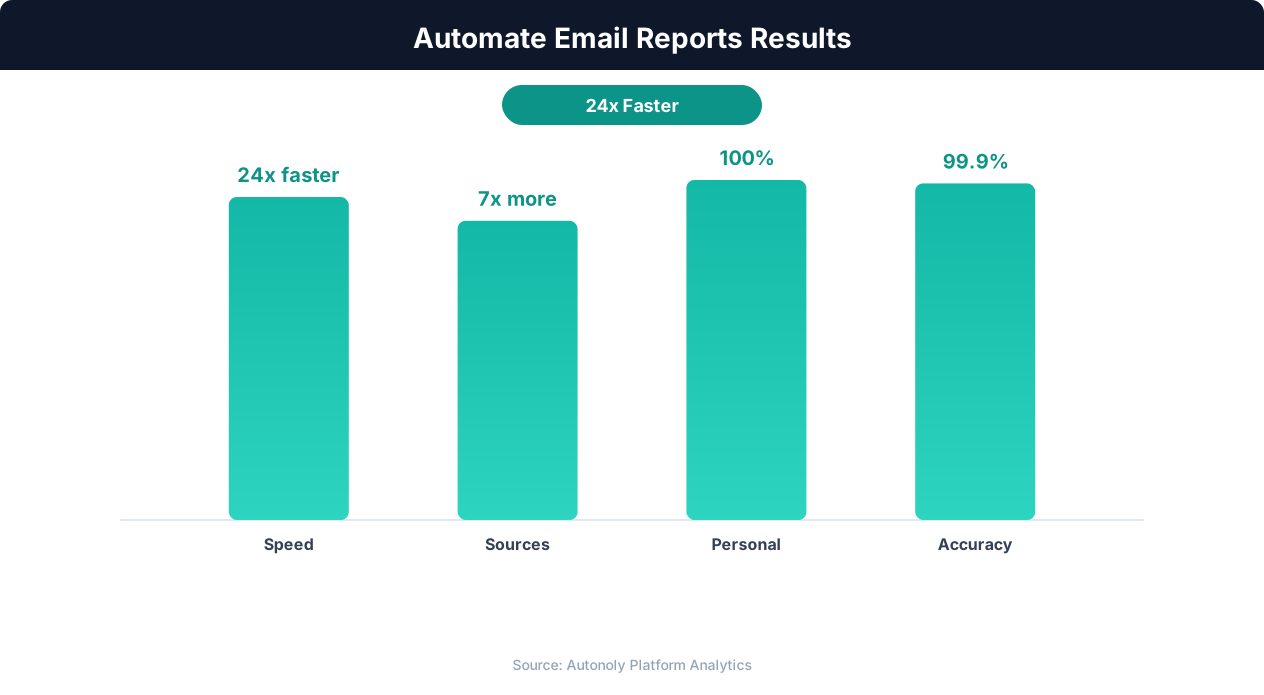
Automated email reports are delivered 95% faster with zero formatting inconsistencies compared to manual preparation.
Distribution List Management
Not everyone needs the same report. Build tiered distribution lists that match report detail to audience needs:
- Executive summary: C-suite and senior leaders receive a high-level summary with 5-8 key metrics, trend indicators, and exception highlights. No detailed data tables — just the numbers that matter and whether they are on track.
- Department reports: Team leads and managers receive detailed reports for their function. The marketing manager gets campaign-level metrics, the sales director gets pipeline details, the ops manager gets fulfillment and inventory data.
- Full data access: Analysts and operators receive links to the underlying data sources (Google Sheets, dashboards) where they can perform ad-hoc analysis. The email serves as a notification that fresh data is available, not the primary analysis tool.
Configuring Schedules in Autonoly
Autonoly's scheduled execution supports cron-based scheduling (for precise timing), timezone configuration (ensure reports send at the right local time), and conditional scheduling (skip weekends, skip holidays, run only on business days). Each scheduled workflow can have multiple delivery steps — sending the executive summary to one list and the detailed report to another within the same automation run.
Handling Schedule Failures
Scheduled reports must be reliable — stakeholders who depend on a Monday morning report notice immediately when it does not arrive. Build reliability into your scheduling: configure retry logic (if the first attempt fails at 7 AM, retry at 7:30 AM and 8 AM), set up failure alerts (send a notification to the report owner if all retries fail), and maintain a status dashboard that shows the last successful run for each scheduled report.
Advanced Reporting Patterns: Alerts, Digests, and Dashboards
Beyond the standard periodic report, several advanced patterns address specific reporting needs. These patterns complement scheduled reports to create a comprehensive automated intelligence system.
Threshold-Based Alerts
Alerts notify you when a metric crosses a defined threshold — without waiting for the next scheduled report. Configure alerts for business-critical conditions:
- Daily revenue falls below 70% of the trailing 30-day average
- Website error rate exceeds 1% of requests
- Customer support response time exceeds 4 hours
- Inventory for a key product drops below 2 weeks of supply
- A competitor's price drops more than 10% on a tracked product
Alerts should be actionable — the notification should include enough context for the recipient to understand the issue and take action. Include the current value, the threshold, the deviation, and a link to the relevant dashboard or data source. Avoid alert fatigue by setting thresholds that only trigger on genuinely significant deviations, not normal fluctuations.
Digest Reports
Digests aggregate multiple small events into a single summary email. Instead of receiving individual notifications for every new lead, every completed order, and every support ticket, stakeholders receive a daily or weekly digest that summarizes all events.
A daily sales digest might include: total new leads today (12), total orders today (34), highest-value order ($2,450), and total revenue ($8,720). The digest provides awareness without the interruption of individual notifications. Build digests by accumulating events throughout the collection period (day or week) and generating the summary at scheduled report time.
Comparative Reports
Comparative reports analyze performance across segments: products, regions, campaigns, or time periods. A weekly comparative report might show this week's performance versus last week, this month versus the same month last year, or performance across different marketing channels side by side. These reports are particularly valuable for identifying underperforming segments that need attention and high-performing segments that deserve more investment.
Report Chains
Chain multiple reports together for complex reporting workflows. Example: a data collection workflow runs at 5 AM, writes processed data to Google Sheets, triggers a report generation workflow at 6 AM that reads the Sheets data and generates the email, and a distribution workflow at 7 AM sends the report to the appropriate lists. This chain pattern separates concerns — each workflow handles one responsibility — and makes debugging easier when issues occur.
Interactive Report Elements
While email is inherently static, you can add interactive elements that link to dynamic resources: "View full dashboard" links to Google Looker Studio, "Download CSV" links to the underlying data export, "Take action" links to specific pages in your business tools (create a support ticket, approve a purchase order, schedule a meeting). These links extend the report beyond a passive data delivery mechanism into an action trigger.
Combining with Other Automations
Email reports become even more powerful when combined with other Autonoly automations. A weekly price monitoring report can include competitor pricing data scraped automatically. A lead generation report can include new prospects discovered through automated Google Sheets workflows. Each automation feeds into the reporting pipeline, creating an integrated intelligence system that runs entirely on autopilot.