What Is No-Code Automation and Why It Matters Now
No-code automation is the ability to build automated workflows — sequences of actions that execute without human intervention — using visual, drag-and-drop interfaces instead of programming languages. If you can use a spreadsheet, you can build a no-code automation. The tools translate your visual workflow into executable logic behind the scenes, eliminating the need for software engineering skills.
The Democratization of Automation
Until recently, automation was the exclusive domain of software developers. Building an automated workflow meant writing code — Python scripts, API integrations, cron jobs, and error handling logic. Teams without engineering resources had two options: submit a request to their IT department (and wait weeks or months for delivery) or continue doing the work manually. Neither option served the people who understood the business processes best — the non-technical operators, managers, and analysts who lived with the inefficiency every day.
No-code automation tools changed this dynamic fundamentally. They put automation capabilities directly in the hands of the people who need them, without requiring a computer science degree or engineering support. A marketing coordinator who spends two hours a week copying data between platforms can build an automation to eliminate that task in an afternoon. An operations manager who manually compiles a weekly report can set up an automated version that generates and sends itself.
Why Now Is the Right Time
Several converging trends make no-code automation more accessible and more powerful than ever:
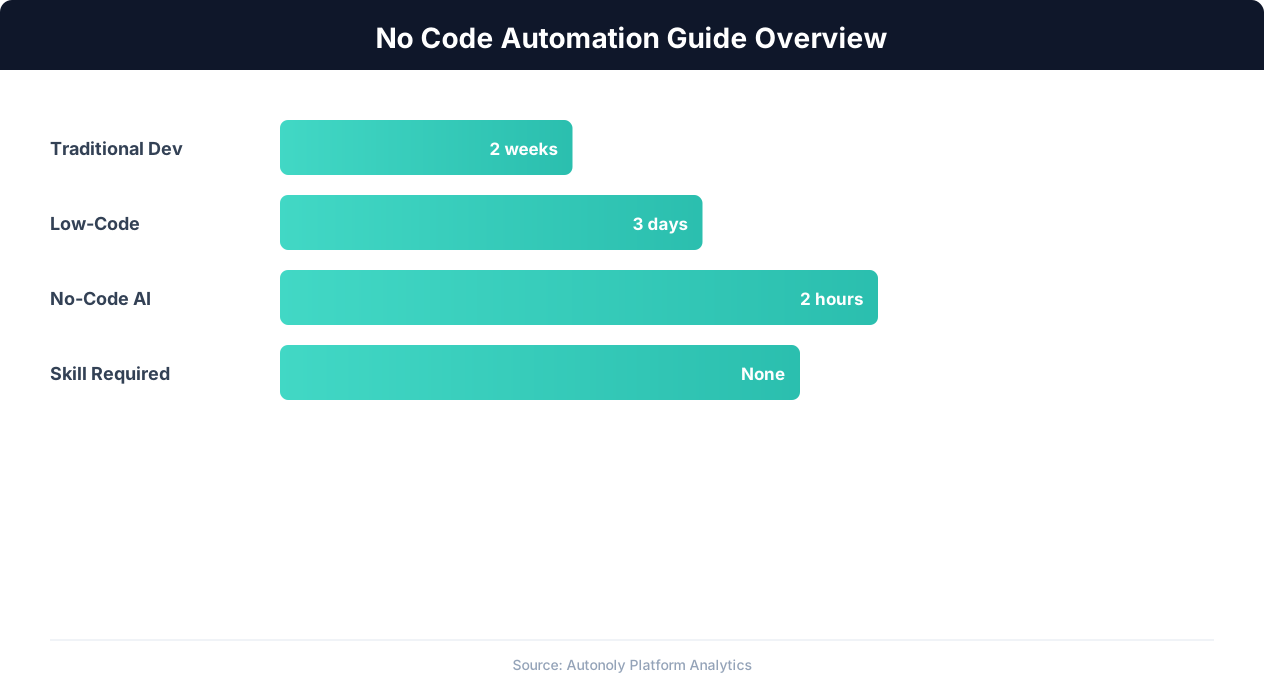
- AI-powered assistance: Modern no-code platforms use AI to help you build workflows. Instead of configuring every step manually, you describe what you want in plain English and the AI suggests or builds the workflow. This lowers the learning curve dramatically.
- Mature integration ecosystems: No-code platforms now connect to hundreds of popular business tools out of the box: CRMs, email platforms, spreadsheets, payment processors, project management tools, and more. Pre-built integrations mean you spend less time on setup and more time automating actual work.
- Browser-based execution: Some no-code platforms add browser automation that can automate tasks in web applications that do not have APIs — filling out forms, clicking buttons, downloading files, and navigating websites. This extends automation to virtually any web-based tool, including legacy systems and government portals.
- Affordable pricing: Competition in the no-code space has driven prices down significantly. Many platforms offer free tiers for basic automation, with paid plans starting at $20-50/month — a fraction of the cost of engineering time to build the same automations manually.
What You Can Automate Without Code
The scope of no-code automation is broader than most people expect. Common automations that require zero coding include: data entry and transfer between systems, email report generation and distribution, web scraping and data collection, social media posting and monitoring, document processing and filing, customer onboarding workflows, invoice generation and payment tracking, lead scoring and routing, and inventory monitoring and alerts. If the task involves moving data between systems, processing information according to rules, or triggering actions based on events — it can almost certainly be automated without code.
How Visual Workflow Builders Work
The visual workflow builder is the core interface of no-code automation platforms. It uses a canvas-based metaphor where you build automations by connecting visual nodes (blocks) that represent triggers, actions, and logic. Understanding how these builders work is the foundation for building effective automations.
The Building Blocks
Every visual workflow builder uses the same fundamental building blocks:
Triggers: The event that starts your workflow. Triggers can be time-based ("every Monday at 9 AM"), event-based ("when a new form submission arrives"), or manual ("when I click the Run button"). A workflow always starts with exactly one trigger.
Actions: The steps your workflow performs. Actions include reading data from a source, writing data to a destination, sending an email, creating a record in a CRM, updating a spreadsheet row, or interacting with a web page. Actions execute in sequence — each one runs after the previous one completes.
Conditions: Branch points that direct the workflow along different paths based on data values. "If the order total is above $500, send a priority notification; otherwise, process normally." Conditions enable workflows to handle different scenarios without separate workflows for each case.
Loops: Steps that repeat for each item in a list. "For each row in this spreadsheet, send a personalized email." Loops process batches of data without requiring you to know the exact count in advance.
Transformations: Steps that modify data between extraction and delivery. Format dates, split strings, calculate values, filter records, and map field names from one system's convention to another's.
The Canvas Interface
Most visual builders display these blocks on a canvas — a zoomable, pannable workspace where you arrange nodes and connect them with lines (edges) that define the data flow. You drag a trigger node onto the canvas, connect it to an action node, connect that to a condition node, and connect the condition's outputs to different action nodes. The visual representation makes the workflow logic immediately understandable — anyone on the team can look at the canvas and understand what the automation does.
Data Flow Between Nodes
Data flows along the edges between nodes. Each node receives input data from the previous node and produces output data for the next node. A "Read Google Sheet" node outputs the spreadsheet rows. A "Filter" node receives those rows and outputs only the ones matching your criteria. A "Send Email" node receives the filtered rows and sends one email per row.
This data flow model is intuitive because it mirrors how you think about manual processes: "Get the data, filter it, then send emails." The visual builder just makes each step explicit and configurable.
Testing and Debugging
Good visual builders let you test workflows step by step. Run a single node to see its output, run the workflow with a small sample dataset, or execute the full workflow in a test mode that logs results without performing real actions (like actually sending emails or writing to databases). This iterative testing process catches errors before the automation runs in production.
When something goes wrong, visual builders show exactly which node failed and why. The error message appears on the specific node that encountered the issue, along with the input data it received — making debugging far easier than tracing through lines of code in a script.
Choosing Your First Automation: The 80/20 Rule
The most common mistake new automation builders make is trying to automate everything at once. Start with one specific, high-impact task and automate it well. Then expand. This incremental approach builds skills, demonstrates value, and avoids the frustration of tackling too much complexity too soon.
The 80/20 Rule for Automation
Approximately 80% of the value from automation comes from automating 20% of your tasks. These high-value tasks share common characteristics: they are frequent (daily or weekly), predictable (same steps every time), time-consuming relative to their complexity, and error-prone when done manually. Finding these tasks is the first step toward effective automation.
The Automation Audit
Spend one week tracking every repetitive task you or your team performs. For each task, note:
- What it is: Brief description of the task.
- How often: Daily, weekly, monthly, or triggered by events.
- How long: Minutes per occurrence.
- Steps involved: How many distinct steps (login, navigate, copy, paste, calculate, format, send).
- Error frequency: How often does something go wrong when doing it manually?
- Impact of delay: What happens if the task is delayed by a day?
After one week, sort the tasks by total weekly time investment (frequency times time per occurrence). The top 3-5 tasks on this list are your automation candidates.
Best First Automation Candidates
Based on common patterns across thousands of organizations, the best first automations for non-technical teams are:
Form-to-system data transfer: When someone submits a web form, the data is automatically created as a record in your CRM, spreadsheet, or project management tool. This is a one-trigger, one-action workflow that takes 15 minutes to build and saves 30+ minutes per day for teams processing many form submissions.
Notification workflows: When a specific event occurs (new customer signup, large order, support ticket), automatically send a Slack message, email, or text to the relevant team members. Simple to build, immediately visible impact, and no risk of data errors since you are just notifying, not modifying data.
Spreadsheet data import: Automatically pull data from an API or website into a Google Sheet on a schedule. Replaces the "log into the platform, export CSV, open in Sheets, copy data" workflow that many teams perform weekly.
Scheduled email reports: Compile data from one or more sources and send a formatted email report on a weekly schedule. Replaces the Monday morning report compilation that takes 1-2 hours each week.
Start Small, Then Scale
Your first automation should be something you can build in under an hour and validate within a day. Once it is running successfully, you have proven the concept, learned the tool, and can confidently tackle more complex workflows. Each subsequent automation builds on the skills and patterns from the previous one. Most teams go from zero automations to 5-10 active workflows within the first month, with cumulative time savings of 10-20 hours per week.
Evaluating No-Code Automation Platforms
The no-code automation market includes dozens of platforms, each with different strengths, limitations, and pricing models. Choosing the right platform depends on your specific needs, technical comfort level, and budget.
Key Evaluation Criteria
Integration coverage: Does the platform connect to the tools you already use? Check for native integrations with your CRM, email platform, spreadsheets, payment processor, and other core tools. A platform with 1,000 integrations is useless if it does not connect to the five tools that matter to you.
Ease of use: How quickly can a non-technical person build their first workflow? The best platforms provide templates, guided setup wizards, and AI assistance that help beginners get started in minutes rather than hours. Request a free trial and build a simple workflow to evaluate the actual user experience.
Complexity ceiling: Simple platforms are easy to start with but may not handle complex workflows (multiple conditions, loops, error handling, data transformations). Evaluate whether the platform can grow with your automation needs or whether you will outgrow it and need to migrate.
Execution reliability: Automations must run reliably. Evaluate the platform's uptime history, error handling capabilities, retry logic, and monitoring/alerting features. A workflow that fails silently is worse than no automation at all because it creates a false sense of reliability.
Pricing model: No-code platforms use various pricing models: per-task (charge for each action executed), per-workflow (flat rate per active workflow), or tier-based (feature tiers with action limits). Estimate your monthly usage and calculate the actual cost. Be aware of usage spikes — a scraping workflow that suddenly processes 10x more data can cause unexpected charges on per-task pricing.
Platform Comparison Overview
| Platform | Best For | Complexity Ceiling | Starting Price |
|---|---|---|---|
| Zapier | Simple integrations between popular apps | Medium — limited branching and loops | $19.99/month |
| Make (Integromat) | Complex workflows with data transformation | High — visual router, iterators, aggregators | $9/month |
| n8n | Technical teams wanting self-hosted option | Very high — code nodes, self-hosting | Free (self-hosted) |
| Autonoly | AI-powered automation with browser capability | Very high — AI agent, browser automation, web scraping | See pricing page |
The AI Agent Differentiator
Traditional no-code platforms connect tools through APIs and predefined integrations. Autonoly adds a fundamentally different capability: an AI agent that can interact with any website or web application through a real browser. This means you can automate tasks in systems that do not have APIs or pre-built integrations — legacy enterprise systems, government portals, niche industry software, and websites you want to scrape for data.
The AI agent also helps you build workflows faster. Describe your automation goal in plain English, and the agent suggests or builds the workflow for you. This natural language interface reduces the learning curve significantly — you do not need to understand how to configure each node manually because the AI handles the technical details.
Making Your Decision
For teams just starting with automation, choose a platform that balances ease of use with room to grow. Start with the free tier or trial period, build 2-3 real automations, and evaluate whether the platform handles your needs. If your workflows involve web scraping, browser interaction, or AI-powered data extraction, compare Autonoly to traditional platforms to understand the capability differences.
Building Your First Automation: A Step-by-Step Walkthrough
Let us build a real automation from scratch — a workflow that monitors a Google Sheet for new rows and sends a Slack notification for each new entry. This is one of the most common starter automations and demonstrates the core concepts of triggers, actions, and data flow.
The Use Case
Your team uses a Google Sheet as a lead tracker. When a new lead is added to the sheet (either manually or through a form integration), you want the sales team to be notified immediately in a Slack channel. Currently, someone posts in Slack manually — sometimes forgetting, sometimes delayed by hours.
Step 1: Create the Workflow
Log into your automation platform (we will use Autonoly for this example). Click "New Workflow" and name it "New Lead Slack Notification." You will see an empty canvas — the workspace where you will build the automation.
Step 2: Add the Trigger
Drag a "Google Sheets" trigger node onto the canvas. Configure it to monitor your lead tracker spreadsheet. Select the specific sheet tab that contains lead data, and set the trigger to fire when a new row is added. Connect your Google account if this is your first time (one-time OAuth authorization). The trigger is now configured — every time a new row appears in the spreadsheet, this workflow will activate.
Step 3: Add a Data Transformation
The raw spreadsheet data includes columns like "Full Name," "Email," "Company," "Phone," and "Source." For the Slack notification, you want a formatted message, not raw field values. Add a "Transform" node and connect it to the trigger. Configure the transformation to build a message string: "New lead: [Full Name] from [Company] ([Source]). Email: [Email]"
💡 Key Insight
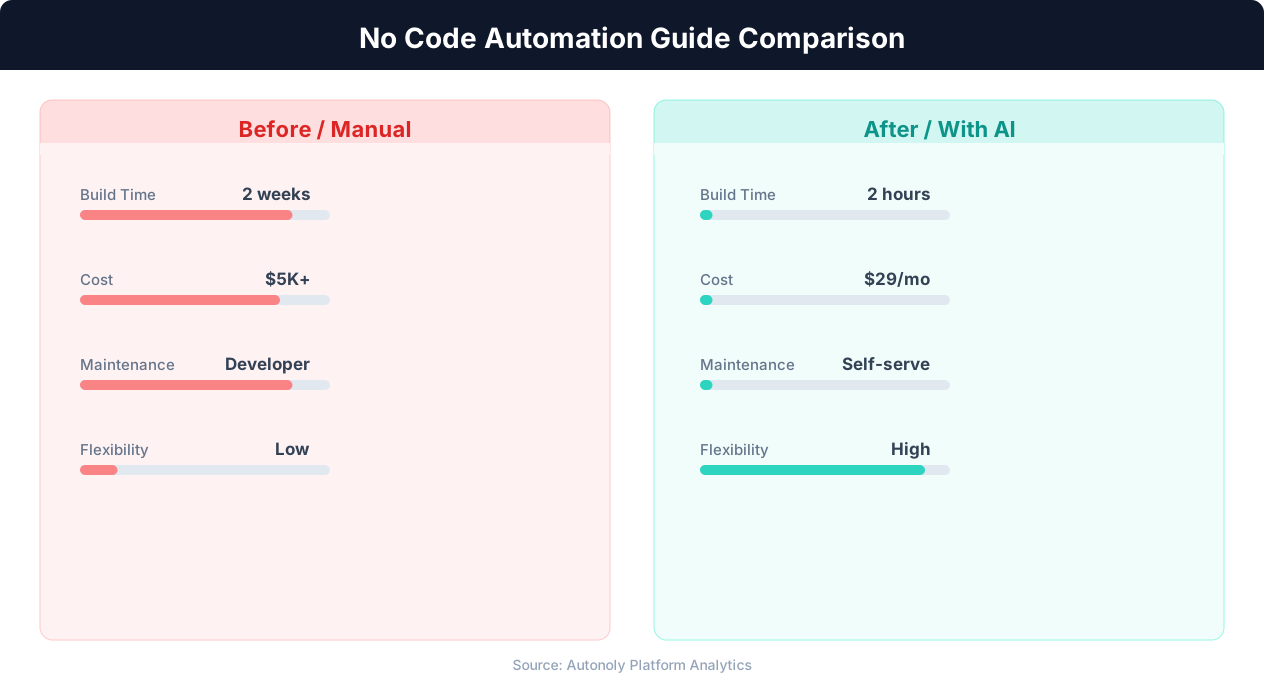
No-code automation reduces implementation time by 80% compared to custom-coded solutions, from weeks to hours.
Step 4: Add the Slack Action
Drag a "Slack" action node onto the canvas and connect it to the transformation node. Configure it to post to your #sales-leads channel. Map the transformed message as the notification text. You can also configure the message format — bold the lead name, add an emoji prefix, or include a link to the spreadsheet row.
Step 5: Test the Workflow
Before going live, test the workflow. Most platforms offer a "Test" button that simulates the trigger with sample data. Click Test to run the workflow with a dummy spreadsheet row. Check Slack to verify that the notification arrived with the correct formatting and data. If anything is off — wrong channel, missing fields, bad formatting — adjust the configuration and test again.
Step 6: Activate
Once testing confirms the workflow works correctly, toggle it to "Active." From this point on, every new row in your lead spreadsheet triggers an automatic Slack notification within seconds. The sales team sees new leads instantly, without anyone needing to remember to post in Slack.
Step 7: Iterate and Improve
After running for a week, review the workflow's performance. Are there improvements to make? Common enhancements include: adding conditional logic to route leads to different Slack channels based on lead source or geography, including a link to the lead's LinkedIn profile or company website, or adding a second action that creates a task in your project management tool alongside the Slack notification.
This simple workflow took 15-20 minutes to build and saves 5-10 minutes per day in manual Slack posting — plus it eliminates the delay and forgotten notifications that came with the manual process. More importantly, it taught you the fundamental concepts of triggers, transformations, and actions that apply to every automation you will build going forward.
Common Automation Patterns for Non-Technical Teams
After building your first automation, you will start recognizing patterns — recurring workflow structures that apply to many different use cases. Learning these patterns accelerates your automation building because you can adapt proven structures rather than designing from scratch each time.
Pattern 1: Event-Action (Trigger and Do)
The simplest pattern: when something happens, do something. When a form is submitted, create a CRM record. When an order is placed, send a confirmation email. When a file is uploaded, move it to the correct folder. This pattern is a single trigger connected to a single action — the building block of all automation.
Pattern 2: Event-Transform-Action (ETL Lite)
When something happens, process the data, then do something. When a customer submits an inquiry, extract their company name, look up the company in your database, assign the inquiry to the account owner, and create a CRM record with the enriched data. This pattern adds a transformation layer between trigger and action — the most common structure for data entry automation.
Pattern 3: Fan-Out (One-to-Many)
One event triggers multiple independent actions. A new customer signup creates a CRM contact, adds them to a welcome email sequence, posts a notification in Slack, and logs the event in a spreadsheet. Each action runs independently — if the Slack post fails, the CRM record is still created. Fan-out patterns replace workflows where one person manually performs several steps in different systems after a single event.
Pattern 4: Conditional Routing
An event triggers different actions depending on the data. A new support ticket with priority "High" goes to the senior support channel; "Medium" goes to the standard queue; "Low" triggers an auto-response with FAQ links. Conditional routing handles the decision-making that previously required human judgment for straightforward rules-based decisions.
Pattern 5: Scheduled Collection and Report
At a scheduled time, collect data from one or more sources, process it, and deliver a summary. Every Monday at 8 AM, pull last week's sales data from Shopify, marketing metrics from Google Analytics, and lead counts from HubSpot. Calculate week-over-week changes, format into a summary, and email it to the leadership team. This pattern drives the automated reporting workflows that many teams implement as their second or third automation.
Pattern 6: Loop Processing (Batch Operations)
Process each item in a list independently. For each row in a spreadsheet, send a personalized email. For each product in a catalog, check the competitor's price. For each invoice in a folder, extract the total and log it in the accounting system. Loop patterns handle batch operations that would take hours to perform manually.
Pattern 7: Error Handling and Retry
When an action fails, try again or take an alternative action. If the CRM API returns a rate limit error, wait 60 seconds and retry. If the email send fails, log the failure and alert the team. If a web scrape returns empty data, skip the record and continue with the next one. Error handling patterns ensure your automations are resilient to the inevitable failures that occur when working with external systems.
Combining Patterns
Real-world automations combine multiple patterns. A lead processing workflow might use Event-Transform-Action for the initial data processing, Fan-Out to create records in multiple systems, Conditional Routing to assign leads to different teams, and Error Handling to manage API failures. As you build more automations, you will instinctively recognize which pattern combination fits each new use case.
Scaling Your Automation Program Across the Organization
Once your first few automations are running successfully, the natural next step is expanding automation across the organization. Scaling effectively requires governance, documentation, and a systematic approach to identifying and prioritizing new automation opportunities.
Building an Automation Catalog
Document every active automation in a central catalog (a Google Sheet or project management tool works well). For each automation, record: the workflow name, what it does (in plain language), which systems it connects, who owns it, when it was built, how often it runs, and the estimated time savings per week. This catalog serves three purposes: it prevents duplicate automations, it showcases existing capabilities to other teams, and it provides a maintenance reference when workflows need updating.
Establishing Ownership and Governance
Every automation needs an owner — someone responsible for monitoring its performance, updating it when source systems change, and troubleshooting failures. Without clear ownership, automations break silently and create more problems than they solve. For non-technical teams, the owner is typically the person who built the automation or the person whose work it replaces.
Governance rules prevent automation chaos:
💡 Key Insight
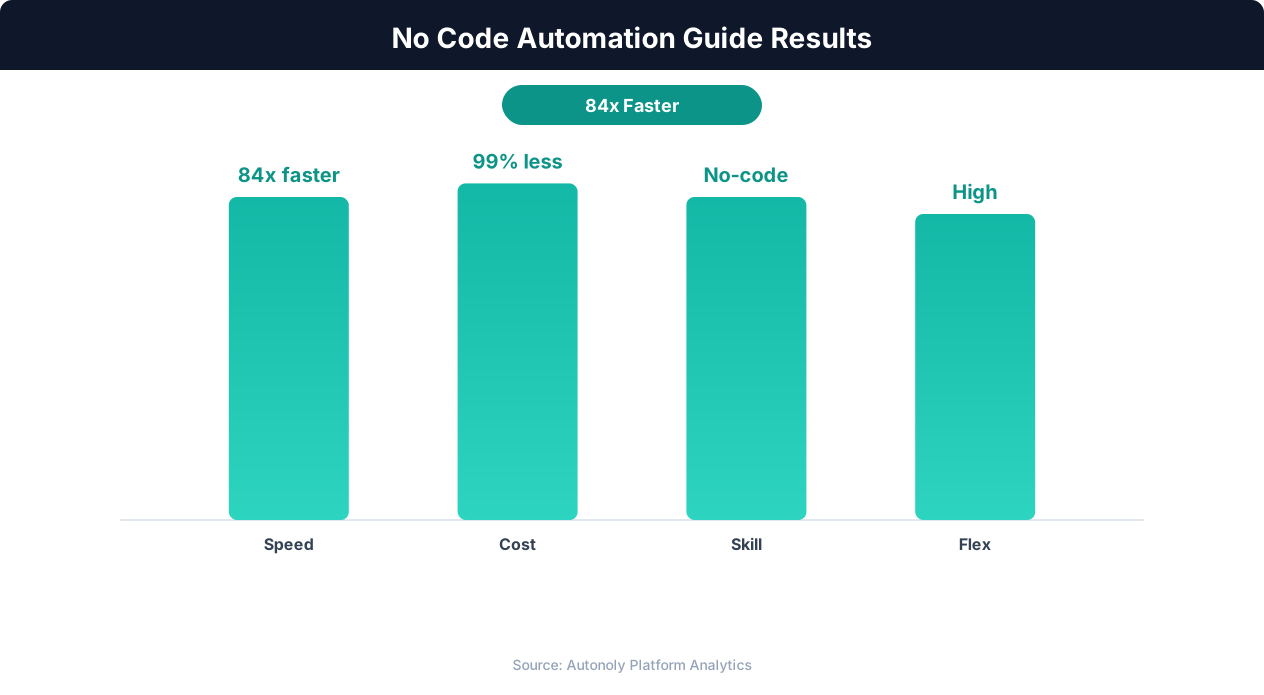
65% of business process automation is now built by non-technical users using no-code platforms.
- Naming conventions: Standardize workflow names so anyone can understand what they do. Use a format like "[Trigger] to [Action]: [Purpose]" — for example, "Form Submit to HubSpot: New Lead Creation."
- Testing requirements: Every new automation must be tested with real data before activation. No exceptions.
- Change management: When a source system changes (API update, new field added, platform migration), review all automations connected to that system and update as needed.
- Access control: Limit who can create, modify, and activate automations. On some platforms, this means managing user roles and permissions.
Identifying New Opportunities
After your initial automation wins, other teams will ask: "Can you automate [task] for us?" Capture these requests in a backlog and prioritize them using the same criteria as your initial audit: frequency, consistency, volume, and error impact. Run quarterly automation audits across departments to systematically uncover new opportunities.
Training and Enablement
The most effective scaling strategy is enabling other team members to build their own automations rather than centralizing all automation work in one person or team. Provide training sessions that cover the visual builder interface, common automation patterns, and testing best practices. Pair new builders with experienced ones for their first automation. Create a library of template workflows that new builders can duplicate and customize rather than building from scratch.
Measuring Program Impact
Track the aggregate impact of your automation program: total hours saved per week across all automations, error reduction rates, cost savings (hours saved multiplied by average labor cost), and employee satisfaction improvements. Report these metrics to leadership quarterly to maintain organizational support for the automation program and justify platform costs.
When to Involve Engineering
No-code automation handles the majority of business process automation needs, but some scenarios benefit from engineering involvement: integrations with internal databases or custom APIs, workflows requiring complex data processing beyond visual builder capabilities, security-sensitive automations involving personally identifiable information, and high-volume workflows that exceed platform rate limits. Establish a clear escalation path from your no-code automation team to engineering for these cases. The goal is to handle 80% of automation needs without engineering, freeing engineering capacity for the 20% that truly requires their skills.
Common Mistakes and How to Avoid Them
Every automation builder makes mistakes. Knowing the common pitfalls in advance helps you avoid them and build more reliable automations from the start.
Mistake 1: Automating a Bad Process
The first instinct is to replicate the existing manual process as an automation. But if the manual process itself is inefficient — with unnecessary steps, redundant approvals, or outdated routing logic — automating it locks in that inefficiency. Before automating, ask: "If we were designing this process from scratch, would it look like this?" Simplify the process first, then automate the simplified version.
Mistake 2: No Error Handling
The most common technical mistake is building workflows that assume everything will work perfectly. APIs return errors. Source data is sometimes malformed. Systems go down for maintenance. Build error handling into every workflow: retry logic for transient failures, fallback actions for persistent failures, and alerts that notify you when something breaks. A workflow without error handling is a time bomb.
Mistake 3: Ignoring Data Quality
Automation amplifies data quality issues. Manual data entry includes an implicit quality check — the person entering data notices obvious errors. Automated workflows process whatever data they receive, including garbage. Add validation steps to your workflows: check that required fields are not empty, verify that numbers fall within expected ranges, confirm that email addresses contain an @ symbol, and flag records that deviate from expected patterns.
Mistake 4: Over-Engineering
It is tempting to build elaborate automations that handle every possible edge case. Resist this temptation, especially when starting out. Build the simplest version that handles the common case (80% of scenarios), deploy it, and then add complexity incrementally based on real-world issues. A simple automation running today is more valuable than a perfect automation that takes weeks to build.
Mistake 5: No Documentation
Workflows look self-explanatory when you build them, but they become opaque after a few months — even to the person who built them. Document each workflow: what it does, why it was built, what triggers it, what systems it connects, and any known limitations. Update documentation when you modify the workflow. Future you (and your colleagues) will thank you.
Mistake 6: Not Monitoring Active Workflows
Set-and-forget is not a strategy. Active automations need monitoring. Check execution logs weekly to catch silent failures, review data quality in destination systems, and verify that scheduled workflows are running on time. Most platforms provide dashboards showing workflow execution history — review them regularly.
Mistake 7: Single Point of Failure
If only one person knows how all the automations work, you have a single point of failure. That person gets sick, goes on vacation, or leaves the company, and no one can troubleshoot or modify the automations. Ensure at least two people understand each critical automation, maintain documentation in a shared location, and use descriptive naming so workflows are understandable to newcomers.
Avoiding these mistakes from the start builds a robust, sustainable automation practice. For more on choosing the right automation platform and avoiding common evaluation pitfalls, see our comparison of Zapier, Make, n8n, and Autonoly.