Why Google Sheets Needs Automation
Google Sheets is the operational backbone for millions of businesses. It serves as CRM, project tracker, financial model, reporting dashboard, and data warehouse — often all at once. The problem is not the tool itself; Sheets is remarkably capable. The problem is the manual labor required to keep spreadsheets current, accurate, and useful.
The Manual Spreadsheet Problem
Consider a typical business operation: a marketing team tracks competitor pricing in a Google Sheet, updating it weekly by visiting 20 competitor websites, copying prices, and pasting them into the spreadsheet. An operations team maintains an inventory tracker that requires manual updates every time a shipment arrives or an order ships. A finance team compiles a weekly revenue report by copying data from Stripe, Shopify, and Amazon into a master spreadsheet. Each of these workflows involves someone spending 30-60 minutes performing repetitive data entry — work that could be fully automated.
The manual approach creates three problems that compound over time. First, the data is stale between updates. If you update competitor prices weekly, your data is already a day old on Tuesday and six days old by the following Monday. Second, errors accumulate with every manual entry. A misplaced decimal point in a pricing spreadsheet or a wrong date in a revenue report can cascade into bad business decisions. Third, the person doing the data entry is spending time on mechanical work instead of analysis, strategy, or other high-value activities.
What Google Sheets Automation Looks Like
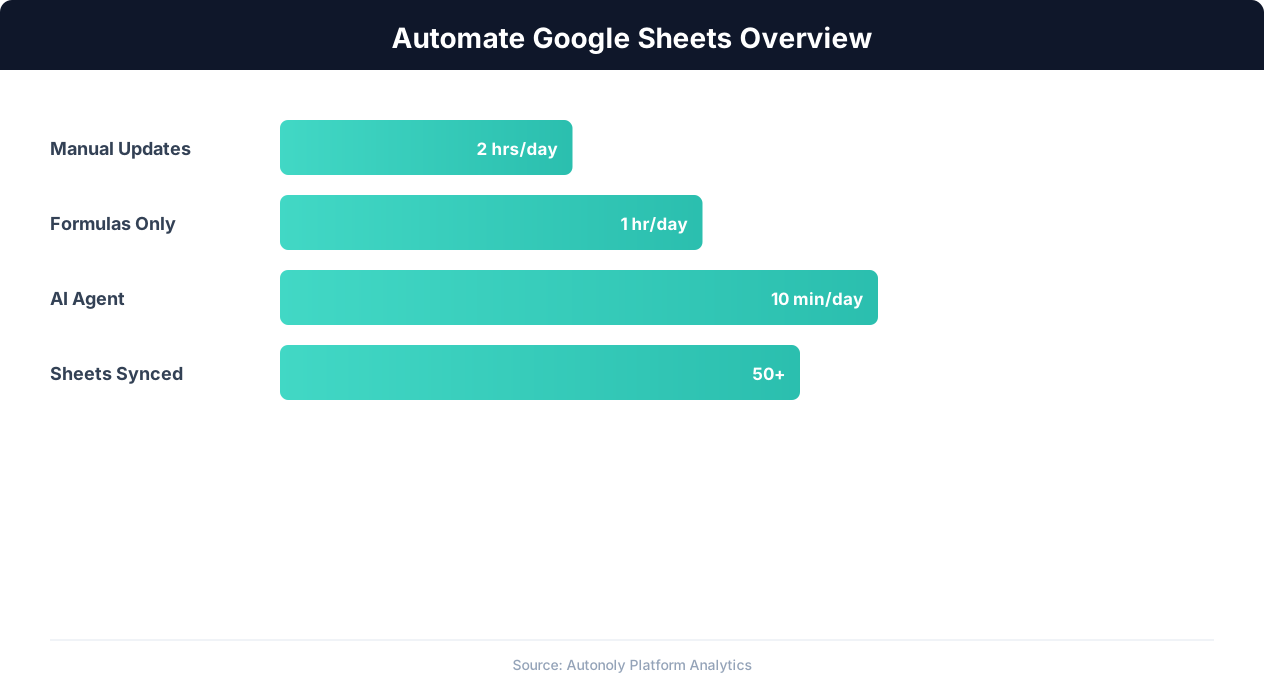
An automated Google Sheet populates itself. Data flows in from websites, APIs, databases, and other tools without anyone typing a single cell. Calculations update automatically when new data arrives. Reports generate and distribute themselves on schedule. The spreadsheet becomes a living dashboard that reflects the current state of your business rather than a snapshot that was accurate three days ago.
The Automation Stack for Google Sheets
Google Sheets automation typically involves three layers:
- Data input automation: Scraping websites, pulling from APIs, receiving webhook data, or importing from other tools — all feeding directly into Sheets without manual entry.
- Data transformation automation: Formulas, scripts, and workflow tools that clean, calculate, and organize incoming data automatically.
- Data output automation: Scheduled reports, alerts, dashboards, and notifications that distribute insights from Sheets data to stakeholders without manual compilation.
Each layer can be automated independently, but the real power comes from connecting all three into an end-to-end pipeline: data enters the Sheet automatically, is processed and organized automatically, and generates reports and alerts automatically. The result is a hands-free intelligence system built on a tool your team already knows how to use.
Auto-Populating Sheets with Scraped Website Data
One of the highest-value Google Sheets automations is automatically populating spreadsheets with data scraped from websites. Competitor prices, product listings, job postings, real estate data, news articles, and market statistics can all flow directly from the web into your spreadsheets on a scheduled basis.
Built-In Options: IMPORTDATA, IMPORTHTML, IMPORTXML
Google Sheets includes built-in functions for importing web data:
- IMPORTDATA(url): Imports data from a CSV or TSV file at a specified URL. Works well for open data sources that publish CSV files (government data, public APIs).
- IMPORTHTML(url, query, index): Imports data from HTML tables or lists on a web page. Specify "table" or "list" and the index (1st table, 2nd table, etc.) to extract.
- IMPORTXML(url, xpath): Imports data using an XPath query. The most flexible built-in option, but requires knowledge of XPath syntax.
These functions are useful for simple, static web pages but have significant limitations: they do not handle JavaScript-rendered content, they break when the page structure changes, they cannot bypass anti-bot measures, and they are rate-limited to prevent abuse. For anything beyond basic static HTML tables, you need external automation.
Scraping Dynamic Websites into Sheets
Most valuable web data lives on dynamic, JavaScript-rendered websites that the IMPORT functions cannot handle. E-commerce prices, real estate listings, financial data, and social media metrics all require a real browser to render. Autonoly bridges this gap by scraping dynamic websites with an AI-powered browser agent and writing the results directly to Google Sheets.
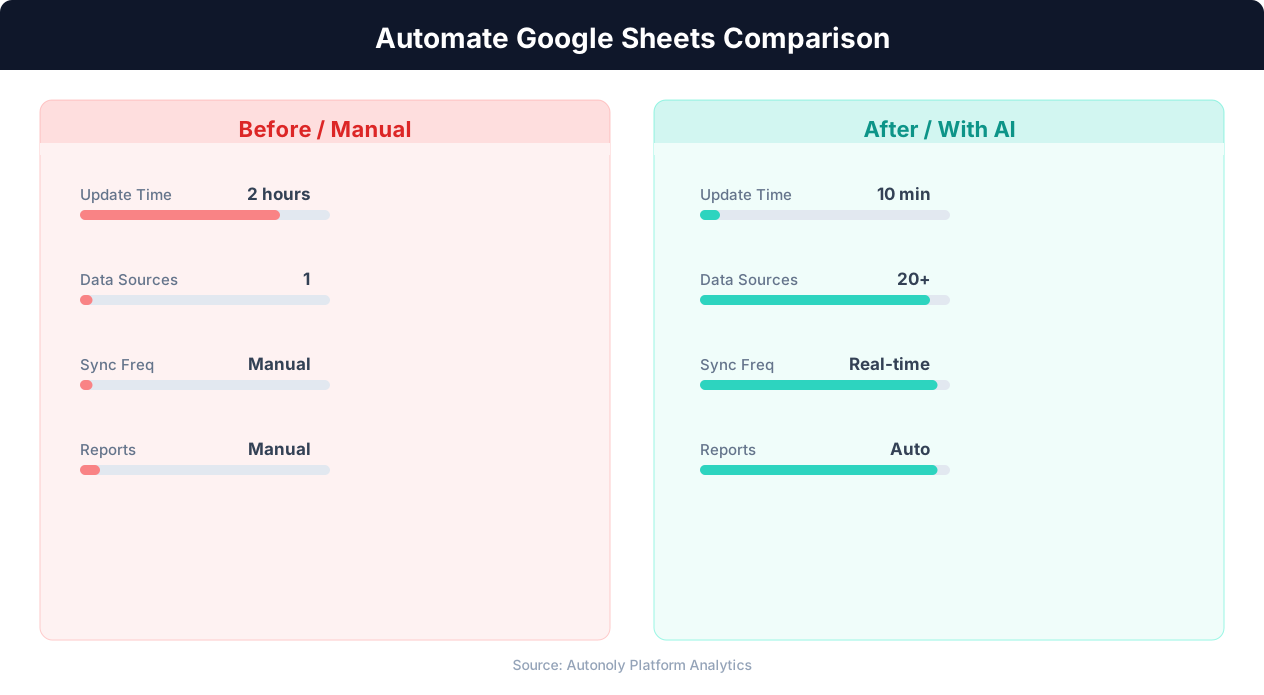
The workflow is straightforward: define what data you want to scrape (target website, data fields, pagination rules), connect your Google account, specify the destination spreadsheet and sheet tab, and set a schedule. Autonoly's agent handles the browser automation, anti-detection, data extraction, and Sheets integration.
Example: Competitor Price Monitoring in Sheets
A common automation monitors competitor product prices and records them in a Google Sheet:
- Autonoly's agent visits each competitor's product page daily at 6 AM.
- The agent extracts the current price, availability status, and any promotional tags.
- The data is written to a Google Sheet with columns: Date, Competitor, Product, Price, Availability, Promotion.
- Each day's scrape appends new rows, building a time series of competitor pricing.
- Pivot tables and charts in the same Sheet visualize price trends and competitive positioning.
This automation runs unattended and provides a continuously updated competitive intelligence dashboard. For deeper coverage of price monitoring automation, see our guide on e-commerce price monitoring.
Handling Large Datasets
Google Sheets has a limit of 10 million cells per spreadsheet. For most scraping automation, this is more than sufficient — a spreadsheet with 20 columns can hold 500,000 rows. However, if your scraping produces very large datasets (monitoring thousands of products daily), implement a data retention strategy: archive old data to a separate spreadsheet or database periodically, keeping only the most recent 90 days in the active Sheet. Autonoly's workflows can handle this archiving step automatically.
Pulling API Data into Google Sheets Automatically
Beyond web scraping, Google Sheets can be automatically populated from the APIs of your business tools — creating a centralized data hub that aggregates information from across your entire stack.
Common API-to-Sheets Integrations
Virtually every modern SaaS tool offers an API, and connecting these APIs to Google Sheets creates powerful automated data pipelines:
- Stripe/PayPal to Sheets: Pull daily transaction data, revenue totals, refund counts, and subscription metrics. Build a financial dashboard that updates automatically every morning.
- Shopify/WooCommerce to Sheets: Import order data, inventory levels, product performance metrics, and customer information. Track e-commerce KPIs without logging into the platform.
- HubSpot/Salesforce to Sheets: Export lead pipeline data, deal stages, activity metrics, and contact lists. Create sales reports that update in real time.
- Google Analytics to Sheets: Import website traffic data, conversion metrics, page performance, and campaign results. Build SEO and marketing dashboards in a familiar spreadsheet format.
- Social media platforms to Sheets: Pull follower counts, engagement metrics, post performance, and audience demographics from LinkedIn, Instagram, Twitter, and Facebook.
Using Google Apps Script
Google Apps Script is JavaScript that runs natively within Google Sheets. It can make API calls, process responses, and write data to cells programmatically. For simple integrations, Apps Script is a free, built-in option:
function pullStripeRevenue() {
  var options = {
    'method': 'get',
    'headers': {
      'Authorization': 'Bearer sk_live_YOUR_KEY'
    }
  };
  var response = UrlFetchApp.fetch(
    'https://api.stripe.com/v1/charges?limit=100',
    options
  );
  var data = JSON.parse(response.getContentText());
  var sheet = SpreadsheetApp.getActiveSheet();
  data.data.forEach(function(charge, i) {
    sheet.getRange(i + 2, 1).setValue(charge.id);
    sheet.getRange(i + 2, 2).setValue(charge.amount / 100);
    sheet.getRange(i + 2, 3).setValue(charge.currency);
    sheet.getRange(i + 2, 4).setValue(
      new Date(charge.created * 1000)
    );
  });
}
Apps Script supports time-driven triggers that run functions on a schedule (every hour, every day, every week), enabling automated data refresh without external tools.
Limitations of Apps Script
While Apps Script is powerful, it has limitations that make it unsuitable for complex automation: a 6-minute execution time limit per function call, limited error handling capabilities, no built-in retry logic, and difficulties with OAuth authentication flows for third-party APIs. For multi-step workflows that involve multiple APIs, data transformations, and conditional logic, a dedicated automation platform is more appropriate.
Autonoly's API-to-Sheets Workflow
Autonoly's workflow builder provides a visual, no-code way to connect APIs to Google Sheets. Drop an API node onto the canvas, configure the endpoint and authentication, add transformation nodes to process the response data, and connect a Google Sheets node to write the output. The workflow runs on your configured schedule and handles pagination, error retries, and data formatting automatically.
The advantage over Apps Script is flexibility: Autonoly workflows can chain multiple API calls together, handle complex authentication (OAuth 2.0, API keys, bearer tokens), process large datasets that exceed Apps Script's time limits, and include browser automation steps for data sources that do not have APIs. A single workflow might pull data from Stripe, Shopify, and Google Analytics, combine and transform it, and write a unified report to Sheets — something that would require three separate Apps Scripts and custom merge logic.
Automating Data Transformations and Cleanup
Raw data flowing into Google Sheets rarely arrives in the format you need for analysis. Dates use different formats, numbers include currency symbols, text fields have inconsistent capitalization, and records from different sources use different naming conventions. Automating data transformation ensures that every row in your spreadsheet is clean, consistent, and analysis-ready without manual reformatting.
Common Transformation Tasks
The most frequent data transformation needs in Google Sheets include:
- Date formatting: API responses return dates as Unix timestamps (1709251200), ISO strings ("the current year-02-01T00:00:00Z"), or local formats ("02/01/the current year"). Standardize to a consistent format ("the current year-02-01") for sorting and filtering.
- Currency normalization: Price data arrives with currency symbols ("$49.99"), thousands separators ("1,234.56"), or different decimal notations ("49,99" in European formats). Strip formatting characters and store as plain numbers.
- Text standardization: Product names, company names, and categories arrive in different cases ("ACME Corp", "acme corp", "Acme Corporation"). Standardize to a consistent format for accurate grouping and lookup.
- Field splitting and merging: Full names need splitting into first and last. Address components (street, city, state, ZIP) may arrive as a single string or separate fields. Phone numbers need country code normalization.
- De-duplication: Multiple data sources often contain overlapping records. Identify and merge duplicates based on key fields (email address, product ID, company name).
- Calculated fields: Derive new columns from existing data: profit margin from cost and price, age from birth date, days since last activity from last contact date.
Formula-Based Transformations
Google Sheets formulas handle many transformations natively. ARRAYFORMULA extends single-cell formulas across entire columns, QUERY filters and aggregates data using SQL-like syntax, REGEXEXTRACT pulls patterns from text, and SPLIT breaks delimited strings into separate cells. These formulas update automatically when new data arrives, making them ideal for ongoing transformation rules.
Example: a QUERY formula that aggregates daily sales data into a weekly summary:
=QUERY(RawData!A:E,
  "SELECT B, SUM(D), COUNT(A)
   WHERE A IS NOT NULL
   GROUP BY B
   LABEL SUM(D) 'Total Revenue', COUNT(A) 'Order Count'",
  1)
Workflow-Based Transformations
For transformations that are too complex for formulas — multi-step cleaning pipelines, cross-sheet lookups, conditional logic with external data, or transformations that require API calls — use Autonoly's workflow builder. Transformation nodes in the workflow process data between the input and output steps: splitting, merging, filtering, calculating, and formatting data according to your rules.
The advantage of workflow-based transformation over formulas is scalability and maintainability. A complex transformation pipeline expressed as a series of visual nodes is easier to understand, debug, and modify than a nested chain of ARRAYFORMULA, IF, REGEXEXTRACT, and QUERY functions.
Validation and Quality Checks
Automated transformation should include validation steps that flag data quality issues before they enter your spreadsheet. Configure validation rules for each field: email addresses must contain "@", dates must be within a reasonable range, prices must be positive numbers, and required fields must not be empty. Records that fail validation are either corrected automatically (trimming whitespace, fixing known format issues) or routed to a review queue for manual inspection.
Building Self-Generating Reports and Dashboards
The ultimate expression of Google Sheets automation is a reporting system that generates and distributes insights without any human involvement. Data flows in automatically, transformations process it, and reports — complete with charts, summaries, and highlights — distribute themselves to the right people on the right schedule.
Self-Refreshing Dashboards
A Google Sheets dashboard that updates automatically requires three components: automated data input (covered in previous sections), dynamic formulas and charts that recalculate when data changes, and a layout designed for at-a-glance consumption.
Design effective dashboards by following these principles:
- Put KPIs at the top. The most important metrics (revenue, conversion rate, inventory level, lead count) should be visible without scrolling. Use large, bold numbers with trend indicators (up/down arrows, percentage changes).
- Use conditional formatting aggressively. Color-code cells to indicate status: green for on-target metrics, yellow for warning thresholds, red for critical issues. Conditional formatting turns a wall of numbers into a visual status board.
- Separate raw data from presentation. Keep raw data in dedicated tabs ("Raw Data," "Import Log") and build dashboard views in separate tabs that reference the raw data through formulas. This keeps the dashboard clean while preserving the underlying data for ad-hoc analysis.
- Include a "Last Updated" timestamp. Display when the data was last refreshed so viewers know the data freshness. Update this timestamp automatically when new data arrives.
Automated Report Distribution
A dashboard is only useful if people see it. Automated report distribution ensures that the right stakeholders receive the right data at the right time, without anyone manually compiling and emailing reports:
💡 Key Insight
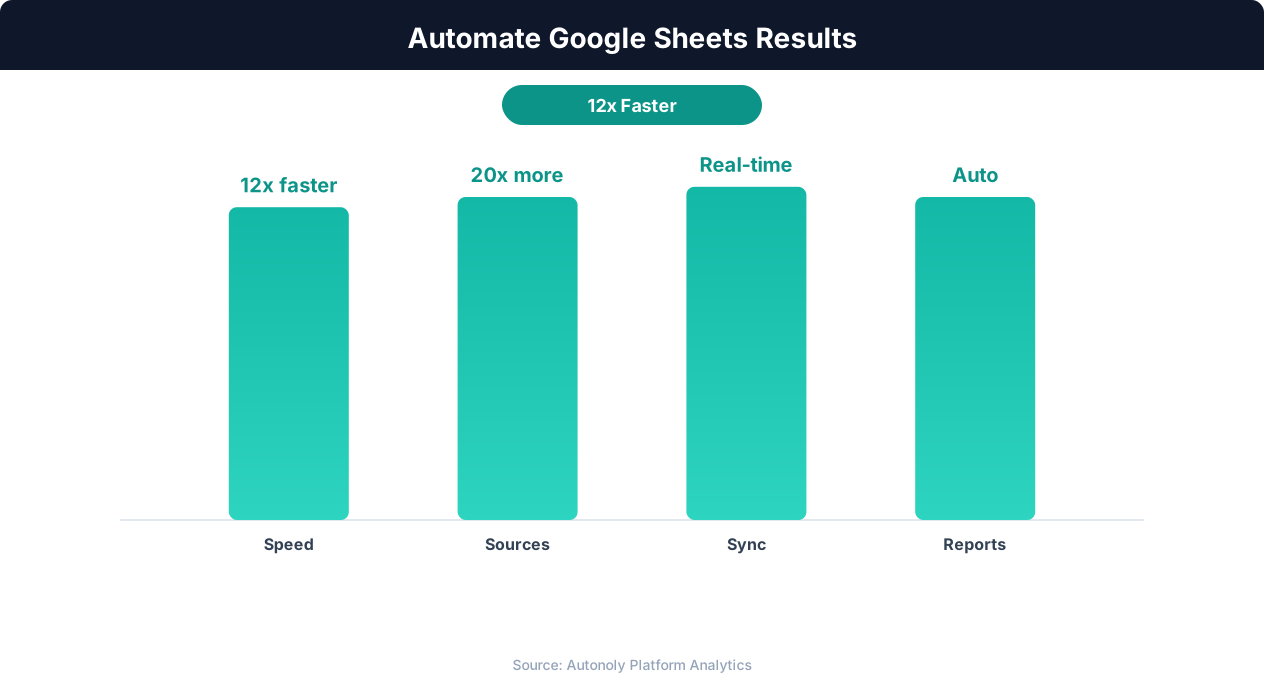
Teams using Google Sheets automation save an average of 12 hours per week on data management tasks.
- Scheduled email reports: Use automated email workflows to send Sheets data as formatted email digests. Daily revenue summaries to the founder, weekly marketing metrics to the marketing team, monthly financial summaries to the board.
- Slack/Teams notifications: Post key metrics to team channels when they update. A daily message in #sales showing yesterday's pipeline changes is more visible than a spreadsheet link that sits in someone's bookmarks.
- PDF report generation: Export specific Sheet tabs as PDFs and distribute them via email. Useful for client-facing reports, board presentations, and compliance documentation.
Example: Automated Weekly Business Report
Here is a complete automated reporting workflow:
- Monday 5 AM: Autonoly workflows pull data from Stripe (revenue), Shopify (orders), Google Analytics (traffic), and HubSpot (leads) into a master Google Sheet.
- Monday 5:30 AM: Transformation formulas calculate weekly totals, week-over-week changes, and trend indicators.
- Monday 6 AM: An email automation sends a formatted weekly summary to the leadership team, including: total revenue with WoW change, top-selling products, website traffic highlights, new leads by source, and any metrics that crossed warning thresholds.
This report generates and distributes itself every week with zero human effort. Leadership starts Monday morning with a clear picture of last week's performance.
Alert-Based Reports
Beyond scheduled reports, build alert-based notifications that trigger when specific conditions are met: revenue drops below a daily threshold, inventory for a key product falls below the reorder point, a competitor changes their pricing significantly, or a marketing campaign's conversion rate spikes or drops. These real-time alerts supplement scheduled reports with time-sensitive intelligence that cannot wait for the next scheduled distribution.
Connecting Your Entire Tool Stack to Google Sheets
Google Sheets becomes exponentially more powerful when it serves as a central hub connecting all your business tools. Instead of logging into five different platforms to understand your business, you look at one spreadsheet that aggregates data from all of them.
The Hub-and-Spoke Model
In the hub-and-spoke model, Google Sheets sits at the center and receives data from multiple sources (the spokes). Each spoke is a separate automation workflow that pulls data from one tool and writes it to a specific tab in the Sheet. The Sheet then serves as the single source of truth for cross-tool analysis that no individual tool can provide.
Common spoke configurations:
| Source Tool | Data Pulled | Sheet Tab | Frequency |
|---|---|---|---|
| Stripe | Transactions, revenue, refunds | Revenue | Daily |
| Shopify | Orders, products, inventory | Orders | Daily |
| Google Analytics | Traffic, conversions, sources | Web Traffic | Daily |
| HubSpot | Leads, deals, pipeline | Sales Pipeline | Daily |
| Mailchimp | Campaign metrics, subscribers | Email Marketing | Weekly |
| Competitor websites | Prices, availability | Competitor Intel | Daily |
| Social media | Followers, engagement | Social Metrics | Weekly |
💡 Key Insight
Automated Google Sheets workflows reduce data synchronization errors by 94% across connected platforms.
Cross-Tool Analysis in Sheets
With data from multiple tools in one spreadsheet, you can perform analyses that are impossible within any single tool:
- Attribution analysis: Combine Google Analytics traffic sources with Stripe revenue data to calculate actual revenue per traffic source — not just conversion rate, but dollar value per visitor from each channel.
- Customer lifecycle tracking: Connect HubSpot lead data with Shopify order data to measure the full journey from first website visit to first purchase to repeat purchase.
- Marketing efficiency: Compare email campaign costs (Mailchimp) with attributed revenue (Stripe) to calculate true return on marketing investment per campaign.
- Competitive response analysis: Correlate your pricing changes with competitor price movements and your own sales volume to measure price elasticity and competitive dynamics.
Bidirectional Sync
Sheets does not have to be read-only. Bidirectional sync allows you to update data in Google Sheets and push those changes back to source systems. Edit a customer status in Sheets and update it in HubSpot. Change a product price in Sheets and update it in Shopify. Approve an expense in Sheets and mark it as approved in your accounting system. This turns Sheets into a lightweight command center for managing operations across multiple tools.
Autonoly's workflow builder supports bidirectional sync through trigger-based workflows: a change in a specified Sheet range triggers a workflow that reads the updated value and pushes it to the appropriate API endpoint. Combined with validation rules (prevent impossible values from syncing), this creates a safe, controlled way to manage data across systems from a single spreadsheet interface.
Team Collaboration
Google Sheets' collaboration features — simultaneous editing, commenting, sharing, and version history — make it the ideal platform for team-based data operations. When your Sheets are automatically populated with fresh data from across your tool stack, team members can focus on analysis, discussion, and decision-making rather than data gathering and entry. Comments and notes on specific cells create a record of decision context that lives alongside the data.
Advanced Tips for Google Sheets Power Users
Once you have the basics of Sheets automation running, these advanced techniques unlock additional efficiency and capability.
Named Ranges for Robust Automations
When automation workflows reference specific cells or ranges in your Sheets, use named ranges instead of cell references. A named range like "DailyRevenue" is more readable than "Sheet1!B2:B366" and does not break when rows are inserted or deleted. Define named ranges for all cells and ranges that your automation workflows read from or write to.
Versioned Sheet Architecture
For Sheets that accumulate historical data, implement a versioning strategy. Create a new tab for each month or quarter ("Revenue_Q1", "Revenue_Q2") and use a summary tab that aggregates across all period tabs. This prevents individual tabs from growing too large (which slows Sheets performance) while maintaining full historical data in a single workbook.
Error Logging and Audit Trails
Add a dedicated "Log" tab to your automated Sheets that records every automation run: timestamp, source, number of rows written, any errors encountered, and execution duration. This audit trail helps troubleshoot issues, verify data freshness, and demonstrate data lineage for compliance purposes. Autonoly's Google Sheets integration can write to both a data tab and a log tab in the same workflow.
Conditional Automation Triggers
Not all automation should run on a fixed schedule. Configure conditional triggers that activate based on data conditions: run the competitor price scrape only on weekdays, trigger an inventory alert only when stock drops below the reorder point, or generate a special report only when revenue exceeds a milestone threshold. Conditional triggers reduce unnecessary automation runs and focus alerts on genuinely important events.
Data Validation with Sheets Formulas
Add a validation layer using Sheets formulas that check automated data for quality issues:
=IF(AND(B2>0, B2<100000, LEN(A2)>0), "VALID", "CHECK")Apply conditional formatting to the validation column so that rows requiring attention are immediately visible. This catches edge cases that automated validation in the workflow might miss — unusual values that are technically valid but warrant human review.
Template Sheets for Recurring Reports
Create template Sheets that define the structure, formatting, and formulas for recurring reports. When a new report period starts, duplicate the template and connect it to the data pipeline. This ensures consistency across report periods and eliminates the time spent setting up formatting and formulas for each new report.
Google Sheets Add-ons for Extended Functionality
The Google Workspace Marketplace offers add-ons that extend Sheets capabilities: Supermetrics for marketing data integration, Coupler.io for database connections, and various charting add-ons for advanced visualization. These add-ons complement Autonoly's automation by providing additional data sources and presentation options within the Sheets environment.
For teams ready to move beyond spreadsheets for some use cases, Autonoly's workflow builder supports outputting to databases, APIs, and other tools alongside Google Sheets — allowing you to gradually transition specific workflows to more scalable infrastructure while maintaining Sheets for the use cases where it excels.