Why Scheduled Workflows Are the Backbone of Automation
Building an automated workflow is only half the value. The real power comes when that workflow runs on its own, on a schedule, without anyone remembering to trigger it. A web scraper that extracts competitor prices is useful when you run it manually. A web scraper that runs every morning at 6 AM and delivers a fresh price comparison to your inbox before you start work is transformative. The difference is scheduling, and it is one piece of a larger picture; our guide to what automation is and the workflow automation guide cover how scheduling fits end-to-end automation. The difference is scheduling — and it is exactly what scheduled execution is built for.
Scheduled workflows address the most persistent problem in business operations: the tasks that need to happen regularly but are not complex enough to warrant a full-time person and not important enough (on any single day) to be top of mind. Checking inventory levels. Pulling analytics reports. Monitoring competitor websites. Refreshing data in dashboards. Sending weekly summaries. These tasks are individually small but collectively consume enormous time when done manually, and they are the first things to slip when the team gets busy.
The value of scheduling compounds over time. A daily data collection workflow running for a year produces 365 snapshots that enable trend analysis impossible to achieve through manual spot-checking. A weekly report workflow delivers 52 consistent reports that stakeholders can rely on without ever asking "is the report ready yet?" Monthly compliance checks run 12 times a year with zero risk of being forgotten or skipped during busy periods.
Scheduling also enables time-based optimization. You can run resource-intensive workflows during off-peak hours when servers are less loaded and responses are faster. You can time outgoing communications for optimal engagement (sending emails at 9 AM in the recipient's time zone). You can collect data at consistent intervals to ensure trend analysis is not distorted by irregular sampling.
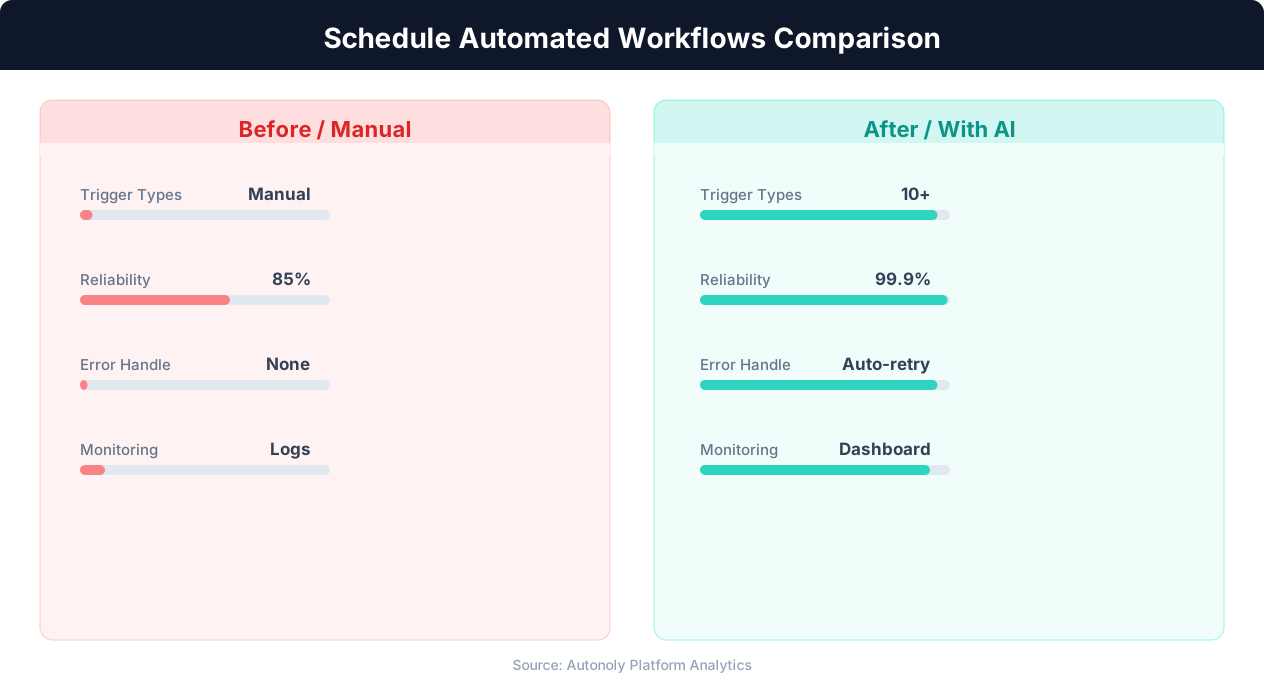
The tools for scheduling workflows range from the venerable Unix cron daemon (available on every Linux and macOS system) to modern workflow orchestration platforms that provide visual scheduling, monitoring, and error handling. The right tool depends on your technical comfort level, the complexity of your workflows, and whether you need the advanced features (dependency management, retry logic, alerting) that orchestration platforms provide.
This guide covers everything from basic cron syntax to production-grade scheduling strategies. Whether you are scheduling your first Python script or managing dozens of recurring workflows, the principles and techniques here will help you build a reliable, maintainable scheduling system.
Cron Expressions Explained: The Universal Scheduling Language
Cron expressions are the standard language for defining schedules in computing. Whether you are using Unix cron, cloud scheduling services, CI/CD pipelines, or workflow automation platforms, cron expressions are how you tell the system when to run your workflow. Understanding cron syntax is a foundational skill for anyone working with automation.
The Five-Field Format
A standard cron expression has five fields, separated by spaces:
┌───────────── minute (0-59)
│ ┌───────────── hour (0-23)
│ │ ┌───────────── day of month (1-31)
│ │ │ ┌───────────── month (1-12)
│ │ │ │ ┌───────────── day of week (0-7, where 0 and 7 are Sunday)
│ │ │ │ │
* * * * *
Each field accepts: a specific number (5), a list (1,3,5), a range (1-5), a step value (*/5 meaning every 5 units), or an asterisk (* meaning every value). Combining these gives you precise control over when workflows execute.
Common Cron Expressions
Here are the schedules you will use most frequently:
0 9 * * * — Every day at 9:00 AM. This is the most common schedule for daily reports, data collection, and monitoring workflows. The first 0 means minute 0, the 9 means hour 9, and the three * wildcards mean every day of the month, every month, and every day of the week.
0 9 * * 1-5 — Every weekday (Monday through Friday) at 9:00 AM. The 1-5 in the day-of-week field restricts execution to weekdays. Use this for business workflows that should not run on weekends.
*/30 * * * * — Every 30 minutes. The */30 in the minute field means every 30 minutes (at :00 and :30 past each hour). Use this for frequent monitoring workflows like price tracking or uptime checks.
0 */4 * * * — Every 4 hours. Runs at midnight, 4 AM, 8 AM, noon, 4 PM, and 8 PM. Good for data freshness requirements that are more frequent than daily but do not need real-time monitoring.
0 9 * * 1 — Every Monday at 9:00 AM. The 1 in the day-of-week field means Monday. Perfect for weekly summary reports and planning workflows.
0 9 1 * * — The first day of every month at 9:00 AM. The 1 in the day-of-month field means the 1st. Use this for monthly reports, billing workflows, and data archiving.
0 6,18 * * * — Twice daily at 6:00 AM and 6:00 PM. The comma-separated 6,18 in the hour field specifies two exact times. Useful for morning and evening data collection that bookends the business day.
Time Zone Considerations
Cron expressions execute in the time zone of the server or platform running them. This is critically important for workflows that must run at specific business hours. If your server runs in UTC but you need a workflow at 9 AM Eastern, you need to account for the offset (and for daylight saving time changes, which shift the offset twice a year). Most modern scheduling platforms let you specify the time zone for a schedule. Always set the time zone explicitly rather than relying on the server default.
Cron Expression Gotchas
The day-of-month and day-of-week fields interact in a non-obvious way. When both are specified (not wildcards), most cron implementations run the job when either condition is met, not both. 0 9 15 * 1 runs at 9 AM on the 15th of every month and on every Monday, not just on Mondays that fall on the 15th. This catches many people off guard. If you need a specific day-of-week within a specific week of the month, you typically need custom logic outside the cron expression.
Scheduling Tools: From Cron to Cloud Platforms
The right scheduling tool depends on your infrastructure, technical level, and workflow complexity. Here is a practical comparison of the options.
Unix Cron (Linux and macOS)
The original and simplest scheduling tool. Every Linux server and macOS system has cron available. Edit your crontab with crontab -e and add a line like 0 9 * * * /usr/bin/python3 /path/to/script.py. The workflow runs at the specified time as long as the machine is powered on.
Advantages: Zero cost, zero setup, universally available, extremely reliable for simple schedules. Limitations: No built-in monitoring (you will not know if a job fails unless you add logging and alerting yourself), no retry logic, no dependency management, and the machine must be on at the scheduled time. Cron is perfect for server-based scripts that run on machines with high uptime. It is inappropriate for anything that needs monitoring, retries, or runs on a laptop.
Cloud Scheduler Services
AWS EventBridge (formerly CloudWatch Events): Triggers AWS Lambda functions, Step Functions, or other AWS services on a cron schedule. Pay only for scheduled events (fractions of a cent per trigger). Ideal if your workflows run as Lambda functions or trigger AWS services.
Google Cloud Scheduler: Triggers Cloud Functions, Cloud Run, Pub/Sub, or HTTP endpoints. Simple setup through the Google Cloud Console. $0.10 per job per month (free tier includes 3 jobs).
Azure Logic Apps: Timer triggers for Azure workflows. Visual workflow builder with scheduling built in. Pricing based on action executions.
Cloud schedulers are excellent for triggering cloud-native workflows but require your workflow to be deployed as a cloud function or accessible via HTTP. They provide basic monitoring and retry capabilities out of the box.
Workflow Orchestration Platforms
Apache Airflow: The industry standard for complex workflow orchestration. Airflow represents workflows as DAGs (Directed Acyclic Graphs) with explicit dependencies between tasks. It provides scheduling, monitoring, retry logic, alerting, and a web UI for managing workflows. Airflow is powerful but complex: it requires its own server infrastructure and has a significant learning curve. Best for data engineering teams managing dozens of interdependent workflows.
Prefect: A modern alternative to Airflow with a simpler API and cloud-hosted option. Prefect handles scheduling, monitoring, and retries without requiring you to manage infrastructure. The Python API is cleaner than Airflow's, making it more accessible for teams that are not data engineering specialists.
n8n: A visual workflow automation platform with built-in scheduling. Create workflows with a drag-and-drop interface and set them to run on cron schedules. Good for non-technical users who need scheduling without code.
Automation Platform Scheduling
Platforms like Autonoly, Zapier, and Make include scheduling as a core feature. You build your workflow (scraping, data processing, notifications) within the platform and set it to run on a schedule with a few clicks. The platform handles execution, retries, monitoring, and alerting. This is the simplest option for teams that want reliable scheduling without managing infrastructure or writing scheduling code.
Autonoly's scheduling works with any workflow the AI agent can build in the visual workflow builder: scraping workflows, data processing pipelines, cross-application automations, and report generation. Set the schedule, and the platform runs the workflow on time, every time, with built-in error handling and notification. Recurring runs can post results straight to a Slack workspace or land in Google Sheets without any manual step.
Designing Workflows for Scheduled Execution
Workflows designed for interactive, manual execution need modification to run reliably on a schedule. Scheduled workflows must be self-contained, error-resilient, and observable. Here are the design principles that make the difference between a workflow that runs once and one that runs hundreds of times without intervention.
Idempotency: Safe to Run Twice
A scheduled workflow should produce the same result whether it runs once or multiple times for the same period. This property, called idempotency, protects against a common failure mode: the scheduler fires twice (due to clock skew, restart, or configuration error), and the workflow creates duplicate data or sends duplicate notifications.
Achieve idempotency by: using unique keys for database inserts (so duplicate runs update rather than duplicate), checking whether output already exists before generating it (if today's report file exists, skip generation), and designing notification logic to be tolerant of re-execution (checking a "sent" flag before sending emails). The simplest approach is often to design the workflow to completely replace its output on each run rather than appending: write today's data to a dated file, overwriting any previous version for the same date.
Self-Contained Configuration
Scheduled workflows run without human input. Every parameter must be defined in advance or derived at runtime. Date ranges should be calculated dynamically ("yesterday" rather than a hard-coded date). File paths should be absolute, not relative. Credentials should be sourced from environment variables or secret managers, not interactive prompts.
A common mistake is building a workflow that works when run manually from a specific directory but fails when cron runs it from a different working directory. Always use absolute paths and explicit environment setup in your scheduled scripts.
Error Handling and Recovery
Every external dependency in your workflow can fail: websites go down, APIs return errors, databases are temporarily unavailable, network connections time out. Scheduled workflows need retry logic for transient failures and graceful handling for persistent failures.
Implement a retry strategy with exponential backoff: retry after 1 second, then 2, then 4, then 8, up to a maximum number of retries. If all retries fail, log the error with enough context to diagnose the issue and continue with the remaining tasks if possible. A scraping workflow that fails on one of twenty target sites should process the other nineteen and report the one failure, not crash entirely.
For critical workflows, implement a dead-letter mechanism: when a task fails after all retries, record the failure details in a persistent store (database, file, or queue) so it can be investigated and retried manually. This prevents data loss from transient failures that resolve themselves.
Incremental Processing
Scheduled workflows should process only new or changed data, not reprocess everything from scratch. A daily scraping workflow should check which data is new since the last run rather than re-scraping and re-processing the entire dataset. Incremental processing is faster, uses fewer resources, and reduces the risk of introducing errors through reprocessing.
Track progress with a state file or database record that stores the last successful run time, the last processed page or item, or a checkpoint that allows resumption. If the workflow fails mid-execution, the checkpoint enables it to resume from where it left off rather than starting over.
Resource Management
Scheduled workflows that open browsers, database connections, or file handles must clean up after themselves. A browser that is launched but never closed leaks memory. A database connection that is opened but never committed loses data. Use context managers (with statements in Python) to ensure cleanup happens even when errors occur. Set timeouts on all operations so a hung workflow does not run indefinitely and overlap with the next scheduled execution.
Monitoring and Alerting: Knowing When Workflows Fail
A scheduled workflow that fails silently is worse than a manual process because no one knows it failed. Monitoring and alerting ensure you know immediately when something goes wrong, what went wrong, and how to fix it.
Health Checks and Heartbeats
The simplest monitoring approach is a heartbeat: after each successful run, the workflow sends a signal to a monitoring service. If the signal is not received within the expected timeframe, an alert fires. Services like Healthchecks.io, Cronitor, and Better Uptime provide this functionality: you get a unique URL, your workflow hits that URL at the end of each successful run, and the service alerts you if the URL is not hit on schedule.
Implementing a heartbeat is trivial. At the end of your workflow script, add a single HTTP request:
import requests
requests.get('https://hc-ping.com/your-unique-id')
If the script crashes before reaching this line, the heartbeat is missed, and you get an alert. This catches the most critical failure mode: workflows that die silently without producing any output or error notification.
Output Validation
Beyond checking whether the workflow ran, validate that it produced the expected output. A scraping workflow that completes without errors but extracts zero rows due to a website change is functionally a failure. After each run, check: did the workflow produce output? Is the output the expected size (roughly similar to previous runs)? Does the output pass basic quality checks (no empty required fields, values within expected ranges)?
💡 Key Insight
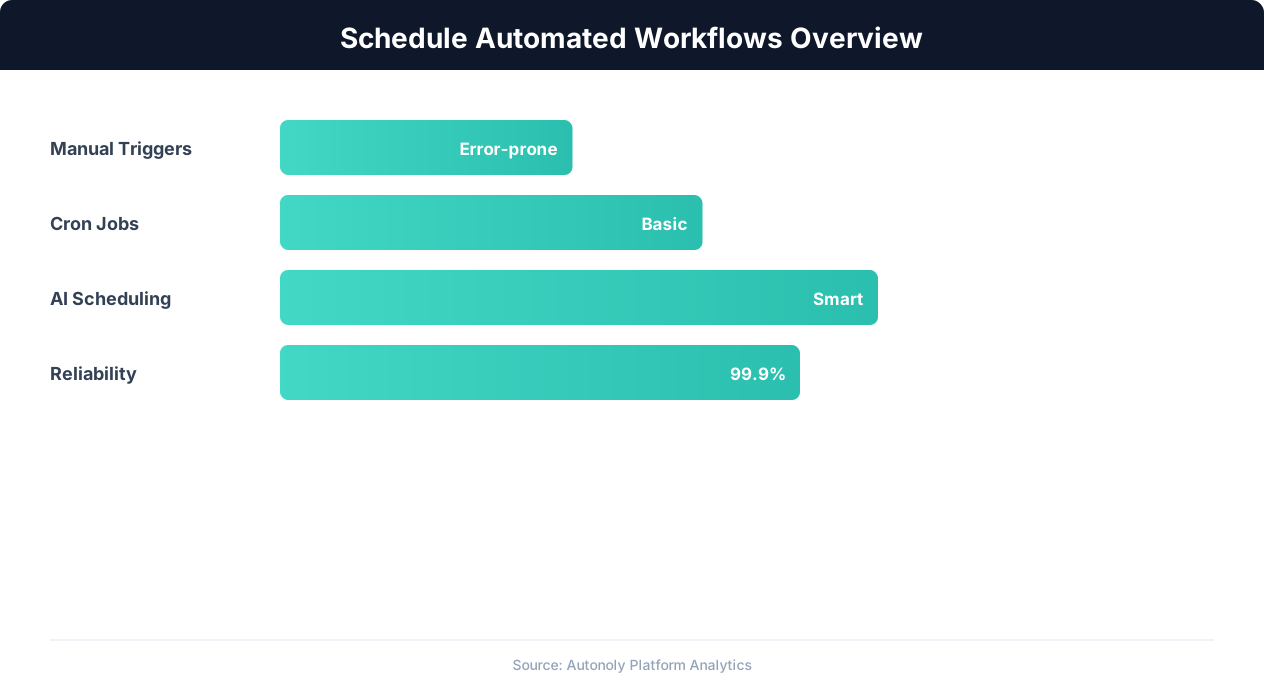
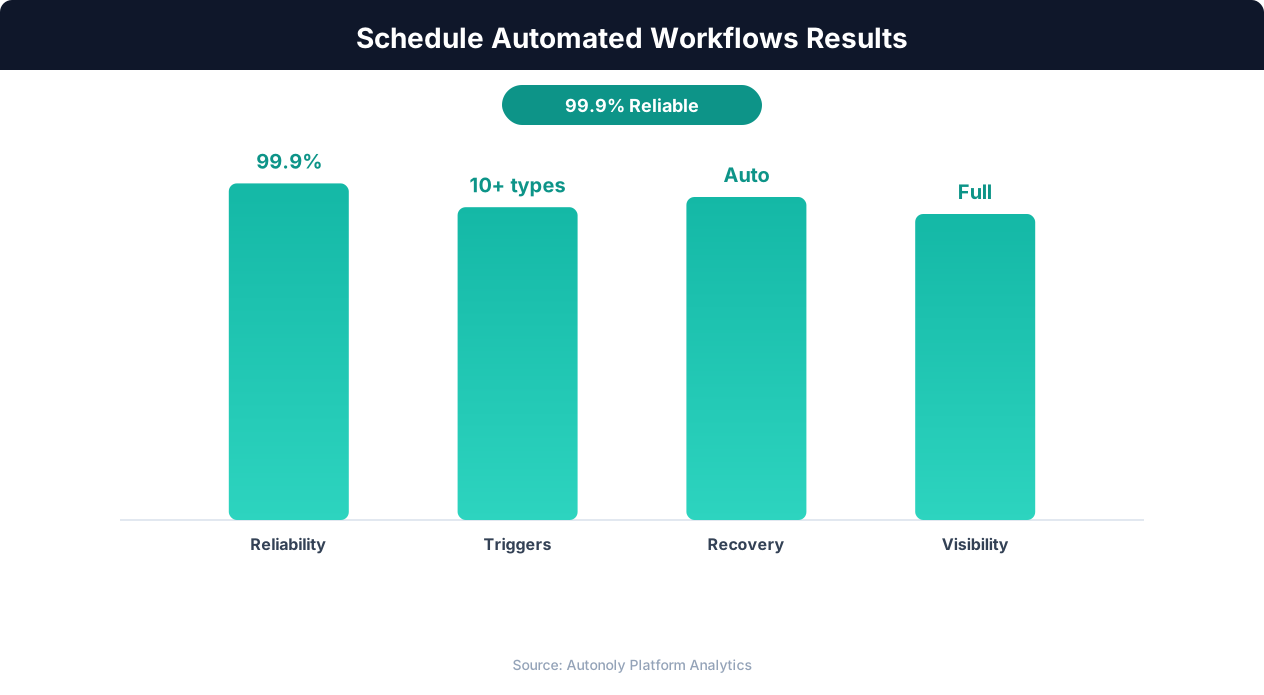
Scheduled workflows run 24/7 with 99.9% reliability, capturing opportunities that occur outside business hours.
Implement output validation as the final step of your workflow:
import pandas as pd

df = pd.read_csv('output.csv')
assert len(df) > 0, 'No data extracted'
assert len(df) > 50, f'Unusually low row count: {len(df)} (expected 100+)'
assert df['price'].notna().all(), 'Missing prices detected'
When validation fails, send an alert with the specific check that failed. "Scraping workflow produced only 12 rows, expected 100+" is immediately actionable. "Scraping workflow failed" requires investigation to understand what went wrong.
Alerting Channels
Choose alerting channels based on urgency. For critical workflows (revenue-impacting, customer-facing), send alerts to a dedicated Slack channel or PagerDuty. For important but not urgent workflows, email alerts are sufficient. For non-critical workflows, log-based monitoring that you review periodically is adequate.
Avoid alert fatigue by setting appropriate thresholds. A workflow that fails once due to a temporary network issue and succeeds on retry should not trigger an alert. Only alert on persistent failures (failed all retries), significant anomalies (output size dropped by 50%+), or total absence (workflow did not run at all). Alerts that fire too frequently get ignored, defeating their purpose.
Logging for Debugging
When an alert fires, you need enough information to diagnose the issue without re-running the workflow. Structured logging captures the context you need: timestamps for each step, input parameters, response codes from external services, data counts at each stage, and full error tracebacks for failures. Store logs in a searchable format (JSON lines to a log file, or a logging service like CloudWatch, Datadog, or a simple Google Sheet for small operations).
Log at appropriate levels: INFO for normal operation ("Fetched 150 products from page 3"), WARNING for recoverable issues ("Retry 2 of 3 for page 5, server returned 503"), and ERROR for failures that require attention ("All retries exhausted for page 5, skipping"). Review INFO logs periodically to understand normal behavior; review ERROR logs immediately when alerts fire.
Common Scheduling Patterns: Daily Reports, Hourly Monitoring, and Weekly Digests
Most scheduled workflows fall into a few common patterns. Here are the patterns with recommended schedules and implementation approaches.
Daily Data Collection (Run Once Per Day)
Schedule: 0 6 * * * (6 AM daily, before the business day starts)
Use cases: Competitor price monitoring, daily analytics snapshots, news and social media monitoring, inventory level checks, SEO rank tracking.
Design: The workflow collects data from all sources, processes and stores it, then optionally sends a summary notification. Run early enough that data is available when the team starts work. Include date stamps on all collected data so historical analysis is straightforward. Store each day's data separately (dated files or database records with timestamps) rather than overwriting previous data.
Frequent Monitoring (Run Every 15-60 Minutes)
Schedule: */15 * * * * (every 15 minutes) or 0 * * * * (every hour)
Use cases: Price drop alerts, stock availability monitoring, website uptime checks, social media mention alerts, application health monitoring. A scheduled competitor price monitor that posts to Slack is a classic example of this pattern in production.
Design: Frequent workflows must be fast and lightweight. Target execution time under 2-3 minutes (well within the 15-minute interval) to avoid overlaps. Store the previous state and compare against it to detect changes. Only send alerts when a significant change is detected, not on every run. Implement overlap prevention (check if the previous run is still executing before starting a new one) to avoid resource conflicts.
💡 Key Insight
Teams using scheduled automation report 65% fewer missed deadlines and 40% faster report delivery times.
Weekly Summary Reports (Run Once Per Week)
Schedule: 0 8 * * 1 (Monday at 8 AM)
Use cases: Weekly KPI reports, competitive intelligence summaries, content performance reviews, team productivity reports, pipeline health summaries. See how to set up automated email reports end to end.
Design: Aggregate daily data from the past week into a summary format. Include week-over-week comparisons to highlight trends. Deliver via email or Slack so the report reaches stakeholders without requiring them to check a dashboard. Include both data tables (for detail) and charts or key metrics (for quick scanning). Monday morning delivery sets the week's context for planning and priorities.
Monthly Batch Processing (Run Once Per Month)
Schedule: 0 2 1 * * (1st of each month at 2 AM)
Use cases: Monthly financial reports, billing reconciliation, data archival and cleanup, compliance checks, usage analytics summaries.
Design: Monthly workflows often process larger data volumes and may take longer to execute. Schedule during off-hours (early morning) to avoid impacting other systems. Include month-over-month comparisons and year-to-date summaries. For billing and financial workflows, build in a verification step that checks totals against known benchmarks before finalizing.
Event-Triggered with Polling (Check for Triggers on a Schedule)
Schedule: */5 * * * * (every 5 minutes)
Use cases: Processing new form submissions, handling file uploads, responding to email inquiries, processing queue items.
Design: When true event triggers are not available, polling on a short schedule simulates event-driven behavior. The workflow checks a data source (inbox, form submission queue, file directory) for new items, processes any new items found, and marks them as processed. The polling interval determines the maximum response delay: a 5-minute poll means new items are processed within 5 minutes of arrival on average.
Getting Started: Scheduling Your First Automated Workflow
Here is a practical guide to scheduling your first workflow, starting with the simplest approach and building up to production-grade reliability.
Step 1: Ensure Your Workflow Runs Without Interaction
Before scheduling, verify that your workflow runs completely without any human input. Execute it from the command line and confirm that it starts, processes, and completes without prompts, interactive inputs, or manual steps. Every parameter should be defined in the script or pulled from environment variables. If your workflow opens a browser, ensure it runs in headless mode (no visible window required).
Test by running the workflow from a different directory than your usual working directory. Scheduled workflows often fail because they assume a specific working directory. Use absolute paths for all file references.
Step 2: Add Logging and Error Handling
Before scheduling, add logging so you can diagnose issues without being present. At minimum, log: the start time, each major step completed, the final output summary (how many items processed, any errors encountered), and the end time. Wrap the entire workflow in a try/except block that logs the full error traceback if an unhandled exception occurs.
Step 3: Choose Your Scheduling Method
For a single workflow running on a machine you control, start with cron:
# Edit crontab
crontab -e

# Add your schedule
0 9 * * * cd /path/to/project && /usr/bin/python3 script.py >> /path/to/logs/output.log 2>&1
The >> /path/to/logs/output.log 2>&1 redirects both standard output and errors to a log file. Without this, cron silently discards all output.
For workflows that should run without managing a server, use a cloud scheduler or automation platform. Autonoly provides built-in scheduling for any workflow: set the cron schedule in the workflow settings and the platform handles execution, logging, and error notification.
Step 4: Verify the Schedule Works
Set a temporary schedule that runs within the next few minutes (e.g., */2 * * * * for every 2 minutes) and verify that the workflow executes as expected. Check the log file for output. Confirm the results are correct. Then update to the actual production schedule.
Step 5: Add Monitoring
Set up a heartbeat check using Healthchecks.io (free tier supports up to 20 checks) or a similar service. Add the heartbeat ping as the last line of your workflow. Configure the service to alert you via email if the heartbeat is missed. This basic monitoring catches the most critical failure: a workflow that stops running entirely without anyone noticing.
Step 6: Document the Schedule
Maintain a simple document or spreadsheet listing all your scheduled workflows: workflow name, what it does, its schedule, where it runs, where logs are stored, and who to contact if it fails. As the number of scheduled workflows grows, this documentation becomes essential for the team. Without it, tribal knowledge about what runs when creates a fragile operational setup where only one person knows how things work.
The progression from here is natural: as you schedule more workflows, you will need more sophisticated monitoring, dependency management, and possibly a move from simple cron to a proper orchestration platform. But start simple. A cron job with logging and a heartbeat check is production-ready for most use cases and takes 15 minutes to set up.