Identifying Which Data Entry Tasks to Automate First
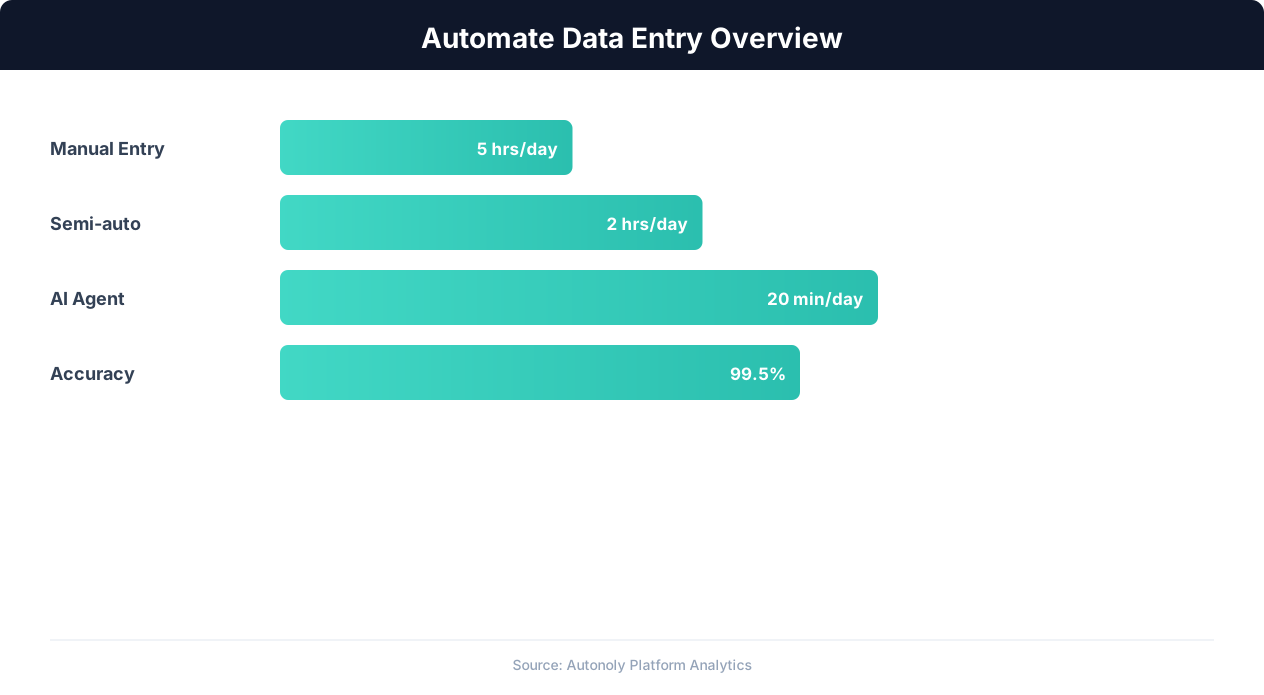
Not all data entry tasks are equally suitable for automation. The best candidates share specific characteristics that make them easy to automate and high-impact to eliminate. Identifying these candidates systematically ensures you start with the highest-ROI automations and build momentum for broader adoption.
The Automation Suitability Framework
Evaluate each data entry task against four criteria:
1. Frequency: How often does the task occur? Daily tasks provide the highest automation ROI because the time savings compound across every working day. A task that takes 15 minutes daily saves 65 hours per year when automated. A monthly task that takes the same 15 minutes saves only 3 hours per year — still worth automating, but not the priority.
2. Consistency: Is the task performed the same way every time? Tasks with consistent, predictable steps are easiest to automate. If the data always comes from the same source, goes to the same destination, and follows the same format, automation is straightforward. Tasks that require judgment calls or vary significantly between instances are harder to automate (though AI-powered tools handle variability better than rule-based systems).
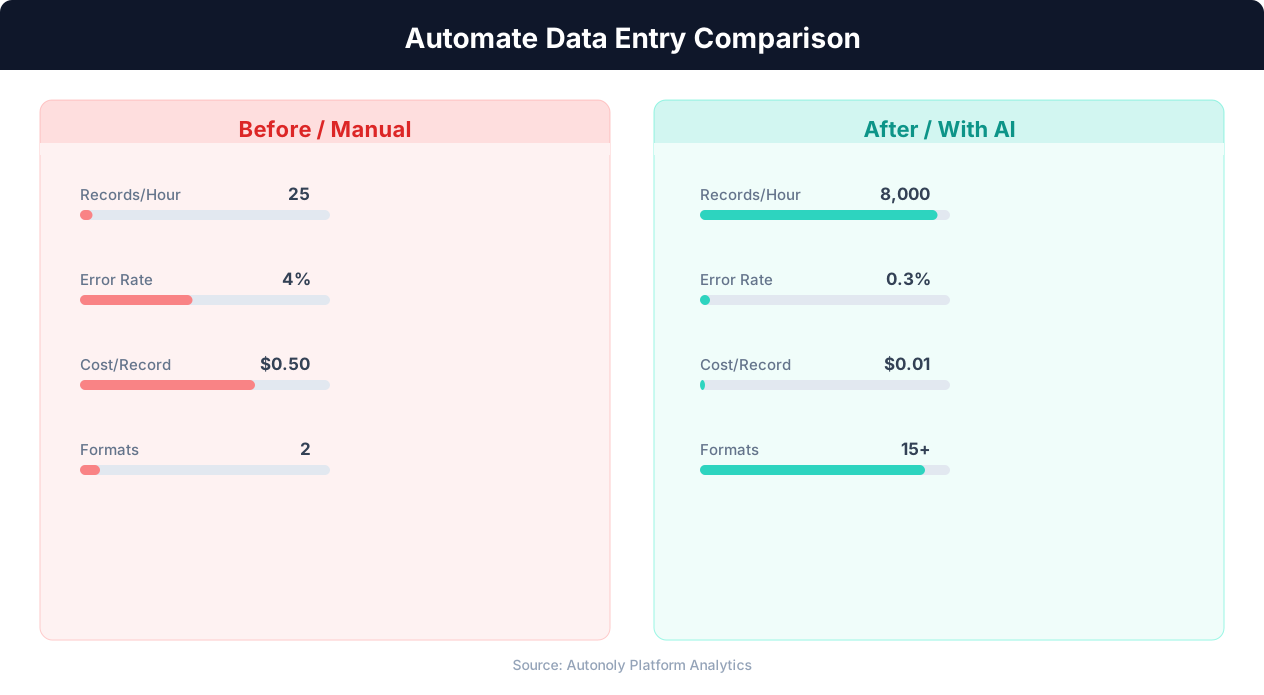
3. Volume: How many records or transactions are processed per occurrence? Entering 5 records by hand takes a few minutes, but entering 500 takes hours. High-volume data entry tasks benefit most from automation because the per-record time savings multiply across every record.
4. Error Impact: What happens when errors occur? If a data entry error causes significant downstream problems (wrong order fulfillment, incorrect billing, regulatory non-compliance), automating the task reduces both the time cost and the error risk. High-error-impact tasks should be prioritized even if they are not the most time-consuming.
Common High-Priority Automation Candidates
Based on these criteria, the most common high-priority data entry automation candidates across businesses include:
- Form-to-CRM data entry: Transferring data from web forms, email inquiries, or chat interactions into a CRM system. This is daily, high-volume, consistent, and errors directly impact customer relationships.
- Invoice processing: Extracting data from emailed invoices and entering it into accounting software. Frequent, error-prone, and errors cause payment and reconciliation issues.
- Order processing: Copying order details from an e-commerce platform to fulfillment, inventory, and accounting systems. High-volume during peak periods and errors cause fulfillment failures.
- Report compilation: Pulling data from multiple sources and assembling it into a standardized report format. Weekly or monthly but time-intensive, and delays impact decision-making.
- Spreadsheet updates: Updating recurring spreadsheets with data from other systems, emails, or websites. Daily, tedious, and prone to copy-paste errors.
Audit Your Current Workflow
Spend one week documenting every data entry task your team performs. For each task, record: the data source (where the data comes from), the destination (where it goes), the frequency, the average time per occurrence, and any common errors or issues. This audit produces a prioritized list of automation candidates ranked by potential time savings and error reduction.
Building Data Entry Automations Without Code
Modern no-code automation platforms make it possible to automate data entry without writing a single line of code. These visual workflow builders let you connect data sources, define transformation rules, and specify destinations using drag-and-drop interfaces. The result is a workflow that runs automatically — capturing data, processing it, and delivering it to the right system without human intervention.
How No-Code Data Entry Automation Works
A no-code automation workflow consists of three components:
Trigger: The event that starts the workflow. This could be a new form submission, a new email in a specific inbox, a new row in a spreadsheet, a new order in an e-commerce platform, or a scheduled time interval.
Actions: The steps the workflow performs. Actions include extracting data from the trigger source, transforming it (reformatting dates, calculating values, mapping field names), and writing it to the destination system. Multiple actions can be chained together to move data through several systems in sequence.
Destination: Where the processed data ends up. Common destinations include CRM systems, spreadsheets, databases, accounting software, project management tools, and email.
Example: Automating Web Form to CRM
A typical automation replaces the manual process of reading a web form submission and entering the data into a CRM:
- Trigger: New form submission on your website (via Typeform, Google Forms, Webflow, or a custom form).
- Transform: Map form fields to CRM fields — "Full Name" splits into "First Name" and "Last Name," phone numbers are formatted to a standard format, and the form submission date becomes the CRM "Created Date."
- Action 1: Create a new contact in the CRM with the mapped data.
- Action 2: Assign the contact to the appropriate sales representative based on geographic region or product interest.
- Action 3: Send an acknowledgment email to the form submitter confirming receipt.
- Action 4: Post a notification in the team's Slack channel with the new lead details.
This workflow runs instantly when a form is submitted, eliminates the manual data entry step entirely, and ensures consistent processing for every submission — no delays, no errors, no forgotten follow-ups.
Autonoly's Approach: AI-Powered Visual Workflows
Autonoly takes the no-code approach further with AI-powered workflow building. Instead of manually configuring each trigger, action, and mapping, you describe the automation in natural language: "When a new contact form submission arrives, create a contact in our CRM, assign it to the sales team based on the state field, and send a confirmation email." The AI agent builds the workflow, configures the field mappings, and sets up the trigger — you review and activate.
For more complex data entry scenarios that involve web scraping, browser interaction, or data extraction from unstructured sources (PDFs, emails, images), Autonoly's browser automation capabilities handle tasks that traditional no-code tools cannot. The AI agent can navigate websites, fill out forms, download files, extract data from PDFs, and process it all into structured output for your systems.
Automating Spreadsheet Data Entry and Updates
Spreadsheets are the backbone of business operations for small and mid-size companies. Google Sheets and Excel workbooks serve as CRMs, inventory trackers, project management tools, financial models, and reporting dashboards. The data in these spreadsheets often comes from manual entry — and automating that entry is one of the highest-impact automation opportunities available.
Common Spreadsheet Data Entry Tasks
The most time-consuming spreadsheet tasks across organizations include:
- Daily sales data entry: Copying order information from an e-commerce platform or POS system into a sales tracking spreadsheet. Teams often do this manually because the systems do not integrate natively.
- Inventory updates: Adjusting stock counts based on shipment receipts, sales, and returns. Multiple people may update the same spreadsheet, creating version conflicts and data consistency issues.
- Expense tracking: Entering receipts, invoices, and transaction data into expense spreadsheets. Often involves reformatting currency amounts, categorizing expenses, and calculating totals.
- Report compilation: Pulling data from multiple source spreadsheets into a master report. This "spreadsheet of spreadsheets" pattern is error-prone and tedious.
- Contact and lead management: Maintaining a spreadsheet of prospects, customers, or partners with data from multiple sources (website forms, email, LinkedIn, trade shows).
Automating Data Into Google Sheets
Google Sheets is particularly well-suited for automation because of its API and extensive integration ecosystem. Automating Google Sheets workflows can populate spreadsheets from virtually any data source:
- Web scraping to Sheets: Automatically scrape product prices, competitor data, or market information and write it directly to a Google Sheet on a daily schedule.
- Form submissions to Sheets: Google Forms natively writes to Sheets, but external forms (Typeform, Webflow, custom HTML) can also be connected through automation workflows.
- Email data to Sheets: Extract data from incoming emails (order confirmations, invoices, alerts) and append it to a tracking spreadsheet automatically.
- API data to Sheets: Pull data from business tools (Stripe for payments, Shopify for orders, HubSpot for leads) and populate Sheets on a scheduled basis.
Data Transformation Between Entry and Storage
Raw data rarely matches the format your spreadsheet expects. Automation workflows include transformation steps that clean and format data between extraction and entry: converting date formats ("March 1, the current year" to "the current year-03-01"), standardizing currency symbols, splitting full names into first and last name columns, calculating derived values (unit price from total and quantity), and mapping category codes to human-readable labels.
These transformations happen automatically in the workflow, ensuring that every row written to the spreadsheet follows the same formatting conventions — something that manual entry almost never achieves consistently.
Maintaining Data Quality
Automated data entry is not just faster — it is more reliable. Automation workflows can include validation rules that reject or flag data that does not meet quality standards: required fields that must not be empty, email addresses that must contain an @ symbol, phone numbers that must match a valid format, and numeric values that must fall within expected ranges. When validation fails, the workflow can route the record to a human reviewer rather than entering invalid data into the spreadsheet.
Connecting Your Systems: CRMs, ERPs, and Databases
Most data entry exists because two systems do not talk to each other. Customer data lives in the CRM but needs to be in the accounting system. Order data comes from the e-commerce platform but needs to reach the warehouse management system. Connecting these systems eliminates the human middleware — the person who manually transfers data between applications.
The Integration Landscape
Modern businesses use an average of 80-100 SaaS applications. Even a small business typically uses 10-20 tools: a CRM, email marketing platform, accounting software, project management tool, e-commerce platform, payment processor, customer support system, communication tools, and various spreadsheets. Data generated in one system is often needed in several others, creating a web of manual data transfer tasks.
Common Integration Patterns
Data entry automation typically follows one of these integration patterns:
One-to-one sync: Data from one system goes to one destination. Example: new Shopify orders automatically create entries in QuickBooks. This is the simplest pattern and handles the majority of data entry automation needs.
One-to-many fan-out: Data from one source goes to multiple destinations. Example: a new customer signup creates a CRM contact, adds them to an email marketing list, posts a notification in Slack, and logs the event in a spreadsheet. Fan-out patterns replace the most tedious manual workflows where one event triggers data entry in several places.
💡 Key Insight
Knowledge workers spend an average of 2.5 hours per day on manual data entry and data transfer tasks.
Many-to-one aggregation: Data from multiple sources combines into a single destination. Example: sales data from Shopify, Amazon, and Etsy aggregates into a single revenue tracking spreadsheet. Aggregation patterns replace the weekly or monthly "compile the report" task that involves pulling data from multiple tools.
Transformation pipeline: Data passes through multiple processing steps before reaching its destination. Example: a PDF invoice is received by email, OCR extracts the line items, a lookup enriches vendor information from a database, calculations compute tax amounts, and the processed data enters the accounting system. These pipelines replace complex manual processes that involve multiple tools and decision points.
Building Integrations with Autonoly
Autonoly's workflow builder supports all of these patterns through its visual node-based interface. Each node in the workflow represents a step: read data from a source, transform it, write to a destination, or branch based on conditions. Nodes connect with edges that define the data flow, and the entire workflow runs automatically based on triggers (new data arrives, scheduled time, manual activation).
For systems without native API integrations, Autonoly's browser automation acts as a universal connector. The AI agent can log into any web application, navigate to the right page, enter data into forms, click buttons, and confirm submissions — automating data entry into systems that do not have APIs at all. This is particularly valuable for legacy systems, government portals, and niche industry software that lack modern API integration capabilities.
Error Handling and Monitoring
Automated integrations need monitoring. Connection failures (API rate limits, authentication expiration, server downtime), data validation errors, and format changes can interrupt data flow. Autonoly's workflows include built-in error handling: retry logic for transient failures, error notifications via email or Slack, and fallback actions (like logging failed records to a review queue) that ensure no data is lost when issues occur.
Automating Form Submissions and Document Processing
A significant portion of data entry involves processing incoming forms and documents: customer applications, purchase orders, invoices, registration forms, survey responses, and support tickets. Automating this intake process eliminates the manual step of reading a document and typing its contents into a system.
Web Form Processing
Web forms are the easiest data entry source to automate because the data is already digital and structured. When a customer submits a web form, the data is available immediately through the form platform's API or webhook. An automation workflow captures this data at the moment of submission and routes it to the appropriate destination without any human involvement.
The key to effective form automation is field mapping — ensuring that each form field maps correctly to the corresponding field in the destination system. A contact form might have "Full Name" but your CRM expects separate "First Name" and "Last Name" fields. A registration form might use "Phone" but your database expects "Phone Number" with country code. Automation workflows handle these mappings through transformation steps that split, format, and rename fields as needed.
Email-Based Data Entry
Many businesses still receive significant data through email: customer inquiries, vendor invoices, order confirmations from partner systems, and report attachments. Automating email-to-system data entry involves: monitoring an inbox for new messages matching specific criteria (sender, subject line, keywords), extracting relevant data from the email body or attachments, transforming the data into the destination system's format, and writing it to the appropriate system.
For structured emails (like order confirmations with consistent formatting), rule-based extraction works well: regex patterns match order numbers, dollar amounts, dates, and product names. For unstructured emails (like customer inquiries), AI-powered extraction interprets the content and identifies relevant data points — extracting the customer's name, question, product mentioned, and urgency level from free-form text.
Document and PDF Processing
Paper documents and PDFs represent the most challenging data entry automation targets because the data starts in an unstructured, visual format. Automating document processing typically involves:
- Document receipt: Documents arrive via email attachment, file upload, or scanned image.
- OCR (Optical Character Recognition): Convert scanned images or PDFs to machine-readable text. Modern OCR tools achieve 95-99% accuracy on clean documents.
- Data extraction: Identify and extract specific fields from the OCR text: invoice numbers, dates, line items, totals, vendor names, and addresses. AI-powered extraction handles variable document layouts better than template-based approaches.
- Validation: Cross-reference extracted data against known values (vendor database, purchase order records) to catch OCR errors and extraction mistakes.
- System entry: Write the validated data to the destination system — accounting software, ERP, or database.
Browser-Based Form Filling
Some data entry involves filling out forms in web applications that do not have APIs. Government portals, legacy business systems, and third-party platforms often require manual form entry. Autonoly's browser automation agents handle this by operating a real browser: navigating to the web application, logging in, navigating to the correct form, entering data from your source system, and submitting. This "digital employee" approach automates data entry into any web-based system, regardless of whether it offers an API.
Measuring the ROI of Data Entry Automation
Data entry automation is not a cost — it is an investment with measurable returns. Quantifying the ROI helps justify the initial setup effort and demonstrates value to stakeholders who may be skeptical of automation initiatives.
Calculating Time Savings
The most straightforward ROI metric is time saved. Use your task audit data to calculate the total hours spent on data entry per week across your team. Then estimate the percentage of each task that can be automated (typically 80-95% for structured data entry tasks). The formula is simple:
Weekly hours saved = Total weekly data entry hours x Automation percentage
For example, if your team spends 40 hours per week on data entry tasks and you automate 85% of that work, you save 34 hours per week — equivalent to nearly a full-time employee.
Calculating Dollar Savings
Convert time savings to dollar value using the fully loaded cost of the employees performing data entry (salary plus benefits, typically 1.3-1.5x base salary). If data entry is performed by employees earning $50,000 per year ($24/hour base, $36/hour loaded), 34 hours saved per week translates to approximately $63,000 per year in labor cost savings.
💡 Key Insight
Automating data entry workflows can free up 500+ hours per employee annually for higher-value work.
Add error-related cost savings: if manual data entry produces 50 errors per month and each error costs $25-100 to investigate and fix (a conservative estimate including time spent by multiple people), eliminating those errors saves an additional $15,000-60,000 per year.
Accounting for Setup Costs
Automation requires upfront investment: the time to design and build workflows, the cost of automation tools (software subscriptions), and the time to test and validate the automated processes. For most data entry automations built with no-code tools like Autonoly, setup time ranges from a few hours for simple workflows to a few days for complex multi-system integrations.
A typical ROI timeline for data entry automation: setup costs are recovered within 1-3 months, with ongoing savings accruing every month thereafter. For a workflow that saves 5 hours per week and took 4 hours to build, the payback period is less than one week.
Measuring Quality Improvements
Beyond time and cost, track the quality improvements that automation delivers: reduction in data entry errors (compare error rates before and after automation), improvement in data consistency (fewer formatting inconsistencies, fewer duplicate records), and reduction in processing time (how quickly data moves from source to destination). These quality metrics are harder to dollarize but often represent the most significant business impact — fewer customer complaints, faster order processing, and more reliable reporting.
Tracking Ongoing Performance
After deploying data entry automations, monitor their performance on an ongoing basis. Track metrics like: workflow execution success rate (should be above 98%), average processing time per record, error rate in automated entries, and employee time reallocation (what are people doing with the time they saved?). The last metric is crucial — automation ROI is only fully realized when the freed-up time is redirected to higher-value activities rather than absorbed by schedule slack.
Building the Case for Expansion
Use the measured ROI from your first automation project to build the case for expanding automation across the organization. A single successful project with documented time savings, cost reduction, and quality improvements makes it much easier to secure buy-in for automating additional processes. Start small, measure rigorously, and let the results speak for themselves.
Getting Started: Your First Data Entry Automation
The best way to start automating data entry is to pick one specific task and automate it completely. Do not try to automate everything at once — choose a single high-frequency, high-impact task, build the automation, validate that it works correctly, and then expand to additional tasks based on what you learn.
Step 1: Choose Your First Automation
From your task audit, select the task that scores highest on the suitability framework: frequent, consistent, high-volume, and high error impact. For most businesses, the best first automation is either form-to-CRM data entry (if you process customer inquiries) or spreadsheet data compilation (if you maintain reporting spreadsheets). These tasks are common, well-understood, and deliver immediate, visible time savings.
Step 2: Document the Current Process
Before building the automation, document every step of the current manual process in detail. Where does the data come from? What format is it in? What transformations are needed (formatting, splitting, calculating)? Where does the data go? What happens when data is missing or invalid? This documentation becomes the specification for your automation workflow.
Step 3: Build the Workflow
In Autonoly's workflow builder, translate your process documentation into an automated workflow:
- Set up the trigger — the event that starts the automation (new form submission, new email, scheduled time, new row in a spreadsheet).
- Add data extraction steps — read data from the source system.
- Add transformation steps — format, clean, and map the data to match the destination's requirements.
- Add validation steps — check that required fields are present and values are within expected ranges.
- Add the destination step — write the processed data to the target system.
- Add error handling — define what happens when the workflow encounters unexpected data or system errors.
Step 4: Test Thoroughly
Run the automation with real data and compare the results to what the manual process would produce. Check every field for accuracy: are dates formatted correctly? Are numbers precise to the right decimal place? Are text fields trimmed of leading and trailing whitespace? Test edge cases: what happens with missing fields, unusually long text, special characters, or zero values? Fix any discrepancies before going live.
Step 5: Run in Parallel
Before fully replacing the manual process, run the automation in parallel with the manual process for one to two weeks. Compare results daily to catch any issues that testing did not reveal. This parallel run builds confidence and provides a safety net while validating the automation under real-world conditions.
Step 6: Go Live and Monitor
Once the parallel run confirms accuracy, deactivate the manual process and let the automation handle the workload. Monitor the first few weeks closely: check output quality daily, review error logs, and solicit feedback from the team members who previously performed the task manually. They often identify edge cases and quality issues that automated testing missed.
Step 7: Expand
With your first automation running successfully, move to the next task on your priority list. Each subsequent automation is faster to build because you have learned the tools, established patterns, and built confidence in the approach. Most teams automate 3-5 data entry tasks within the first month, with cumulative time savings that grow with each addition. For a broader perspective on building automations without code, see our no-code automation guide.