The Data Entry Problem: Why Manual Copy-Paste Fails
Data entry from spreadsheets to web portals is one of the most common, time-consuming, and error-prone tasks in business operations. Employees across every industry spend hours copying data from Excel files and pasting it into web forms, CRMs, ERPs, government portals, and internal systems. This work is soul-crushing for humans and trivially automatable by machines.
The Scale of the Problem
Consider these common scenarios where businesses manually enter data from spreadsheets into websites:
- E-commerce: Uploading product listings to marketplaces (Amazon Seller Central, eBay, Shopify) from a master product spreadsheet
- Accounting: Entering invoice data from Excel into QuickBooks, Xero, or other accounting portals
- HR: Inputting employee records from onboarding spreadsheets into HRIS systems
- Healthcare: Transferring patient information from referral sheets into electronic health record (EHR) systems
- Government compliance: Filing regulatory data from internal spreadsheets into government web portals
- Real estate: Entering property details from listing sheets into MLS systems
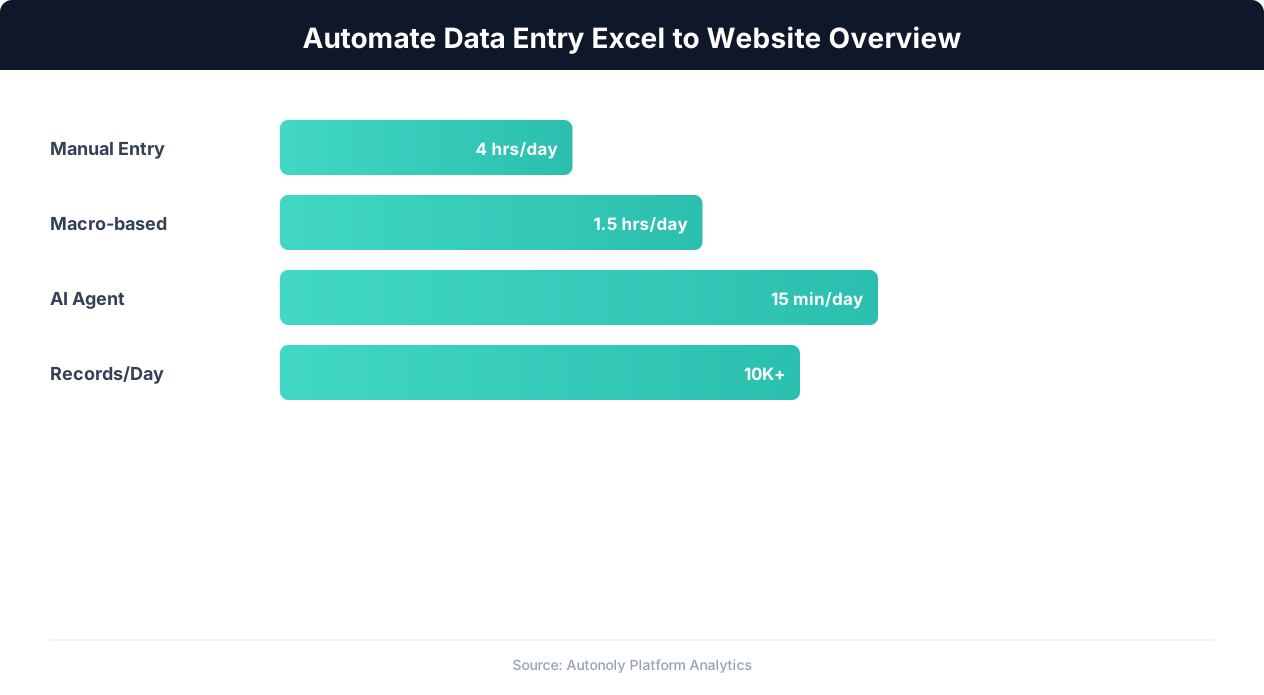
A single data entry session — say, entering 50 product listings into an e-commerce platform — can take 2-4 hours of focused manual work. At 3 minutes per entry, including navigation, field filling, validation, and submission, the math is straightforward and depressing.
Why Manual Entry Fails at Scale
Beyond the time cost, manual data entry has an inherent error rate. Studies consistently show that humans make errors in 1-4% of data entry keystrokes. For a 50-row spreadsheet with 10 fields each (500 individual data entries), that means 5-20 errors per session. These errors cascade: a mistyped price causes incorrect invoicing, a wrong email address means lost customer communication, a transposed digit in a phone number breaks follow-up workflows.
Error detection is equally problematic. Many web forms accept incorrect data without validation, meaning errors are only caught downstream — sometimes days or weeks later when the wrong data causes a visible problem. By then, correcting the error requires tracking down the source, identifying the discrepancy, and manually fixing it in multiple systems.
Why APIs Are Not Always the Answer
The textbook solution to data entry automation is "use the API." And when an API exists, that is often the right approach. But many systems that businesses need to enter data into do not have APIs, or their APIs are too limited for the required operations. Government portals, legacy ERP systems, vendor-specific web applications, and internal tools frequently offer only a browser interface. For these systems, browser automation is the only path to eliminating manual data entry.
The Excel-to-Website Pipeline: Architecture Overview
An automated data entry pipeline from Excel to a website consists of four stages: data ingestion (reading the spreadsheet), data transformation (mapping and formatting), browser execution (filling and submitting forms), and result tracking (logging successes and failures). Each stage has specific technical requirements and failure modes.
Stage 1: Data Ingestion
The pipeline starts by reading the Excel file. This sounds simple but involves several decisions:
- File format: .xlsx (modern Excel), .xls (legacy), or .csv? Each requires different parsing logic. CSV is simpler but loses formatting, formulas, and multi-sheet structure.
- Sheet selection: If the workbook has multiple sheets, which one contains the data? Is the data always on the same sheet, or does it vary?
- Header detection: Does row 1 contain column headers? Some spreadsheets have title rows, blank rows, or metadata above the actual data.
- Data types: Excel stores dates as serial numbers, percentages as decimals, and currencies as plain numbers with formatting. The pipeline must interpret these correctly.
Stage 2: Data Transformation
Raw spreadsheet data rarely matches web form fields exactly. Transformation handles the mapping:
- Field mapping: Column A ("Full Name") in Excel might need to be split into "First Name" and "Last Name" fields on the web form.
- Format conversion: A date stored as "03/15/the current year" in Excel might need to be entered as "March 15, the current year" or "the current year-03-15" depending on the form's expected format.
- Validation: Check required fields are not empty, phone numbers match expected patterns, email addresses are valid, and numeric values are within acceptable ranges — before attempting entry.
- Lookup enrichment: Some fields on the web form may require values not in the spreadsheet — like selecting a category from a dropdown or checking a checkbox based on a business rule.
Stage 3: Browser Execution
This is where the pipeline interacts with the actual website, using a real browser to navigate pages, fill form fields, handle dynamic elements, and submit data. This stage must handle:
- Authentication: Logging into the website before accessing data entry forms
- Navigation: Reaching the correct form page, which may require multiple clicks through menus
- Form interaction: Typing into text fields, selecting dropdowns, checking checkboxes, clicking radio buttons, uploading files
- Dynamic content: Forms that change based on previous selections (cascading dropdowns, conditional sections)
- Submission and confirmation: Clicking submit and verifying that the entry was accepted
Stage 4: Result Tracking
Every entry attempt should be logged with its outcome: success, failure (with error details), or warning (submitted with potential issues). This log serves as both an audit trail and a retry queue for failed entries. The pipeline should update the original spreadsheet or a separate status sheet with the result of each row's entry attempt.
Reading and Preparing Your Excel Data
Before automating data entry, your spreadsheet needs to be structured in a way that the automation pipeline can process reliably. Here is how to prepare your data and common pitfalls to avoid.
Spreadsheet Structure Best Practices
The ideal spreadsheet for automation has a simple, flat structure:
| Column A | Column B | Column C | Column D | Column E |
|---|---|---|---|---|
| first_name | last_name | phone | company | |
| John | Smith | [email protected] | 555-0101 | Acme Inc |
| Jane | Doe | [email protected] | 555-0102 | Beta Corp |
Key principles:
- Row 1 is always headers. Use descriptive, consistent header names. Avoid merged cells, blank header cells, or multiple header rows.
- One record per row. Each row should represent one complete entry to submit to the web form.
- No merged cells anywhere. Merged cells break row-by-row processing and cause data to appear in unexpected positions.
- Consistent data formats. All dates in the same format, all phone numbers in the same pattern, all currencies with or without symbols (not mixed).
- No formulas in data columns. Replace formulas with their calculated values before automation. Some parsers read the formula text rather than the result.
Handling Common Excel Issues
Leading zeros stripped: Excel removes leading zeros from numbers. If your data includes ZIP codes ("02101"), part numbers ("007842"), or other zero-prefixed values, format those columns as Text in Excel before saving.
Date ambiguity: "01/02/26" — is this January 2nd or February 1st? Depends on your locale settings. Use unambiguous date formats like "the current year-01-02" or spell out the month.
Special characters: Accented characters (Gonzalez vs González), em dashes, curly quotes, and other special characters may be corrupted during parsing. Ensure your pipeline handles UTF-8 encoding correctly.
Empty rows and hidden rows: Stray empty rows in the middle of data can cause the pipeline to stop prematurely. Hidden (filtered) rows may or may not be included depending on the parser. Clean your data: remove empty rows and unhide all rows before processing.
Reading Excel With Autonoly
Autonoly's data processing capabilities handle Excel files natively. Upload the file to the workflow, and the AI agent parses it automatically — detecting headers, data types, and row counts. You can also connect to Google Sheets as the data source using the Google Sheets integration, which is often simpler for ongoing workflows because the data updates in real time without re-uploading files. See our Google Sheets automation guide for details on connecting sheet data to workflows.
Building the Automation: Step-by-Step With Autonoly
Here is a complete walkthrough of building an Excel-to-website data entry automation using Autonoly's AI agent and visual workflow builder.
Step 1: Define the Workflow
Open Autonoly and start a new workflow. In the AI agent panel, describe your goal:
"I have an Excel file with product data — columns for product name, SKU, price, description, category, and stock quantity. I need to enter each row into our inventory management portal at inventory.ourcompany.com. The portal requires logging in, navigating to 'Add Product', filling out the form, and clicking Submit."
The AI agent plans the workflow: read Excel → loop through rows → for each row, navigate to the form, fill fields, submit, and log the result.
Step 2: Upload and Map the Data
Upload your Excel file or connect your Google Sheet. The agent reads the file and displays the column headers and a sample of the data. It then asks you to confirm the field mapping:
- Column "Product Name" → Form field "Product Title"
- Column "SKU" → Form field "SKU Code"
- Column "Price" → Form field "Retail Price" (formatted as currency)
- Column "Description" → Form field "Product Description"
- Column "Category" → Form dropdown "Category" (matched by name)
- Column "Stock Qty" → Form field "Initial Stock"
If column names do not match form labels exactly, you can specify the mapping. The agent handles name mismatches and format differences automatically.
Step 3: Record the Form Interaction
The agent opens a live browser session and navigates to your portal's login page. You provide the credentials (entered securely, not stored in the workflow). The agent logs in, navigates to the "Add Product" page, and analyzes the form structure — identifying all input fields, dropdowns, checkboxes, and buttons.
You review the agent's understanding of the form and correct any misidentifications. For example, if the form has a rich text editor for the description field (instead of a plain textarea), the agent adjusts its interaction method accordingly.
Step 4: Test With a Single Row
Before processing all rows, the agent runs a single test entry using the first row of your spreadsheet. You watch the browser fill each field, select the correct dropdown value, and click Submit. The agent verifies the submission was successful by checking for a confirmation message or new entry in the product list.
If any field fails (wrong dropdown selection, date format rejected, field validation error), you provide guidance and the agent adjusts. This test-and-refine loop ensures the automation handles your specific form correctly before processing the full dataset.
Step 5: Process All Rows
Once the single-row test passes, the agent processes the remaining rows. For each row, it:
- Navigates to the "Add Product" form (or clicks "Add Another" if available)
- Fills all mapped fields with the current row's data
- Submits the form
- Verifies the submission succeeded
- Logs the result (success/failure with details)
- Moves to the next row
The agent adds natural delays between entries (3-5 seconds) to avoid overwhelming the portal and to handle pages that load dynamically. Progress is visible in the agent panel — you can see which row is being processed and any issues encountered.
Step 6: Review Results
After all rows are processed, the agent presents a summary: total rows processed, successful entries, failed entries, and details for each failure. Failed entries can be retried individually or in batch after fixing the underlying data issues.
Handling Complex Form Types
Not all web forms are simple text fields and submit buttons. Real-world data entry involves dropdowns, multi-step forms, file uploads, and dynamic content that requires specialized handling.
Dropdown and Select Fields
Dropdown menus require matching the spreadsheet value to an option in the dropdown list. This matching is rarely exact — your spreadsheet might say "Electronics" while the dropdown option is "Electronics & Computers." The AI agent handles fuzzy matching, finding the closest option to the spreadsheet value. For critical fields, you can provide an explicit mapping:
- Spreadsheet "Electronics" → Dropdown "Electronics & Computers"
- Spreadsheet "Home" → Dropdown "Home & Garden"
- Spreadsheet "Clothing" → Dropdown "Apparel & Fashion"
Cascading Dropdowns
Some forms have dependent dropdowns where the options in the second dropdown change based on the first selection. For example, selecting "United States" in the Country dropdown loads state options; selecting "Canada" loads province options. The automation must select the first dropdown, wait for the second dropdown to populate, then select the appropriate value. The AI agent detects these dependencies automatically by observing DOM changes after each selection.
💡 Key Insight
Manual data entry costs businesses an average of $4,000-$8,000 per employee annually in lost productivity.
Multi-Step and Wizard Forms
Forms split across multiple pages or steps ("Step 1 of 4: Basic Info → Step 2 of 4: Details → ...") require the automation to fill each page, click Next, wait for the next page to load, and continue. The agent handles this by treating each step as a sub-form, filling and advancing through the wizard until reaching the final Submit button.
File Upload Fields
If the web form includes file upload fields (product images, documents), the automation can attach files from a specified folder. The spreadsheet includes a column with the filename, and the agent matches it to a file in the upload directory. Autonoly's form automation handles file input elements natively, including drag-and-drop upload zones and multi-file upload fields.
Rich Text Editors
Many modern forms use rich text editors (TinyMCE, CKEditor, Quill) instead of plain textareas for description and content fields. These editors have their own DOM structure and do not respond to simple text input. The AI agent identifies the editor type and uses the appropriate interaction method — typically injecting content through the editor's API or using keyboard shortcuts to paste formatted text.
CAPTCHA and Anti-Bot Measures
Some web forms include CAPTCHA challenges to prevent automated submission. If the target form uses CAPTCHA, the automation may need human assistance for the CAPTCHA step while handling everything else automatically. Autonoly can pause at CAPTCHA steps, notify you, and resume after you solve it — still saving the vast majority of the data entry time.
Dynamic Validation and Error Messages
Modern forms validate input in real time — showing error messages as you type or when you move to the next field. The agent monitors for these validation messages and responds accordingly: reformatting data, selecting alternative values, or flagging the row for manual review if the error cannot be resolved automatically.
Error Handling and Retry Strategies
Automated data entry that works 95% of the time but fails silently on 5% of entries is worse than manual entry — at least with manual entry, the human notices the error. Robust error handling is what separates a useful automation from a liability.
Types of Failures
Data validation failures: The web form rejects the submitted data — invalid email format, price outside acceptable range, duplicate SKU, required field empty. These are data quality issues that need to be fixed in the source spreadsheet.
Navigation failures: The website changes its layout, a page does not load, a button is not found, or a session timeout occurs. These are environmental issues that may resolve on retry.
Submission failures: The form submits but the server returns an error — database constraint violation, server timeout, or maintenance mode. These may be transient (retry helps) or permanent (data issue).
Authentication failures: Session expires mid-entry, requiring re-login. Common in portals with short session timeouts.
Building a Retry Strategy
A good retry strategy distinguishes between transient failures (worth retrying) and permanent failures (need human attention):
- First attempt: Process the row normally.
- On failure, classify the error: Is it a data issue (permanent) or an environmental issue (transient)?
- Transient failures: Wait 10-30 seconds, then retry. If the session expired, re-authenticate first. Retry up to 3 times with increasing delays.
- Permanent failures: Log the error with the specific validation message and move to the next row. Do not retry — the same data will produce the same error.
- After all rows: Present a summary of failed rows with error details for manual correction.
Status Tracking
Add a status column to your spreadsheet (or a separate tracking sheet) that records the outcome of each row:
| Row | Status | Timestamp | Error Details |
|---|---|---|---|
| 2 | Success | the current year-04-03 09:15:22 | — |
| 3 | Success | the current year-04-03 09:15:47 | — |
| 4 | Failed | the current year-04-03 09:16:10 | SKU already exists in system |
| 5 | Success | the current year-04-03 09:16:38 | — |
| 6 | Failed | the current year-04-03 09:17:02 | Price must be > 0 |
This tracking enables you to fix the source data for failed rows and re-run only those rows, rather than reprocessing the entire spreadsheet. Autonoly's workflow builder creates this tracking automatically, writing results back to Google Sheets or exporting a status report when the batch completes.
Idempotency: Preventing Duplicate Entries
If the automation fails midway through a batch and you need to restart, how do you prevent duplicate entries for rows that already succeeded? The solution is idempotency — the ability to run the automation multiple times without creating duplicates.
Implement idempotency by checking the status column before processing each row. If the row's status is "Success," skip it. This makes the automation safe to restart at any point without risk of duplicate data entry. For systems that assign unique IDs to entries, also record the assigned ID in the tracking sheet so you can verify and reference entries later.
Scheduling Recurring Data Entry and Scaling Up
One-time data entry automation is useful. Recurring automated entry — processing new data as it arrives — is transformative. Here is how to move from batch processing to continuous automation.
Trigger-Based Entry
Instead of manually uploading an Excel file each time, set up the workflow to trigger automatically when new data appears. Common triggers:
- New row in Google Sheet: When someone adds a row to the source spreadsheet, the automation processes it immediately. This works well for ongoing data entry where team members add records throughout the day.
- File upload to Google Drive or Dropbox: When a new Excel file is uploaded to a designated folder, the automation reads it and processes all rows. Useful for batch processes where data arrives as complete files.
- Scheduled runs: Process all new (unprocessed) rows in a spreadsheet at set times — hourly, daily, or weekly. Use the status column to identify unprocessed rows. See our scheduling guide for setting up timed workflows.
- Webhook trigger: An external system sends a webhook when new data is ready, triggering the automation immediately. This is the fastest option for system-to-system data flow.
Scaling to Large Datasets
Processing 50 rows is straightforward. Processing 5,000 rows requires additional considerations:
Rate limiting: Most web portals have rate limits, even if undocumented. Submitting forms too quickly can trigger blocks, CAPTCHAs, or account suspensions. A conservative pace of one entry per 10-15 seconds is sustainable for most portals. At this rate, 5,000 entries take approximately 14-21 hours — plan for overnight or weekend processing.
💡 Key Insight
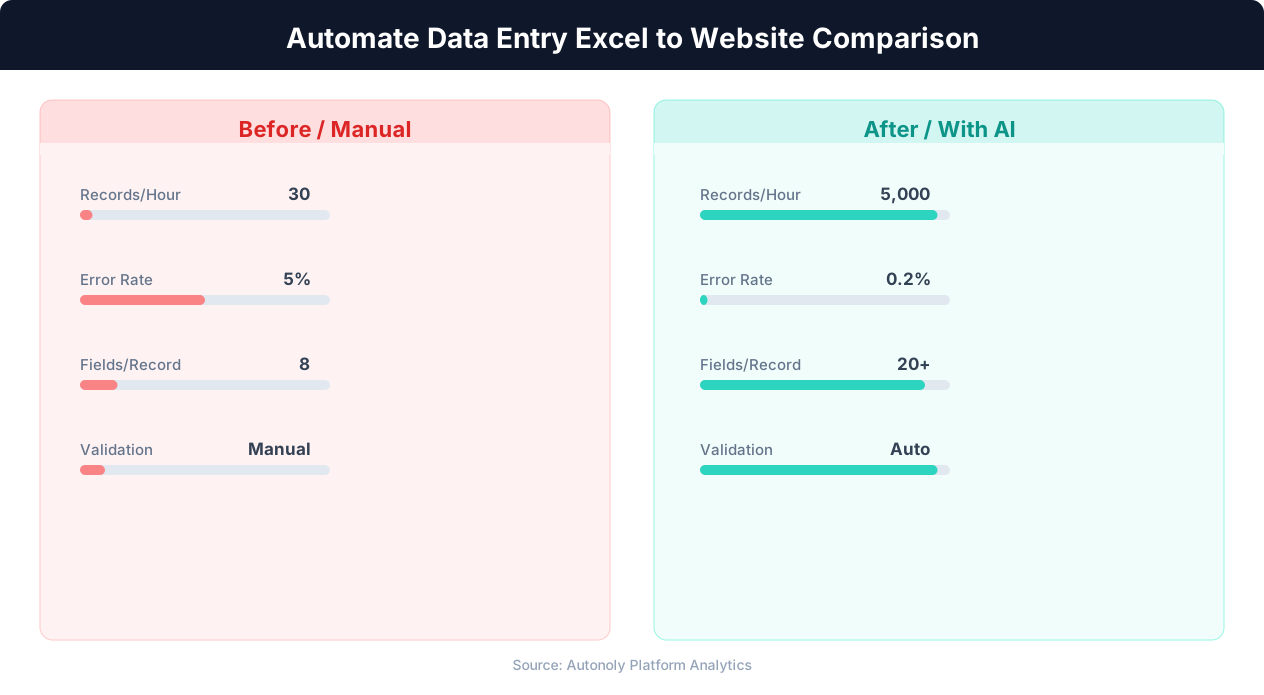
Automated data entry reduces error rates from 3-5% (manual) to less than 0.1%, saving significant rework time.
Session management: Long-running sessions may expire. The automation should detect session timeouts and re-authenticate without losing progress. Periodic session refreshes (re-logging in every 100-200 entries) can prevent timeouts proactively.
Parallel processing: For portals that allow it, running multiple browser sessions in parallel multiplies throughput. Two parallel sessions at the same rate doubles the processing speed. However, this increases the risk of detection and rate limiting — test carefully before scaling parallel sessions.
Chunked processing: Instead of processing all 5,000 rows in one session, split them into chunks of 200-500 rows. Process one chunk, verify the results, then process the next. This limits the blast radius of errors and makes the process easier to monitor.
Monitoring and Alerting
For recurring automations, set up monitoring to catch issues before they become problems:
- Success rate alerts: If the success rate drops below 90%, receive an email or Slack notification. A sudden drop indicates a website change or data quality issue.
- Completion notifications: Receive a summary when each batch completes — total processed, successes, failures.
- Stall detection: If the automation stops making progress (stuck on one entry), alert after a configurable timeout.
Autonoly's Slack and email integrations enable these alerts natively within the workflow. Add a notification node at the end of the workflow to send a summary message to Slack, or use automated email reports for a daily digest of all data entry activity.
Alternative Approaches to Excel-to-Website Automation
Browser automation through an AI agent is one approach. Depending on your technical capacity and specific requirements, other methods may be suitable.
RPA Tools (UiPath, Power Automate Desktop)
Traditional Robotic Process Automation (RPA) tools like UiPath, Automation Anywhere, and Microsoft Power Automate Desktop are designed specifically for UI automation, including data entry from spreadsheets to web applications. They use screen recording and element selectors to replay user actions.
Pros: Purpose-built for this exact task, mature technology, strong enterprise support. UiPath's free Community Edition handles basic use cases without cost.
Cons: Requires desktop installation (not cloud-based), fragile selectors that break when websites change, significant setup time to build and maintain robots, and a steep learning curve for complex logic. RPA robots are "dumb" — they follow exact recorded steps without adapting to changes. When a website updates its layout, the robot breaks and needs manual repair.
Python Scripting (Selenium/Playwright)
Developers can write custom scripts using Selenium or Playwright to read Excel files (with openpyxl or pandas) and automate browser interactions:
import pandas as pd
from playwright.sync_api import sync_playwright

df = pd.read_excel('products.xlsx')

with sync_playwright() as p:
    browser = p.chromium.launch()
    page = browser.new_page()
    page.goto('https://portal.example.com/login')
    # ... login and form filling logic
    for _, row in df.iterrows():
        page.fill('#product-name', row['name'])
        page.fill('#price', str(row['price']))
        page.click('#submit')
        page.wait_for_selector('.success-message')
Pros: Maximum flexibility, free, handles any complexity.
Cons: Requires a developer to build and maintain, no visual interface, error handling must be coded manually, no built-in monitoring or alerting. For a comparison of browser automation frameworks, see our Playwright vs Selenium vs Puppeteer guide.
API Integration (When Available)
If the target system has an API, direct API integration is almost always superior to browser automation. APIs are faster, more reliable, and less likely to break when the website's UI changes. Use platforms like Zapier, Make, or Autonoly's API/HTTP node to connect Excel/Sheets data directly to the system's API.
However, as noted earlier, many systems that businesses need to enter data into simply do not have APIs. Government portals, legacy systems, and industry-specific web applications often have browser interfaces only. In these cases, browser automation is the only option.
When to Choose Each Approach
| Approach | Best For | Avoid When |
|---|---|---|
| Autonoly AI Agent | Non-technical teams, complex forms, changing websites | You only need simple API connections |
| RPA (UiPath) | Enterprise environments with IT support | Cloud-based workflow needed, no IT team |
| Python Script | Developers, highly custom requirements | No developer available, need quick setup |
| API Integration | Target system has a good API | No API available |