The Trust Problem with Headless Automation
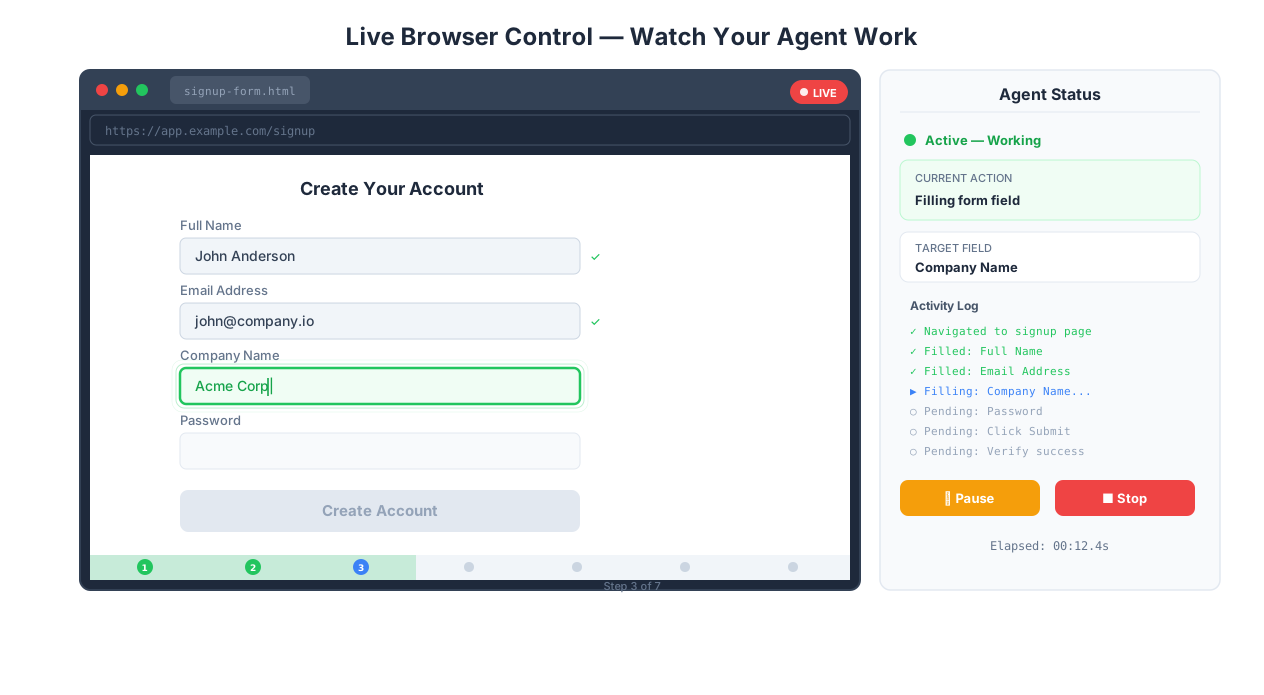
Live browser view showing real-time AI agent actions
Here is a scenario every automation engineer has lived through: you build a 50-step Selenium workflow that logs into a government portal, fills out a multi-page form, uploads documents, and submits an application. You run it headless in production. It fails at step 47. The error message says TimeoutError: waiting for selector "#submit-btn". That tells you almost nothing. Was the page still loading? Did a modal appear? Did the session expire? Did a CAPTCHA trigger? You have no idea, because the browser was invisible.
You add logging. You add screenshots at every step. You add retry logic. Now your 200-line script is 600 lines, and you still cannot figure out why it fails every third Tuesday. The fundamental problem is not your code — it is that headless automation is a black box. You are programming blind and debugging blind.
Live Browser Control exists to solve this. You watch the AI agent work in a real browser, in real time, streamed directly to your dashboard. When the agent hesitates, you see why. When a page loads differently than expected, you see how. When you need to intervene — take over the mouse, type a password, solve a CAPTCHA — you do it instantly and hand control back. This is not just a debugging tool. It is a fundamentally different relationship with automation, one built on transparency instead of faith.
If you want to understand how the underlying Browser Automation engine works, start there. This page is about what happens when you open the hood and watch.
Why "Just Check the Logs" Does Not Work
Every automation tool promises logging. Selenium gives you WebDriver logs. Puppeteer gives you console output. Playwright gives you trace files. They are all useful after the fact, but they share a critical limitation: logs record what the tool *did*, not what the page *looked like* when it did it.
Consider a real example. Your agent is filling out a form on a health insurance enrollment portal. The log says it clicked the "Next" button. But the page had two "Next" buttons — one for the main form and one inside a nested iframe for a spouse enrollment section. The log does not tell you which one it clicked. A screenshot might, but only if you happened to capture one at exactly the right moment. A live view tells you instantly, because you are watching.
This is the difference between forensic analysis and real-time observation. Forensics is useful, but it is always reconstructing what happened after the damage is done. Live viewing lets you catch problems as they unfold and fix them before they cascade.
How the Live Stream Works
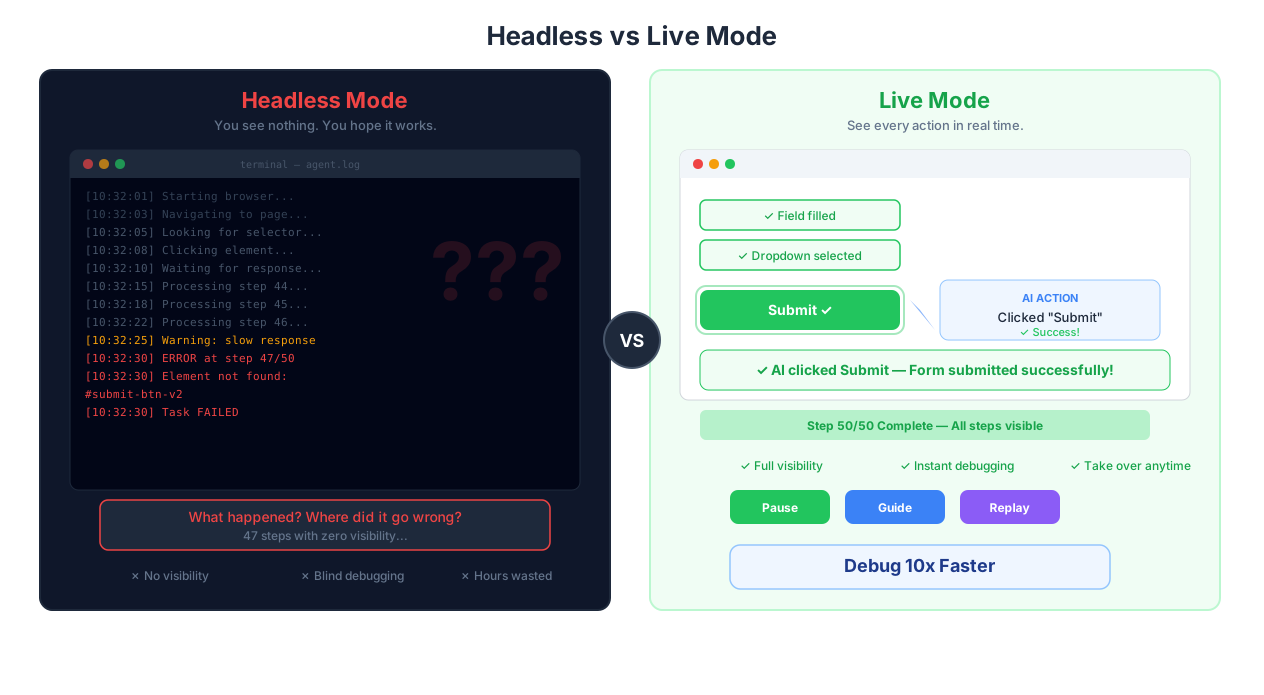
Headless browser vs live browser with VNC streaming comparison
The live browser feed uses VNC (Virtual Network Computing) to stream the agent's browser directly to your dashboard. The stream updates in real time with sub-second latency, so you see what the agent sees with minimal delay. The VNC connection is encrypted end-to-end with TLS, ensuring that sensitive data displayed in the browser — login credentials, financial data, personal records — is never exposed in transit.
A few technical details that matter in practice:
Adaptive quality. The stream adjusts to your network conditions automatically. On a fast office connection, you get full-resolution, high-frame-rate video. On a spotty airport WiFi connection, the stream reduces quality gracefully so you never lose the live view entirely. I have monitored agents from a phone over cellular data — the quality drops, but the view remains usable.
No plugins required. Everything renders in your web browser. No Java applets (remember those?), no desktop VNC clients, no Chrome extensions. Open the dashboard, click the session, and you are watching. This matters more than it sounds — getting IT approval for desktop software installations in corporate environments can take weeks.
Multi-session grid view. When you are running five agents simultaneously — one scraping competitor prices, one filling out applications, one monitoring a dashboard — the grid view lets you watch all of them from a single screen. Status indicators show which sessions are running smoothly and which need attention. Click into any session to see it full-size.
Compare this to how traditional RPA platforms like UiPath handle live monitoring: you need Orchestrator (enterprise license, starts around $420/month per robot), a separate machine for the Orchestrator server, and Active Directory integration for user management. The monitoring itself is functional but geared toward IT operations teams, not the person who built the automation. Autonoly's live view is built into every plan, visible to everyone on the workspace, and designed for the person who actually needs to watch what the agent is doing.
Point-and-Click Element Selection
One of the most immediately useful features of the live view is interactive element selection. Instead of writing CSS selectors or XPath expressions — or describing elements in natural language and hoping the AI interprets you correctly — you click directly on the element you want the agent to interact with.
This is especially valuable when building Data Extraction workflows on complex pages. Consider a product listing page on Amazon. The page has nested divs seven layers deep, dynamically generated class names like sg-col-inner sg-col-inner-class-4p, and sponsored results injected between organic ones with completely different DOM structures. Writing a reliable CSS selector for "the price of each organic result" is a 30-minute exercise in DevTools. Clicking on the price in the live view takes two seconds.
The element picker highlights elements as you hover, showing their tag name, dimensions, and a preview of the text content. When you click, Autonoly generates a robust selector automatically — one that prioritizes stable attributes (ARIA labels, data attributes, semantic HTML) over fragile ones (class names, positional indexes). This approach works even on dynamically rendered websites where the DOM restructures on every page load.
There is an important gotcha here: element selection through the live view works best when you can see the element. If the element is below the fold, off-screen in a scrollable container, or hidden behind a dropdown, you need to scroll or interact to reveal it first. The live view supports this — you can scroll and click in the stream — but it adds a step compared to just writing a selector if you already know exactly what you want.
Human-in-the-Loop: The Hybrid Model That Actually Works
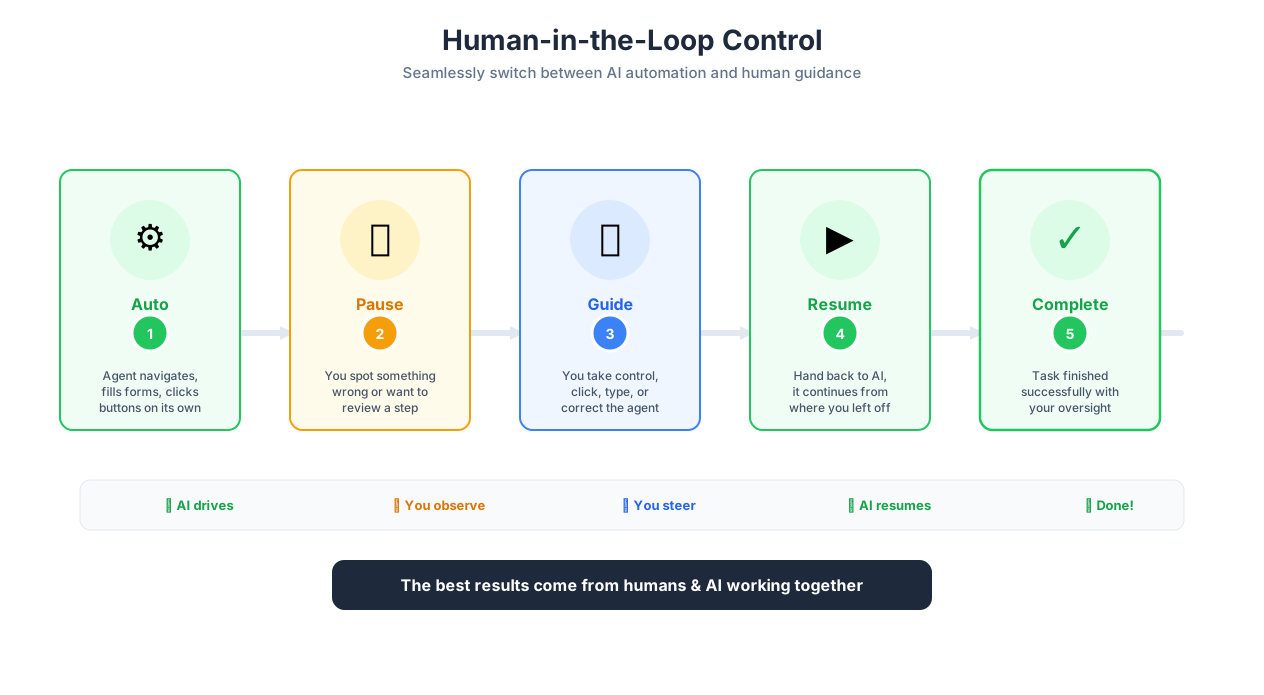
Human intervention points in an automated browser workflow
The automation industry has spent years pushing toward "fully autonomous" workflows. Set it and forget it. Lights-out automation. No human required. This is the right goal for mature, stable workflows — but it is a terrible starting point. Most automations need human judgment at specific points, and pretending otherwise leads to either brittle full-automation attempts or expensive manual processes with no automation at all.
Live Browser Control enables a middle path: the AI handles the 90% of steps that are repetitive and predictable, and you handle the 10% that require judgment, context, or authority. Here is what this looks like in practice:
Visa application processing. I watched an agent fill out a DS-160 (US visa application) for a client. The form has 70+ fields across 10 pages. The agent handled name, address, passport details, travel history — all the structured data — flawlessly. At step 12, it reached a dropdown asking for "Purpose of Trip" with 15 options, several of which could plausibly apply. The agent selected one, then I saw it pause — it had flagged low confidence on this field. I took over, selected the correct option based on context the agent did not have (the applicant's specific situation), and handed control back. The agent completed the remaining 58 fields in 4 minutes. Total time: 6 minutes. Doing it fully manually: 25 minutes. Doing it fully autonomously with the wrong "Purpose of Trip" selection: a rejected application and weeks of delay.
Mortgage application review. A lending operations team uses the hybrid model for reviewing mortgage applications in their origination system. The agent logs into the LOS (Loan Origination System), navigates to the application, and extracts key data points — credit score, DTI ratio, property appraisal value, employment verification status. When the agent reaches the underwriting decision screen, it pauses and alerts the underwriter. The underwriter reviews the data in the live view, makes the approval/denial/conditions decision, and the agent records the decision and generates the required notification letters. The agent handles the navigation and data entry; the human handles the judgment that regulators require a human to make.
The "teaching" pattern. When you take over and perform an action manually, the agent observes what you did. Through Cross-Session Learning, it remembers your approach and applies it in future sessions. This means the first time you handle a tricky dropdown, you do it manually. The second time, the agent suggests your previous choice. By the fifth time, the agent handles it confidently without intervention. The human-in-the-loop gradually becomes human-out-of-the-loop, but only when the agent has earned trust through demonstrated competence.
For teams exploring AI workflow automation, the hybrid model is the right starting point. It delivers value immediately while building the training data and confidence needed for full autonomy later.
When to Stay Hands-Off
Not every session benefits from intervention. If you are running a mature workflow that has executed successfully 50 times — say, a weekly Data Extraction job pulling competitor prices — watching the live stream adds no value. Let it run headless, review the results, and check the session recording only if something looks wrong in the output.
The decision matrix is straightforward:
New workflow, first 5 runs: Watch live, intervene as needed, teach the agent
Stable workflow, routine execution: Run headless, spot-check recordings
High-stakes workflow (financial, legal, medical): Watch live or assign a monitor, always
Debugging a failure: Replay the recording first, then run live with a watch to reproduce
Live View vs Headless: A Practical Decision Framework
This is a question that comes up constantly: should I run my automation with the live view or headless? The answer depends on the workflow's maturity, risk level, and your operational context.
Live view is for building, debugging, and high-stakes execution. When you are developing a new workflow, the live view is indispensable. You see how the agent interprets your instructions, which elements it selects, how it handles page transitions, and where it struggles. This feedback loop is 10x faster than the headless alternative of run-fail-read-logs-guess-fix-run-again. For high-stakes workflows — financial transactions, legal filings, medical record access — live view provides the human oversight that compliance frameworks often require.
Headless is for production-scale, mature workflows. Once a workflow has proven reliable across 10-20 runs with no interventions needed, watching it live wastes your time. Run it headless with Scheduled Execution, review results when they arrive, and check session recordings only if something looks off. The agent runs at the same speed either way — live view does not slow it down — but your time as a human is the bottleneck.
The transition pattern matters. Start every workflow in live mode. Watch 3-5 runs. Intervene as needed and teach the agent through Cross-Session Learning. Move to "notification-only" mode — the workflow runs without you watching, but alerts you at decision points or on errors. After 10+ clean runs, move to fully headless with post-run result review. This graduated approach builds justified trust in the automation rather than premature faith.
An exception worth noting: some teams keep live view permanently enabled for specific workflows even after they are mature. A tax advisory firm I have worked with always monitors their quarterly filing workflows live — not because the automation is unreliable, but because a filing error has severe consequences and their E&O insurance provider requires documented human supervision of automated filings. The cost of watching a 15-minute workflow four times per year is trivially small compared to the risk mitigation.
Monitoring Multiple Agents at Scale
When you graduate from running one automation at a time to running five or ten simultaneously, monitoring changes from a focused activity to a dashboard activity. The grid view in Autonoly shows all active sessions in a tiled layout, with each session displaying a thumbnail of the current browser state and a color-coded status indicator — green for running normally, yellow for waiting on human input, red for an error condition.
In practice, this works like a security control room. You scan the grid, notice that one session has turned yellow (the agent encountered a CAPTCHA on a government portal), switch to that session full-screen, solve the CAPTCHA, hand control back, and return to the grid. The other four sessions continued running without interruption. Total time away from monitoring: 20 seconds.
For teams running large numbers of simultaneous agents, notification-based monitoring is more practical than visual monitoring. Configure each workflow to alert you via Slack, email, or webhook only when it needs attention. This lets you monitor 50 concurrent sessions from your phone while doing other work — you are only pulled in when something actually requires human judgment.
Session Recording and Audit Trails
Every live session is automatically recorded. This is not optional, and it is not just for convenience — it is a compliance requirement in several industries and a sanity-saver in all of them.
Recordings capture the full browser viewport along with timestamped action annotations: "clicked button at [x, y]", "typed text into field #email", "navigated to https://...". You can jump to any timestamp, fast-forward through idle periods (page loads, processing delays), and annotate specific moments for team discussion.
The compliance angle matters. In financial services, FINRA Rule 3110 requires firms to supervise the activities of their representatives, including automated activities. If an AI agent is submitting trade confirmations or updating client records, the firm needs proof of what happened and when. Session recordings provide that proof. In healthcare, HIPAA audit trail requirements extend to automated systems accessing PHI (Protected Health Information). A recorded session showing exactly which patient records the agent accessed, in what order, and what data it extracted is far more useful to an auditor than a log file full of HTTP request codes.
The debugging angle is equally important. When a workflow that was working perfectly starts failing, the first thing you do is compare a successful recording with the failed session. Side-by-side, you can usually spot the difference in seconds — a new cookie consent banner, a changed form layout, an A/B test that altered the page structure. Without recordings, you are guessing.
Integration with Other Features
Live Browser Control enhances every browser-related feature in Autonoly:
[AI Agent Chat](/features/ai-agent-chat) — give the agent instructions via chat and watch it execute them in real time. Useful for ad-hoc tasks where you want to guide the agent conversationally
[Visual Workflow Builder](/features/visual-workflow-builder) — run a workflow and watch each node execute step by step. When a node fails, you see exactly what the browser looked like at the moment of failure
[Form Automation](/automate/category/form-automation) — verify that every field is filled correctly before the agent clicks "Submit." Catching a wrong dropdown selection before submission is infinitely cheaper than fixing it after
[Data Extraction](/features/data-extraction) — confirm the agent identifies the right elements on complex pages. When it selects the wrong table or misidentifies a column, you see it immediately
[AI Vision](/features/ai-vision) — when the agent switches to vision mode to interpret a page visually, you see the same page it sees. This is particularly useful for pages with canvas elements, image-based content, or non-standard UI frameworks that resist DOM-based interaction
Best Practices from Hundreds of Live Sessions
These are lessons from real usage, not theoretical advice.
Watch first, intervene second. Your instinct will be to take over the moment the agent does something differently than you would. Resist it. The agent's approach is often different from yours but equally valid — it might fill form fields in a different order, or navigate to a page via a different path. Only intervene when the agent is genuinely stuck or making an error, not when it is merely doing things differently. I have seen users slow down their automations by 3x because they kept taking over to do things "their way."
Use element selection for initial setup, not ongoing maintenance. Clicking on elements in the live view is the fastest way to build an extraction template for a new site. But once your template works, do not keep manually selecting elements. Let Cross-Session Learning and the AI's selector generation handle ongoing runs. The live view is for building and debugging, not for babysitting.
Set up notification triggers for specific moments. Do not watch entire sessions. Configure alerts for the moments that matter — when the agent encounters a CAPTCHA, reaches a payment confirmation page, detects an unexpected dialog, or flags low confidence on a field. This lets you monitor 10 concurrent sessions efficiently instead of watching one intently.
Record every session for the first month. Storage is cheap. The recording that saves you is always the one you did not expect to need. After a month, you will have a library of successful runs that serve as both documentation and training data. Trim later if storage becomes a concern.
Use recordings for team onboarding. When a new team member needs to understand how an automation works, a 5-minute recording is worth more than a 50-page specification document. They can see exactly what happens, pause to ask questions, and replay tricky sections. For no-code automation teams without engineering backgrounds, this visual learning approach is especially effective.
Security, Compliance, and the Regulated Industry Question
Live Browser Control creates two security surfaces that deserve explicit discussion: the live stream itself and the stored recordings.
The live stream is encrypted using TLS end-to-end. No browser data is cached on intermediate servers — the stream flows directly from the agent's isolated browser environment to your dashboard. The stream is only accessible to authenticated users within your workspace, and access can be restricted by role. In practice, this means a workspace admin can watch any session, but an agent-role user can only watch sessions they initiated.
Session recordings are stored in your workspace's encrypted storage (AES-256, the standard published by the NIST Advanced Encryption Standard) and are subject to your organization's data retention policies. You can configure automatic deletion after a set period — 30, 60, 90 days, or custom. For workflows that handle sensitive information (financial data, medical records, personal identifiers), automatic deletion is not just good practice, it is often a regulatory requirement.
The audit trail is where this gets interesting for regulated industries. When you take over the browser, the system logs who took control, when, what actions they performed, and when they returned control to the agent. This log is tamper-proof and exportable for compliance reviews. For financial services firms subject to FINRA, SOX, or MiFID II, this audit trail satisfies the requirement to demonstrate supervisory control over automated processes. For healthcare organizations under HIPAA, it provides the access logging required for systems that touch PHI.
An honest caveat: Live Browser Control provides visibility and audit trails, but it does not itself constitute a compliance program. If you are automating processes in a regulated industry, you still need your compliance team to review the workflows, define supervisory requirements, and approve the monitoring cadence. The tool gives you the capability to comply — it does not automatically make you compliant.
Data Masking in Recordings
A nuance that matters in practice: session recordings capture everything visible in the browser. If the agent navigates to a page displaying Social Security numbers, credit card details, or medical diagnoses, those appear in the recording. For teams handling sensitive data, Autonoly provides recording redaction controls that mask specified field types (credit card patterns, SSN patterns, custom regex patterns) in stored recordings. The live stream shows the full content (because you need to see it to verify accuracy), but the recording stores a redacted version. This is the same approach that call centers use for PCI compliance — the agent sees the card number during the live call, but the recorded call has the number beeped out.
Configure masking rules at the workspace level so they apply to all recordings automatically. This is especially important for teams that share recordings for training purposes — a new team member should be able to watch how a workflow interacts with a banking portal without being exposed to actual account numbers.
Real-World Use Cases, in Detail
Debugging Multi-Step Workflows Across Multiple Sites
A workflow navigates three sites in sequence: a government business registry, a tax authority portal, and a corporate banking platform. At some point in the last week, it started failing on the tax portal. The error log says "element not found" on step 23 of 41. You run the workflow with live view enabled and watch. The agent logs into the tax portal successfully, navigates to the business tax section — and there it is. The portal added a new interstitial page asking users to verify their contact information before proceeding. The agent was looking for the tax filing form, but a "verify your phone number" dialog was blocking it. You take over, dismiss the dialog, and the agent continues. Then you add handling for this dialog to the workflow via Cross-Session Learning so it handles it autonomously next time. Total debugging time: 3 minutes. Without live view, you would have spent an hour adding screenshots at every step, re-running, and narrowing down the failure point.
Supervised Operations in Financial Services
A wealth management firm automates quarterly rebalancing across client portfolios. The agent logs into the portfolio management system, calculates trade requirements based on target allocations, and stages trades for execution. Regulatory requirements mandate that a licensed professional review and approve each trade before execution. Live Browser Control lets the portfolio manager watch the agent stage trades in real time. When the agent finishes staging, the manager reviews the trade blotter in the live view, confirms the trades are correct, and clicks the "Execute" button manually. The agent then generates confirmation letters and updates the CRM. The agent handles 95% of the work; the human provides the 5% that regulators require. The session recording serves as the supervisory review documentation that auditors will request.
Application Processing at Scale
An immigration consultancy processes 200+ visa applications per month. Each application involves filling out a multi-page form on a government portal, uploading supporting documents, and paying a fee. The consultancy runs 5 agents simultaneously, each handling a different application. A single operations manager monitors all 5 from the grid view. When an agent encounters a question that requires client-specific context — "Have you ever been refused a visa?" — the agent pauses and the manager takes over, consults the client file, enters the correct answer, and returns control. Session recordings provide a complete audit trail showing exactly what was entered on every application, which is critical when clients dispute what was submitted or when immigration authorities request documentation of the application process.
Quality Assurance for Form Automation
When building a new Form Automation workflow for an insurance quoting portal, watching the first 5 runs live catches problems that logs never would. You see that the agent selects "California" from the state dropdown but the page takes 2 seconds to load county options — and the agent clicks the county dropdown before the options are populated, selecting the wrong county. You would never catch this from logs because the agent *did* select a county (just the wrong one). With live view, you see the timing issue, add a wait condition, and the problem is solved. Once the workflow runs cleanly for 10 consecutive sessions, you transition it to fully unattended execution with Scheduled Execution and only review recordings if results look wrong.
Visit pricing to see live browser control availability across plans.