What is Scheduled Execution?
Schedule configuration panel showing cron expression builder, timezone selector, retry policy, and execution window settings
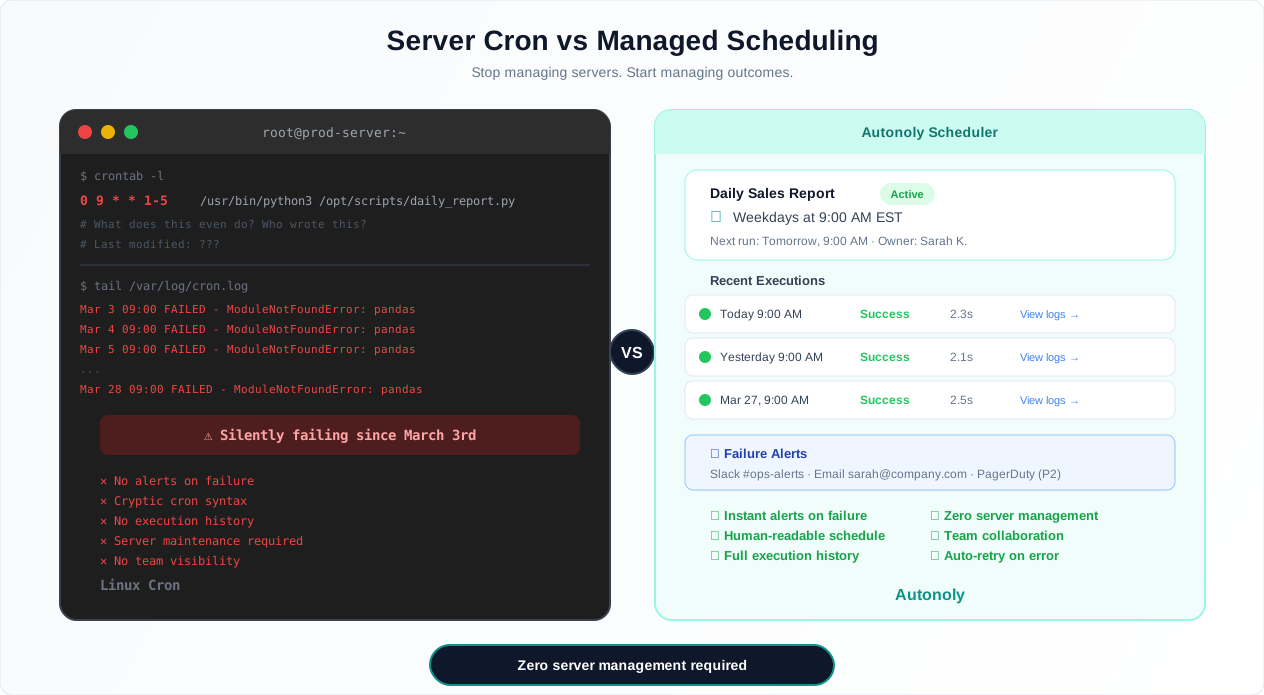
Every developer has lived this nightmare: a production server with 47 cron jobs, nobody remembers what half of them do, three of them have been silently failing for weeks, and the one person who set them up left the company in 2023. The crontab file is a museum of cryptic expressions like 15 6 * * 1-5 with no comments, no monitoring, and no alerts. Something fails at 3am and nobody finds out until a customer complains on Tuesday.
Scheduled Execution solves this. It gives you cron-like power — turning ad-hoc runs into reliable task scheduling that runs anything on any schedule with any frequency — without the server, the cryptic syntax, or the silent failures. Your workflows run on Autonoly's infrastructure. You do not manage servers, install dependencies, worry about disk space, or set up monitoring. When something fails, you know about it immediately.
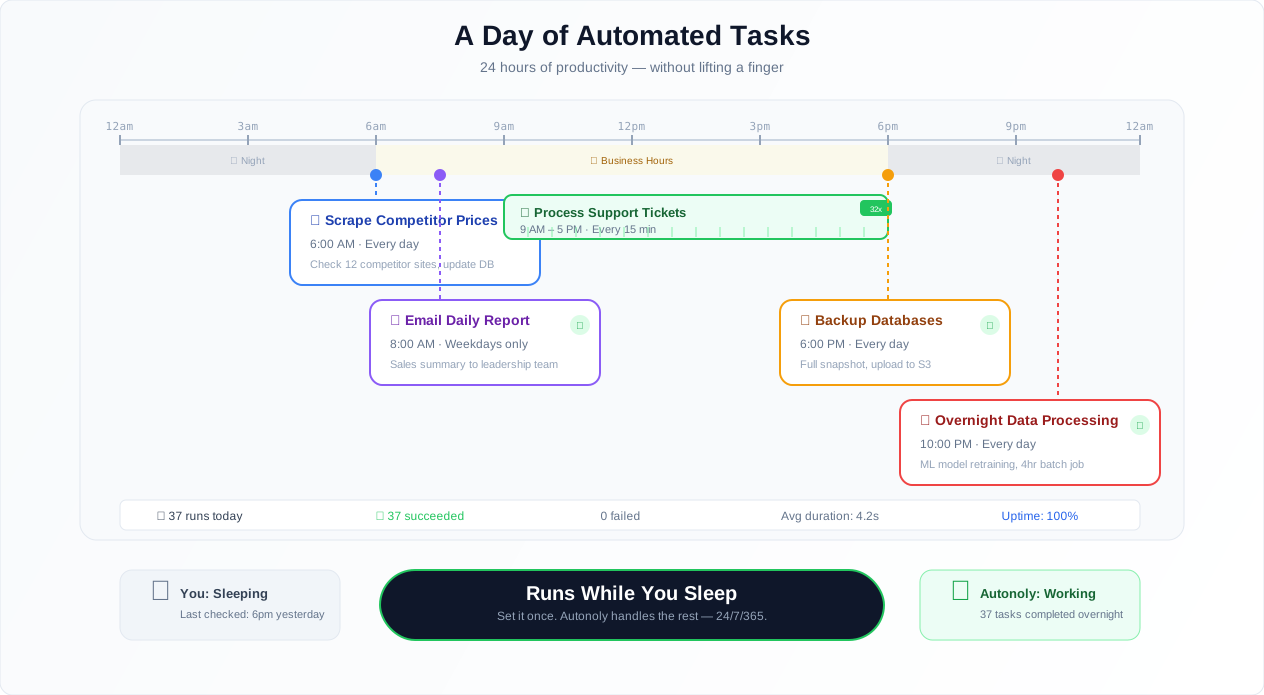
This turns one-time automations into persistent, always-running processes. A Data Extraction workflow that scrapes competitor prices becomes a daily price monitoring system. A Browser Automation that checks inventory becomes an hourly stock alert. The automation logic stays the same — scheduling makes it continuous. For teams just getting started with automation, our guide to scheduling automated workflows walks through the fundamentals.
The Scheduling Spectrum: From Cron to Cloud
Before diving into Autonoly's implementation, here is an honest comparison of scheduling approaches. Each has real tradeoffs:
Linux [cron](/glossary/cron-job) is the original. It is powerful, ubiquitous, and has been running scheduled jobs since 1975 — its behavior is even codified in the POSIX standard. But it has no built-in monitoring, no retry logic, no alerting, no UI, and its syntax — 0 9 * * 1-5 for "weekdays at 9am" — is hostile to anyone who does not use it daily. Cron also requires a server that is always running. If the server goes down during a scheduled window, the job simply does not run, and nobody knows.
Windows Task Scheduler gives you a GUI but is limited to Windows environments, has poor logging, and is tied to a single machine. It is fine for personal tasks on your laptop. It is not a production scheduling solution.
Cloud schedulers — AWS EventBridge, GCP Cloud Scheduler, Azure Logic Apps — are reliable and scalable. They are also overkill and overpriced for most automation tasks. Setting up EventBridge to trigger a Lambda function that runs a Python script that scrapes a website requires IAM policies, Lambda configuration, CloudWatch logging, and infrastructure expertise. You are paying for enterprise-grade infrastructure to run what should be a simple recurring task.
Autonoly Scheduled Execution gives you cron-level precision with cloud-level reliability, no infrastructure to manage, a visual configuration UI, built-in monitoring and alerting, and retry logic that actually works. The tradeoff: you are dependent on Autonoly's platform. If Autonoly goes down, your schedules do not run. For mission-critical financial trading algorithms, that dependency might be unacceptable. For daily price scrapes, weekly report generation, and hourly monitoring checks — which is 95% of real-world scheduling needs — the convenience far outweighs the risk.
Schedule Types
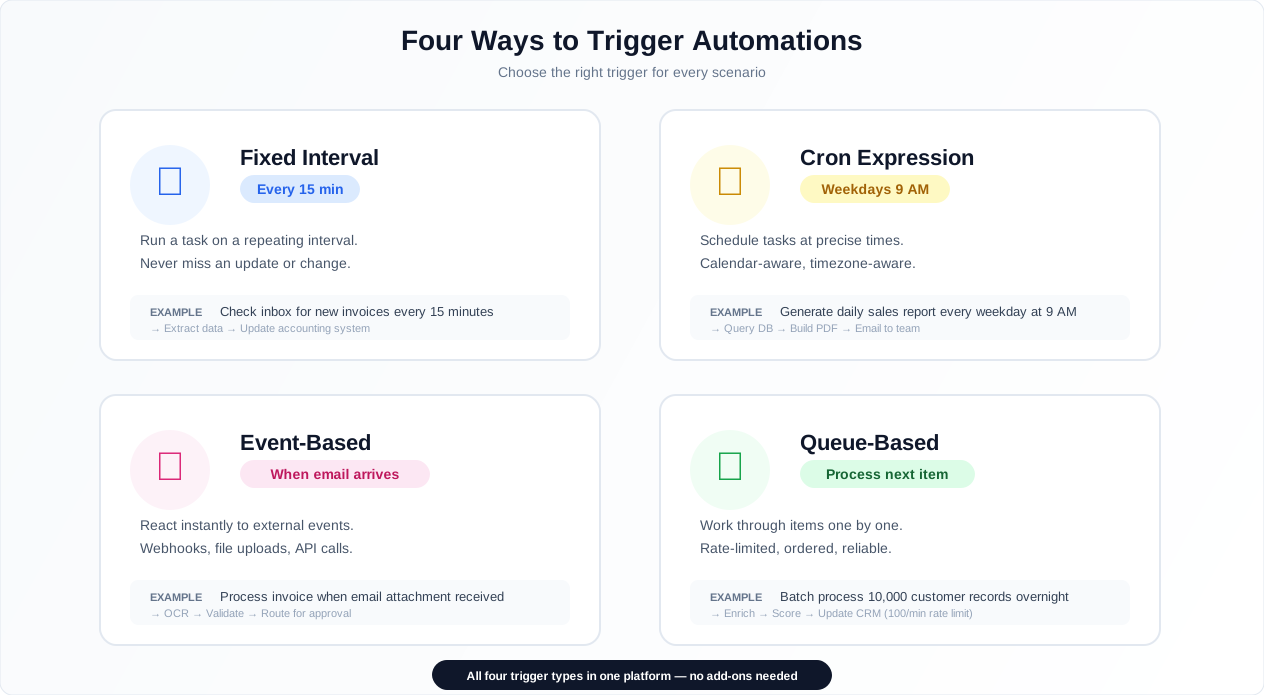
Autonoly supports multiple scheduling methods, each designed for different use cases:
Fixed Interval Schedules
The simplest option. Run every 5 minutes, every hour, every 6 hours, every day, every week, every month. Choose from presets or set a custom interval. This is the right choice for monitoring workflows where you want consistent, regular checks.
When to use: Website monitoring, inventory checks, social media polling, API health checks. Anything where "check every N minutes/hours" is the natural cadence.
When NOT to use: Workflows that need to run at a specific time of day. "Every 24 hours" starting from when you created the schedule means if you set it up at 2:47pm, it runs at 2:47pm every day. If you want "every day at 9am," use a cron expression.
Cron Expressions
Full cron syntax for precise control. "Every weekday at 9:15 AM." "First Monday of each month at 8 AM." "Every 30 minutes between 6 AM and 10 PM." If cron can express it, Autonoly can schedule it.
Not everyone speaks cron. The schedule configuration panel includes a visual cron builder where you select days, hours, and intervals from dropdowns, and the corresponding cron expression is generated automatically. A human-readable summary — "Every weekday at 9:15 AM EST" — is always displayed next to the raw expression so you can verify at a glance. No more guessing whether 0 9 * * 1-5 means weekdays or weekends.
Event-Based Triggers
Sometimes you do not want a schedule at all — you want a workflow to run in response to an event. A new email arrives, a webhook fires, an API callback triggers. Event-based triggers start the workflow immediately when the event occurs, with no polling delay.
Queue-Based Processing
For high-volume scenarios, queue-based scheduling processes items as they arrive. New items are added to a queue (via webhook, API, or another workflow), and the scheduler processes the next item in line. This is the right pattern for processing incoming form submissions, handling support tickets, or batch-processing file uploads.
Hybrid: Schedule + Event
Many real-world processes benefit from both time-based and event-based triggers. A nightly batch run handles the baseline data collection, while a webhook triggers an immediate re-run when a critical event occurs — like a competitor updating their pricing page. Autonoly supports pairing a cron schedule with a webhook trigger on the same workflow. The workflow runs on schedule AND in response to events, with deduplication logic to prevent double-processing.
The Timezone Nightmare (And How Autonoly Handles It)
Comparison of scheduling approaches: Linux cron jobs, cloud schedulers, and Autonoly's visual scheduling with monitoring
"Run at 9am" sounds simple until you ask: whose 9am?
If your team is in New York but your workflow monitors a website hosted in London, and your customers are in Tokyo, "9am" has three different meanings. Set the schedule to UTC and your New York team gets results at 4am. Set it to Eastern Time and your London monitoring runs at 2pm, missing the morning price changes.
It gets worse. Daylight saving time changes the UTC offset twice a year. A workflow scheduled for "9am Eastern" runs at 14:00 UTC in winter and 13:00 UTC in summer. If your scheduler does not handle DST transitions, your workflow either runs an hour early or an hour late twice a year — and you probably do not notice until the data looks wrong.
Autonoly schedules run in your configured timezone and automatically adjust for DST transitions. Set "9am America/New_York" and it runs at 9am Eastern Time year-round, whether that is UTC-5 or UTC-4. The system uses the IANA Time Zone Database, not fixed UTC offsets, which is the only correct way to handle this.
Per-workflow timezone configuration means different workflows can run in different timezones. Your competitor monitoring workflow runs at 6am in the competitors' timezone. Your team reporting workflow runs at 8am in your team's timezone. Your nightly data sync runs at 2am in your data warehouse's timezone. Each schedule is independent.
Overlap Handling: What If the Previous Run Has Not Finished?
This is the scheduling problem that nobody talks about until it bites them.
You schedule a workflow to run every 15 minutes. Normally it takes 3 minutes to complete. But one day the target website is slow, and the workflow takes 20 minutes. The next scheduled run triggers while the previous one is still running. What happens?
With cron: both run simultaneously. If they write to the same file or database, you get data corruption. If they scrape the same website, you double your request rate and might trigger rate limits.
Autonoly gives you explicit control over overlap behavior:
Queue the new run — the pending run starts as soon as the current one finishes. No data is lost, but timing shifts forward
Skip the new run — if the previous run is still active, the scheduled trigger is silently skipped. Good for monitoring workflows where slightly stale data is acceptable
Cancel the in-progress run and start fresh — terminate the running workflow and start the new one. Good for workflows where the latest data is more important than completing the previous run
Run concurrently — allow both to run simultaneously. Only safe if the workflow is designed for concurrent execution (reads only, no shared write targets)
The default is "queue," which is the safest option for most workflows. But you should explicitly choose the right policy for each workflow rather than accepting the default blindly.
Retry Logic and Failure Handling
Not every run succeeds on the first try. Network timeouts, temporary site outages, rate limiting, and transient infrastructure issues happen regularly. The difference between a production-grade scheduler and a toy is what happens when a run fails.
Automatic Retries
The scheduler automatically retries failed runs with configurable retry logic policies:
Retry count — set how many times to retry (default: 3). For most workflows, 3 retries is right. For workflows hitting flaky APIs, increase to 5. For workflows where failure means "the website changed and retrying will not help," set to 0
Backoff strategy — exponential backoff prevents hammering a struggling target. First retry after 30 seconds, second after 2 minutes, third after 10 minutes. This gives transient issues time to resolve without adding unnecessary delay
Custom retry conditions — define which error types should trigger retries and which should fail immediately. Network timeout? Retry. 429 rate limit? Retry with longer backoff. 401 authentication failure? Do not retry — the credentials are wrong, and 100 retries will not fix that
Failure threshold — disable a schedule automatically after N consecutive failures (default: 5). This prevents a broken workflow from retrying indefinitely, consuming execution credits on a job that will never succeed until someone fixes the underlying issue
What Happens When Retries Are Exhausted
When all retries fail, the scheduler:
- Marks the run as failed in the execution history
- Sends failure notifications to your configured channels (email, Slack, or both)
- Logs the full error details for debugging
- If the failure threshold is reached, disables the schedule and sends an urgent alert
This is fundamentally different from cron, where a failed job writes an error to a log file that nobody reads, and the next scheduled run tries again as if nothing happened. With Autonoly, failure is visible, tracked, and actionable.
Failure Alerting: The 3am Problem
Scheduled workflow lifecycle: trigger, execute, monitor results, alert on failure, retry or escalate
When a scheduled job fails at 3am, does anyone know?
With cron: almost certainly not. Cron can email the output of a failed job, but that email goes to root@localhost, which nobody checks. You can redirect output to a log file, but nobody monitors log files at 3am. You can pipe errors to a monitoring system, but setting up that integration is its own project.
With Autonoly, failure alerting is built in:
Immediate failure alerts — get notified via email or Slack the moment a run fails (after retries are exhausted). Not tomorrow. Not when someone checks the dashboard. Right now
Completion summaries — receive a daily digest of all scheduled run results. One email at 8am showing what ran, what succeeded, what failed, and what was skipped
Conditional alerts — trigger notifications only when results match specific criteria. "Alert me only if the price dropped below $50" means you are not flooded with notifications on normal runs
Health reports — weekly summary of schedule reliability and performance metrics. See trends: is this workflow's success rate declining? Are average run times increasing? A gradual increase in retry rates often signals that a target site is implementing anti-bot measures
SLA alerts — get notified if a workflow takes longer than an expected duration. If your 3-minute workflow suddenly takes 20 minutes, something changed. Maybe the website added a CAPTCHA. Maybe the API is throttling you. Either way, you want to know before the next scheduled run overlaps
The Cost Comparison: DIY vs. Autonoly
Running scheduled jobs yourself is cheaper on paper but more expensive in practice.
The DIY approach: Rent a $5/month VPS (DigitalOcean, Hetzner, Linode). Install Python, Node.js, Selenium, Chrome, your dependencies. Write your scripts. Set up crontab. Set up log rotation so the disk does not fill up. Set up monitoring so you know when jobs fail. Set up alerting so someone gets notified. Keep the server patched and updated. Deal with it when the VPS provider has a maintenance window and your jobs do not run. Deal with it when a dependency update breaks your script. Deal with it when Chrome updates and your Selenium version is incompatible.
The $5/month VPS costs $5/month. The engineering time to maintain it costs vastly more.
The Autonoly approach: Build the workflow visually. Set the schedule. Configure alerts. Done. No server. No dependency management. No log rotation. No security patches. No Chrome compatibility issues. Autonoly handles the infrastructure. You handle the business logic.
The tradeoff is real: Autonoly costs more per month than a bare VPS. But unless you genuinely enjoy managing infrastructure (and some people do — no judgment), the operational overhead of DIY scheduling is not worth the savings. Our guide to scheduling automated workflows walks through the cost analysis in more detail.
Execution Windows
For time-sensitive workflows, you can define execution windows. If a scheduled run cannot start within its window (due to system load or other factors), it is either queued or skipped based on your preference.
This matters more than it seems. A price monitoring workflow that runs three hours late produces stale data. The prices you are comparing against may have already changed again. Setting an execution window of 30 minutes means the run either happens within 30 minutes of its scheduled time or is flagged as missed. You always know the data is current — or you know it is not.
For non-time-sensitive workflows (nightly data syncs, weekly report generation), execution windows are less important. If the sync starts at 2:15am instead of 2:00am, nobody cares. But for workflows where timing matters — market monitoring, competitive intelligence, compliance deadline checks — execution windows are essential.
Managing Schedules at Scale
One scheduled workflow is easy to manage. Forty scheduled workflows across three teams is a different problem entirely.
The schedule dashboard gives you a centralized view:
Calendar view — see upcoming runs across all workflows on a timeline. Spot scheduling conflicts instantly: two heavy scraping workflows scheduled at the same time will compete for resources
Execution history — review past runs with status, duration, and output. Identify patterns: does this workflow always take longer on Mondays? Does it fail more often on the first of the month?
Bulk management — pause, resume, or delete multiple schedules at once. Going on vacation? Pause all non-critical schedules with one click
Quick edit — change schedule timing without modifying the underlying workflow. Move the daily scrape from 6am to 7am without touching the workflow definition
Tags and naming conventions — group schedules by purpose (monitoring, reporting, data-sync) or by team (sales, marketing, engineering). When you have 40 active schedules, organization is not optional
Dependency chains — configure workflow B to start only after workflow A completes, creating sequential pipelines on a single schedule trigger. The data extraction workflow runs first, then the data processing workflow, then the reporting workflow. If extraction fails, processing and reporting do not run — which is the correct behavior
Combining with Other Features
Scheduled execution pairs naturally with nearly every Autonoly feature:
[Data Extraction](/features/data-extraction) — schedule daily scrapes for price monitoring or lead generation
[Data Processing](/features/data-processing) — run nightly data cleanup and transformation jobs
[Webhooks](/features/webhooks) — combine time-based and event-based triggers for hybrid automation patterns
[Logic & Flow](/features/logic-flow) — add conditional logic that adapts based on time of day or day of week
[Website Monitoring](/features/website-monitoring) — schedule frequent checks for content changes
Best Practices from Managing 500+ Scheduled Jobs
These are lessons learned from operating scheduled automation at scale. They apply whether you have 5 schedules or 500.
Start with daily runs and tighten later. If you are unsure how often you need data refreshed, begin with daily runs. Monitor how frequently the source data actually changes. If it changes hourly, switch to hourly. If it changes weekly, switch to weekly. Starting aggressive (every 5 minutes) wastes execution credits, overloads target sites, and often produces identical data 95% of the time. You are paying for 288 runs a day when 24 would suffice.
Use execution windows for time-sensitive workflows. A price monitoring workflow that runs three hours late produces stale, useless data. Setting an execution window of 30 minutes ensures the run either happens on time or is flagged as missed. You always know whether the data is current.
Combine cron schedules with webhook triggers. Many real-world processes benefit from both. A nightly batch run handles the baseline, while a webhook triggers an immediate re-run when critical events occur — like a competitor updating their pricing page. This hybrid pattern gives you the reliability of scheduled execution with the responsiveness of event-driven automation. Learn more about this pattern in our post on AI workflow automation.
Monitor failure rate trends, not just individual failures. The health report surfaces trends you miss in individual failure alerts. A workflow that succeeded 98% of the time last month but only 90% this month is telling you something. The target site might be implementing anti-bot measures. The API might be tightening rate limits. A gradual decline in reliability gives you time to adapt before the workflow breaks entirely. Our guide to bypassing anti-bot detection covers strategies for handling these situations.
Name schedules for humans, not machines. "Workflow 47 - Daily" tells you nothing. "Competitor Price Scrape - Daily 6am ET - Slack #pricing-alerts" tells you everything. When you have 40 active schedules and one is failing, descriptive names mean the difference between immediately understanding the impact and having to open the workflow to figure out what it does.
Stagger your schedules. Do not run 10 workflows at exactly 9:00am. Stagger them across the hour — 9:00, 9:06, 9:12, and so on. This reduces peak resource contention, avoids simultaneous load on target websites, and makes debugging easier because you can correlate failures with specific workflows rather than wondering which of 10 concurrent runs caused the problem.
Security & Compliance
Scheduled workflows run in isolated environments with the same security guarantees as manually triggered runs. Each execution spins up a fresh browser instance in a sandboxed container, and all data is encrypted in transit and at rest.
Schedule configurations — including cron expressions, retry policies, and notification settings — are version-controlled within Autonoly. You can see who changed a schedule, when, and what the previous configuration was. This audit trail is essential for compliance in regulated industries and for debugging the inevitable "who changed this schedule and why does it run at 4am now?" conversation.
For organizations that require approval before workflows execute, Autonoly supports approval gates on scheduled runs. A scheduled workflow can be configured to require manual approval before it runs, with a configurable timeout after which the run is either auto-approved or skipped. This is useful for workflows that perform write operations — such as updating a database or submitting forms via Form Automation — where a human review step adds an extra layer of safety.
Common Use Cases
Daily Competitive Price Monitoring
An e-commerce team schedules a workflow to run every morning at 6 AM in their target market's timezone. The workflow visits five competitor websites (Amazon, Walmart, Target, and two direct competitors), extracts product prices using Data Extraction, compares them to the previous day's data stored in Google Sheets, and sends a summary to a Slack channel highlighting any changes greater than 5%. If a competitor drops a price by more than 10%, an additional urgent alert goes to the pricing team's email and the VP of Commerce gets a Slack DM. The entire workflow takes 8 minutes and runs 365 days a year without anyone touching it. When a competitor ran a surprise flash sale, the team knew about it by 6:15am — two hours before any other team in the company noticed. Read more about this pattern in our e-commerce price monitoring guide.
Every-15-Minutes Support Inbox Triage
A customer success team schedules a workflow to run every 15 minutes during business hours (8am-6pm, weekdays only — a perfect use case for cron's day-of-week and hour range expressions). The workflow checks the support inbox via Gmail API, categorizes each new email using AI classification, and routes based on urgency: emails containing words like "down," "broken," "urgent," or "outage" create an immediate Slack alert in #support-urgent with the customer name, subject, and a link to the email. Non-urgent emails are logged to a triage spreadsheet for the next available agent. The workflow saves the team from constantly monitoring their inbox while ensuring urgent issues never wait more than 15 minutes.
Weekly Lead Generation and Outreach
A sales team runs a weekly workflow every Monday at 7 AM. The workflow searches LinkedIn for new prospects matching specific criteria using LinkedIn Automation, enriches the leads with company data from Data Extraction, deduplicates against the existing HubSpot CRM database via API, scores leads using the Logic & Flow scoring pattern, and feeds qualified contacts into an Email Campaign sequence. The entire pipeline runs unattended. By the time the team opens their laptops for Monday standup, a fresh list of 20-50 qualified leads is waiting in their Slack channel with enrichment data and recommended talking points.
Nightly Data Warehouse Sync
A data team schedules an overnight workflow that extracts data from multiple web-based SaaS tools (Stripe dashboard, Intercom reports, Google Analytics, internal admin panels), transforms it with Data Processing, and loads it into a PostgreSQL database using the Database feature. The workflow runs at 2 AM when system load is low, uses dependency chains to ensure extraction completes before transformation starts, and results are ready for the analytics team's Metabase dashboards by 7 AM. Retry logic handles the transient errors that inevitably occur when scraping 8 different SaaS dashboards (at least one will have a hiccup on any given night). Persistent failures trigger an alert to the on-call data engineer's PagerDuty.
Monthly Compliance Reporting
A compliance team schedules a monthly workflow that checks SEC EDGAR and state regulatory websites for updated filings relevant to their industry. The workflow extracts the relevant documents using PDF & OCR, compares filing dates against the previous month's data to identify new submissions, and compiles a summary report with links to full documents. The report is emailed to the General Counsel and archived in Google Drive via Integrations. The execution window ensures the run happens within the first business day of each month. This workflow replaced a manual process that took a paralegal 6 hours per month and occasionally missed filings in state databases.
Check pricing to see schedule limits and concurrent execution slots for each plan.