What is PDF & OCR?
PDF & OCR extracts text, tables, and structured data from PDF documents and turns them into data you can actually use. That sentence sounds simple, but the problem it solves is one of the most persistent headaches in business operations.
Here is the fundamental issue: the PDF format was designed in 1993 by Adobe for one purpose — making documents look the same on every screen and every printer. It is now an open standard maintained by the PDF Association and published as ISO 32000, but its origin as a print format never changed. It is a display format, not a data format. A PDF does not contain "a table with 5 columns and 20 rows." It contains instructions that say "draw the character 'I' at position (72, 144), draw the character 'n' at position (78, 144), draw a line from (70, 160) to (500, 160)." Reconstructing the table from those drawing instructions is a hard computational problem — the core challenge of PDF parsing — and it is the problem Autonoly solves.
After processing over a million PDFs across every document type — invoices, contracts, bank statements, medical records, tax forms, insurance claims, shipping manifests, legal filings, academic papers, government applications — I can tell you that the difficulty varies enormously depending on what kind of PDF you are dealing with.
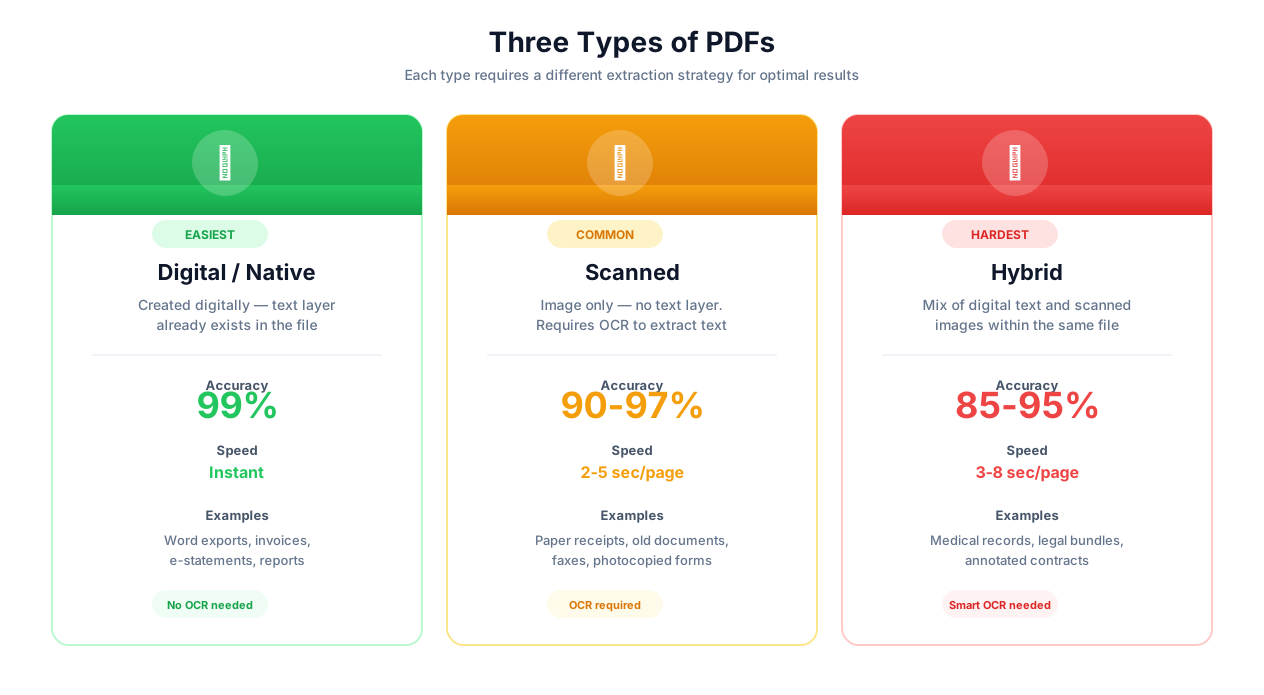
PDF types and extraction approaches
Key Insight: Organizations process an average of 10,000+ PDF documents per year. Finance teams alone spend up to 25 hours per week on manual data entry from invoices. At $30/hour loaded labor cost, that is $39,000 per year per person — and that is before accounting for the 2-4% error rate of manual entry that creates downstream accounting problems. Automated extraction pays for itself in the first month.
The Three Types of PDFs
Every PDF you will ever encounter falls into one of three categories, and each requires a fundamentally different extraction approach:
1. Native (Digital) PDFs — The Easy Ones
These are PDFs created directly from a digital source — exported from Word, generated by an invoicing system, produced by a reporting tool. The text layer exists in the file. You can select text, copy it, and paste it into another application.
Extraction approach: Direct text extraction from the PDF's content stream. No OCR needed. The system reads the drawing instructions, maps characters to their positions, and reconstructs the text with its spatial relationships intact.
Accuracy: 99.5-99.8% for text, 97-98% for tables. The remaining errors come from complex table layouts where the spatial reconstruction algorithm must infer column boundaries from character positions alone.
Processing speed: 1-2 seconds per page. This is limited by table structure analysis, not text extraction.
Common sources: ERP-generated invoices, system reports, bank statement PDFs from online banking, digital-native contracts, government-generated filings.
2. Scanned PDFs — The Hard Ones
These are paper documents that someone fed through a scanner or photographed with a phone camera. The PDF is just an image wrapper — there is no text layer at all. Every character must be recognized from pixels.
Extraction approach: OCR (Optical Character Recognition). The image goes through a pre-processing pipeline (deskewing, noise removal, contrast enhancement, binarization), then a recognition engine identifies each character, then post-processing applies language models and dictionary correction.
Accuracy: Highly dependent on scan quality:
300+ DPI, clean scan: 97-98.5%
200 DPI, standard office scan: 95-97%
150 DPI or phone photo: 90-93%
Faded thermal paper (old receipts): 85-92%
Handwritten documents: 82-92% (varies enormously by handwriting quality)
Processing speed: 3-15 seconds per page depending on complexity and whether GPU acceleration is enabled.
Common sources: Scanned paper invoices, photographed receipts, archived documents, faxed documents (yes, faxes still exist in healthcare and legal), handwritten forms.
3. Hybrid PDFs — The Sneaky Ones
These are the documents that catch people off guard. They look like normal PDFs — the first few pages are digital text, perfectly extractable. Then page 7 is a scanned appendix. Or the main text is digital but the signature block is a scanned image. Or the body is typed but the handwritten annotations are image overlays.
Extraction approach: Page-by-page classification. Each page is analyzed to determine whether it has a usable text layer or needs OCR. Pages with text layers get direct extraction; pages without get OCR. This happens automatically — you do not need to know which pages are scanned.
Why they matter: Hybrid PDFs are far more common than most people realize. Contracts frequently have scanned signature pages appended to digital text. Government forms are often partially typed and partially handwritten. Medical records combine typed lab results with scanned physician notes. If your extraction pipeline does not handle hybrids, it silently drops data from scanned pages.
OCR Engines: An Honest Comparison
OCR accuracy is the single most important factor in document extraction, and the differences between engines are significant. Here is a comparison based on real-world performance across thousands of documents, not marketing claims:
Tesseract (Open Source)
Accuracy: 85-92% on typical business documents. Drops to 75-85% on low-quality scans.
Tesseract is the most widely used open-source OCR engine. It is free, well-documented, and has broad language support (100+ languages). However, its accuracy on real-world business documents lags behind commercial engines by 5-10 percentage points. It struggles with:
Complex table layouts (it does not understand tables natively — it processes text line by line)
Mixed fonts on the same page
Low-contrast text (light gray on white)
Handwritten text (essentially unsupported)
Rotated or skewed text beyond simple deskewing
Tesseract is fine for simple, clean documents with standard fonts. For production invoice processing or contract extraction, it produces too many errors to be reliable without extensive post-processing.
Google Cloud Vision / Document AI
Accuracy: 95-98% on typical business documents. 92-95% on low-quality scans.
Google's Document AI is the accuracy leader for structured documents like invoices and receipts. Its pre-trained models for invoices, receipts, and W-2 forms are excellent — field-level accuracy above 97% for common invoice fields. The API is well-designed and pricing is reasonable ($1.50 per 1,000 pages for general OCR, $65 per 1,000 pages for Document AI processors).
Weaknesses: Limited customization for unusual document types. The pre-trained models work well for standard formats but require expensive custom training for non-standard layouts. Latency can be unpredictable (1-5 seconds per page). And you are sending your documents to Google's servers, which matters for sensitive data.
Amazon Textract
Accuracy: 94-97% on typical business documents. 90-94% on low-quality scans.
Textract is Amazon's document extraction service, and its table extraction is arguably the best in the industry. The AnalyzeDocument API with the TABLES feature type correctly identifies table structures that trip up other engines — borderless tables, tables with merged cells, and tables spanning page breaks. Textract also has strong form extraction (key-value pairs from form-like documents).
Weaknesses: Pricing is complex ($1.50/page for text, $15/page for tables+forms on the first million pages). CJK language support is limited compared to Google. Handwriting recognition exists but accuracy is below Google's. And like Google, documents are processed on Amazon's infrastructure.
Azure AI Document Intelligence (formerly Form Recognizer)
Accuracy: 93-96% on typical business documents. 89-93% on low-quality scans.
Azure's offering is strong for enterprise customers already in the Microsoft ecosystem. Pre-built models for invoices, receipts, ID documents, and tax forms achieve solid accuracy. Custom model training is more accessible than Google's and supports a wider range of document types.
Weaknesses: Slightly lower accuracy than Google and Amazon on standardized benchmarks. The API surface is complex and has changed names/structure multiple times. Pricing is competitive but opaque.
Autonoly's Approach
Autonoly does not rely on a single OCR engine. The extraction pipeline selects the optimal approach based on document characteristics:
- Native PDF detection — if a text layer exists, skip OCR entirely (faster, more accurate)
- Pre-processing — deskew, denoise, enhance contrast, correct perspective, binarize
- Multi-engine OCR — run the pre-processed image through the best-fit engine for the detected language and document type
- AI-powered post-processing — use language models to correct common OCR errors ("rn" misread as "m," "0" confused with "O," "1" confused with "l")
- Template matching — for recurring document formats, apply learned extraction rules that boost accuracy by 2-5 percentage points
- Cross-validation — for financial documents, verify mathematical relationships (line items sum to subtotal, tax calculation matches, subtotal + tax = total)
- Confidence scoring — every extracted field gets a confidence score; low-confidence fields are routed to human review
This pipeline achieves effective accuracy above 99% for standard business documents after template matching and cross-validation. First-pass accuracy on previously unseen documents is 95-98%.
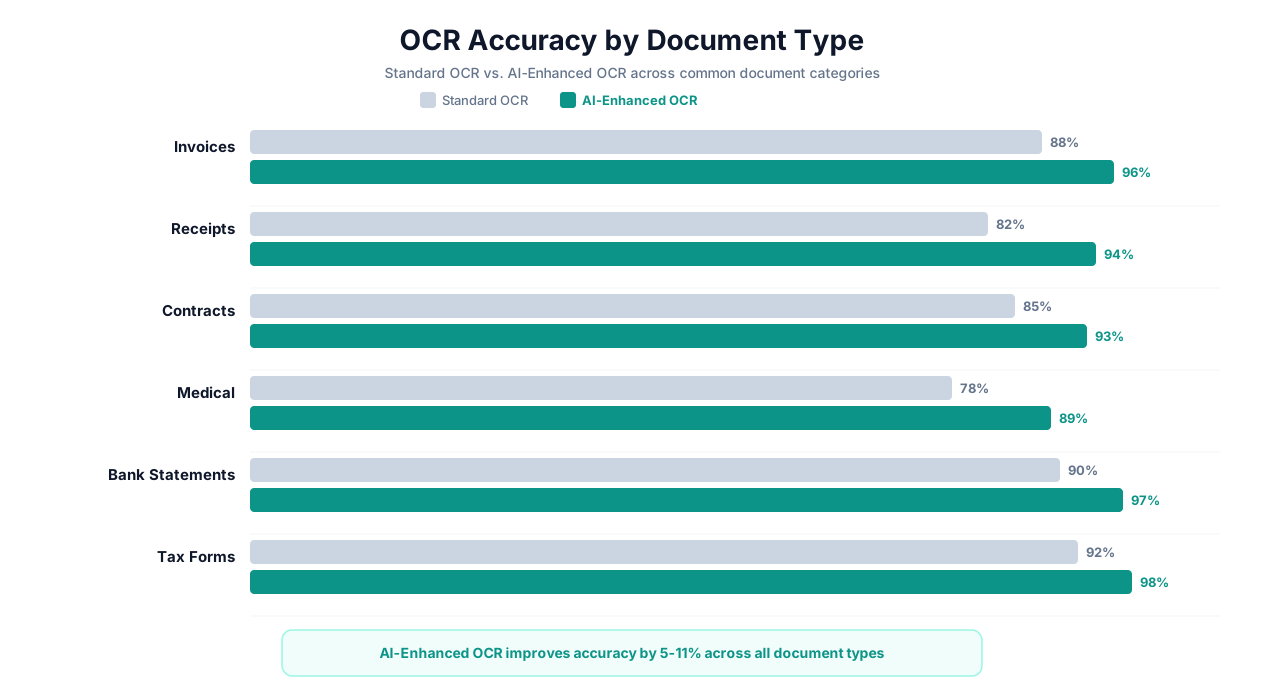
OCR accuracy by document type
Document-Specific Extraction Challenges
Each document type has its own unique extraction challenges. Here is what I have learned processing each one at scale:
Invoices
Invoices are the highest-volume PDF extraction use case, and they are deceptively complex because there is no standard format. Every vendor has a different layout, different field labels, different table structures. "Invoice Number" might be labeled "Inv #," "Invoice No.," "Reference," "Document Number," or just a number next to a barcode.
Key extraction targets: Invoice number, date, due date, vendor name and address, buyer name and address, line items (description, quantity, unit price, amount), subtotal, tax (rate and amount), total, payment terms, PO reference, currency.
Specific challenges:
PDF417 barcodes: Many invoices include barcodes that encode invoice data. Autonoly's barcode detection can decode these and cross-validate against extracted text — if the barcode says the total is $1,234.56 and the OCR extracted $1,234.86, the barcode is almost certainly correct.
Multi-page line item tables: Large invoices split line item tables across 2-5 pages. The extraction must detect table continuation, maintain column alignment across page breaks, and handle running subtotals.
Credit notes and adjustments: Negative line items, discounts applied at the line level vs. document level, and credit notes referencing original invoices require different extraction logic than standard invoices.
Multi-currency invoices: Some invoices show amounts in both the vendor's currency and the buyer's currency, with exchange rates. The extraction must identify which amounts are in which currency and extract the exchange rate.
Field-level accuracy benchmarks:
| Invoice Field | First-Pass Accuracy | With Template |
|---|---|---|
| Invoice number | 98.5% | 99.7% |
| Invoice date | 97.8% | 99.5% |
| Due date | 96.5% | 99.2% |
| Vendor name | 98.2% | 99.8% |
| Total amount | 97.5% | 99.6% |
| Line item descriptions | 95.8% | 98.5% |
| Line item amounts | 96.2% | 99.1% |
| Tax amount | 95.5% | 98.8% |
| PO number | 94.8% | 99.0% |
Receipts
Receipts are the worst-quality documents you will ever process, for reasons that have nothing to do with your extraction pipeline:
Thermal paper degradation: Most receipts are printed on thermal paper, which fades over time. A receipt that was perfectly legible last month may be 60% faded today. A receipt from 6 months ago may be nearly blank. There is no fixing this — if the text has faded below the contrast threshold of the camera sensor, no amount of image enhancement will recover it.
Crumpled and folded scans: Receipts live in wallets, pockets, and desk drawers. By the time someone scans or photographs them, they are crumpled, folded, and stained. The pre-processing pipeline handles rotation, perspective correction (phone photos taken at angles), and flattening (unfolding creased scans), but physical damage to the paper creates permanent occlusion.
Tiny fonts: Receipt printers use small fonts (6-8pt) at low resolution (180-200 DPI effective). Combined with thermal paper's limited contrast, this creates OCR conditions that push every engine to its limits.
Non-standard layouts: Every POS system produces a different receipt format. Some list items left-aligned with prices right-aligned. Some use columns. Some use dots or dashes as separators. Some include barcodes, QR codes, or promotional text mixed in with transaction data.
Practical recommendation: Scan or photograph receipts immediately — do not wait weeks or months. Use a phone camera with flash at a close distance (fills the frame) for better results than most flatbed scanners. And set confidence thresholds aggressively low for receipt processing — expect 85-95% accuracy and route everything below 90% confidence to human review.
Contracts
Contracts are unique because you are not extracting a fixed set of fields — you are extracting variable-length clauses, each of which could appear anywhere in the document with different wording.
Key extraction targets: Parties (names, addresses, roles), effective date, termination date, renewal terms, payment terms, liability caps, indemnification clauses, non-compete provisions, governing law, signature blocks, amendment references.
Specific challenges:
Multi-page span: A single clause can span 2-3 pages. Table of contents cross-references use page numbers that may shift if the document is modified. Section numbering schemes vary (1.1, 1.1.1, (a)(i), Article I Section 1).
Amendments and addenda: Contracts often have amendments that modify specific clauses of the original. Extraction must track which clauses have been superseded by amendments and surface the most current version of each term.
Signatures: Determining whether a contract is fully executed requires detecting signature blocks and identifying whether they contain signatures (ink, digital, or typed). Blank signature blocks indicate an unsigned draft.
Defined terms: Contracts define terms ("the Company," "the Effective Date," "the Services") that are used throughout. Extraction must resolve these definitions to understand what clauses actually mean.
AI Content integration is particularly valuable for contracts — after extraction, the AI can summarize complex clauses in plain language, compare terms against your standard terms, and flag unusual provisions that require legal review.
Medical Records
Medical documents present a unique combination of challenges: specialized terminology, handwritten physician notes, mixed-format pages (typed lab results + handwritten notes + printed charts), and strict privacy requirements.
Specific challenges:
HIPAA compliance: All processing must occur in isolated environments with no data retention. Business Associate Agreements (BAAs) are required. Audit logs must track every document processed. Enterprise plans provide HIPAA-compliant processing with geographic data residency controls.
Handwritten physician notes: Historically one of the hardest OCR problems. Physician handwriting is notoriously illegible — not just messy cursive, but abbreviated medical terminology written under time pressure. AI-powered handwriting recognition achieves 80-88% accuracy on physician notes, which is useful for digitization but insufficient for clinical decisions without human verification.
Lab results: Structured tables with reference ranges, units, and flag indicators (H/L for high/low). Table extraction handles these well, but the extraction must preserve the relationship between test name, value, unit, reference range, and flag.
Medical terminology: OCR post-processing uses medical dictionaries to correct recognition errors. "Hypertension" might be misread as "hypertenslon" — the medical dictionary catches this. Abbreviations (qd, bid, prn, dx, hx) are recognized and optionally expanded.
Bank Statements
Bank statements are structurally predictable — account information header, transaction table body, summary footer — which makes them a good candidate for template-based extraction.
Key extraction targets: Account holder name, account number, statement period, opening balance, each transaction (date, description, amount, running balance), closing balance, fees, interest.
Specific challenges:
Transaction description truncation: Banks truncate merchant names and descriptions to fit column widths. "AMAZON MARKETPLACE AM*AMZN.COM/BILL WA" is a typical truncated description. Post-processing maps common truncated patterns to full merchant names.
Running balance validation: The opening balance plus all credits minus all debits should equal the closing balance. This cross-validation catches extraction errors with high reliability — if the math does not work, at least one transaction amount was misread.
Multi-currency statements: International accounts show transactions in multiple currencies with conversion rates. The extraction must identify the transaction currency, the account currency, and the applied exchange rate.
PDF security: Banks often apply security settings to statement PDFs (no copying, no printing). Autonoly handles password-protected and security-restricted PDFs with stored credentials.
Tax Forms (W-2, 1099, Schedule C, K-1)
US tax forms have IRS-defined field positions, which makes them excellent candidates for template-based extraction — once you have a template, accuracy is near-perfect.
Specific challenges:
Form version changes: The IRS updates form layouts periodically. A W-2 from 2024 has slightly different box positions than a W-2 from 2023. Templates must be versioned by tax year.
State-specific variations: State tax forms (W-2 state copies, state-specific schedules) have different layouts across all 50 states.
Multi-form documents: A single PDF from a payroll provider may contain W-2s for hundreds of employees. The extraction must detect form boundaries within the document and process each form individually.
OCR on carbon copies: Some tax documents are printed on multi-part carbon paper and scanned from a carbon copy, which produces low-contrast, slightly blurred text. Pre-processing with aggressive contrast enhancement helps.
Table Extraction: The Hardest Problem in PDF Processing
If someone tells you their PDF extraction tool "handles tables," ask them these questions:
- Does it handle borderless tables? Many tables align columns by whitespace alone, with no drawn borders. The extraction must infer column boundaries from the spatial distribution of text.
- Does it handle merged cells? "Total" spanning three columns, a category header spanning the full table width, a multi-line description cell — these are common in real-world tables and break naive extraction algorithms.
- Does it handle tables that span page breaks? A 50-row table split across two pages requires detecting that the table continues on the next page, maintaining column alignment, and potentially re-reading a repeated header row.
- Does it handle nested tables? A table cell containing another table (common in complex invoices and government forms) requires recursive structure analysis.
- Does it handle multi-line cells? A cell with a product description that wraps to three lines must be recognized as one cell, not three rows.
- Does it handle row spanning? A category cell spanning five rows on the left while the right columns have five individual values per row.
Autonoly uses AI-powered table detection that addresses all six scenarios. The approach:
- Detect table regions on the page using a combination of line detection, text alignment analysis, and learned layout patterns
- Identify column boundaries by analyzing text position distributions — clusters of left-aligned text indicate column edges
- Identify row boundaries by analyzing vertical spacing — consistent gaps indicate row separators
- Handle merged cells by detecting text that spans multiple inferred column or row boundaries
- Detect continued tables across pages by recognizing column structure similarity between page endings and beginnings
- Output the table as structured rows and columns with proper header association
The result is a table structure you can directly import into a spreadsheet, database, or data processing pipeline.
Multi-Language OCR: What Works and What Does Not
Global organizations process documents in dozens of languages. Here is an honest assessment of OCR accuracy by script and language family:
Latin scripts (English, Spanish, French, German, Portuguese, Italian): 96-99% accuracy. These are the best-supported languages across all OCR engines. The extensive training data and well-defined character sets produce consistently high accuracy.
Cyrillic scripts (Russian, Ukrainian, Bulgarian, Serbian): 94-97% accuracy. Slightly lower than Latin due to characters that look similar to Latin equivalents (P/R, H/N, C/S in Cyrillic vs. Latin) causing occasional misidentification.
CJK (Chinese, Japanese, Korean): 92-96% accuracy. The challenge is the sheer number of characters — Chinese has 50,000+ characters in common use. Modern neural OCR engines handle this well for printed text, but handwritten CJK remains significantly harder (80-88%) due to stroke variation. Japanese adds complexity by mixing three scripts (Hiragana, Katakana, Kanji) on the same page, often within the same sentence.
Arabic and Hebrew (RTL scripts): 90-95% accuracy. Right-to-left text direction adds a layer of complexity. Arabic's connected script (letters change shape based on position in the word) is intrinsically harder to segment than Latin characters. Vowel marks (diacritics) in Arabic are small and frequently missed. Hebrew is somewhat easier because its letters are not connected.
Devanagari (Hindi, Sanskrit, Marathi): 91-95% accuracy. The connected headline (Shirorekha) that runs along the top of words creates segmentation challenges. Modern OCR handles this well for printed text but struggles with handwritten Devanagari.
Thai, Myanmar, Khmer: 88-93% accuracy. These scripts lack clear word boundaries (no spaces between words), making word segmentation a significant challenge on top of character recognition.
Practical recommendation for multi-language documents: Enable automatic language detection, which selects the optimal recognition model per page or per region. For documents that mix languages within a single page (e.g., an English contract with Japanese appendices), region-level detection provides better results than page-level detection. Always verify multi-language extraction accuracy with a test batch before running production volumes.
Batch Processing: Handling 10,000 PDFs Overnight
Single-document extraction is straightforward. The real challenge is processing thousands of documents efficiently, reliably, and with proper error handling.
Architecture
Batch processing uses a parallel worker architecture. Documents are queued, distributed across workers, and processed concurrently. Each worker runs in an isolated container with its own OCR engine instance, so a failure in one document does not affect others.
| Plan | Parallel Workers | Throughput (pages/hour) | Max Batch Size |
|---|---|---|---|
| Starter | 2 | ~200 pages | 100 documents |
| Professional | 5 | ~600 pages | 1,000 documents |
| Enterprise | 20+ | ~3,000 pages | Unlimited |
Error Handling in Batch Processing
At scale, some documents will fail. A corrupted file, a password-protected PDF without the password stored, a document so degraded that OCR cannot produce usable output. The batch processor handles this gracefully:
- Automatic retry — failed documents are retried up to 3 times with different pre-processing settings
- Isolated failures — one failed document does not block or affect the rest of the batch
- Error classification — failures are categorized (corrupt file, password required, OCR quality too low, unsupported format) so you can take targeted action
- Progress dashboard — real-time status for every document: queued, processing, completed, or failed with error reason
- Human review queue — documents that fail automatic processing or have low confidence scores are routed to a human review interface
Optimizing Batch Performance
Pre-sort by type: If you have a mixed batch of invoices, contracts, and receipts, sort them into separate batches. Applying a specific template or extraction configuration per batch produces better results than running a generic extraction across all document types.
Pre-sort by quality: Separate high-quality scans from low-quality ones. High-quality documents process faster and more accurately with lighter pre-processing. Low-quality documents need aggressive enhancement and should be allocated more processing time.
Schedule overnight: Run large batches during off-peak hours when processing resources are less contended. Use Scheduled Execution to trigger batch processing at midnight and have results ready by morning.
Set confidence thresholds before processing, not after: Decide upfront what confidence level is acceptable for your use case. Invoice processing for accounting typically requires 95%+ confidence on every field. Research document digitization may accept 85%+. Setting the threshold before processing ensures the human review queue gets populated during the run, not after a manual review of all results.
Output Formats
Extracted data can be delivered in any format your downstream systems require:
JSON — structured key-value pairs and nested objects, ideal for API consumption and database insertion
CSV — flat tabular output for spreadsheets and data import tools
Excel (.xlsx) — formatted spreadsheets with multiple sheets (one per table, one for metadata, one for key-value pairs)
Database direct insert — write extraction results directly to a database with configurable schema mapping
Webhook — push extraction results to any endpoint via webhooks for real-time integration
Google Sheets / Airtable — direct push to cloud spreadsheets via Integrations
Custom format — use Data Processing to transform extracted data into any structure before export
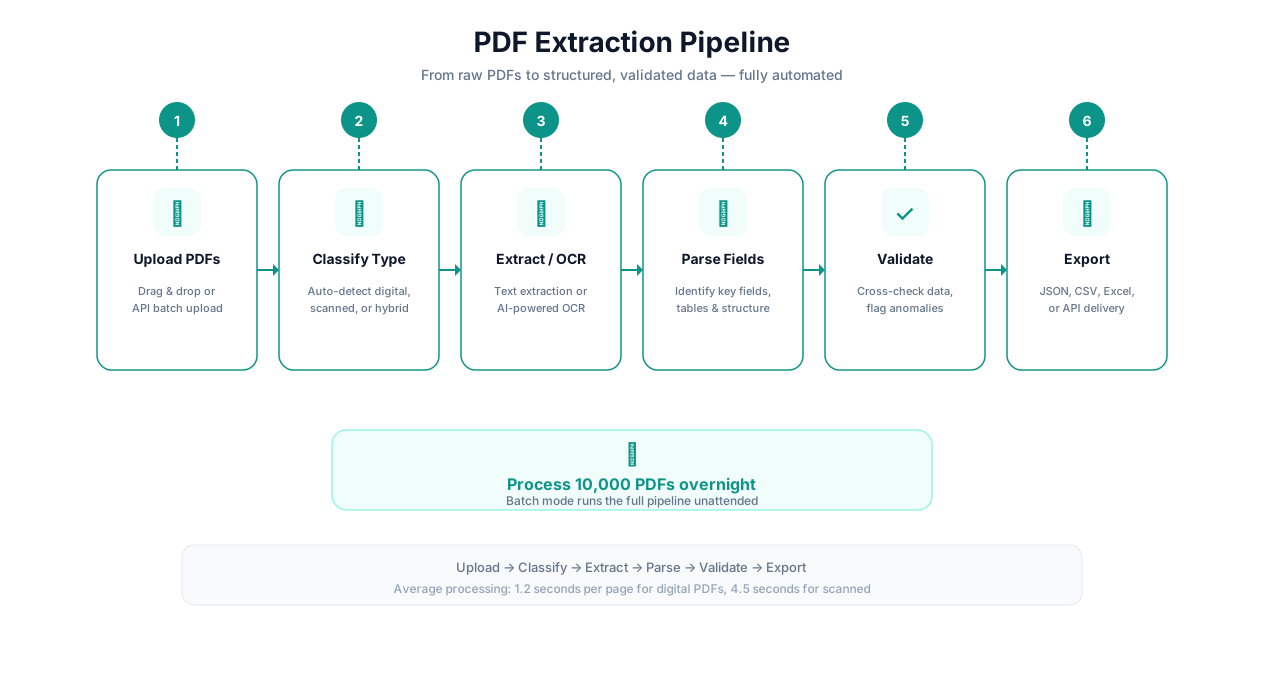
PDF extraction pipeline
Integration with the Autonoly Platform
PDF extraction is rarely a standalone task. The real value emerges when it is part of an end-to-end pipeline:
[Browser Automation](/features/browser-automation) — download PDFs from websites, portals, and email before extracting
[Data Processing](/features/data-processing) — clean, transform, validate, and enrich extracted data
[Integrations](/features/integrations) — push results to Google Sheets, Airtable, QuickBooks, Xero, Salesforce, and 200+ tools
[AI Vision](/features/ai-vision) — augment OCR with vision models for complex layouts, charts, and non-standard document structures
[AI Content](/features/ai-content) — summarize contracts, classify documents, extract sentiment from customer feedback forms
[Email Campaigns](/features/integrations) — monitor an inbox for PDF attachments and auto-extract incoming invoices or applications
[Database](/features/database) — store extraction results with timestamps for historical analysis and auditing
[API & HTTP](/features/api-http) — push extracted data to accounting software, CRMs, or ERP systems via API
[Logic & Flow](/features/logic-flow) — add conditional routing: if invoice total exceeds $10K, require manager approval; if vendor is new, flag for review
[Form Automation](/automate/category/form-automation) — use extracted data to fill web forms (transfer data from a PDF application to an online submission portal)
Example End-to-End Pipeline: Invoice Processing
This is the most common production pipeline, and it demonstrates how PDF extraction connects to the broader platform:
- Email trigger — monitor your AP inbox for new emails with PDF attachments
- Download — extract the PDF attachment from the email
- Classify — AI determines whether the document is an invoice, receipt, statement, or other
- Extract — pull invoice number, date, vendor, line items, tax, total with confidence scores
- Validate — cross-validation checks: do line items sum to subtotal? Does tax math work? Is the vendor in your approved vendor database?
- Route — invoices above confidence threshold go to auto-approval; below threshold go to human review queue; invoices above $10K go to manager approval regardless of confidence
- Post — approved invoices are pushed to QuickBooks/Xero via API with proper coding
- Notify — Slack notification to the AP team with daily summary: X invoices processed, Y auto-approved, Z flagged for review, total value $XX,XXX
Best Practices from Processing 1M+ Documents
These are the lessons that only emerge at scale:
1. Templates are the single highest-ROI investment in your extraction pipeline. A template for a recurring document format (like monthly invoices from your top 10 vendors) boosts accuracy by 2-5 percentage points and speeds up processing by 3-5x. Invest 15 minutes per vendor to create templates for your highest-volume document sources. The payoff is immediate and compounds with every batch.
2. Scan at 300 DPI minimum. 200 DPI is a false economy. The marginal file size increase from 200 to 300 DPI is modest (files are roughly 2x larger), but the accuracy improvement is significant — typically 2-4 percentage points for text and 3-5 percentage points for table extraction. Below 200 DPI, accuracy degrades rapidly, especially for small fonts, fine print, and handwritten text. If you control the scanning process, 300 DPI is the universal standard.
3. Cross-validation catches more errors than higher OCR accuracy. For financial documents, mathematical cross-validation (line items sum to subtotal, tax calculation checks out, subtotal + tax = total) catches errors that even 99% OCR accuracy misses. If the math does not work, you know at least one field is wrong, and you can route the document for review. This is more valuable than squeezing an extra 0.5% out of the OCR engine.
4. Build your human review queue with intention, not as an afterthought. The human review queue is not a failure mode — it is a quality control layer. Set confidence thresholds that route the right volume to review. Too high (99%) and you are reviewing almost everything manually, defeating the purpose of automation. Too low (80%) and errors slip through. Start at 92-95% and adjust based on your error tolerance and review capacity.
5. Pre-sort documents by type before batch processing. Running a single generic extraction across a mixed batch of invoices, contracts, and receipts produces worse results than sorting by type first and applying type-specific extraction rules. If manual sorting is impractical, use the AI classifier to auto-sort before extraction.
6. Monitor extraction accuracy over time — it drifts. Document formats change. Vendors update their invoice templates. Government agencies redesign their forms. A template that produced 99.5% accuracy six months ago may produce 96% today if the source format changed. Set up periodic accuracy audits: randomly sample 50 documents per month, compare automated extraction against manual verification, and update templates for any that have drifted.
7. Photograph receipts immediately. Thermal paper receipts start fading the day they are printed. In 3-6 months, critical text (date, total, merchant name) may be unreadable. Photograph receipts the day you receive them, ideally with a phone camera at close range with flash. This single habit eliminates the most common cause of receipt extraction failure.
8. For handwritten documents, set expectations appropriately. Handwriting recognition has improved dramatically with AI, but it is not solved. Neat printed handwriting achieves 88-92% accuracy. Average cursive achieves 80-88%. Physician handwriting or hastily scrawled notes can fall below 75%. Always route handwritten extractions through human review for any use case where accuracy matters (medical records, legal documents, financial forms). Use automated extraction to pre-fill the review interface, not to produce final output unsupervised.
Security & Compliance
Document processing is inherently sensitive. PDFs often contain personal data, financial records, medical information, or legal confidences. Autonoly's security model is designed for these use cases:
Isolated processing: Each document is processed in an ephemeral container destroyed after extraction. No document content persists on Autonoly's infrastructure beyond the active workflow session.
Encryption: All files encrypted in transit (TLS 1.3) and at rest (AES-256). Password-protected PDFs use credentials from the encrypted vault.
Data residency: Enterprise plans support geographic processing restrictions (US-only, EU-only) for regulatory compliance.
Audit logging: Every document processed is logged with timestamp, workflow ID, user, and destination. Logs are tamper-proof and exportable.
No training on your data: Your documents are never used to train or improve Autonoly's models. Extraction processing is stateless — the system does not learn from your documents unless you explicitly create templates.
Compliance by Regulation
| Regulation | Relevant Documents | Autonoly Compliance Features |
|---|---|---|
| HIPAA | Medical records, patient forms, lab results | Isolated processing, BAA available, no data retention, audit logs |
| GDPR | Any document with EU personal data | Data processing agreements, EU processing regions, right to deletion |
| SOC 2 | Financial documents, audit reports | Encryption, access controls, audit logs, penetration testing |
| PCI DSS | Payment receipts, credit card statements | Sensitive field redaction, no card data storage, encryption |
| FERPA | Student records, transcripts | Access controls, audit logging, data minimization |
| IRS Publication 1075 | Tax forms, taxpayer data | FedRAMP alignment, encryption, access controls (Enterprise) |
See pricing for PDF processing limits and OCR language availability per plan.