
Why SSH Matters for Automation
Remote command execution overview
Most automation tools live in the browser. They click buttons, fill forms, scrape pages, and call APIs. That covers a lot — but it does not cover everything.
Some tasks require a server. Running a Python script that processes 500MB of data with pandas. Deploying code to a production server. Running database migrations. Executing a shell script that provisions infrastructure. Checking disk usage and CPU load across a fleet of servers. Training or running a machine learning model. Generating a PDF report with matplotlib charts.
These tasks cannot happen in a browser. They need a Linux shell, server-side compute, filesystem access, and the ability to install and run arbitrary software. That is what SSH & Terminal provides: a full Linux environment inside your automation workflow.
Every command runs in a secure, isolated container with a full bash shell. You get the same capabilities you would have SSHing into a server — but automated, repeatable, integrated with your workflow pipeline, and destroyed after execution so nothing persists between runs.
Two Modes: Autonoly's Cloud Containers vs. Your Own Servers
SSH & Terminal operates in two modes, and the distinction matters:
Cloud containers (default) — Autonoly provisions a fresh Linux container for your script. Pre-installed Python, pip, common libraries. No server to manage. You write the script, it runs, you get the output. Best for data processing, report generation, ML inference, and any task that does not need to touch your infrastructure.
Remote SSH to your servers — connect to any server you own via SSH (key-based or password authentication). Run commands on your staging server, production server, CI/CD runner, or any machine accessible via SSH. Best for deployments, server monitoring, infrastructure management, and tasks that need access to your specific environment.
Both modes can be combined in the same workflow. Process data in a cloud container, then SSH to your production server to deploy the results.
Remote Command Execution: Run Any Bash Command on Any Server
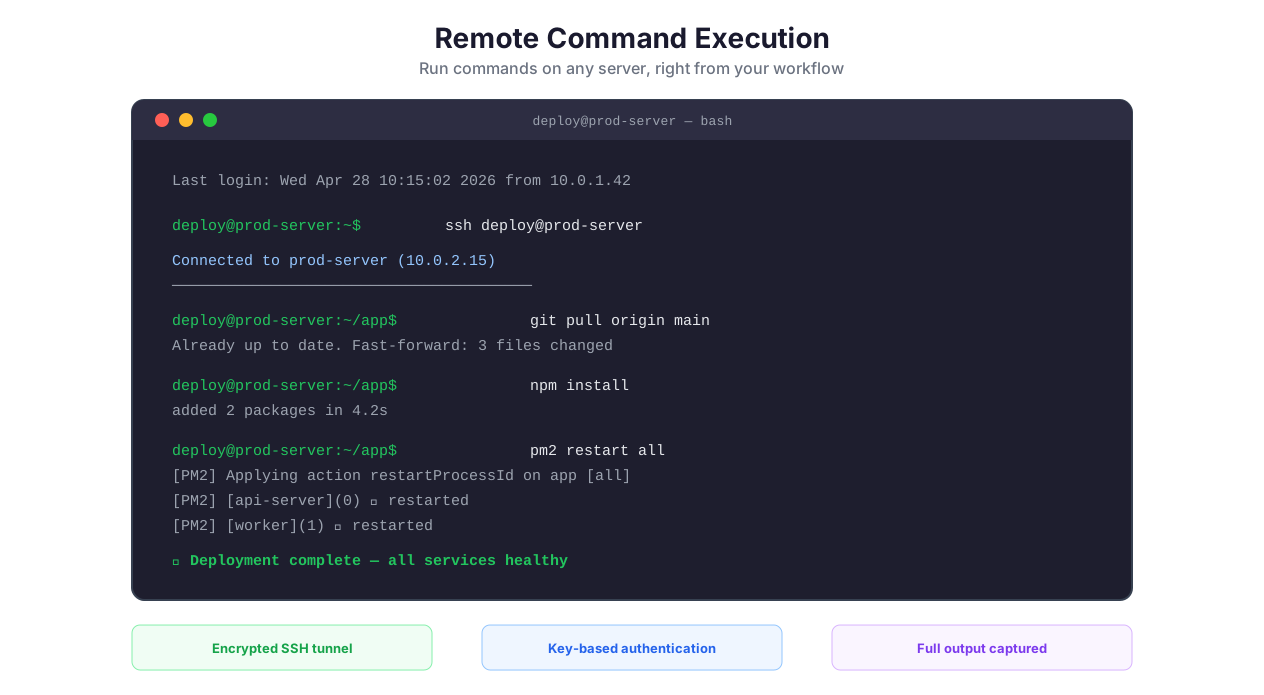
The core capability is straightforward: execute any shell command on any server and capture the output.
git pull origin main — pull latest code.
npm install && npm run build — install dependencies and build.
pm2 restart all — restart Node.js processes.
df -h — check disk usage.
docker compose up -d — start containers.
pg_dump dbname > backup.sql — backup a database.
python3 analyze.py --input data.csv --output report.pdf — run a script.
If you can type it in a terminal, you can automate it in Autonoly. The command runs, stdout and stderr are captured, and the output flows to the next workflow step as structured data. Exit codes are captured too — a non-zero exit code means the command failed, and your workflow can route to an error handler.
Chaining Commands
Commands can be chained with standard shell operators:
&&— run next command only if previous succeeded:npm install && npm run build && npm test||— run next command only if previous failed:pm2 restart app || echo "restart failed"|— pipe output:cat access.log | grep "500" | wc -l(count 500 errors);— run sequentially regardless of success:echo "starting"; deploy.sh; echo "done"
Script Deployment: Push and Execute Across Multiple Servers
Manual SSH vs automated SSH comparison
For multi-server deployments, add multiple SSH nodes to your workflow — each connecting to a different server with different credentials. Run the same deployment script across staging and production, or run different commands on web servers vs. worker servers.
Server-Side Python: The Killer Feature
The most popular use of SSH & Terminal is running Python scripts with the full Python ecosystem. Unlike browser-based JavaScript, server-side Python gives you access to pandas, numpy, scipy, scikit-learn, matplotlib, reportlab, and any pip-installable package.
Pre-installed libraries (zero install time):
pandas — dataframe manipulation, CSV/Excel I/O, data cleaning, pivoting, merging
numpy — numerical computing, array operations, statistical functions, linear algebra
requests — HTTP client for API calls from within scripts
beautifulsoup4 — HTML/XML parsing for post-processing scraped content
Install anything else with pip at runtime. Need geocoding? pip install geopy. NLP? pip install spacy && python -m spacy download en_core_web_sm. Financial calculations? pip install quantlib. The package is available immediately.
How it works:
- Write your Python script in the workflow node configuration
- Reference input data from previous workflow steps using variables
- The script executes in an isolated environment with full stdout/stderr capture
- Output (printed to stdout or written to files) flows to the next workflow step
This makes Python scripts the right tool for data transformation (reshape, pivot, merge datasets from data extraction), ML inference (run trained models on extracted data), report generation (charts and PDFs with matplotlib and reportlab), and custom calculations (financial modeling, statistical analysis, scoring algorithms).
Environment Management: Dev, Staging, Production
Running commands on the wrong server is the kind of mistake that ends careers. Autonoly prevents this through credential separation and workflow design.
The Pattern
Store separate SSH credentials for each environment in the credential vault:
ssh-dev-web01— development web serverssh-staging-web01— staging web serverssh-prod-web01— production web server
Each SSH node in your workflow references a specific credential. The deployment workflow uses Logic & Flow to route: deploy to staging first, run health checks, and only proceed to production if staging is healthy. A failed health check on staging stops the pipeline — it never reaches production.
The gotcha: never create a "deploy everywhere" workflow without gates. Always deploy to staging first, validate, then deploy to production in a separate step with an explicit success condition. The 5 minutes you save by deploying in parallel is not worth the risk of a broken production deployment that could have been caught on staging.
Key Management: SSH Keys, Passphrases, and Agent Forwarding
SSH authentication is the first thing you need to get right. The security model matters because SSH keys provide direct shell access to your servers.
Key-Based Authentication (Recommended)
Generate an SSH key pair (ssh-keygen -t ed25519). Upload the private key to Autonoly's credential vault. Add the public key to ~/.ssh/authorized_keys on your server. Done.
Use Ed25519 keys (not RSA) — they are shorter, faster, and more secure. If your server is old enough to require RSA, use a minimum of 4096 bits.
Passphrase-protected keys are supported. The passphrase is stored alongside the key in the vault and provided automatically during authentication.
Password Authentication (Acceptable for Internal Tools)
For servers that use password authentication (common with internal tools, legacy systems, and shared hosting), store the password in the credential vault. It works, but key-based authentication is strictly more secure — passwords can be brute-forced, keys cannot.
Jump Host (Bastion) Support
For servers behind firewalls or in private networks, Autonoly supports jump host configurations. SSH to the bastion host first, then hop to the internal server. This is standard in enterprise environments where production servers are not directly internet-accessible.
Port Forwarding
Forward local and remote ports through SSH tunnels. This is essential for accessing databases and services on private networks — forward port 5432 from the remote server to access PostgreSQL through the SSH connection.
Real Example: Deploy New Version
Connect, execute, and report SSH workflow
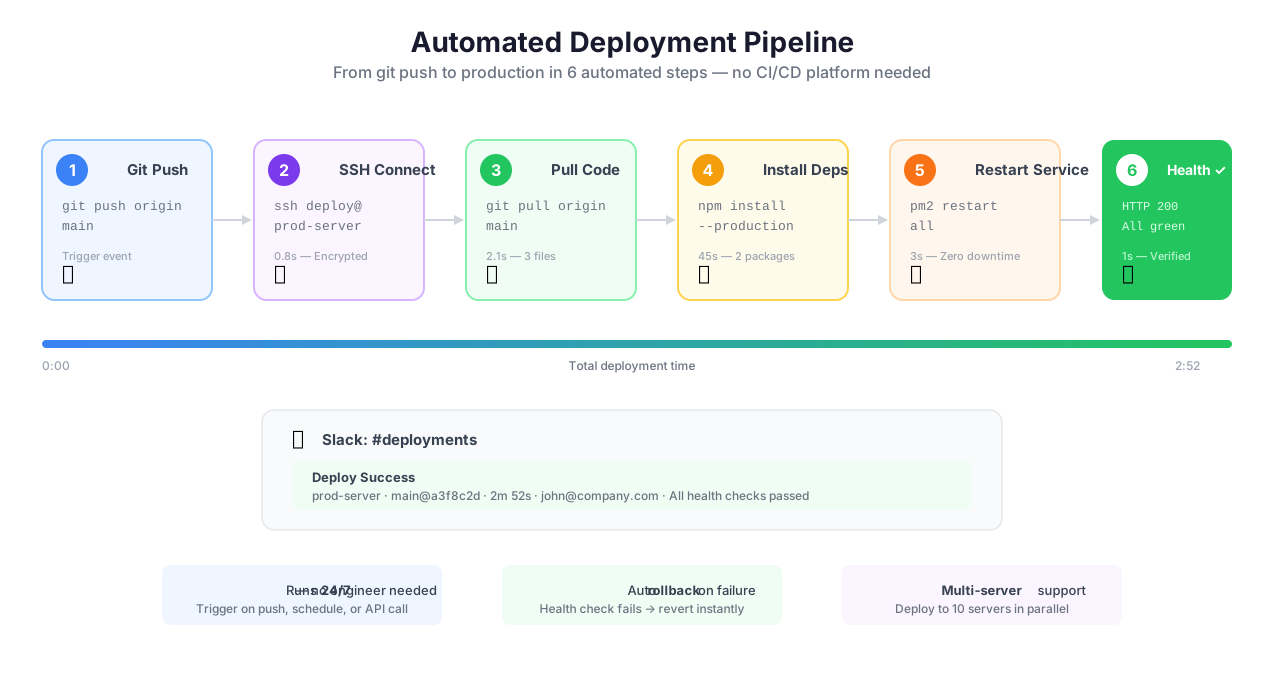
Here is a concrete deployment workflow that a development team can use today:
- Webhook trigger — GitHub sends a
pushevent when code is merged to main - SSH to staging server —
cd /app && git pull origin main && npm install && npm run build - Run tests on staging —
npm test— capture exit code - [Logic & Flow](/features/logic-flow) gate — if tests pass (exit code 0), continue. If fail (non-zero), stop and alert.
- Health check staging —
curl -s -o /dev/null -w "%{http_code}" http://localhost:3000/health— verify 200 response - SSH to production server —
cd /app && git pull origin main && npm install && npm run build && pm2 restart all - Health check production — same curl command against production URL
- [Slack notification](/features/integrations) — post deployment result to #deployments channel: green checkmark with commit hash, or red X with error details
This entire pipeline runs automatically on every merge. No manual SSH. No forgotten deploy steps. No "it works on staging but I forgot to npm install on production."
Server Monitoring Pipeline
Scheduled workflows SSH into production servers every 15 minutes:
df -h | awk 'NR>1{print $5,$6}'— disk usage per mountfree -m | awk 'NR==2{print $3/$2*100}'— memory usage percentageuptime | awk '{print $NF}'— 15-minute load averagedocker ps --format "{{.Names}}: {{.Status}}"— container healthtail -100 /var/log/app/error.log | grep -c "ERROR"— error count in last 100 log lines
Metrics are pushed to a database. Logic & Flow checks thresholds: disk > 85% triggers urgent Slack alert, memory > 90% triggers alert, load average > number of CPUs triggers alert, any container not "Up" triggers alert. Alerts only fire when thresholds are crossed — no notification fatigue from normal metrics.
When to Use SSH in Automations vs. Dedicated CI/CD
This is an important architectural decision. Here is the honest breakdown:
Use Autonoly SSH when:
Your deployment is simple (git pull, build, restart)
You want deployment integrated with other automation (scrape data, process it, deploy the result)
You need deployment triggered by non-Git events (webhook from CRM, scheduled data pipeline completion, monitoring alert)
Your team does not have a DevOps engineer to maintain Jenkins or GitHub Actions YAML
Use dedicated CI/CD (GitHub Actions, GitLab CI, Jenkins) when:
You need parallel test execution across multiple environments
You need Docker image building and registry management
You have complex multi-stage pipelines with caching, artifacts, and matrix builds
You need infrastructure-as-code (Terraform, Pulumi) with plan/apply workflows
Your pipeline is deeply integrated with your Git workflow (PR checks, branch protection, merge gates)
The honest comparison:
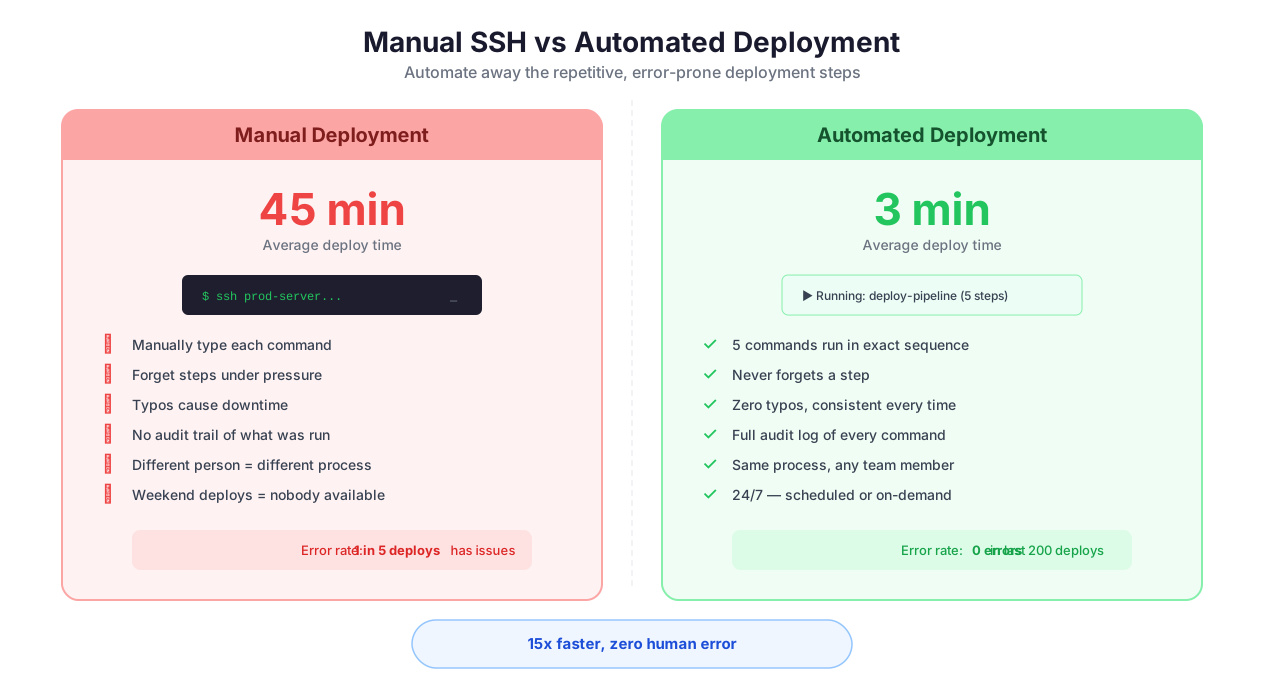
Manual SSH: slow, error-prone, unrepeatable, no audit trail, depends on the person remembering the steps
Ansible: powerful, handles multi-server orchestration well, but requires YAML configuration files that are their own form of complexity. Ansible playbooks are code — they need version control, testing, and maintenance.
Autonoly SSH: visual, no YAML, integrated with other automation features, good for simple-to-medium deployments and server tasks. Not a replacement for Ansible at scale (100+ servers), but dramatically simpler for 1-10 server deployments.
File Management
SSH & Terminal includes full file management for moving data in and out of your automation:
Upload files to execution environments — push datasets, configuration files, or scripts
Download results — retrieve generated reports, processed files, analysis output
Cloud storage transfer — upload to S3/cloud storage and generate shareable download URLs
50MB per file limit for cloud uploads; direct server-to-server transfers have no limit
A typical file-heavy workflow: extract data from a website, upload the dataset to the server environment, run a Python script that processes and generates a PDF report, upload the PDF to cloud storage, send the download link via Slack.
Check the pricing page for details on execution time limits and available compute resources per plan. Browse the templates library for pre-built server-side automation workflows.
Best Practices
Keep Python scripts focused and single-purpose. Rather than one 300-line script that handles extraction, processing, analysis, and output, break the work into multiple SSH nodes. One node preprocesses data (cleaning, normalization). Another runs analysis (statistics, ML inference). A third generates the report (charts, PDF). This modularity makes debugging straightforward — when step 2 fails, you know exactly which script is responsible — and lets you reuse individual scripts across workflows.
Always capture and check exit codes. SSH commands can fail silently if you only check stdout. A
git pullthat fails due to merge conflicts still produces stdout — it just also returns a non-zero exit code. Use the exit code handling built into the SSH node to detect failures. Route non-zero exit codes to an error handling path via Logic & Flow. This is non-negotiable for deployment automation — a failed build should never proceed to the deploy step.
Cache pip installs for scheduled workflows. Installing packages on every run wastes 30-120 seconds of execution time. For Autonoly's cloud containers, pre-installed libraries (pandas, numpy, requests, beautifulsoup4) cover most needs with zero install time. For additional packages, add an install check:
python -c "import scikit-learn" 2>/dev/null || pip install scikit-learn. For workflows running on your own servers, install packages once rather than on every execution.
Upload output files to cloud storage immediately. Execution environments are ephemeral — files on the container are destroyed when the run ends. If your script generates a report, CSV, or analysis output, upload it to cloud storage before the workflow step completes. The upload node generates shareable download URLs that you can embed in Slack messages, emails, or Google Sheets.
Set appropriate timeouts before running. Default timeout is 5 minutes — sufficient for most data processing. For ML model training, large file processing, or complex analysis, increase the timeout in workflow settings before execution. A timed-out script produces no output, wastes execution credits, and may leave your server in an indeterminate state if it was mid-write. Check our schedule automated workflows guide for strategies on long-running pipelines.
Never print sensitive values to stdout. Script output (stdout/stderr) is captured in execution logs. If your script processes API keys, passwords, or PII, write sensitive output to files (which are encrypted at rest) rather than printing to stdout (which appears in logs). Use environment variables for secrets, injected from the credential vault.
Security & Compliance
SSH & Terminal executes commands in isolated, ephemeral containers that are destroyed after each run. No data persists between executions. SSH credentials (private keys and passwords) are stored in the encrypted credential vault with AES-256 encryption and are decrypted only at the moment of connection. They never appear in logs, the workflow canvas, or error messages.
All SSH connections use industry-standard encryption protocols (currently OpenSSH with Ed25519 or RSA key exchange). For organizations connecting to their own infrastructure, Autonoly supports key-based authentication, jump host configurations (bastion servers), and port forwarding — allowing you to reach servers behind firewalls and VPNs without exposing them to the internet.
The isolated execution environment provides blast radius containment: even if a script contains a bug, produces unexpected behavior, or is exploited by malicious input data, it cannot affect other users, other workflows, or the Autonoly platform itself. The container is destroyed after execution, taking any side effects with it.
For teams processing sensitive data in Python scripts, be aware that script output (stdout/stderr) is captured in execution logs. Avoid printing credentials, PII, or sensitive values. Use environment variables for secrets (injected from the vault) and write sensitive output to encrypted files rather than stdout. Execution logs follow the same encrypted storage and retention policies as all other workspace data. For complete details, visit the Security feature page.
Common Use Cases
Financial Data Analysis Pipeline
A quantitative research team scrapes financial data from multiple sources using Browser Automation and Data Extraction: stock prices from financial portals, earnings transcripts from SEC EDGAR, and economic indicators from government databases. The extracted data is uploaded to an SSH container where a Python script (pandas + numpy + scipy) calculates 20-day and 50-day moving averages, identifies price anomalies using z-score analysis, runs correlation analysis against economic indicators, and generates a PDF report with matplotlib charts showing price trends, anomaly markers, and correlation matrices. The report uploads to cloud storage, the download link pushes to Google Sheets and Slack. The pipeline runs on a schedule every trading day at 4:30 PM ET (30 minutes after market close). See our web scraping best practices guide.
Machine Learning Classification Pipeline
A product team collects customer feedback from G2, Capterra, and the company support inbox using Data Extraction. Raw text data (reviews, support tickets, feature requests) is uploaded to an SSH container where a scikit-learn classification model processes each item. The model, trained on 5,000 manually labeled examples, categorizes each piece of feedback by topic (bug report, feature request, praise, complaint, question) and assigns a priority score (1-5) based on sentiment intensity and business impact keywords. The classified, scored data exports back to the workflow and pushes to Airtable where the product manager reviews feedback sorted by priority. The ML model retrains weekly on newly labeled data, improving accuracy over time.
Automated PDF Report Generation
An analytics agency serves 30 clients, each requiring a monthly performance report. For each client, the workflow scrapes their Google Analytics data via API & HTTP, their social media metrics via Browser Automation, and their ad spend via the Google Ads API. The raw data flows to an SSH container where a Python script using reportlab generates a branded PDF: cover page with client logo, executive summary, traffic charts (matplotlib), conversion funnel visualization, social media engagement tables, and ROI calculations. Each report is unique, with client-specific data, branding, and commentary generated by AI Content. Reports upload to Google Drive and download links email to each client via Gmail integration. 30 reports that previously required a junior analyst's entire last week of the month now generate automatically overnight. See our guide on automating email reports.
Infrastructure Health Monitoring
A DevOps team sets up scheduled workflows that SSH into 8 production servers every 15 minutes. Each server runs a diagnostic script that captures disk usage (df -h), memory utilization (free -m), CPU load (uptime), process count (ps aux | wc -l), Docker container status (docker ps), and the last 50 error log entries (tail -50 /var/log/app/error.log | grep -c ERROR). Metrics push to a PostgreSQL database for historical trending. Logic & Flow applies tiered alerting: disk > 85% fires an urgent Slack alert with the mount point and usage, memory > 90% fires an alert with the top 5 memory-consuming processes, load average > 2x CPU count fires an alert, any Docker container in "unhealthy" or "exited" state fires an alert with the container name and last log output. The team uses this alongside Datadog for a second layer of visibility — Autonoly catches things Datadog misses (custom log patterns) and vice versa.