


Why Send Slack Alerts for Important Emails?
Email is where critical business communication arrives — client requests, vendor escalations, partner agreements, server alerts, and high-priority support tickets. But most professionals check email reactively, often missing urgent messages for hours because they are focused on work in Slack, their primary real-time communication tool. The average knowledge worker checks email only 11 times per hour, meaning an urgent message could sit unseen for 5-10 minutes even during active work — and much longer during meetings, deep focus blocks, or lunch. For time-sensitive communications like server outage alerts, payment failures, or escalated client complaints, that delay can be costly. The fundamental problem is that email was designed for asynchronous communication, but many of the messages it carries demand synchronous attention.
The cost of missed emails adds up in ways that are hard to quantify but impossible to ignore. A support escalation that sits unread for three hours turns an annoyed customer into a churned customer. A contract approval email that arrives Friday afternoon and is not seen until Monday delays a deal that was ready to close. A server alert that goes unnoticed for two hours results in extended downtime and lost revenue. A regulatory filing notification that gets buried under newsletters means you miss a compliance deadline. These are not hypothetical scenarios — they happen every week in organizations that rely solely on email for critical notifications.
By bridging Gmail to Slack with Autonoly, you ensure that the emails that matter most surface immediately in the channels where your team is already paying attention. This is not about forwarding every email to Slack — it is about intelligently filtering for the messages that warrant instant visibility. The result is a team that responds to critical emails in minutes instead of hours, without anyone needing to constantly refresh their inbox. You get the best of both worlds: email continues to be your official record of communication, while Slack becomes your real-time alert surface for the messages that cannot wait.
The organizational benefit extends beyond response time. When critical emails surface in shared Slack channels, the entire team has visibility. A support escalation in #support-urgent can be picked up by any available team member, not just the person it was addressed to. A financial notification in #finance gives the whole finance team awareness without anyone forwarding the email manually. This shared visibility eliminates single points of failure, speeds up collaborative responses, and ensures that critical communications are never bottlenecked behind a single person's inbox habits.
How the AI Agent Filters and Alerts
Autonoly's AI Agent Chat connects to your Gmail account and evaluates incoming emails against your filter rules. You define what constitutes an "important" email using multiple criteria:
Sender filters: Alerts for emails from specific addresses ([email protected]) or domains (@keyaccount.com)
Subject keywords: Trigger on phrases like "urgent," "payment failed," "contract signed," or "server down"
Label-based: Monitor specific Gmail labels like "VIP" or "Escalations"
Attachment presence: Alert when emails arrive with attachments from certain senders
Combination rules: Match on sender AND subject keywords for precise targeting
Negative filters: Exclude specific patterns to prevent alert fatigue — skip newsletters, marketing emails, and auto-generated notifications that match your sender rules
When a match is found, the agent uses Data Extraction to parse the email and create a concise summary. The Slack notification includes the sender name, subject line, a 2-3 sentence summary of the email body, and a direct link to open the email in Gmail. The agent strips out email signatures, disclaimers, and forwarding chains to keep the summary focused on the actual message content. For emails containing structured data like order amounts or account numbers, those values are extracted and displayed prominently in the alert.
Configuring Slack Channels and Formatting
Route different types of alerts to different Slack channels. Sales-critical emails go to #sales-alerts, support escalations to #support-urgent, and financial notifications to #finance. Use the Visual Workflow Builder to set up these routing rules visually — drag and drop conditions that map email attributes to Slack destinations. The visual interface makes it easy to maintain complex routing logic without touching any configuration files.
The Slack message format is customizable. Include or exclude the email body summary, highlight specific data points (like amounts or dates mentioned in the email), or add emoji indicators for severity level. The agent can also mention specific Slack users or groups when an email matches high-priority criteria — for example, @here when a server alert arrives, or @jane specifically when her top client sends an email. Custom formatting templates let you match your organization's Slack style conventions.
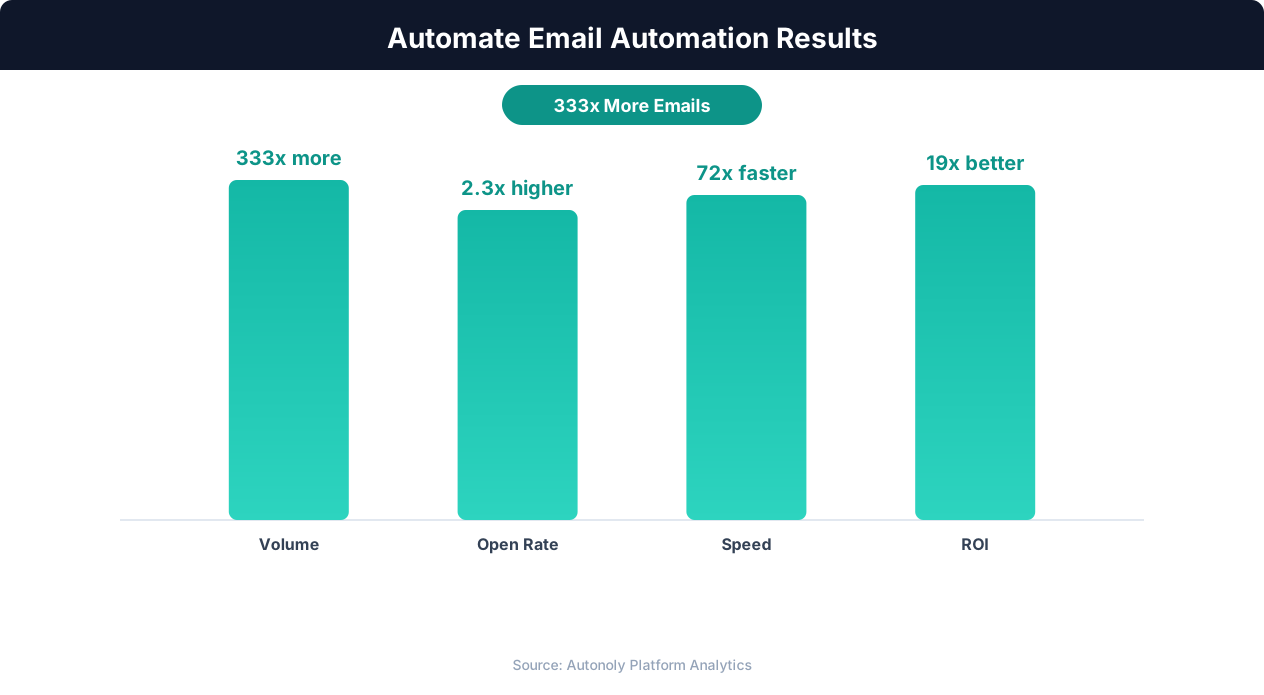
Revenue per email for automated vs manual campaigns
Key Insight: Personalized automated emails achieve 29% higher open rates and 41% higher click-through rates than generic batch sends (Experian Marketing).
For teams using Slack threads, the agent can post follow-up emails from the same sender or thread as replies to the original Slack alert, keeping context organized in one place. This is particularly useful for multi-email conversations where the team needs to track the entire exchange without switching to Gmail. The threaded approach prevents your alert channels from becoming noisy with individual messages from the same conversation.
Advanced Alert Logic
Add Logic & Flow conditions for sophisticated filtering. For example:
Alert only during business hours and batch non-urgent notifications for a morning summary
Escalate to a DM if an email from your top client arrives outside business hours
Cross-reference with a Google Sheets watchlist of VIP contacts and only alert for those
Suppress alerts for emails that are auto-replies, out-of-office messages, or newsletter subscriptions
Route alerts based on email content — payment-related emails to #finance, feature requests to #product
The agent can also perform sentiment analysis on the email content and adjust the alert urgency accordingly. An angry email from a client triggers an immediate @channel mention, while a routine update gets a normal post. Combine with Data Processing to extract specific values — like dollar amounts, dates, or account identifiers — and include them prominently in the Slack alert so the team can assess urgency without opening the email.
Integration Options
Pair this workflow with other Autonoly automations for a comprehensive notification system. When an important email triggers a Slack alert, the same workflow can simultaneously log the email details in Google Sheets for tracking, create a task in your project management tool via Browser Automation, and trigger a follow-up reminder if no one responds to the Slack alert within 30 minutes. Use SSH & Terminal to check system status when server alert emails arrive, appending live diagnostic data to the Slack notification. Browse the templates library for pre-built alert configurations for sales, support, and engineering teams.
Scheduling and Reliability
This workflow runs every 4 hours by default, checking for new matching emails since the last run. For truly time-sensitive alerts, configure it to run hourly using cron-style scheduling. Each check processes only new emails using differential processing — the agent tracks the last processed email timestamp and evaluates only messages received since then, keeping execution fast even for high-volume inboxes. The processing checkpoint is persisted, so even if the Autonoly platform restarts, the next run picks up exactly where it left off without gaps or duplicates.
The agent maintains a log of all alerts sent, accessible from the Autonoly dashboard. If Slack is temporarily unreachable, alerts are queued and delivered once connectivity is restored — no alert is silently dropped. You can also configure a fallback notification chain — if the Slack alert fails, send an email notification or a webhook to an alternative system instead. Each run produces a brief summary of alerts posted, and a daily rollup can be sent to your inbox showing all critical emails that triggered Slack alerts in the past 24 hours, providing an audit trail of everything the system surfaced.
For organizations managing multiple email accounts, the agent can monitor sales@, support@, billing@, and executive inboxes simultaneously, routing alerts from each to the appropriate Slack channel. See pricing for multi-account monitoring limits per plan.
Further Reading
Explore more about the tools and techniques used in this workflow: No Code Automation Guide, Automate Email Reports, Integrations, Ai Content.