What is the Visual Workflow Builder?
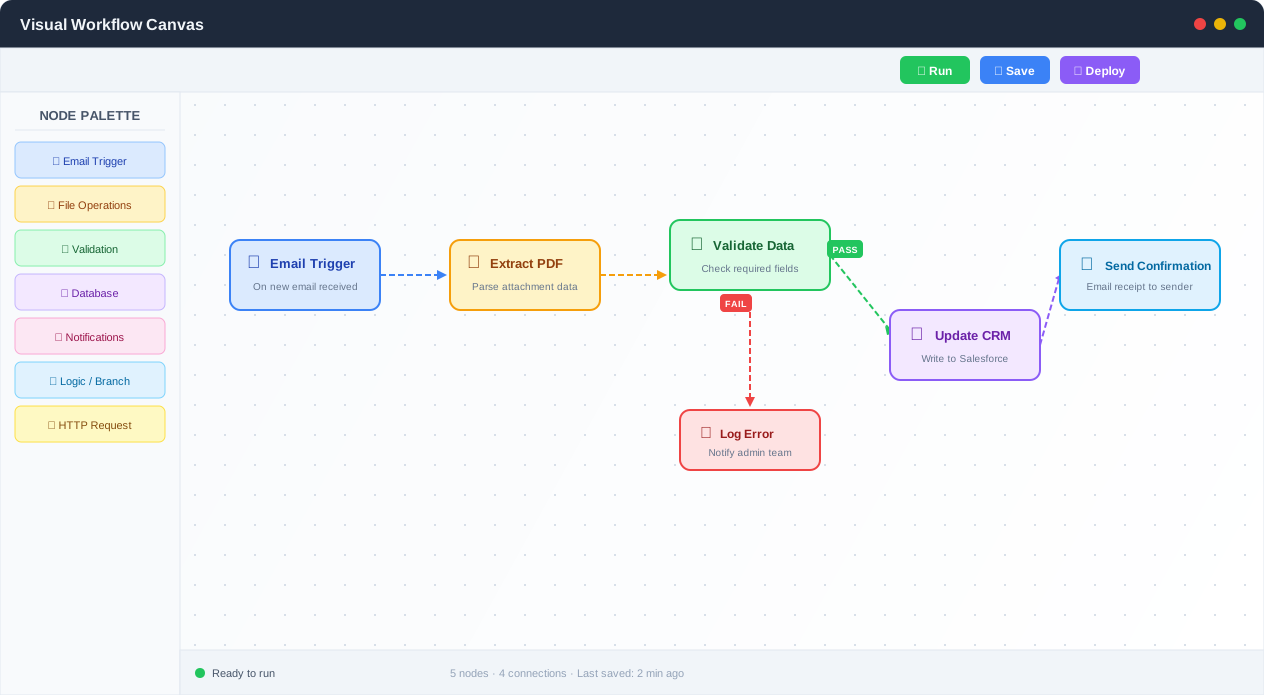
Visual Workflow Builder canvas with connected nodes for a multi-step invoice processing pipeline
There are three ways to build an automation: write code, use a visual builder, or describe what you want to an AI. Each sits on a spectrum of control versus friction, and understanding where each one wins is the difference between picking the right tool and fighting it for weeks.
Code (Python scripts, Node.js, Selenium) gives you maximum flexibility. You can do literally anything. But you pay for it with setup time, dependency management, debugging cryptic stack traces, and the fact that nobody else on your team can read your script six months later. Code is right when you need custom algorithms, complex data transformations, or deep integration with internal systems. It is wrong for most business automations that are essentially "get data from A, transform it, put it in B."
AI chat (the "describe what you want" approach) gives you minimum friction. You type "scrape the top 10 results from this search page and put them in a spreadsheet" and it happens. But you have limited control over exactly how it happens, and when the workflow needs complex branching logic, regulatory documentation, or team collaboration, chat falls apart. You cannot hand a chat transcript to your compliance team and say "here is our documented process."
Visual building — the low-code automation approach — sits in the middle, and for most automation work, that middle ground is exactly where you want to be. You see every step. You control the logic. Your teammates can understand it. Your compliance team can audit it. And you did not write a single line of code.
Autonoly's Visual Workflow Builder is a drag-and-drop canvas for designing, building, and managing automation pipelines. You place nodes on a canvas, connect them with edges, and see your entire data flow at a glance. With 80+ node types across 11 categories, the builder covers everything from browser automation and data extraction to API calls, AI content generation, and third-party integrations.
But here is where Autonoly differs from tools like Zapier, Make, or n8n: you do not have to choose between visual building and AI assistance. You can describe any node in plain English, and the AI configures it for you. You get the control of a no-code automation builder with the speed of an AI assistant. More on that below.
When Visual Building Beats AI Chat
Visual builders win over pure AI chat in three specific scenarios:
- Complex branching logic. When your workflow has 5 conditional branches, nested loops, and parallel execution paths, you need to see the structure. Chat-based tools cannot show you a decision tree — they just execute it. When step 14 of 20 breaks, you need to see the data at each step. Most chat tools cannot give you that visibility.
- Regulatory and compliance workflows. If you work in finance, healthcare, or legal, you need documentation of exactly what your automation does. A visual canvas IS the documentation. Auditors can look at it, understand the logic, and verify that the right checks are in place. A chat log is not compliance documentation.
- Team collaboration. When three people need to work on the same automation, chat-based tools become a mess. A visual canvas with version control, role-based access, and node-level comments is how teams actually collaborate on shared processes.
When AI Chat is Better
Be honest about this: if your automation is a simple, linear "when X happens, do Y" sequence, a visual builder adds unnecessary overhead. Use AI Agent Chat for quick, one-off automations. Use the visual builder when the workflow needs to be maintained, audited, or shared.
The Canvas Experience
The workflow canvas is built on React Flow and designed for productivity at scale. It supports infinite scrolling with smooth zoom and pan, so even large pipelines with 50+ nodes remain easy to navigate. A mini-map in the corner gives you an overview of the full workflow, and snap-to-grid alignment keeps things tidy.
Nodes are color-coded by category — blue for browser actions, green for extraction, orange for logic, purple for AI — so you can understand the structure of a workflow at a glance. This is not cosmetic. When you are debugging a failing workflow at 7am, color-coding lets you instantly spot where the logic nodes are versus the extraction nodes versus the integration nodes.
When a workflow is running, you see real-time execution status on every node: pending, running, completed, or failed. Data previews appear inline so you can inspect what each step produced without digging through logs. This is the debugging feature that most workflow builders get wrong. When step 15 of 20 fails, you need to see the data at step 14 to understand why. Most tools — including Zapier and early versions of Make — force you to re-run the entire workflow with logging enabled. Autonoly shows you the data at every step, every time, by default.
The Node Types That Actually Matter
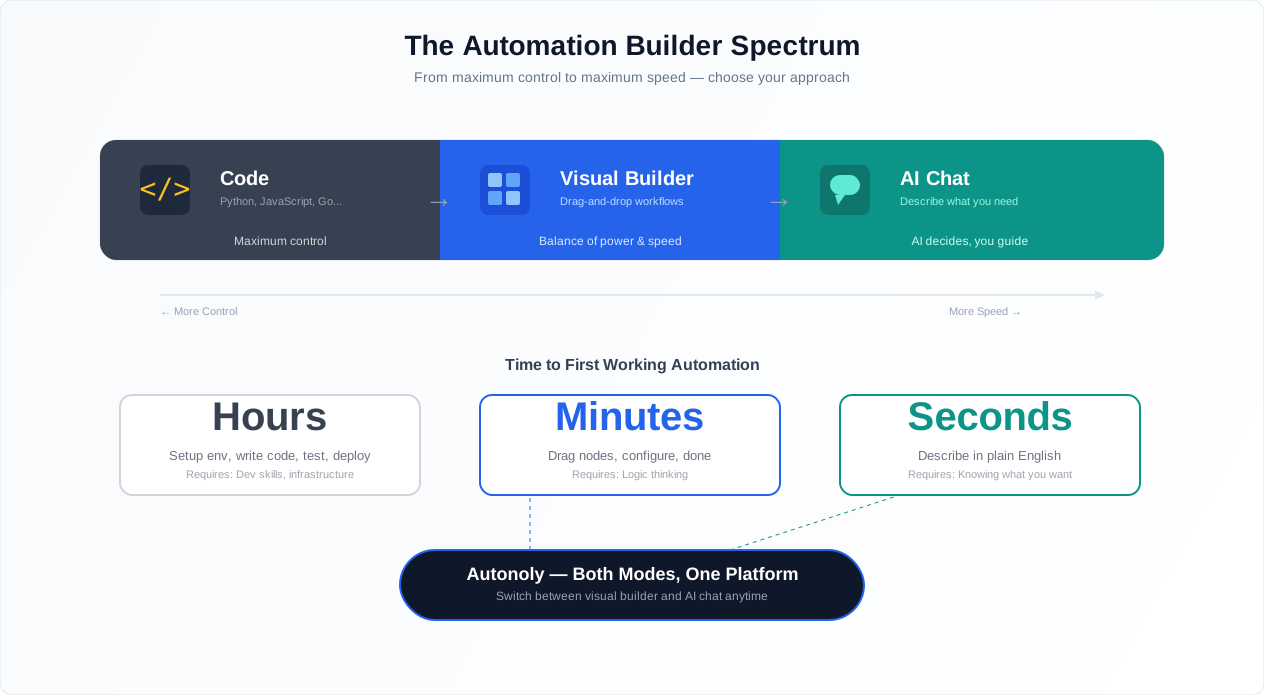
Comparison of code-based, low-code, and AI-assisted workflow building approaches
The builder offers 80+ nodes organized into 11 categories. But not all node types are created equal. Here is what actually matters when you are building production workflows:
Triggers start your workflow. Without a well-configured trigger, nothing happens. Autonoly supports cron schedules, webhooks, manual triggers, API triggers, and event-based triggers. The most common mistake is using a polling trigger (check every 5 minutes) when a webhook trigger (get notified instantly) is available. Webhooks are faster and cheaper.
Actions are the nodes that do things: navigate a browser, make an API call, send an email, write to a spreadsheet. These are straightforward. Every workflow builder has them.
Conditions are where workflows stop being linear and start being useful. If/else, switch/case, nested conditions. The question is not whether a tool supports conditions — it is how deeply you can nest them and how readable they remain. More on this in the Logic & Flow feature.
Loops let you process collections: iterate over rows in a spreadsheet, pages of search results, items in an API response. Without loops, you are building one-shot automations. With them, you are building batch processors.
Error handlers are the most underrated node type. Try/catch blocks for automations — what happens when an API call returns a 500, when a webpage changes its layout, when a rate limit kicks in. Most workflow builders just stop. Autonoly lets you define fallback paths, retry logic, and alerting. Wrap every external interaction in error handling. No exceptions.
Human approval gates pause a workflow and wait for someone to approve, reject, or modify data before continuing. Invoice over $5,000? Pause and notify the finance manager via Slack. Wait for approval. Then continue. This turns fully automated workflows into human-in-the-loop processes where they need to be.
Data transformers reshape data between nodes. Map fields, filter arrays, merge datasets, run regex extractions. These are the glue nodes that connect systems with different data shapes.
The full library, organized by category:
Browser: Navigate, click, type, scroll, take screenshots, generate PDFs
Extraction: Single elements, collections, nested data structures, full-page HTML
Processing: Transform, filter, deduplicate, run Python scripts, regex matching
Integration: Google Sheets, Gmail, Slack, Discord, Notion, Airtable
API: HTTP requests, webhooks, GraphQL queries, authentication headers
Logic: Conditions, loops, delays, error handling, parallel branches
File: Export to CSV, Excel, JSON, upload to cloud storage
Security: Encrypted credentials, role-based access
Data: Save, merge, and reshape datasets between steps
Each node has a configuration panel where you set parameters — selectors, URLs, credentials, expressions — without writing code. For advanced users, nodes like Python Script and Custom JavaScript accept inline code when you need full flexibility.
From Chat to Canvas: The Best of Both Worlds
This is Autonoly's most opinionated design decision, and it is the right one.
Use AI Agent Chat to describe what you want to automate in plain English. The AI agent will navigate websites, extract data, and perform actions on your behalf. Explore interactively. Try different approaches. Find the right selectors, the right API endpoints, the right data shape.
Once you are happy with the result, click "Convert to Workflow" and the system automatically builds a visual pipeline from your chat session. The conversion is intelligent: it identifies the successful steps, wires data connections between nodes, and discards the dead ends and failed attempts. You get a clean, editable workflow ready to customize, extend with logic and branching, and schedule to run on repeat.
This matters because exploration and production are fundamentally different activities. You explore in chat. You productionize on a canvas. Most tools force you to pick one mode. Autonoly lets you start fast and finish robust.
AI-Assisted Node Configuration
Even when building directly on the canvas, AI helps. Select any node, describe what you want it to do in English, and the AI configures the parameters. "Extract the product name, price, and rating from each search result" configures the extraction selectors automatically. "Send a Slack message to #sales-alerts with the lead count and top 3 company names" configures the Slack integration node. You still see and control every parameter — the AI just saves you the manual configuration.
See our templates library for common starting points that combine both approaches.
A Real Example: Invoice Processing Workflow
Abstract explanations only go so far. Here is a concrete workflow that shows how the builder handles real complexity:
The business problem: Your finance team receives invoices via email. Each invoice needs to be validated against purchase orders, routed for approval if the amount exceeds a threshold, posted to the accounting system, and confirmed to the sender. Currently, a human does all of this manually, and invoices sit in inboxes for days.
The workflow, node by node:
- Email trigger — watches the [email protected] inbox for new emails with PDF attachments
- PDF extraction — uses PDF & OCR to extract vendor name, invoice number, line items, and total amount from the PDF
- Data validation — queries the purchase order database via API call to verify the invoice matches a valid PO
- Condition: PO match? — if no matching PO, route to a manual review queue and notify the AP team via Slack
- Condition: Amount > $5,000? — if yes, pause the workflow and request approval from the finance manager via Slack with a one-click approve/reject button
- Human approval gate — waits for the manager's response. If rejected, routes to a dispute path. If no response within 48 hours, escalates to the VP of Finance
- Accounting system update — posts the approved invoice to QuickBooks via API
- Confirmation email — sends an automated confirmation to the vendor with the expected payment date via Gmail integration
- Error handler — wraps the entire flow. If any step fails, logs the error, saves the invoice to a "needs attention" queue, and alerts the AP team
This workflow has 9 nodes, 3 conditional branches, 1 human approval gate, and comprehensive error handling. On the canvas, you can see the entire flow in one glance. The finance manager can look at it and understand exactly what happens to every invoice. That is the power of visual building.
Scheduling & Triggers
Drag-and-drop workflow nodes with trigger, action, and deployment configuration
Once your workflow is ready, you have multiple options for running it:
Cron scheduling: Set precise schedules using cron expressions — every hour, every Monday at 9am, first day of each month. See Scheduled Execution for the full scheduling feature set
Manual triggers: Run on demand from the dashboard with one click
Webhook triggers: Set up an HTTP endpoint that starts the workflow when called by external systems. This is the right choice for event-driven automations — do not poll when you can subscribe
API triggers: Programmatically start workflows from your own applications
Scheduled workflows run automatically in the background. You receive notifications on completion or failure, and full execution logs are available for every run. Check pricing for details on scheduling frequency limits per plan.
How Autonoly Compares to Other Visual Builders
This matters because the wrong tool wastes months. Here is an honest comparison:
Zapier is linear. Trigger, then action, then action, then action. No branching, no loops, no parallel execution (Paths is limited). If your automation is "when I get an email, save the attachment to Google Drive," Zapier is fine. If your automation has conditional logic, Zapier forces you into awkward workarounds.
Make (formerly Integromat) is the most powerful visual builder for integrations. Its router module handles branching well. But Make's learning curve is steep — the data mapping system, the iterator/aggregator pattern, the error handling routes — all of it is more complex than it needs to be. Make is powerful but not approachable.
n8n is open-source and developer-oriented. You can self-host it, extend it with custom nodes, and write JavaScript in any node. But it is not designed for non-technical users. The interface assumes you understand data structures, JSON, and basic programming concepts.
Autonoly combines visual building with AI assistance. Describe a node in English, and the AI configures it. Convert an AI chat session into a visual workflow with one click. Get the control of Make with the approachability of Zapier and the flexibility of n8n. The tradeoff: Autonoly is newer than these tools and has fewer third-party integration connectors (though the HTTP request node covers any API).
Version Control: The Feature Most Builders Skip
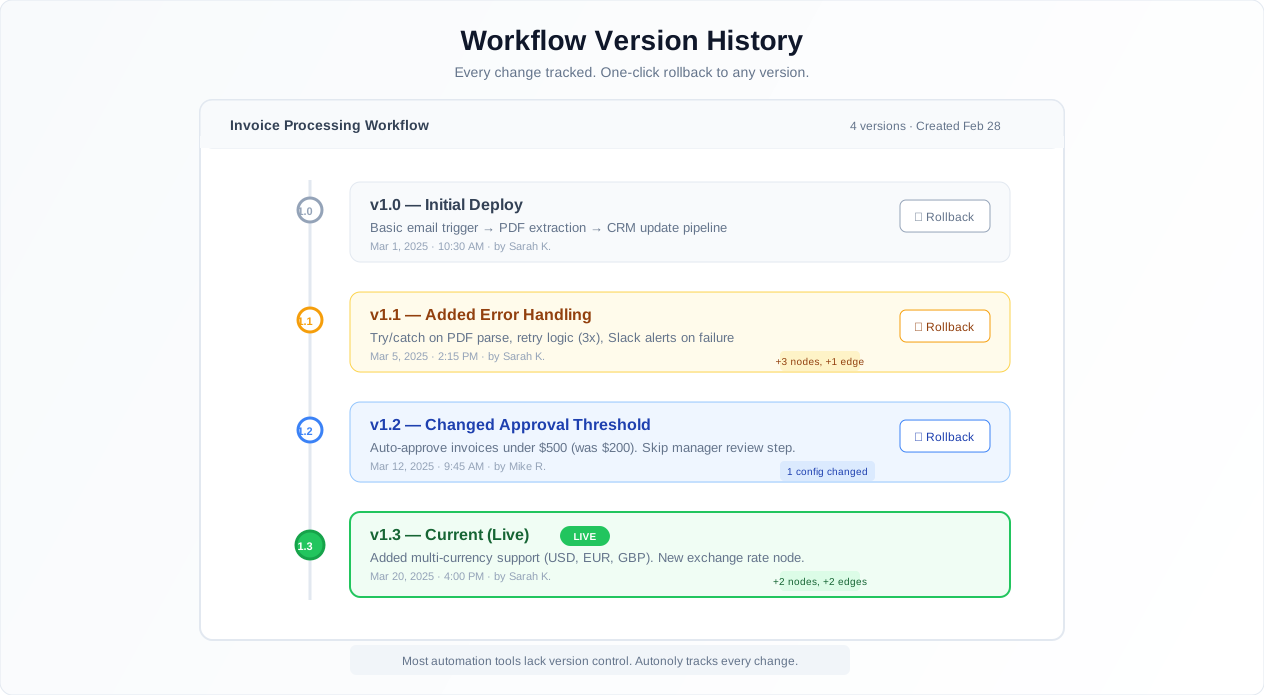
Here is a scenario that happens to everyone: you edit a working workflow, break it, and cannot remember what it looked like before. In Zapier, you are out of luck. In Make, you have to rebuild from memory.
Autonoly creates a version snapshot every time you save. You can view the full history of changes, compare any two versions side by side in a diff view, and roll back to any previous state with one click. This makes it safe to experiment — you can always undo.
Version control also enables branching. Duplicate a workflow, try a different approach, compare results, and keep the winner. This is how software teams work with code, and it is how automation teams should work with workflows.
Templates vs. Building from Scratch
The templates library contains 100+ pre-built workflows for common tasks. When to use a template versus building from scratch:
Use a template when the automation is a common pattern (lead generation, price monitoring, data sync, report generation) and you want to get to a working state in minutes, not hours. Fork the template, customize the specifics (your URLs, your selectors, your API keys), and deploy.
Build from scratch when your automation is unique to your business process, involves custom APIs or internal systems, or requires a workflow structure that does not match any existing template. Starting from a blank canvas gives you full control and avoids the mental overhead of untangling someone else's logic.
The best approach is often hybrid: start from a template that is close, strip out the parts that do not apply, and rebuild the parts that need to be custom. For questions about specific node types or configuration patterns, check the glossary for definitions and examples.
Collaboration for Teams
The Visual Workflow Builder is designed for teams, not just individuals. Share workflows with colleagues, assign viewer, editor, or admin roles, and collaborate on complex automations without stepping on each other's work.
This matters more than most people realize. The number one reason automations break is that the person who built them leaves the company and nobody understands the workflow. Visual building with version control and role-based access solves the bus factor problem. The canvas IS the documentation. Version history shows what changed and when. Comments on individual nodes explain the why.
Best Practices from Building 1,000+ Workflows
These are not theoretical recommendations. They come from watching hundreds of teams build and maintain workflows in production:
Keep workflows modular — 20 nodes maximum per workflow. When a workflow exceeds 20 nodes, it becomes hard to debug and impossible to reuse. Break complex automations into smaller, focused workflows. A data extraction workflow feeds into a data processing workflow, which triggers an integration workflow. Each module becomes a tested, reliable building block. The invoice processing example above is 9 nodes — right in the sweet spot.
Name every single node descriptively. Default node names like "HTTP Request 1" and "Condition 2" become confusing in large workflows. Rename every node to describe its purpose: "Fetch product prices from Amazon," "Filter items under $50," "Push to pricing spreadsheet." When a workflow breaks six months later — and it will — descriptive names make it immediately obvious where the problem is.
Add error handling from the start. Not later. Now. It is tempting to build the happy path first and add error handling later. In practice, "later" never comes. Wrap every external interaction in try/catch blocks from the beginning. At minimum, add a catch path that logs the error and sends a Slack notification. The number of production workflows running without error handling that silently fail for weeks is staggering.
Test with 5 items before running against 5,000. When building a workflow that will process thousands of items, test it on 5 first. Use the execution view to inspect the data at each step — are the fields correct? Is the formatting clean? Are edge cases handled? Scaling up an untested workflow wastes execution credits and produces messy data.
Document why, not what. The canvas shows what the workflow does. Use annotation nodes to explain why. Why is the threshold $5,000 and not $10,000? Why do you check this API before that one? Why is there a 3-second delay after login? Business logic context is what goes stale, not the visual structure. Our no-code automation guide covers more strategies for building maintainable workflows.
Security & Compliance
Workflow definitions, execution logs, and all data processed through the Visual Workflow Builder are protected by Autonoly's comprehensive security infrastructure. Workflow definitions are stored encrypted at rest with AES-256 encryption. When a workflow executes, it runs in an isolated environment that is destroyed after completion, ensuring no data persists between runs.
Role-based access control governs who can view, edit, and execute workflows. Viewers can see workflow structure and execution results but cannot modify anything. Editors can build and run workflows. Admins manage team access and workspace settings. Every action — creation, modification, execution, deletion — is recorded in the audit log with the user identity, timestamp, and details. This audit trail satisfies compliance requirements for organizations that need to demonstrate who changed what and when. For teams handling sensitive data, note that credentials used in workflow nodes are never displayed on the canvas or in execution logs — they appear only as masked references to the credential vault.
Common Use Cases
End-to-End Lead Generation Pipeline
A B2B sales team builds a pipeline that scrapes company directories using Browser Automation, extracts company names, websites, and contact information with Data Extraction, enriches leads by calling Clearbit's API via HTTP requests, deduplicates against existing HubSpot CRM records using Data Processing, and pushes qualified leads to Google Sheets with a Slack notification summary. The gotcha: enrichment APIs charge per lookup, so the workflow filters for minimum company size before enriching — saving hundreds of dollars per month on API costs. The entire pipeline is visible on one canvas, runs on a weekly schedule, and takes 15 minutes to execute. For teams getting started with this approach, our guide on automating lead generation provides step-by-step instructions.
Multi-Source Price Comparison Dashboard
An e-commerce analytics team builds a workflow with parallel branches — one for each competitor site (Amazon, Walmart, Target, direct competitors). Each branch navigates to the competitor's product catalog, extracts current prices, and feeds the data into a central Data Processing node that calculates price deltas, identifies outliers, and generates a comparison report. The report pushes to Google Sheets and triggers a Slack summary. The parallel architecture is clearly visible on the canvas, making it easy to add new competitors by duplicating a branch. A common mistake: not adding error handling per branch. When one competitor changes their site layout, you want the other 4 branches to complete successfully while the broken one alerts you. Our ecommerce price monitoring guide covers the strategic aspects of competitive pricing analysis.
Automated Reporting with Conditional Logic
A marketing team builds a weekly reporting workflow. Data Extraction pulls metrics from Google Analytics, social media dashboards, and ad platforms (Google Ads, Meta Ads Manager). Logic & Flow conditional branches route the data based on performance thresholds — campaigns with ROAS above 3x get a "success" summary, campaigns between 1x and 3x get flagged for optimization, and campaigns below 1x trigger an immediate budget pause alert. The AI Content node generates a natural-language executive summary, which is emailed to stakeholders via Gmail integration. The visual canvas makes it easy for the marketing director to understand and approve the logic without reading any code — and to adjust the ROAS thresholds by editing a single condition node.