What is AI Vision?
AI Vision analyzing a complex web page with canvas charts, dynamic layouts, and embedded content
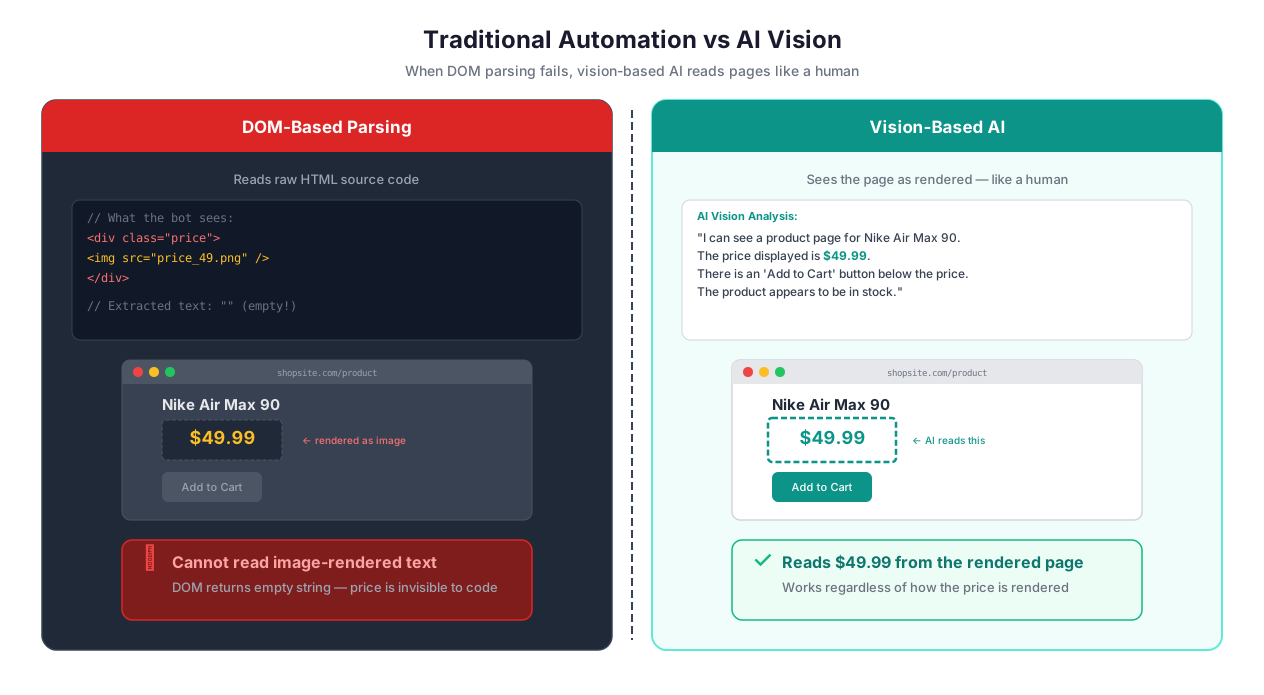
Traditional automation is blind. It reads the DOM — the underlying document object model that represents a web page — but it cannot see the page. This distinction sounds academic until you encounter a website that renders prices as images to prevent scraping, a BI dashboard that draws charts on HTML canvas, or an enterprise application from 2004 that uses nested iframes and ActiveX controls instead of semantic HTML.
AI Vision gives the agent eyes. When CSS selectors fail — and on the modern web, they fail constantly — the agent takes a screenshot, sends it to a multimodal AI model such as the vision-capable models from Anthropic or OpenAI, and understands the page visually. It reads text from images, identifies buttons inside canvas elements, extracts data from charts that have no DOM representation, and clicks at precise pixel coordinates when no clickable element exists in the HTML.
This is not OCR. OCR converts image pixels to text characters. AI Vision understands the layout, the relationships between elements, the semantic meaning of visual components, and the interactive affordances of the page. It knows that the blue button in the bottom-right is a "Submit" button even if the button exists only as a drawn rectangle on a canvas element with no associated DOM node.
Why This Exists
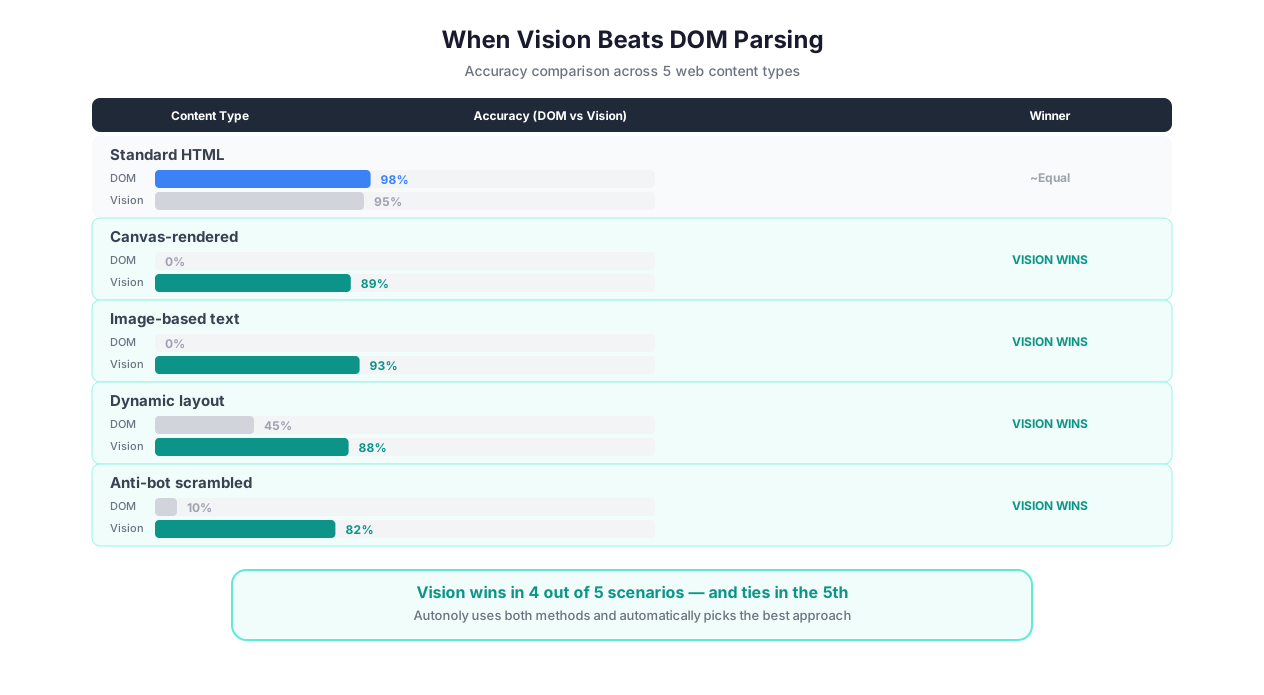
Here is the uncomfortable truth about web automation in 2025: a large percentage of the web is hostile to selector-based automation.
React, Angular, and Vue applications often generate dynamic class names like
css-1a2b3cthat change on every build. Your carefully crafted CSS selectordiv.product-pricebecomesdiv.css-x7y8z9next week.Anti-scraping measures deliberately obfuscate DOM structure. Websites like Ticketmaster, airlines, and financial services platforms randomize class names, inject decoy elements, and render critical data as images.
Canvas-based applications — Google Maps, Figma, Tableau Public, proprietary BI tools — draw directly to HTML canvas. There are no DOM elements to select. To a traditional scraper, the entire application is a single
<canvas>tag with no children.Shadow DOM and Web Components encapsulate their internal DOM, making external selectors unable to penetrate the component boundary.
PDF viewers, embedded iframes, and legacy Flash-replacement content render as opaque rectangles in the DOM with no accessible internal structure.
AI Vision solves all of these problems with a single approach: look at the page the same way a human does.
How It Works Under the Hood
The process is straightforward but powerful:
- Screenshot capture. The agent takes a full-page screenshot of the current browser state at the viewport's resolution. For pages longer than the viewport, the agent can capture specific regions or scroll and stitch multiple screenshots.
- Multimodal AI analysis. The screenshot is sent to a vision-capable language model. The agent's prompt includes context about what it is trying to do — "find the price of this product," "locate the login form," "read the values from this bar chart." The model returns structured information: text content, element positions, layout descriptions, and interaction recommendations.
- Coordinate mapping. When the agent needs to interact with a visually identified element, the model returns the element's position as pixel coordinates. The agent translates these coordinates to the browser's coordinate system and performs clicks, hovers, or text input at those exact positions.
- Result structuring. Extracted visual data is converted into the same structured format that selector-based extraction produces. Downstream workflow steps cannot tell whether data came from DOM selectors or vision analysis — it arrives in identical JSON format.
The key insight is that vision is not a replacement for selectors. It is a complementary approach that activates when selectors fail. A well-designed automation attempts the fast, cheap, selector-based approach first and falls back to vision only when necessary.
When Vision Matters: Real Scenarios
Side-by-side comparison of selector-based extraction seeing nothing vs AI Vision reading canvas-rendered data
The Website That Renders Prices as Images
An e-commerce comparison site renders product prices as server-generated PNG images instead of text elements. This is a deliberate anti-scraping measure — if the price is never in the DOM as text, traditional scrapers cannot extract it. BeautifulSoup sees <img src="/price/a8f3k2.png">. Puppeteer sees the same. Neither can read the actual number.
AI Vision takes a screenshot, sees "$149.99" rendered in the image, and extracts it as a text value. The anti-scraping measure is completely bypassed because vision operates on what is visible, not what is in the code.
Charts and Graphs Without Data Attributes
Tableau Public, Google Data Studio, and most proprietary BI tools render charts on HTML canvas. A bar chart showing quarterly revenue is a flat bitmap to the DOM — there are no data attributes, no aria labels, no accessible text. A screen reader cannot read it. A CSS selector cannot target it. To traditional automation, the chart does not exist.
AI Vision reads the chart like a human would: it identifies the axes, reads the labels, estimates the data values from the bar heights, and returns structured data. "Q1: $2.3M, Q2: $2.8M, Q3: $2.1M, Q4: $3.4M." Combined with Data Processing, this turns chart screenshots into actual data tables you can work with.
The accuracy caveat is important here: vision estimates values from visual position. If a bar chart shows values between $2M and $3M, vision might read $2.31M when the actual value is $2.28M. For trend analysis and approximate comparisons, this is perfectly fine. For financial auditing, you need the source data.
Anti-Bot Detection That Changes Layouts
Sophisticated anti-bot systems do not just block scrapers — they serve different page layouts to suspected bots. The real page has the product title in an <h1> tag. The bot-served page wraps the title in a randomly named <div> inside three layers of obfuscation divs. Your carefully crafted selector h1.product-title finds nothing because the page structure is completely different from what you saw in Chrome DevTools.
Vision does not care about the DOM structure. It sees the page as rendered and reads the product title from wherever it appears visually. The title is always visually prominent regardless of how the DOM is structured, because the site still needs human visitors to read it.
Verifying Automation Results Visually
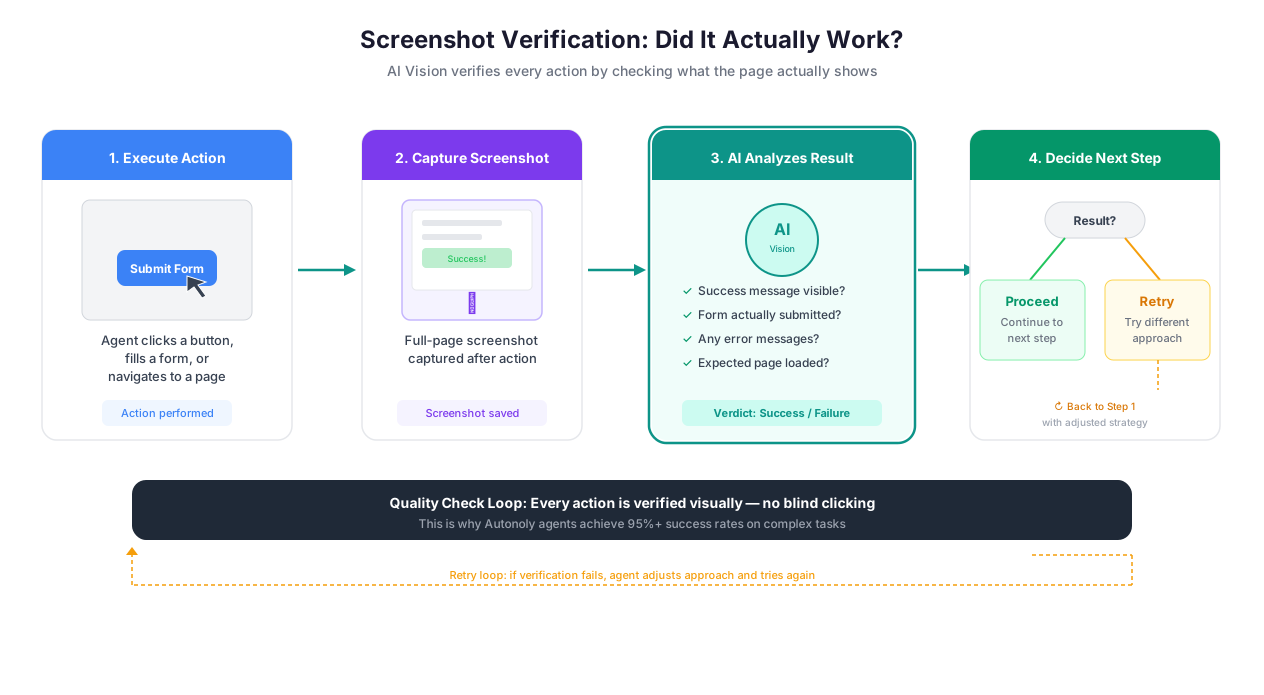
Here is a use case most people overlook: using vision to verify that an automation worked correctly. The agent fills out a form and clicks submit. Did it actually submit? The success message might be a JavaScript toast notification that disappears after 3 seconds. It might be a page redirect that takes a moment. It might be a subtle color change on the submit button.
Vision captures a screenshot after submission and confirms: "The page now shows a green success banner that says 'Your application has been submitted. Reference number: APP-2024-0847.'" This is vastly more reliable than checking for a specific CSS selector on the success page, because success page layouts vary and can change without warning.
Accessibility Content That Is Invisible to Traditional Automation
Some websites render content that is accessible to screen readers (via ARIA attributes and visually hidden text) but not easily targetable by CSS selectors because the visible rendering uses images or canvas. Vision reads the visual rendering directly, extracting the same information a sighted user would see. This complements the PDF & OCR feature for complex document layouts.
The Smart Fallback System
Flow diagram showing selector attempt, automatic vision fallback, and approach caching for future runs
AI Vision is not an either/or choice. It integrates with AI Agent Chat and browser automation as an intelligent fallback in a three-step cascade:
Step 1: Try selectors. The agent attempts standard CSS selector interaction. This is fast (milliseconds) and cheap (no AI model API call). For 80% of web pages, this works perfectly.
Step 2: Fall back to vision. If the selector fails — element not found, wrong element selected, interaction produces unexpected results — the agent captures a screenshot and switches to vision analysis. This takes 2-5 seconds and consumes additional credits.
Step 3: Cache the approach. If vision succeeds, the result is cached via Cross-Session Learning. On the next run against the same site, the agent skips the selector attempt entirely and goes straight to vision. This eliminates the retry delay on known-problematic pages.
The fallback is automatic. You do not configure it, toggle it, or think about it. The agent decides when to use vision based on real-time interaction results. For pages that work fine with selectors, vision is never invoked and costs nothing.
Coordinate-Based Clicking
When vision identifies an interactive element, the agent clicks at specific pixel coordinates. This bypasses every DOM-level protection imaginable:
Clicks inside
<canvas>elements where no DOM children existClicks inside Shadow DOM components where external selectors cannot reach
Clicks inside cross-origin
<iframe>elements where same-origin policy blocks DOM accessClicks on SVG elements with complex nesting that defies simple selectors
The limitation of coordinate clicking is responsiveness. If the page layout shifts — due to a window resize, a dynamic ad loading, or a responsive breakpoint change — the coordinates may point to the wrong element. The agent mitigates this by capturing a fresh screenshot before each coordinate click and re-computing the position. But on pages with aggressive layout shifts (constant ad loading, auto-playing video resizing), coordinate accuracy can degrade.
What Vision Cannot Do
Honest limitations:
Video content. Vision analyzes static screenshots, not video. If the data you need is in a playing video (a live stock ticker animation, a scrolling news banner), vision can capture individual frames but cannot process continuous video feeds.
Very small text. Text below approximately 8px rendered size can be misread. If the target text is tiny (footnotes, fine print, dense data tables with narrow columns), accuracy drops. Increasing the browser viewport width so the text renders larger mitigates this.
Rapidly changing content. If the page updates every second (live dashboards, real-time feeds), the screenshot captures a single moment. By the time the vision model returns its analysis (2-5 seconds later), the page may have changed. For monitoring live data, use DOM-based extraction if possible.
Ambiguous visual elements. A blue rectangle could be a button, a notification bar, or a decorative element. Vision uses context and surrounding text to make the right call, but ambiguous layouts occasionally produce misidentification. The agent's self-correction — "I clicked what I thought was the submit button but nothing happened, let me re-analyze" — handles most of these cases.
Color-dependent information. If the only way to distinguish two elements is their color (red vs. green status indicators with no text labels), vision handles this well for distinct colors but may struggle with subtle color differences in low-contrast designs.
Best Practices
Let the fallback system do its job. Do not force vision mode on every step. Selectors are 10x faster and 5x cheaper. Reserve forced vision for pages you know are problematic — canvas apps, obfuscated sites, or embedded content where selectors demonstrably fail. The automatic fallback handles everything else.
Maximize screenshot quality. Set the browser viewport to at least 1280x800. Avoid triggering vision on pages mid-load — wait for all JavaScript to finish rendering. For dashboard pages with chart animations, add a 2-3 second wait after page load to let all visual elements finish rendering before the screenshot is captured.
Validate numerical data from charts. Vision estimates chart values from visual position, which introduces small inaccuracies (typically within 2-5% of actual values). Pipe vision-extracted numbers through a Data Processing validation step that checks for reasonable ranges and flags outliers. If a bar chart shows quarterly revenue between $2M and $5M and vision extracts "$47M," that is an obvious misread that a range check catches instantly.
Use coordinate clicking as a last resort. Coordinates are brittle — they break when layouts change, when ads load, when responsive breakpoints shift. The agent tries selector-based clicking first for good reason. Force coordinate clicking only for genuinely static elements inside canvas or embedded content that never changes layout.
Cache aggressively via Cross-Session Learning. When a site consistently requires vision, let the Cross-Session Learning system cache the approach. Future runs skip the selector attempt entirely, saving 1-3 seconds per interaction. Verify cached approaches in your workspace settings and clear the cache if a site redesigns its layout.
Combine with OCR for documents. For PDF documents, scanned images, and document viewers, AI Vision complements PDF & OCR processing. Vision understands layout and visual hierarchy (headers, columns, tables) while OCR handles precise character-level text extraction. Using both together produces the most accurate results on complex document layouts.
Security & Compliance
AI Vision sends screenshots to external AI model APIs for analysis. This is the key security consideration. All screenshots are processed in memory, transmitted over encrypted TLS 1.3 connections, and never persisted to disk. They are not stored in logs, not shared across workspaces, and not used for model training by the API provider.
The credential vault masks login credentials visible on a page before screenshot capture when possible. Execution environments are destroyed after each run, eliminating any residual image data.
For organizations with compliance requirements that prohibit sending page screenshots to third-party services, you can disable vision mode for specific workflows in the workflow settings. The agent will use only selector-based interaction, which means some sites may not be automatable. Enterprise customers requiring on-premises vision processing can contact our team for deployment options.
One practical consideration: if your automation accesses internal dashboards or pages containing sensitive business data (financial results, employee information, customer PII), the screenshot sent to the vision API contains that data. Evaluate whether the data classification of the pages you are automating is compatible with third-party AI model processing. The Security feature page covers the full architecture.
Common Use Cases
Extracting KPIs From Canvas-Based Dashboards
A marketing analytics team pulls weekly performance metrics from a proprietary BI tool that renders everything on HTML canvas. Traditional automation sees a blank <canvas> tag. AI Vision captures the dashboard, reads the KPI values ("Conversion Rate: 3.2%", "MQLs: 847", "Pipeline: $2.1M"), and pushes the data to Google Sheets for the weekly report. This runs every Monday via Scheduled Execution. The team stopped manually screenshotting their dashboard and typing numbers into spreadsheets — a process that took 30 minutes per week and was error-prone because someone always mistyped a number. For related monitoring strategies, see our guide on ecommerce price monitoring.
Automating a Legacy Enterprise Application Built in 2003
A logistics company runs a web application built with Java Server Faces that uses nested <frame> elements, <applet> tags, and non-standard HTML that no modern CSS selector can reliably target. The DOM structure changes unpredictably based on user state and server-side rendering decisions. AI Vision identifies the login form visually, locates navigation menus by their visual position, finds data entry fields by their labels, and fills out shipment tracking forms by clicking at the correct coordinates and typing values. The entire daily workflow — logging in, navigating to the shipment tracker, entering 20-30 tracking numbers, and exporting the results — runs unattended. The logistics coordinator who used to spend 45 minutes on this every morning now reviews the exported data in 5 minutes. Read more about automating data entry for similar legacy system challenges.
Reading Competitor Pricing From Protected Charts
A product research team monitors competitor pricing trends displayed as SVG charts on a competitor's public analytics page. The charts use SVG <path> elements with no data attributes, no tooltips, and no accessible text. The underlying price data is calculated server-side and never exposed in the client-side DOM. AI Vision reads the axis labels, estimates data point values from visual position on the chart, and extracts a time series: "Jan: $49, Feb: $49, Mar: $52, Apr: $55." The extracted values feed into a Data Processing pipeline that calculates week-over-week changes and flags price increases above 5%. Results are posted to Slack for the pricing team. See the best web scraping tools guide for how vision-augmented extraction compares to selector-only approaches.
Navigating Web-Based Mapping Applications
A real estate data team extracts property information from a county assessor's website that renders its GIS interface entirely on HTML canvas. Map pins, property boundaries, parcel numbers, and address labels exist only as drawn pixels — no DOM elements, no data attributes, no tooltips. AI Vision identifies property markers, reads parcel numbers and address labels from the map, and captures assessment values from information panels that appear when pins are clicked. The agent clicks pins at their visual coordinates and reads the resulting info popups via vision. For real estate teams building similar workflows, see our guide on real estate automation.
Solving Visual Puzzles in Authentication Flows
Some websites use visual challenges — "click the traffic lights," "select all images with storefronts," "drag the slider to the correct position" — as anti-bot measures. AI Vision analyzes the challenge screenshot, identifies the correct elements (traffic light images, storefront photos, slider target position), and performs the interaction via coordinate clicks. This is not 100% reliable — complex image recognition challenges with deliberately ambiguous images still have a meaningful failure rate — but for common CAPTCHA patterns, the success rate is high enough for production automation.
Visit pricing for details on AI Vision credit usage and model availability.