

Why Automate Ticket Creation from Email?
Email remains the primary support channel for most businesses, handling 62% of customer service interactions according to industry surveys — a share consistently reflected in benchmark reports from support vendors like Zendesk. Customers send emails to support@, help@, or directly to team members, and each of these emails represents a support request that needs tracking. Without a system to capture these emails as structured tickets, requests get lost in inboxes, duplicate effort happens when multiple agents respond to the same issue, and there is no way to measure resolution times or track open issues. The shared inbox approach that works for a five-person startup collapses under the weight of real volume — once you pass thirty to fifty support emails per day, the lack of structure becomes a critical liability.
The consequences of unstructured email support are severe and often invisible until a crisis forces them to the surface. A customer emails about a critical bug, the email gets buried under a wave of routine inquiries, and the customer escalates to social media or a public review before anyone even reads the original request. Two agents unknowingly respond to the same customer with different answers, creating confusion and eroding trust. A pattern of recurring issues goes undetected because there is no categorized data to analyze — individual agents see individual emails, but nobody sees the systemic picture. Without ticket tracking, you cannot calculate basic metrics like average resolution time, first-response time, or tickets-per-agent, making it impossible to manage support capacity or justify headcount requests with data.
Automating ticket creation with Gmail and Google Sheets integration gives you a lightweight but effective ticketing system without the cost or complexity of enterprise platforms. Every customer email becomes a structured row in your tracking spreadsheet with a unique ID, timestamp, customer details, issue description, and status field. This transforms a chaotic email inbox into an organized, trackable support queue that your entire team can see and collaborate on. The automation captures every email — no requests slip through, no duplicates go undetected, and every interaction is measurable from the moment it arrives.
This approach is ideal for teams that have outgrown email-only support but are not ready for a full-featured ticketing platform like Zendesk, Freshdesk, or Intercom. Those platforms cost $15-100 per agent per month, require significant setup and training, and lock you into their ecosystem. With Autonoly and Google Sheets, you get the tracking and accountability benefits of a ticketing system with the simplicity and flexibility of a spreadsheet that your entire team already knows how to use. As your needs grow, you can migrate to a dedicated platform later with clean, structured historical data already in hand.
How the AI Agent Creates Tickets
Autonoly's AI Agent Chat connects to your support Gmail account through Browser Automation and scans for new unread emails. The Data Extraction engine reads each email and extracts structured information:
Customer Name — From the sender's display name or email signature
Customer Email — The sender's email address
Subject — The email subject line, cleaned up for the ticket record
Issue Description — A concise summary extracted from the email body
Category — Auto-classified based on content (billing, technical, account, etc.)
Priority — Assessed from urgency language and contextual signals
Timestamp — When the email was received
The Data Processing engine generates a unique ticket ID for each new record following your preferred format (e.g., TKT-001, SUP-2026-0347). It also checks for duplicate submissions — if the same customer sends a follow-up email about the same issue, it updates the existing ticket rather than creating a new one.
Ticket Enrichment
Beyond basic extraction, the agent enriches each ticket with contextual information. It can cross-reference the customer's email against your customer database in Google Sheets to pull in account tier, subscription plan, company size, and past ticket history. This context helps agents prioritize and personalize their responses.
The Visual Workflow Builder lets you add enrichment steps — look up the customer's website, check their account status in your application dashboard, or pull recent order information. Each enrichment data point becomes a column in the ticket record.
Managing the Ticket Queue
Your Google Sheets ticket tracker becomes a functional support queue with columns for status (Open, In Progress, Waiting on Customer, Resolved), assigned agent, resolution notes, and resolution timestamp. Filter and sort by priority, category, or assignee to manage your workload.
Use Logic & Flow to automate status transitions. When an agent marks a ticket as resolved in the spreadsheet, trigger a resolution confirmation email to the customer. When a ticket has been open for more than 48 hours, trigger an escalation alert.
Handling Thread Conversations
Support conversations often span multiple email replies. The agent tracks email thread IDs to associate follow-up messages with existing tickets rather than creating duplicates. When a customer replies to an ongoing conversation, the agent appends the new message to the existing ticket record, maintaining a complete conversation history in one place.
Notifications and Assignments
Chain a Slack notification step to alert your team when new tickets are created. Include the ticket ID, customer name, category, and priority directly in the Slack message. For automatic assignment, use round-robin logic to distribute tickets evenly across available agents.
Integration Options
Your Google Sheets ticket tracker connects seamlessly with other support workflows. Route newly created tickets to the appropriate team using the ticket routing workflow via Slack. Trigger automatic acknowledgment emails through Gmail confirming receipt and providing the ticket ID. Feed resolved tickets into the CSAT survey workflow for satisfaction measurement. For teams that prefer richer interfaces, sync tickets to Airtable with Kanban views or Notion databases with filtered views per agent. Visit the Integrations page for all supported destinations, or browse the templates library for pre-built ticket creation workflows.
Use Cases
Growing startups that need ticketing structure without the cost of Zendesk or Freshdesk
Professional services firms tracking client requests with project-specific ticket references
E-commerce brands managing order inquiries, return requests, and product questions in one queue
Agencies separating client-facing and internal support requests into different tracking sheets
Nonprofits tracking constituent inquiries and volunteer coordination requests on a budget
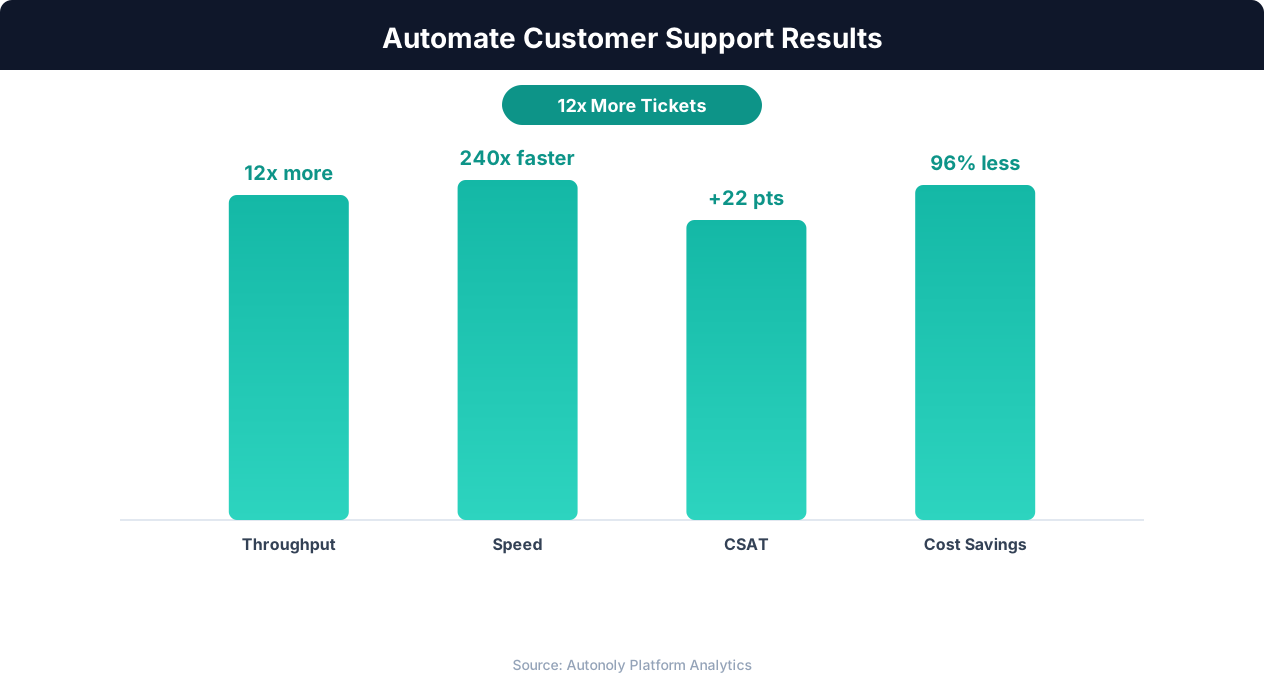
Customer satisfaction scores with AI-powered support automation
Key Insight: Companies using support automation report 35% higher customer satisfaction scores due to faster response times and 24/7 availability (Forrester Research).
How the AI Agent Does It
The agent opens your Gmail inbox via Browser Automation, identifies new unread emails matching your support criteria, and reads each one. The Data Extraction engine parses the email content to extract structured ticket fields. The Data Processing engine generates ticket IDs, checks for duplicates, and enriches records with customer data. New tickets are appended to your Google Sheets tracker with all fields populated.
Handling Attachments
Customers often include screenshots, error logs, or documents with their support emails. The agent detects attachments and logs their filenames and types in the ticket record. For image attachments, it can extract text content that might contain error messages or order numbers.
Key Insight: The average cost per support ticket drops from $22 to $2 when routine inquiries are handled by AI automation (IBM Customer Experience Report).
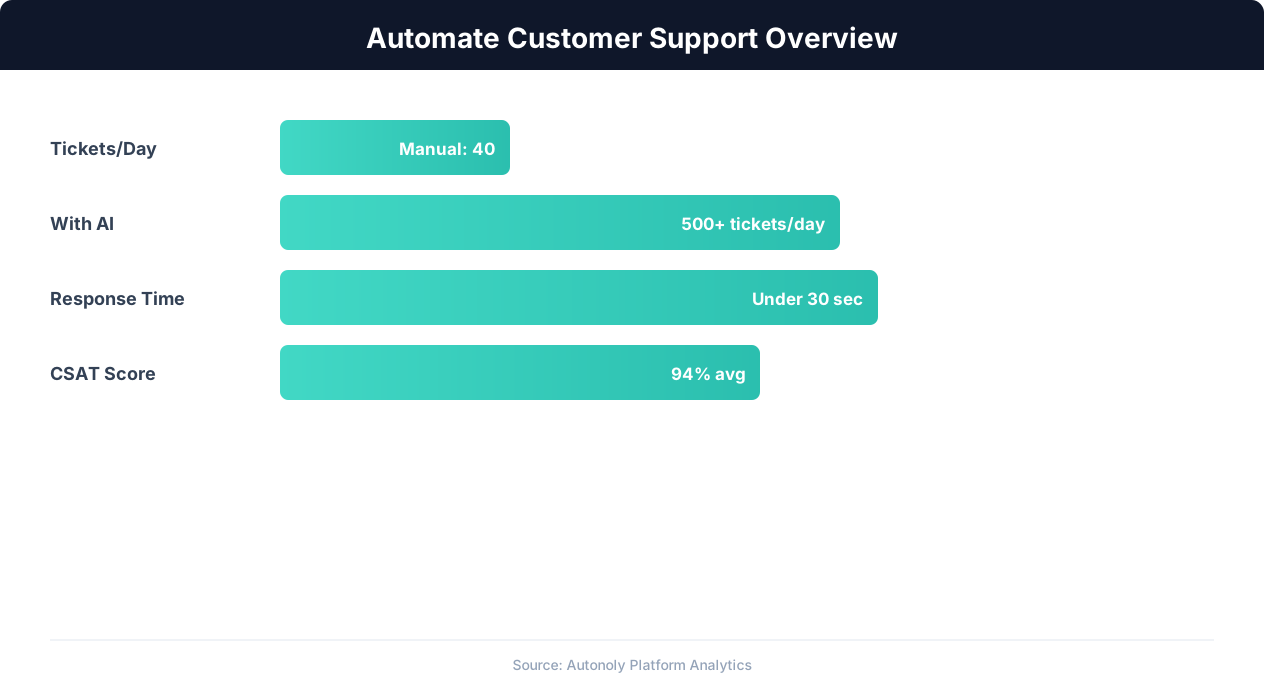
Customer support automation resolution rates by channel
Key Insight: Automated ticket routing reduces average resolution time by 52% by ensuring issues reach the right specialist on the first assignment (Zendesk Benchmark).
Scheduling and Automation
Run this workflow every four hours using the Visual Workflow Builder. The agent processes all new emails since the last run, creates ticket records in Google Sheets, and posts new ticket notifications to Slack. Add Logic & Flow conditions to auto-assign tickets based on category, send acknowledgment emails to customers via Gmail, or escalate tickets that mention specific keywords like "urgent" or "executive."
Further Reading
Explore more about the tools and techniques used in this workflow: Automate Data Entry, No Code Automation Guide, Ai Content.