

Why Merge Spreadsheets Automatically?
In most organizations, related data lives in multiple spreadsheets. Regional sales teams maintain separate files. Departments track metrics in their own sheets. Vendors send updates as individual Excel attachments. Bringing all this data together for a unified view requires merging — and manual merging is one of the most error-prone tasks in data management.
Copy-paste merging introduces errors at every step: missed rows, misaligned columns, lost formatting, and duplicates that go unnoticed. When this process repeats weekly or monthly, the cumulative time cost is enormous. Automating spreadsheet merging with Autonoly eliminates these errors and frees your team for actual analysis.
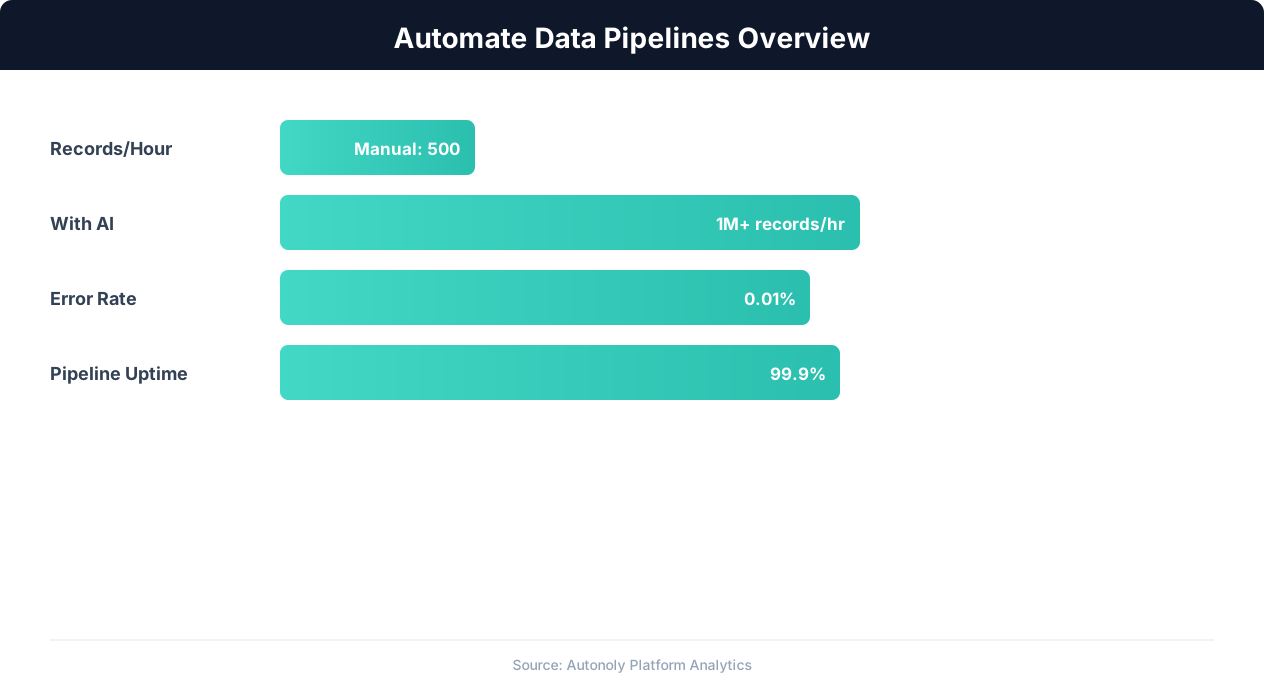
Data pipeline automation efficiency gains over time
Key Insight: Pipeline failures cost enterprises an average of $15 million per year in lost productivity and delayed decisions. Automated monitoring cuts this by 73% (Gartner).
How Autonoly Merges Spreadsheets
The AI Agent Chat lets you describe the merge naturally. You might say "combine these three regional sales spreadsheets into one, matching on the customer email column" or "merge the Q1 and Q2 files, keeping all columns from both." The agent handles the complexity of schema alignment, deduplication, and format standardization.
Intelligent Column Mapping
Different spreadsheets rarely use identical column names. One file might have "Customer Name" while another uses "Client" and a third has "Account Name." Autonoly's AI identifies semantically equivalent columns and maps them together automatically. You can review and adjust the mapping before the merge proceeds, ensuring accuracy.
The Data Processing feature handles type mismatches — dates stored as text in one file and as date values in another, numbers with different decimal formats, and currency columns with varying symbol placement. Everything is normalized during the merge.
Multi-Source Acquisition
Source files can come from anywhere. The Browser Automation engine downloads files from web portals that require login and navigation. The Google Sheets integration pulls data directly from shared spreadsheets. The Gmail integration extracts Excel attachments from emails matching specific criteria. The SSH & Terminal feature fetches files from remote servers or FTP sites.
This means your merge pipeline can pull files from a mix of sources automatically — downloading the East region file from a portal, the West region file from a Google Sheet, and the Central region file from an email attachment — all in a single automated run.
Deduplication Across Files
When merging multiple sources, the same records often appear in more than one file. Autonoly detects cross-file duplicates using exact or fuzzy matching on key columns and resolves them according to your rules: keep the most recent version, keep the most complete version, or flag conflicts for manual review. The Data Extraction capabilities can enrich records during deduplication by pulling additional data from web sources.
Source Tracking
The merged output includes a "Source" column that records which file each row came from. This traceability is essential for data governance — when a number looks wrong, you can trace it back to its origin file immediately. The merge also produces a summary report showing how many rows came from each source and how many duplicates were resolved.
Building Repeatable Merge Workflows
The Visual Workflow Builder lets you save the merge configuration as a reusable workflow. For recurring merges — monthly departmental reports, quarterly sales consolidations — you run the same workflow each period with updated source files. Logic & Flow conditions can validate the merged data before finalizing, ensuring data quality standards are met.
Visit the templates library for pre-built merge workflows, check the pricing page for details, and explore the Integrations ecosystem for connecting merged data to downstream systems. For more background, see the workflow automation glossary, web scraping glossary, and API integration glossary.
Key Insight: Automated data pipelines reduce data processing errors by 87% compared to manual ETL processes (McKinsey Data & Analytics Report).
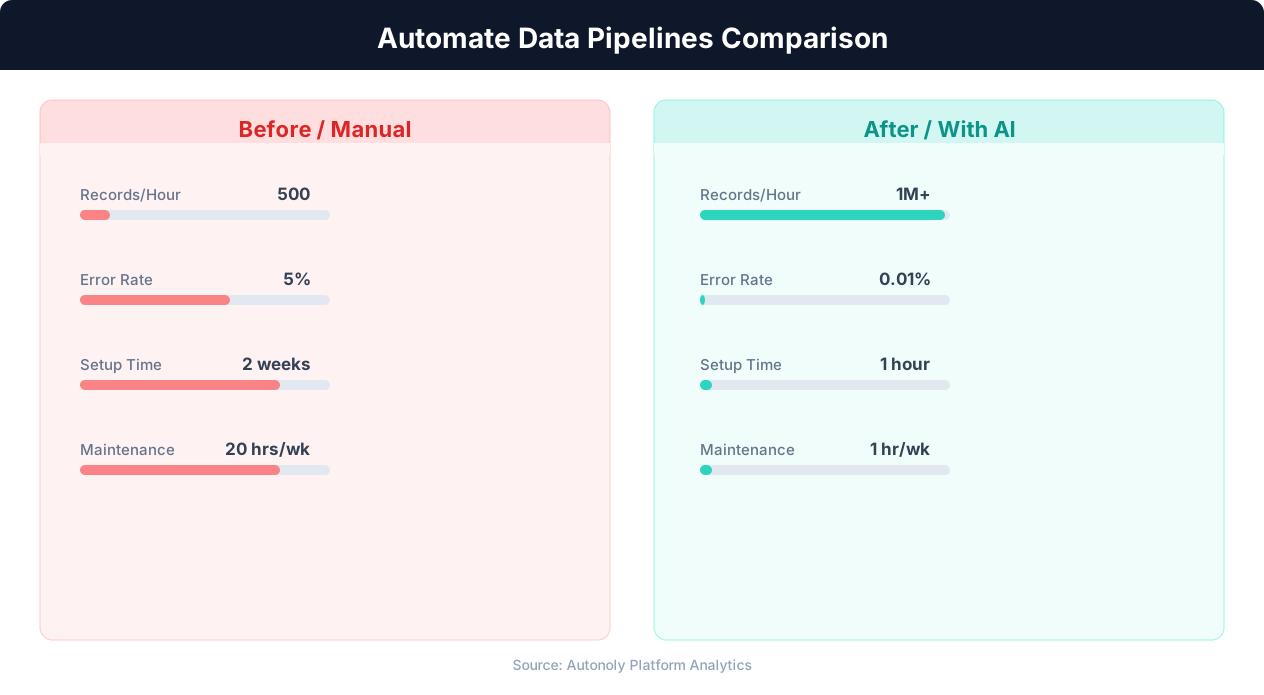
Error rates in manual vs automated data pipelines
Practical Merge Scenarios
A retail company with 12 regional managers receives a weekly sales spreadsheet from each region. Every Monday morning, the merge workflow runs automatically, pulling all 12 files from a shared Google Drive folder, aligning columns that differ in naming conventions ("Revenue" vs. "Sales" vs. "Total Sales"), deduplicating orders that appear in overlapping territories, and producing a single master Excel file. The finance team opens one consolidated spreadsheet instead of toggling between a dozen files, saving roughly four hours of manual merge work each week.
A consulting firm that collects survey responses across multiple client engagements uses the merge pipeline to combine individual response files into a single dataset for cross-client benchmarking. Each survey file has slightly different column headers and date formats. Autonoly's intelligent column mapping and Data Processing normalization handle these inconsistencies automatically, producing a clean dataset ready for statistical analysis.
Key Insight: Data teams spend 80% of their time on data preparation and pipeline maintenance. Automation can reclaim up to 60% of that time (Anaconda State of Data Science).
Manual Merging vs. Automated Pipelines
Manual spreadsheet merging is one of the most error-prone data tasks in any organization. Analysts open each file, copy rows, paste them into a master sheet, and manually check for duplicates and column alignment. A single missed row or misaligned column can cascade into flawed reports and bad decisions. Studies on spreadsheet errors suggest that nearly 90% of complex spreadsheets contain at least one mistake — and merge operations are among the most complex tasks people perform in spreadsheets.
Autonoly eliminates this class of errors entirely. The merge logic is deterministic: identical inputs always produce identical outputs. Column mapping is configured once and applied consistently across every run. Deduplication rules are explicit and auditable. The source tracking column means that any anomaly in the merged output can be traced back to its origin file in seconds, not hours.
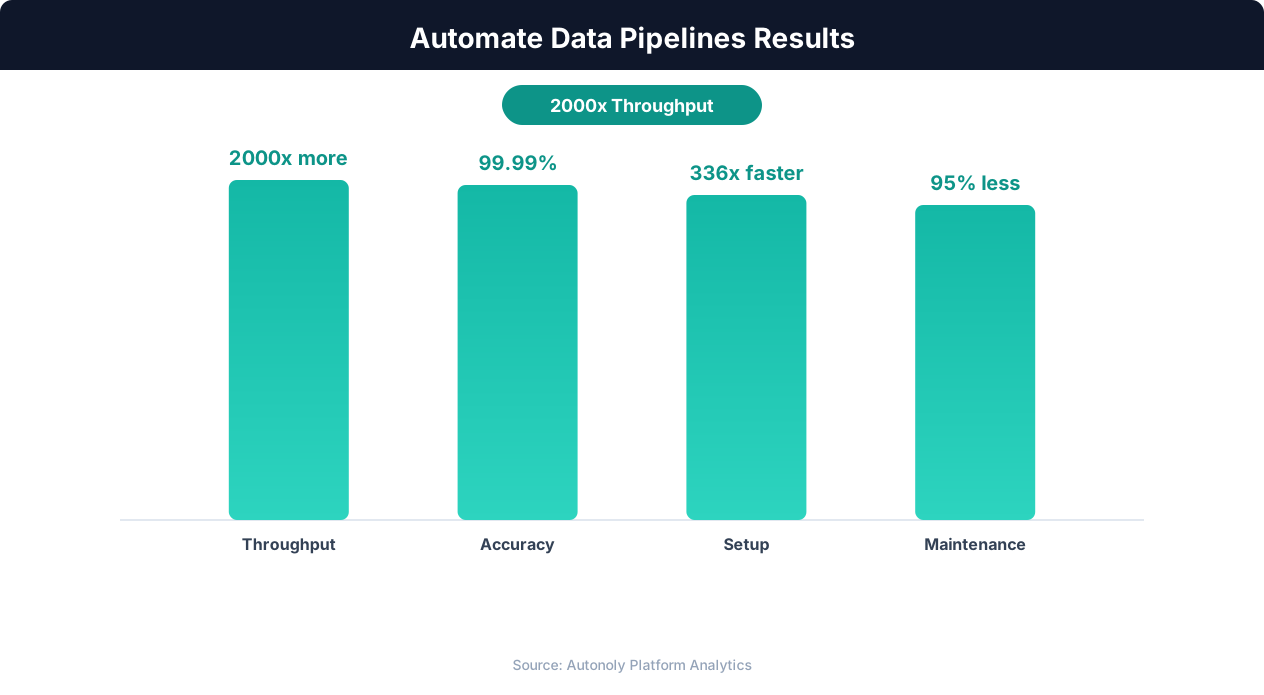
Data processing throughput with automated pipelines
Key Insight: Organizations with automated data pipelines deliver analytical insights 5x faster than those relying on manual data integration (Deloitte Analytics Trends).
Scheduling and Downstream Integration
Schedule merge workflows to run at any cadence — daily for operational data, weekly for departmental reports, or monthly for financial consolidations. Use Logic & Flow conditional nodes to validate the merged output before delivery: check that total row counts match expectations, verify that no source file was empty, and alert via Slack if anomalies are detected. The merged dataset can feed directly into downstream Autonoly workflows for further processing, analysis, or distribution to stakeholders across the organization.
Further Reading
Explore more about the tools and techniques used in this workflow: Automate Google Sheets, Automate Data Entry.