


Why Scrape YouTube Comments?
YouTube is the second largest search engine in the world, and its comments section contains a wealth of audience data that most businesses ignore. Product reviews, feature suggestions, customer complaints, competitor mentions, and purchase intent signals all live in YouTube comments. For content creators, understanding which topics and sentiments drive engagement is essential for content strategy. For brands, monitoring comments across relevant videos reveals how audiences perceive products and services.
YouTube's native comment management tools are designed for moderation, not analysis. There is no built-in way to export comments, sort by sentiment, or analyze engagement patterns across multiple videos. YouTube's official API also limits comment extraction and requires developer credentials. By extracting comments into Excel with Autonoly, you transform this unstructured data into a structured, filterable, and analyzable dataset — without API limitations.
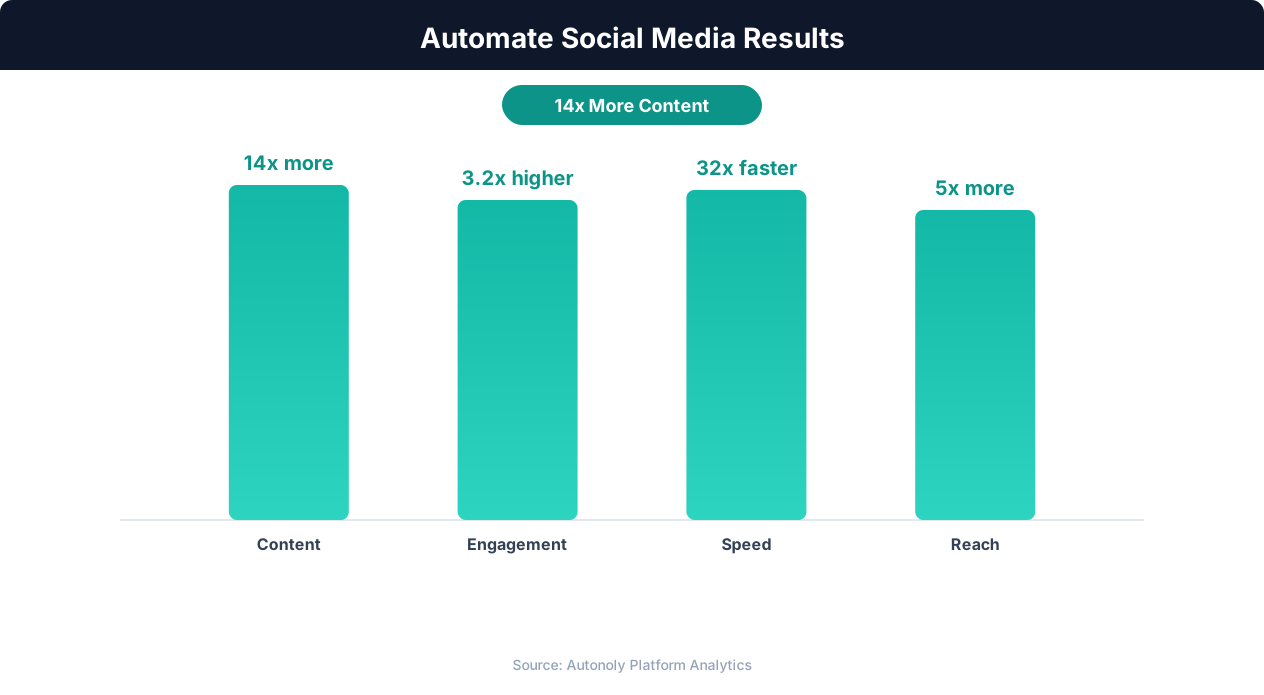
Audience growth rates with social media automation
Key Insight: Automated social listening captures 12x more brand mentions and competitor activity than manual monitoring across platforms (Brandwatch Research).
How Autonoly Extracts YouTube Comments
YouTube's comment section is one of the most technically challenging areas to scrape. Comments load dynamically via infinite scrolling, replies are collapsed by default, and the interface frequently updates. Autonoly's Browser Automation engine handles all of this with a full Playwright browser — scrolling to load comments, expanding reply threads, and handling YouTube's JavaScript-heavy interface exactly as a regular user would.
The AI Agent Chat lets you set up extraction naturally. Provide video URLs, a channel URL, or a search query, and the agent handles navigation, scrolling, and data extraction automatically. The agent scrolls the page to trigger YouTube's lazy-loading comment section, which only renders comments as you scroll past the video description. YouTube loads comments in batches as you scroll, and the agent continues until it reaches your specified limit or the end of the section.
Comprehensive Comment Data
The Data Extraction engine captures every available data point for each comment — the comment text (including emojis and hashtags), author name and channel URL, like count, reply count, whether it is a pinned or highlighted comment, timestamp, and whether the video creator has replied. For reply threads, each reply is captured as a separate row linked to its parent comment, preserving the conversation structure.
The Data Processing feature adds sentiment analysis to each comment — positive, negative, or neutral — and identifies common themes across comments. For product-focused videos, the agent can categorize comments into feedback types: praise, complaint, question, feature request, or general discussion.
Analysis Techniques
With comments in Excel, you can apply powerful analysis techniques:
Word frequency analysis — Identify the most commonly used words and phrases to understand dominant themes
Sentiment classification — Score each comment as positive, negative, or neutral using keyword matching or NLP models
Question extraction — Filter comments containing question marks to find unanswered audience questions
Feature request mining — Search for comments containing "wish", "should", "please add" to identify feature demand
For advanced NLP, SSH & Terminal lets you run Python scripts on the extracted data. Use libraries like TextBlob, VADER, or transformer-based models for production-grade sentiment analysis. Push results back to a new column in your spreadsheet.
Use Cases for YouTube Comment Data
Content creators use comment analysis to understand what resonates with their audience. Which topics generate the most positive comments? What questions appear repeatedly, suggesting content gaps? Where are viewers confused or frustrated? This data directly informs content strategy and improves audience engagement.
Brands use YouTube comment scraping for competitive intelligence. What do people say in comments on competitor product reviews? What complaints about competitors represent opportunities? Which features do commenters wish existed? This qualitative data complements quantitative market research.
Researchers use YouTube comments as a rich data source for studies on public opinion, cultural trends, consumer behavior, and information spread. The structured Excel output integrates easily with research tools and statistical software.
Multi-Video Analysis
The most powerful use case is analyzing comments across multiple videos. The Visual Workflow Builder enables complex extraction pipelines. Common use cases include competitor analysis (extracting comments from competitor product review videos), content series tracking (monitoring comments across all episodes of a video series), product review aggregation (collecting comments from the top 10 review videos for your product), and influencer campaign measurement (extracting comments from sponsored videos).
Each video is a separate extraction step, and a merge node combines all comments into one spreadsheet with a Video column for filtering. The agent can also switch sort orders — by default YouTube sorts by "Top comments", but the agent can switch to "Newest first" to capture the most recent comments regardless of engagement.
Exporting and Integration
Download your Excel file directly, or send results to Google Sheets for collaborative analysis. The Slack integration can deliver a summary — top 10 comments by likes, total comment count, and average sentiment score — to your team channel. The Integrations page covers all available export destinations.
Scheduling for Ongoing Analysis
For channels or topics you monitor regularly, scheduled runs capture new comments over time. This is valuable for tracking sentiment trends around product launches, monitoring brand perception as it evolves, and building a growing dataset for longitudinal research. The Logic & Flow feature can filter by minimum view count so you only analyze videos with enough comments to be meaningful. Browse our templates library for YouTube analysis workflows. For background on browser-based data collection, see our web scraping glossary entry. Visit pricing for plan options.
Further Reading
Explore more about the tools and techniques used in this workflow: Best Web Scraping Tools, Scrape Dynamic Websites, Ai Content.