

Why Automate Support Ticket Routing?
The first few minutes after a customer sends a support email are critical. Research from Harvard Business Review shows that companies responding to customer inquiries within an hour are seven times more likely to have a meaningful conversation with a decision-maker than those who wait even sixty minutes longer. Every minute a support email sits unread in a shared inbox is a minute the customer spends growing frustrated, composing a negative review, or searching for a competitor who will respond faster. In today's environment, where 90% of customers rate an immediate response as important or very important, triage speed is not a nice-to-have — it is a competitive requirement.
Manual triage — where a team lead reads each email, decides who should handle it, and forwards it to the right person — creates a bottleneck that scales poorly. When your team receives twenty support emails per day, manual routing is manageable. At fifty emails per day, it becomes a significant time sink. At two hundred or more, it becomes a full-time job that pulls your most experienced team member away from actually solving customer problems. The triage person becomes the single point of failure in your support operation — when they are sick, on vacation, or simply overwhelmed during a ticket surge, routing breaks down and response times spike.
The hidden cost of manual routing extends beyond just delay. Human categorization is inconsistent. One team lead might route a password reset issue to the account team, while another routes the same type of issue to technical support. These inconsistencies create confusion about who owns what, lead to tickets being bounced between teams, and make it impossible to generate accurate reporting on ticket distribution by category. Without consistent categorization data, you cannot identify systemic issues, measure team workload accurately, or make informed decisions about hiring and resource allocation.
Automating ticket routing with Gmail and Slack integration eliminates the triage bottleneck entirely. The AI agent reads each incoming support email, understands the topic and urgency from the content, and routes it to the correct Slack channel instantly. Technical issues go to #support-technical. Billing questions go to #support-billing. Urgent issues get flagged and escalated automatically. The categorization is consistent every single time, building a reliable dataset for support analytics that manual routing never could.
This automation is the single most impactful improvement you can make to your support response times. Customers get faster help, agents spend less time on routing overhead, and managers get visibility into ticket distribution across categories. Teams that implement automated routing typically see a 40-60% reduction in average first-response time, simply because the delay between email arrival and agent awareness drops from hours to minutes.
How the AI Agent Routes Tickets
Autonoly's AI Agent Chat connects to your support email inbox through Browser Automation and reads new emails on a recurring schedule. The Data Processing engine analyzes each email's subject line and body content to determine two things: the category and the priority.
Category classification uses natural language understanding to match email content against your defined categories. Common support categories include:
Technical: Bug reports, error messages, integration issues, API problems
Billing: Invoice questions, payment failures, subscription changes, refund requests
Account: Login issues, password resets, permission changes, account closures
Feature Requests: Enhancement suggestions, product feedback, wishlist items
Onboarding: Setup help, getting started questions, configuration assistance
Priority assessment analyzes urgency signals in the email — words like "urgent," "broken," "cannot access," "deadline," or "losing money" elevate priority. Repeat emails from the same customer within a short window also signal escalation. The Logic & Flow engine applies your custom priority rules on top of the content analysis.
Routing to the Right Channel
Each category maps to a Slack channel where the relevant team works. The Visual Workflow Builder lets you define the routing rules:
Technical issues → #support-technical, tag the on-call engineer
Billing questions → #support-billing, tag the billing specialist
Account issues → #support-accounts, tag the account manager
Feature requests → #product-feedback, tag the product manager
Urgent anything → #support-urgent, tag the team lead
Each Slack notification includes the customer name, email address, subject line, priority level, detected category, and a brief content summary so the assigned agent has context before even opening the email.
Priority Escalation
Use Logic & Flow to define escalation rules. Emails from enterprise customers get automatic priority elevation. Emails mentioning legal terms, cancellation, or executive names get flagged for management review. Multiple emails from the same customer within 24 hours trigger an escalation alert.
The agent can also cross-reference the sender's email domain against your customer database in Google Sheets to identify VIP accounts and apply special routing rules.
What Data You Get
Every routed ticket is logged to a Google Sheets spreadsheet with comprehensive tracking fields:
Customer Email — The sender's address for follow-up and account identification
Subject Line — The original email subject for quick reference
Category — The detected topic (technical, billing, account, feature request, onboarding)
Priority — Urgency level (urgent, high, normal, low) based on content analysis
Routed Channel — Which Slack channel received the notification
Timestamp — When the email arrived and when it was routed
Summary — A brief content summary extracted from the email body
Response Time — Time elapsed between email receipt and first agent response (if tracked)
This builds a dataset for support analytics — ticket volume by category, average response time per priority level, and distribution across team channels.
Customizing Your Workflow
The Visual Workflow Builder gives you full control over routing logic. Define as many categories as your business needs — start with the basics (technical, billing, account) and expand as you identify new patterns. Map each category to a specific Slack channel and configure which team members get tagged. Add cascading rules so that if the primary channel does not respond within a set time, the ticket is re-routed to a backup channel or escalated to management.
You can also build multi-step workflows that combine routing with automated actions. When a billing issue is detected, route it to the billing team AND pull the customer's account details from your customer database in Google Sheets so the agent has context before opening the email. When a technical issue mentions a specific product feature, include a link to the relevant internal knowledge base article in the Slack notification.
The Visual Workflow Builder can add a daily summary step that posts ticket volume statistics to a management channel, giving leadership visibility into support load and trends.
Integration Options
Route tickets to Slack for real-time team notifications, log everything to Google Sheets for analytics, and use Gmail to send auto-acknowledgment emails to customers confirming receipt. For teams that want richer ticketing interfaces, push routed tickets to Airtable or Notion databases with Kanban-style views for visual queue management. Chain routing with the ticket creation workflow to both create structured tickets and route them simultaneously. Visit the Integrations page for all supported destinations, or browse the templates library for pre-built routing workflows.
Use Cases
SaaS companies routing technical support, billing, and feature requests to specialized teams
E-commerce businesses separating order inquiries, return requests, and product questions across departments
Agencies managing client support across multiple project teams with dedicated Slack channels
Healthcare organizations routing patient inquiries to the appropriate administrative or clinical team
Financial services firms separating compliance-sensitive inquiries from general account questions
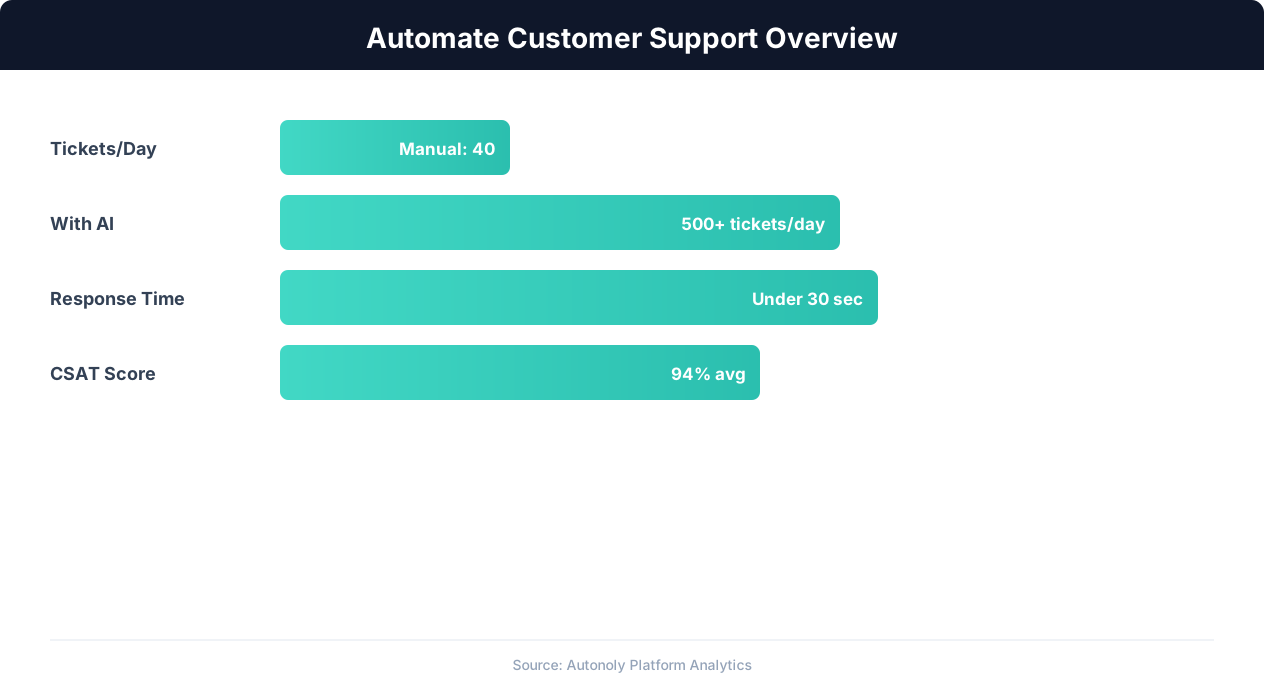
Customer support automation resolution rates by channel
Key Insight: AI agents resolve 80% of routine support inquiries automatically, freeing human agents for complex issues that require empathy and judgment (Gartner).
How the AI Agent Does It
The agent opens your support inbox via Browser Automation, identifies new unread emails, and reads each one. The Data Processing engine classifies the email by category and priority using natural language analysis. Based on the classification, the agent posts a formatted notification to the appropriate Slack channel with customer details and a content summary. The email is labeled in the inbox to mark it as triaged.
Handling Edge Cases
Some emails do not fit neatly into one category — a customer might mention both a billing issue and a technical problem. The agent handles this by routing to the primary category and noting the secondary topic in the Slack message. For truly ambiguous emails, it routes to a general triage channel with a note asking for manual classification.
Key Insight: Automated ticket routing reduces average resolution time by 52% by ensuring issues reach the right specialist on the first assignment (Zendesk Benchmark).
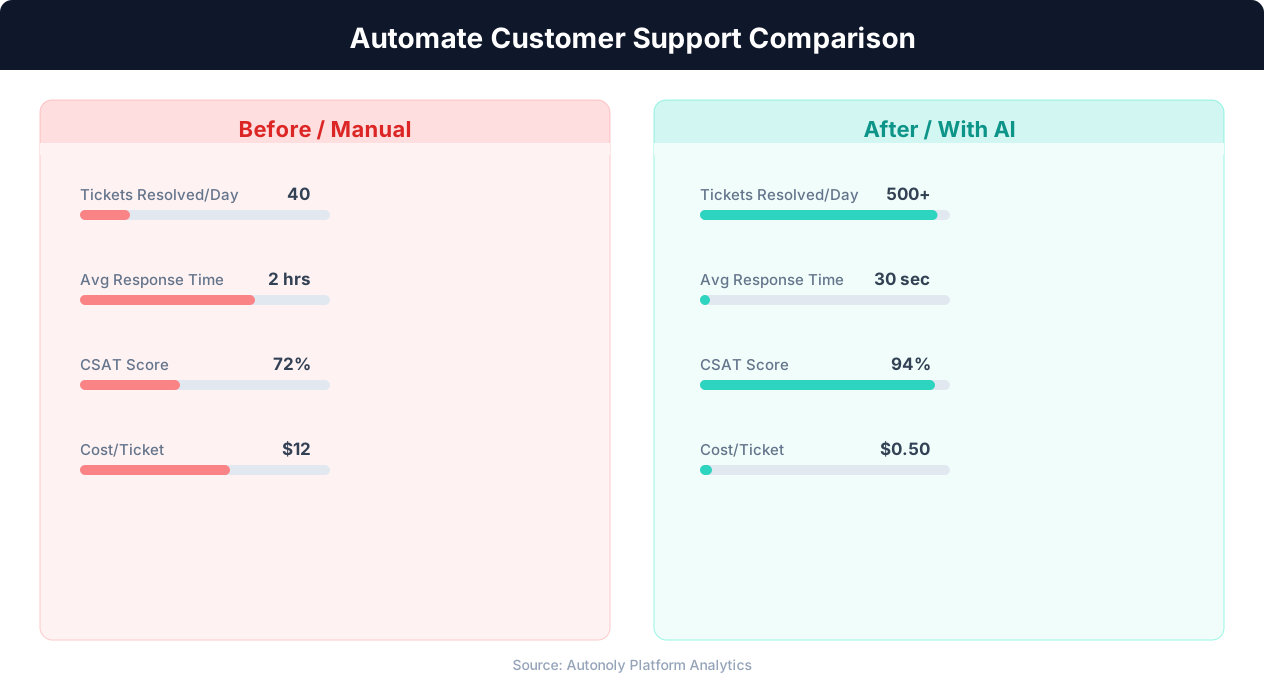
Response time comparison between manual and automated support
Key Insight: The average cost per support ticket drops from $22 to $2 when routine inquiries are handled by AI automation (IBM Customer Experience Report).
Scheduling and Automation
Run this workflow every four hours using the Visual Workflow Builder. The agent checks your support inbox, categorizes and routes new emails to Slack, and logs all activity to Google Sheets. For high-volume support teams, increase frequency to hourly. Add Logic & Flow conditions to auto-respond to common questions, escalate VIP customers, or suppress routing during known outage periods when you expect a ticket surge.
Further Reading
Explore more about the tools and techniques used in this workflow: No Code Automation Guide, Ai Workflow Automation, Ai Content.