

Why Automate Meeting Scheduling from Email?
The average professional spends 4-5 hours per week on scheduling logistics — the back-and-forth of "Does Tuesday at 3pm work?" followed by "How about Wednesday instead?" followed by "Sorry, something came up — can we push to Thursday?" This time sink compounds when you are coordinating across time zones, managing multiple calendars, or dealing with recurring meeting requests from clients and partners. For executives and client-facing roles, scheduling overhead can consume 10% or more of their productive work week. Over the course of a year, that is 200-250 hours — more than six full work weeks — spent on logistics that add zero value to the conversation itself.
The problem is not just the time spent scheduling — it is the context switching. Each scheduling exchange pulls you out of focused work to check your calendar, evaluate options, and compose a reply. Research shows that context switches cost 23 minutes of recovery time on average. A simple 3-email scheduling exchange that takes 5 minutes of actual typing can cost 45 minutes of lost productivity when you account for the disruptions to deep work. For someone who receives 5-10 meeting requests per week, the cumulative disruption to focused work is devastating.
While scheduling tools like Calendly help for inbound requests, most meeting coordination still happens through unstructured email. A client writes "Let's find time to chat next week," a partner says "we should sync on the proposal," or a recruiter asks "when can you interview the candidate?" In each case, you are left to manually check your calendar, propose times, and wait for confirmation. The back-and-forth can stretch across days, especially when coordinating across time zones or with busy executives whose calendars change by the hour. Meanwhile, the conversation cools, the urgency fades, and meetings that should have happened this week get pushed to next.
Autonoly's AI agent handles this entire loop — reading the email, checking your Google Calendar, and creating the event — so you can focus on preparing for the meeting rather than scheduling it. The result is meetings that get booked faster, fewer dropped scheduling threads, and hours of reclaimed productive time every week. The agent acts as a tireless scheduling assistant that processes every request with the same attentiveness, whether it arrives at 9am or 11pm.
How the AI Agent Parses Meeting Requests
The AI Agent Chat monitors your Gmail inbox for emails that contain scheduling intent. It uses natural language understanding to detect phrases like "Can we schedule a call?", "Are you free on Thursday?", "Let's set up a meeting to discuss," or "I'd like to book 30 minutes with you." The agent distinguishes genuine meeting requests from casual references to meetings — "The meeting went well" does not trigger scheduling, but "Let's schedule a follow-up meeting" does. This contextual understanding prevents false positives that would clutter your calendar with phantom events.
When a meeting request is detected, the Data Extraction engine parses the email for key details:
Proposed dates and times: "Next Tuesday at 2pm," "sometime this week," "early March"
Duration hints: "quick 15-minute sync," "hour-long deep dive," "30-minute check-in"
Participants: Names and email addresses mentioned in the thread or CC line
Meeting type: In-person (location mentioned), video call (Zoom/Meet link expected), or phone
Agenda or context: The subject matter extracted from the email body
Urgency signals: "As soon as possible," "before end of week," "when you have a chance"
Recurring patterns: "Let's make this a weekly sync" or "can we set up a monthly check-in"
The agent maps vague time references to specific dates and converts time zones — drawing on the standard IANA time zone database — when participants are in different locations. If the requester says "morning works best," the agent proposes available morning slots from your calendar. If no specific time is mentioned, the agent selects the earliest available slot that matches your scheduling preferences. For recurring meeting requests, the agent creates the series rather than just a single event.
Calendar Integration and Conflict Resolution
The agent connects to your Google Calendar and reads your existing schedule, including all-day events, focus time blocks, out-of-office markers, and tentative holds, exchanging events in the standard iCalendar format so invites interoperate across calendar clients. It respects your configured working hours and buffer rules — for example, never scheduling back-to-back meetings or booking anything before 9am or after 5pm in your local time zone. The agent also respects travel time blocks, ensuring you are not booked for an in-person meeting across town 15 minutes after another appointment ends.
When the proposed time conflicts with an existing event, the agent suggests the nearest available alternative. If the email proposes multiple options ("Tuesday or Thursday"), it picks the one that fits best with your schedule and existing commitments. The agent also considers your meeting density — if Tuesday already has 6 meetings, it prefers Thursday even if Tuesday has an open slot, to prevent meeting fatigue. This meeting-load balancing ensures your days remain productive rather than becoming wall-to-wall calls with no time for actual work.
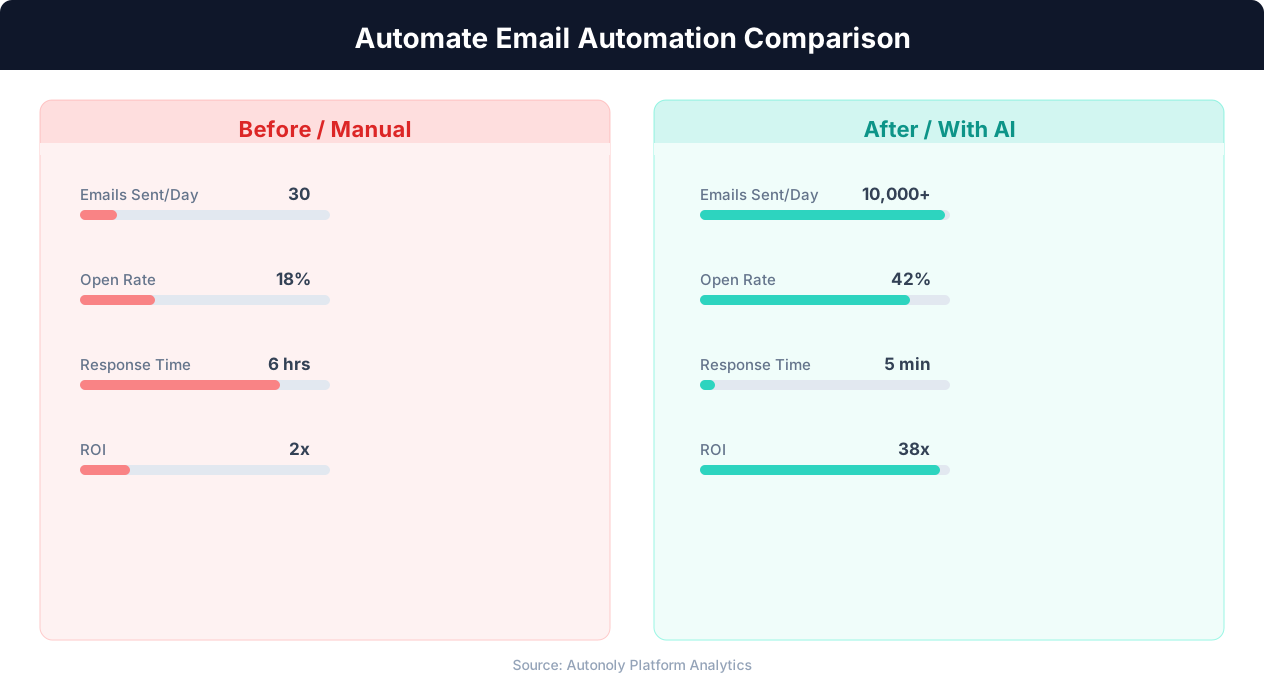
Manual vs automated email campaign performance
Key Insight: Triggered behavioral emails convert 4x better than scheduled newsletters, with automated cart abandonment emails recovering 15% of lost sales (Moosend Research).
For meetings with multiple participants, the agent can check shared calendars (when accessible) to find mutually available times, eliminating the round-robin of availability polling. Use Data Processing to maintain a preference database — certain contacts always get priority scheduling, and recurring meeting types have default durations. Use Browser Automation to check external scheduling pages or availability widgets when coordinating with contacts outside your Google Workspace.
Creating Complete Calendar Events
Events are created with full context from the email thread:
Title: Derived from the email subject or meeting purpose
Participants: All relevant email addresses added as attendees
Description: Key talking points extracted from the email body
Video link: Automatically generates a Google Meet link or inserts a Zoom link if you use Zoom by default
Reminders: Standard notification settings based on your preferences
Prep block: Optional pre-meeting buffer for preparation, especially useful for client calls
The Visual Workflow Builder lets you customize event creation rules. Add Logic & Flow conditions like: client meetings get a 15-minute prep block before them, internal syncs default to 30 minutes, and VIP contacts always get a Google Meet link. You can also log every scheduled meeting into a Google Sheets tracker for reporting on how your time is allocated across clients, internal meetings, and external calls. This time-allocation data helps you identify whether you are spending too much time in internal syncs and not enough in client-facing conversations.
Confirmation and Communication
After creating the event, the agent drafts a confirmation reply to the original email. The reply includes the finalized date, time, duration, video link, and any other relevant details. You can configure this to send automatically or hold for your review before sending. The confirmation tone matches your communication style — professional for client emails, casual for internal colleagues.
If the requester's proposed time does not work, the agent drafts a polite counter-proposal with your available alternatives. It can manage one round of rescheduling automatically, escalating to you only when availability truly cannot be reconciled. Counter-proposals include 2-3 alternative time slots to maximize the chance of finding a match on the first exchange. The agent also handles cancellation requests — if someone replies "Actually, let's postpone," the agent removes or reschedules the event accordingly and confirms the change.
Scheduling and Reliability
This workflow runs every 4 hours by default, processing new meeting-related emails since the last run. For time-sensitive scheduling, increase the frequency to hourly using cron-style scheduling so that meeting requests are acted on within 60 minutes of arrival. The agent uses differential processing — only emails received since the last run are evaluated — and labels processed emails in Gmail to prevent duplicate event creation. The checkpoint mechanism ensures no meeting request is missed even if a run fails midway.
A Slack notification can alert you whenever a new meeting is auto-scheduled, so you always know what just landed on your calendar. The notification includes the meeting title, time, participants, and a link to the calendar event. For teams using shared calendars, the agent can post scheduling confirmations to a team channel so everyone has visibility into upcoming meetings. A daily summary notification lists all meetings scheduled that day, giving you a preview of tomorrow's calendar changes before they happen. Browse the templates library for pre-configured scheduling workflows for sales teams, executive assistants, and recruiting coordinators. See pricing for calendar integration details per plan.
Further Reading
Explore more about the tools and techniques used in this workflow: No Code Automation Guide, Ai Workflow Automation, Ai Content, Integrations.