

Why Automate Email-to-Sheets Data Entry?
Every business receives critical data through email — customer inquiries, order confirmations, vendor invoices, signup notifications, support tickets, and more. Manually copying this information into spreadsheets is one of the most tedious and error-prone tasks in any organization. A single typo in an order number or misplaced decimal in an amount can cascade into hours of reconciliation work downstream. For teams processing 50-100 data-bearing emails per day, manual entry consumes 2-3 hours of focused attention that could be spent on analysis, strategy, or customer engagement instead. The repetitive nature of the work makes it uniquely draining — unlike creative tasks that energize, data entry is a cognitive treadmill that wears people down and accelerates burnout.
The hidden cost extends beyond the time spent typing. When data entry is a manual chore, it gets delayed. Emails sit unprocessed for hours or days, which means your spreadsheet is always behind reality. Decisions get made on stale data. Urgent orders get missed. Follow-ups are late because nobody noticed the inquiry that arrived at 4pm on Friday. The lag between email receipt and data availability creates blind spots across your entire operation. For customer-facing teams, these delays translate directly into slower response times and lower satisfaction scores.
By connecting Gmail to Google Sheets through Autonoly's AI agent, you eliminate manual data entry entirely. The agent reads each email, understands the context, and extracts exactly the fields you need — no regex patterns, no brittle parsing rules, no broken automations when email formats change. Your spreadsheet stays current within hours of each email arriving, and the data is consistently accurate because the AI applies the same extraction logic every time without fatigue or distraction. Unlike rule-based parsers that break when a vendor updates their email template, the AI agent adapts to format changes seamlessly because it understands the semantic meaning of the content, not just its position on the page.
The reliability advantage compounds over time. A human entering data at 4pm on a Friday makes more mistakes than at 9am on Monday. The AI agent maintains the same accuracy on the thousandth email as on the first. Over months, this consistency translates to cleaner data, fewer reconciliation headaches, and stronger trust in the numbers your team relies on for decisions. Organizations that automate their email-to-sheet pipelines typically report a 95% reduction in data entry errors and reclaim 10-15 hours per week of staff time that was previously consumed by manual transcription.
How the AI Agent Extracts Email Data
Unlike traditional email parsers that rely on fixed templates, Autonoly's AI Agent Chat uses natural language understanding to interpret email content. When a new email arrives that matches your criteria (e.g., subject contains "Order Confirmation" or sender is [email protected]), the agent reads the full email body and identifies the data points you specified. It navigates the email structure using the same semantic understanding a human would — recognizing that "Total: $129.99" is a monetary amount and "Order #4821" is an identifier, regardless of where they appear in the message or what formatting surrounds them.
The Data Extraction engine handles varied email formats gracefully. Whether the data is in a plain-text email, an HTML table, or a multipart MIME confirmation template, the agent locates and extracts the correct values. It handles edge cases like multi-line addresses, currency symbols in different formats, dates written in various styles (March 24, 2026 vs 03/24/2026 vs 24-Mar-2026), and fields that span multiple lines or are split across sections of the email body. The agent also handles forwarded emails, extracting data from the original message regardless of how many forwarding headers have been prepended.
Each extracted email becomes a row in your Google Sheet. The agent creates consistent column headers on the first run and maintains that structure across all subsequent entries. If an email is missing a particular field, the cell is left blank rather than filled with incorrect data. A Data Processing step can normalize values after extraction — standardizing date formats to the ISO 8601 standard, converting currencies to a single base, trimming whitespace from extracted text, or computing derived fields like profit margins from revenue and cost columns.
Real-World Use Cases
E-commerce order tracking: Parse order confirmation emails from Shopify, WooCommerce, or Amazon Seller Central. Extract order ID, customer name, product, quantity, and total amount into a master orders sheet. Chain with a Slack alert to notify your fulfillment team when high-value orders arrive. Use Logic & Flow to flag orders above a threshold for priority handling.
Lead capture: When prospects fill out a contact form and you receive a notification email, the agent extracts their name, email, company, and message into a leads spreadsheet. Combine with Slack alerts to notify your sales team instantly so they can respond while the lead is warm. Add a Data Processing step to score leads based on company size or industry before they hit the sheet.
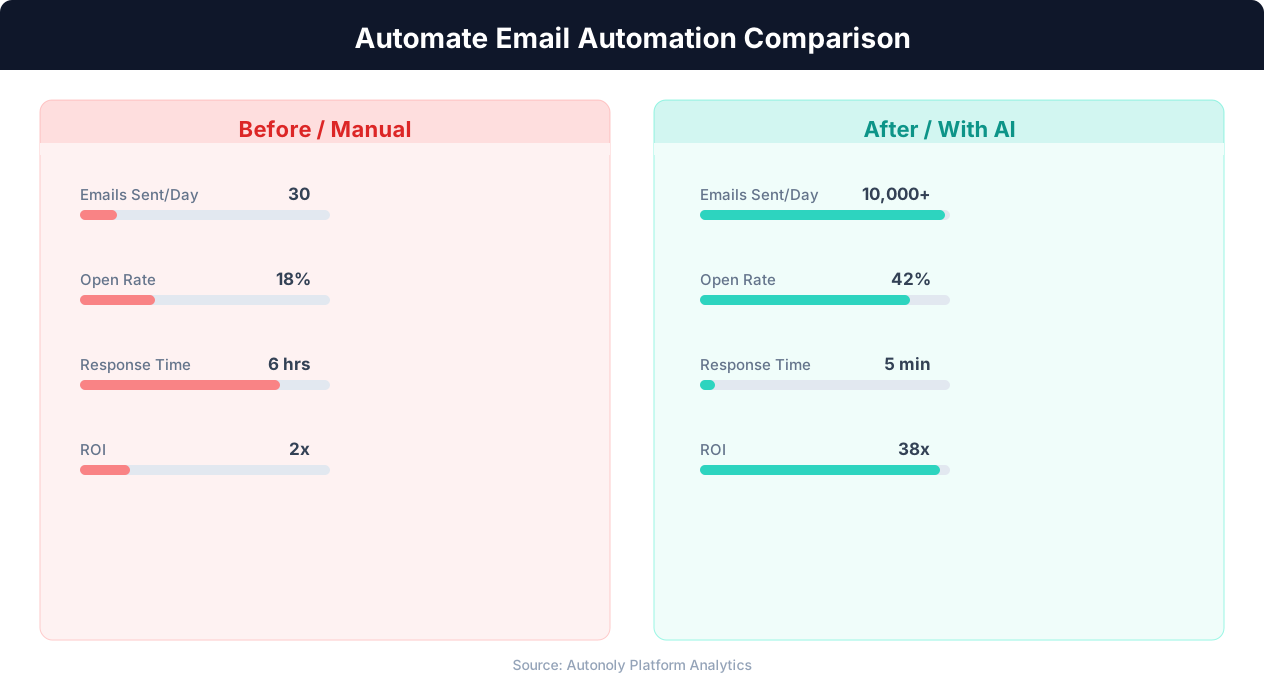
Manual vs automated email campaign performance
Key Insight: Personalized automated emails achieve 29% higher open rates and 41% higher click-through rates than generic batch sends (Experian Marketing).
Vendor invoice logging: Extract invoice numbers, amounts, due dates, and vendor names from invoice notification emails. Feed this data into your accounting workflow without manual bookkeeping. Flag overdue invoices automatically using Logic & Flow conditions. Cross-reference against your vendor master list using Google Sheets lookups to catch invoices from unregistered vendors.
Event registrations: Parse registration confirmation emails and build an attendee list automatically, complete with names, emails, ticket types, and dietary preferences. Use Browser Automation to cross-reference registrations with your event platform for validation and detect duplicate registrations across different email addresses.
Configuring Extraction Rules
Use the Visual Workflow Builder to set up email matching filters — by sender, subject line keywords, labels, or date range. Then define the columns you want extracted. The agent learns from the first few emails and applies the same extraction logic to all subsequent messages. Browse the templates library for pre-configured extraction templates for common email types like Shopify orders, Stripe payments, and form submissions. Each template can be customized to add or remove fields based on your specific data requirements.
Add Logic & Flow conditions to route different email types to different sheets or tabs. For example, support tickets go to the "Support" tab while order confirmations go to "Orders." You can also add a Data Processing step to normalize values, convert currencies, or flag anomalies before writing to the sheet. For advanced use cases, connect to SSH & Terminal to run database lookups that enrich extracted data before it lands in your spreadsheet — such as appending customer lifetime value or account tier based on an email address match in your database.
What Data You Get
Each row in your Google Sheet includes the extracted fields plus metadata: the email date, sender address, subject line, and a link back to the original email in Gmail. A status column tracks whether extraction was complete or partial, and a confidence score helps you identify rows that may need manual review. This transparency means you always know exactly where your data came from and can verify any entry in seconds. A summary tab tracks extraction statistics over time — total emails processed, average confidence score, and extraction success rate — giving you ongoing visibility into the pipeline's health.
Scheduling and Reliability
This workflow runs every 4 hours by default, processing all new matching emails since the last run. Each run logs how many emails were processed and any that could not be parsed. The agent marks processed emails with a Gmail label to avoid duplicate entries — differential processing ensures only new emails are evaluated on each run, keeping execution time fast regardless of inbox size. The agent maintains an internal checkpoint so that even if a run fails midway, the next run picks up where it left off without missing or duplicating any emails.
You can also configure it to run hourly during business hours or on a custom cron schedule that matches your email volume. For time-sensitive data like order confirmations, hourly runs keep your sheet within 60 minutes of real-time. A notification chain can alert you via Slack or Gmail when extraction errors occur, so you catch problems before they affect downstream processes. The notification includes specific details about which emails failed and why, enabling fast diagnosis without logging into the dashboard. Check our pricing page for details on run frequency limits per plan.
Further Reading
Explore more about the tools and techniques used in this workflow: Automate Data Entry, Automate Google Sheets, Integrations, Ai Content.