


Why Automate Google Trends Data Extraction?
Google Trends is one of the most powerful free tools for understanding consumer interest, market demand, and competitive dynamics. It reveals how search interest for any topic changes over time, varies by geography, and relates to adjacent topics. Marketers, product managers, investors, and researchers use Trends data to inform strategy, validate ideas, and track market shifts.
But Google Trends has a critical limitation: it does not offer a bulk data export that makes multi-keyword comparisons easy. Extracting and organizing data for dozens of search terms manually — adjusting time ranges, switching between keywords, downloading CSV files — is tedious and error-prone. Autonoly's Browser Automation automates this entire process, delivering clean, comparative trend data in a single Excel workbook.
How the AI Agent Extracts Google Trends Data
Google Trends is a JavaScript-heavy web application with interactive charts, dropdown filters, and dynamically loaded content. Autonoly's AI Agent Chat launches a real browser session to interact with the Trends interface naturally.
The agent navigates to Google Trends, enters your first set of comparison keywords (up to 5 at a time, as Google Trends limits), configures the time range and geographic scope, and uses Data Extraction to capture the interest-over-time data, regional interest map, related topics, and related queries.
For comparisons involving more than 5 keywords, the agent runs multiple Trends sessions with a common baseline keyword, then normalizes the data so all keywords are comparable on the same scale. This technique — used by professional market researchers — produces accurate relative comparisons across unlimited keywords.
What Data You Get
A comprehensive Google Trends export includes multiple data sheets:
Interest Over Time:
Date — Weekly or monthly timestamp
Keyword columns — Relative search interest (0-100) for each term
Trend direction — Rising, stable, or declining classification
Regional Interest:
Region/Country — Geographic area
Interest score — Relative popularity by region for each keyword
Related Topics & Queries:
Related topic — Topics associated with your keywords
Query — Specific search queries related to your terms
Trend status — Breakout, rising percentage, or stable
Customizing Your Trends Analysis
The Visual Workflow Builder enables advanced trend research workflows:
Category-specific analysis: Filter Google Trends by category (Business, Health, Technology) for more relevant results
Multi-region comparison: Run the same keywords across different countries to compare geographic demand patterns
Time series analysis: Extract 5-year historical data to identify seasonal patterns and long-term trends
Competitive benchmarking: Compare your brand name against competitors to track relative search interest
Add Data Processing steps to calculate growth rates, seasonal indices, or correlation coefficients between keywords. Use SSH & Terminal to run Python scripts for time series forecasting, anomaly detection, or visualization generation.
Scheduling and Trend Monitoring
Market trends are not static. Schedule monthly trend extractions to build a longitudinal dataset that reveals how interest shifts over time. This is particularly valuable for:
Tracking seasonal demand patterns for inventory and marketing planning
Monitoring brand awareness campaigns by measuring search interest lift
Identifying emerging trends before they become mainstream
Detecting declining interest in product categories for portfolio strategy
Weekly monitoring works well for fast-moving markets like technology and fashion, where trends can shift rapidly.
Exporting and Integrating
Trend data exports to multiple destinations:
Excel (.xlsx) — Multi-tab workbook with time series, regional, and related query data
[Google Sheets integration](/integrations/google-sheets) — Live collaborative trend dashboard
[Notion](/integrations/notion) — Build a market intelligence knowledge base
[Airtable](/integrations/airtable) — Create a trend tracking database with visual charts
Browse our templates library for pre-built trend analysis workflows. Visit pricing for execution details. Explore our web scraping glossary and workflow automation glossary for background concepts. The Integrations page covers all output destinations.
Use Cases
Product managers validate feature ideas by comparing search interest across candidate features. Content marketers identify trending topics to guide editorial calendars. SEO teams discover rising keywords to target before competition increases. Investors track consumer interest in sectors and brands to inform investment timing. Founders validate startup ideas by measuring demand signals across geographies and time periods.
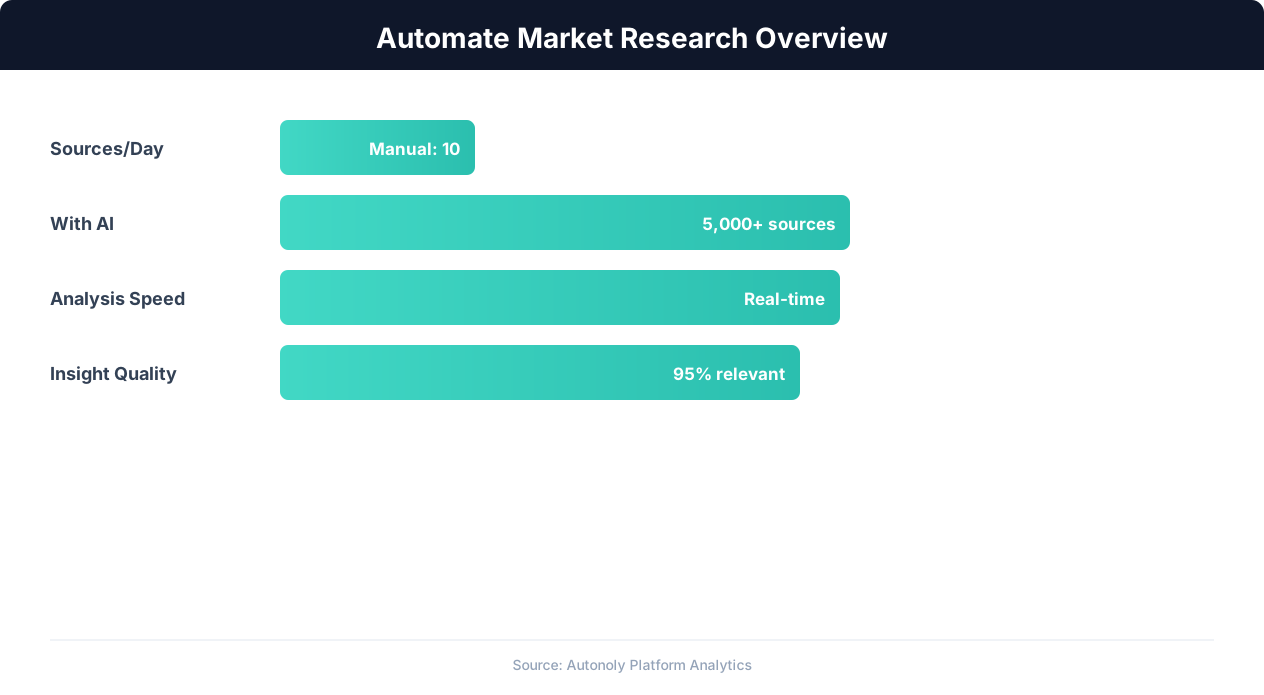
Market research automation coverage and speed improvements
Key Insight: Automated market research delivers insights 10x faster than manual methods while covering 5x more sources and competitors (Crayon Competitive Intelligence Report).
How the AI Agent Handles This
The AI agent opens Google Trends in a real browser using Browser Automation, interacting with the platform's JavaScript-heavy charts, dropdown menus, and comparison tools exactly as a human researcher would. It enters your keywords, configures time ranges and geographic filters, waits for charts to render, and uses Data Extraction to capture the underlying data from each visualization. For multi-keyword comparisons beyond Google Trends' 5-keyword limit, the agent runs multiple sessions with a shared baseline term and normalizes the results automatically. The Visual Workflow Builder chains these extraction steps with data normalization and export in a single workflow.
Normalizing Cross-Session Data
When comparing more than five keywords, the agent uses a common anchor keyword across sessions to align relative interest scores. This produces accurate comparisons across unlimited terms — the same technique professional market researchers use manually.
Key Insight: 89% of competitive intelligence professionals say they cannot track competitors fast enough manually. Automation eliminates this gap entirely (Klue Research).
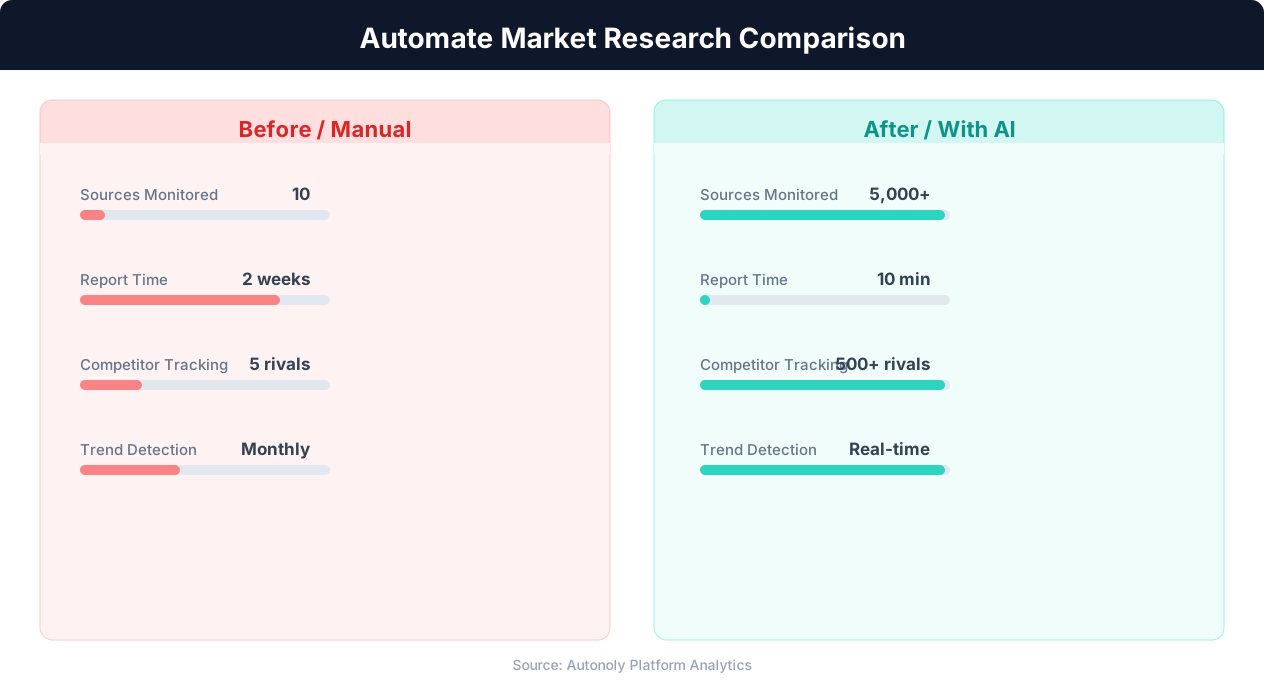
Data collection time for manual vs automated research
Key Insight: Companies with automated competitive monitoring are 2.3x more likely to gain market share, responding to competitor moves within hours instead of weeks (McKinsey Strategy).
What You Can Customize
Every parameter of the extraction is configurable through the Visual Workflow Builder. Define keyword lists, time ranges, geographic scopes, and category filters to match your research needs. Use Logic & Flow to branch your workflow based on trend signals — for example, only extract related queries for keywords showing breakout growth. Add Data Processing steps to calculate growth rates, seasonal indices, or moving averages before export. Results can flow to Excel, Google Sheets, Notion, or Airtable. Browse our templates for pre-built trend analysis workflows you can customize and schedule immediately.
Further Reading
Explore more about the tools and techniques used in this workflow: Web Scraping Best Practices, Best Web Scraping Tools.