What Is Workflow Automation?
Workflow automation is the use of software to run a sequence of tasks from start to finish with little or no human intervention. Instead of a person manually moving information between systems, clicking through the same screens, and making the same routine decisions every day, a workflow does it automatically the moment a defined event occurs. A workflow is simply the path your work already takes — a lead comes in, it gets qualified, it gets routed, someone follows up — expressed as a series of steps a machine can execute reliably.
It helps to separate the two words. A workflow is the ordered set of steps that gets a unit of work from "started" to "done." Automation means a system performs those steps on its own. Put them together and you get a process that runs on its own rails: triggered by an event, executing actions in order, branching on conditions, and repeating across many records without anyone babysitting it. If you want the broader context of how this fits into automation as a discipline, our pillar guide on what automation is and how it works is the best starting point.
Why It Matters Right Now
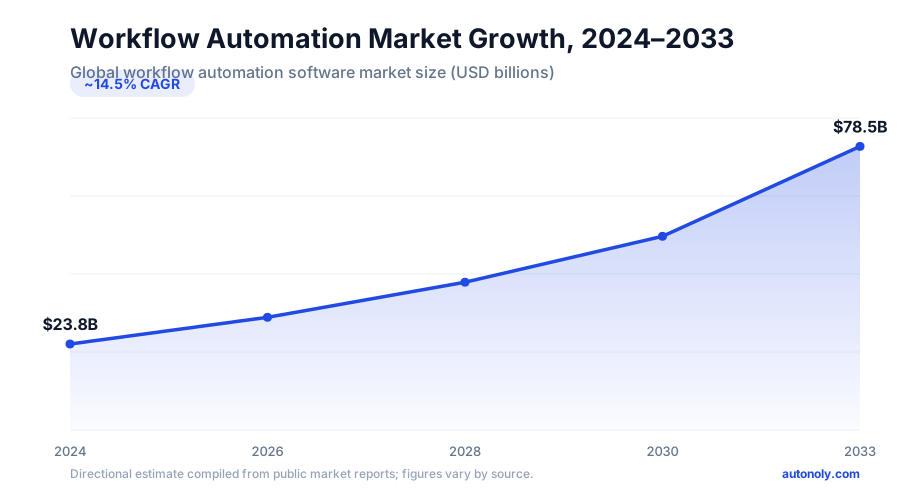
Workflow automation stopped being a nice-to-have somewhere around 2024 and became table stakes. The global workflow automation market is valued at roughly US$27.8 billion in 2026 and is projected to grow at about a 14.5% compound annual rate through 2033. More tellingly, more than 68% of mid-to-large enterprises had deployed at least one workflow automation platform by 2025, and over 72% of organizations report automating between 5 and 25 core business processes. Automation is no longer the edge — manual-only operations are.
The Honest Version
Here is the part most vendor pages skip: workflow automation is not magic, and it does not pay off automatically. It pays off when you automate a process that is genuinely repetitive, reasonably stable, and high enough in volume that the time you spend building and maintaining the workflow is recovered many times over. Automating a one-off task, or a process that changes its rules every month, usually costs more than it saves. The rest of this guide is about telling those situations apart — and building the ones worth building well.
What Workflow Automation Is Good At (and Not)
Workflow automation excels at deterministic, rule-based work: "when X happens, do Y, then Z." It struggles with genuinely ambiguous judgment, fuzzy data, and processes nobody can describe in concrete steps. The emerging answer to that gap is AI agents, which we cover later — but even those work best when wrapped inside a structured workflow rather than replacing one. The goal is not to automate everything; it is to automate the predictable 20% of work that consumes 80% of the busywork.
How Workflow Automation Works: Triggers, Actions, Conditions, and Loops
Every workflow automation, no matter how complex, is built from four primitives: triggers, actions, conditions, and loops. Understand these four and you can read or build any workflow. Modern platforms expose them visually in a visual workflow builder, where each primitive is a node you drag onto a canvas and connect.
Triggers: What Starts the Workflow
A trigger is the event that kicks off execution. Every workflow has exactly one. Triggers come in three flavors:
- Event-based: Fires when something happens in a connected system — a new form submission, a new row in a spreadsheet, an inbound email, a payment, a new CRM record. These usually arrive via webhooks, real-time HTTP callbacks a system sends the instant an event occurs.
- Schedule-based: Fires on a clock — every weekday at 8 AM, the first of the month, every 15 minutes. Under the hood this is a cron job, the time-based scheduler that has run server tasks for decades.
- Manual: Fires when a person clicks "Run," useful for on-demand jobs and testing.
Actions: What the Workflow Does
Actions are the steps that perform real work: read a record, write a record, send an email, post to Slack, create an invoice, update a CRM, call an external API. Actions run in sequence, each receiving data from the step before it and passing its output to the step after. A single action is the atom of automation; a chain of them is most of what you build day to day.
Conditions: How the Workflow Decides
Conditions are branch points. They evaluate data and send execution down different paths: "if order total > $500, route to the priority queue; otherwise, process normally." Conditions are what let one workflow handle many scenarios instead of building a separate workflow for each. On most platforms this is the logic and branching layer — if/else gates, filters that stop execution when criteria are not met, and routers that fan a single input out to multiple labeled paths.
Loops: How the Workflow Repeats
Loops repeat a set of actions for every item in a list: "for each row in this spreadsheet, send a personalized email"; "for each invoice in this folder, extract the total and log it." Loops let one workflow process a batch of any size without you knowing the count in advance. They are also where performance and rate limits start to matter — sending 5,000 emails in a tight loop will hit the email provider's rate limit unless the workflow paces itself.
Putting Them Together
A real workflow weaves all four: a webhook trigger fires when a form is submitted; an action enriches the record; a condition checks the lead score; a loop notifies each relevant team member; and a final action writes everything to the CRM. The art is not in any single node — it is in sequencing them so the workflow is correct, resilient to failure, and easy for a colleague to read six months later.
Workflow Automation vs Task Automation vs Business Process Automation
These three terms get used interchangeably, and that fuzziness causes real confusion when you are choosing tools or scoping a project. They sit on a spectrum of scope, from a single action to an entire cross-departmental process.
Task Automation: The Single Step
Task automation handles one repetitive task in isolation — auto-replying to an email, renaming and filing an uploaded document, copying a value from one field to another. It is the most granular level. A lot of what people call "my Zapier zap" is really task automation: one trigger, one action. It is valuable, fast to set up, and the right starting point for most teams.
Workflow Automation: The Connected Sequence
Workflow automation connects multiple tasks into an ordered sequence with logic between them. It automates the flow of information and decisions among several systems or people, typically within a single department or function. "New lead arrives → enrich → score → route → notify → log" is a workflow, not a task. Workflow automation is where conditions and loops start to earn their keep, and it is the focus of this guide. It is also where most teams get the biggest early wins because it removes whole hand-offs, not just keystrokes.
Business Process Automation: The End-to-End System
Business process automation (BPA) is the broadest. It orchestrates entire end-to-end processes that span multiple departments, multiple workflows, and many systems — think employee onboarding that touches HR, IT, finance, and facilities, or order-to-cash that runs from sales through fulfillment to accounting. BPA usually involves process mapping, governance, compliance, and longer implementation timelines. If you are operating at this scale, our dedicated business process automation guide goes deep on the methodology.
How to Tell Them Apart
| Dimension | Task Automation | Workflow Automation | Business Process Automation |
|---|---|---|---|
| Scope | One action | A connected sequence | An entire end-to-end process |
| Boundary | Within one tool | Within a team or function | Across departments |
| Logic | Minimal | Conditions, loops, branching | Orchestration of many workflows |
| Time to build | Minutes | Hours | Weeks to months |
| Example | Auto-file an email | Lead intake to CRM | Employee onboarding |
The practical takeaway: start with task and workflow automation. They deliver value in days and teach you the patterns. Graduate to BPA only when you have several stable workflows that genuinely need to be orchestrated together. Trying to start at the BPA level is the single most common reason automation initiatives stall.
The Building Blocks of a Reliable Workflow
Beyond the four core primitives, durable workflows share a handful of supporting building blocks. Skipping these is the difference between a demo that works once and a workflow you can trust in production.
Integrations and Connectors
A workflow is only as useful as the systems it can reach. Connectors — pre-built links to apps like Slack, Google Sheets, HubSpot, Stripe, or Salesforce — are what let a workflow read and write across your stack without you writing API code. Platforms with deep integration coverage and large connector libraries save enormous setup time. The honest caveat: a platform advertising "7,000 integrations" is useless if it does not connect well to the five tools you actually run your business on, so always check coverage against your real stack.
Data Transformation
Data almost never arrives in the shape the next system expects. Transformation steps reformat dates, split and join strings, map a field called "Full Name" into separate first and last name fields, calculate totals, and filter out junk records. This is the unglamorous middle of most workflows and where a surprising amount of reliability lives. Garbage in, garbage out applies doubly to automation, because there is no human in the loop to notice the garbage.
Authentication
Workflows act on your behalf in other systems, which means they need credentials. Most platforms use OAuth so you authorize access once without ever pasting a password into the workflow. Treat these connections like keys to your business — review which workflows hold which credentials, and revoke access you no longer need.
Error Handling and Retries
External systems fail. APIs time out, rate limits trip, and source data occasionally arrives malformed. A production-grade workflow plans for this with retry logic for transient failures, fallback paths for persistent ones, and alerts so a human finds out when something breaks. A workflow with no error handling is not finished — it is a quiet liability waiting for a bad day.
Logging and Monitoring
Finally, you need visibility: a run history that shows what executed, what data flowed through, and what failed. "Set and forget" is a myth; the reliable version is "set and monitor." Workflows that fail silently are worse than no automation at all, because they create false confidence while the work quietly stops getting done.
Visual Builders vs Code vs AI Agents: How to Choose
There are three fundamentally different ways to build a workflow today, and they are not competitors so much as tools for different jobs. The best automation programs use all three.
Visual Workflow Builders
A visual builder lets you assemble workflows by dragging nodes onto a canvas and connecting them — no code required. This is the right default for the vast majority of business workflows. The benefits are speed, transparency (anyone can read the canvas), and accessibility for non-technical builders. The constraints show up at the edges: deeply custom logic, unusual data shapes, or very high-volume processing can hit a complexity ceiling. For most teams, that ceiling is far higher than they will ever reach. If you are new to this approach, our no-code automation starter guide walks through it from scratch.
Code
Hand-written code — Python, JavaScript, custom API integrations — offers unlimited flexibility and is sometimes genuinely necessary: integrating an internal database, performing complex computation, or meeting strict security and compliance requirements. The trade-offs are real, though. Code requires engineers to build and, more importantly, to maintain. It is opaque to the business users who understand the process best, and it concentrates knowledge in a few people. Reserve code for the 10-20% of cases that truly need it, not as the default.
AI Agents
AI agents are the newest and most-hyped option, and they work differently from both. Where a traditional workflow runs only when predefined rules are met, an AI agent receives a goal, decomposes it into sub-tasks, chooses tools for each, executes, evaluates its own output, and self-corrects within approved boundaries. This makes them powerful for tasks that resist rigid rules — interpreting messy input, navigating a web app that has no API, or handling exceptions a fixed workflow could not anticipate.
The trend is real but worth keeping in perspective. Gartner projects that up to 40% of enterprise applications will include task-specific AI agents by 2026, up from under 5% in 2025 — and in the same breath predicts that more than 40% of agentic AI projects will be canceled by the end of 2027, largely due to unclear value and cost. The honest read: AI agents are extraordinary when wrapped inside a structured workflow that gives them clear goals, guardrails, and a human-in-the-loop checkpoint. They are unreliable when handed open-ended autonomy with no oversight. Autonoly's approach pairs a deterministic visual builder with an AI agent that can act inside the workflow — describe what you want in plain English, and the agent helps build and execute it, while you keep the conditions, logging, and approval gates around it.
A Simple Decision Rule
Default to a visual builder. Reach for code only when the builder genuinely cannot do the job. Add an AI agent where the work requires judgment, unstructured input, or interacting with systems that have no clean integration — and always keep that agent inside a workflow you can monitor.
Common Workflows by Team
The fastest way to find your first workflow is to recognize the ones other teams have already proven. Here are the highest-leverage automations by function, drawn from patterns common across thousands of organizations.
Sales
Lead intake and routing is the classic win: a form submission triggers enrichment, scoring, assignment to the right rep, a CRM record, and an instant Slack notification — replacing a manual hand-off that used to take hours and sometimes got dropped entirely. Other staples include follow-up reminders, pipeline-stage updates, and quote generation. Many of these live in our form automation templates.
Marketing
Marketing teams automate lead nurturing, campaign reporting, social posting, and list hygiene. The full playbook — from welcome sequences to multi-channel campaigns — is in our marketing automation guide. A common first build is pulling campaign metrics from several platforms into one weekly summary, replacing a Monday-morning copy-paste ritual.
Operations and Data
Operations runs on data movement: syncing records between systems, building data pipelines that pull from APIs into a warehouse or spreadsheet on a schedule, and deduplicating or validating records. These workflows lean heavily on loops, transformation, and ETL-style extract-transform-load steps. A concrete starter many teams build is an automated import into Google Sheets that replaces the weekly "log in, export CSV, copy, paste" chore.
Finance
Finance automations — invoice processing, expense routing, payment reconciliation, and accounts-payable approvals — tend to deliver the clearest ROI because the manual versions are slow, error-prone, and tied directly to cash. Finance and accounting automation averages roughly 214% ROI over three years in industry benchmarks, with payback often measured in months.
HR and Recruiting
Onboarding is the headline use case: a single "new hire" event provisions accounts, sends paperwork, schedules orientation, and notifies the manager across HR, IT, and facilities. Recruiting teams automate candidate screening, interview scheduling, and status updates. Because onboarding spans departments, it often graduates from a workflow into full business process automation.
Support
Support teams automate ticket triage and routing by priority, auto-responses with relevant FAQ links, escalation when SLAs are at risk, and post-resolution surveys. These workflows lean on conditional routing — sending high-priority tickets to a senior queue while low-priority ones get a templated reply. A weekly automated email report on ticket volume and resolution time rounds out most support automation programs.
Building a Workflow Step by Step
Let us build a real, useful workflow end to end: when a new lead lands in a spreadsheet, enrich it, decide whether it is high value, notify the right channel, and log the outcome. This single workflow exercises all four primitives — trigger, action, condition, and loop — and the patterns transfer to almost anything you will build later.
Step 1: Define the Outcome First
Before touching a canvas, write one sentence: "When a new lead is added to the tracker, the right salesperson should be notified within a minute with the lead's enriched details, and the event should be logged." A clear outcome keeps the build focused and gives you a test you can check against. Skipping this step is how workflows sprawl into untestable messes.
Step 2: Add the Trigger
Create a new workflow and drag a Google Sheets trigger onto the canvas. Point it at your lead tracker tab and set it to fire when a new row is added. Authorize the connection once via OAuth. The workflow now wakes up the instant a lead appears.
Step 3: Add an Enrichment Action
Connect an action that takes the lead's email or company and looks up additional details — company size, industry, or a CRM match. This is also where you reshape the raw row into clean, consistently named fields the rest of the workflow can rely on.
Key Insight
Build for the common case first. A workflow that correctly handles 80% of leads today beats a "perfect" one that handles every edge case but ships in three weeks. Add the edge cases later, driven by real failures you actually observe.
Step 4: Add a Condition
Add a condition node that branches on lead value — for example, company size above a threshold or a target industry. The "high value" path routes to the senior sales channel; the default path goes to the standard queue. This is your logic layer doing the judgment a person used to do manually.
Step 5: Add the Notification (with a Loop if Needed)
On each branch, add an action that posts a formatted message to the right Slack channel. If multiple reps should be alerted, wrap the notification in a loop that runs once per assignee. Keep the message human: lead name, company, source, and a link back to the row.
Step 6: Log the Outcome
Add a final action that writes a row to a log — which lead came in, which path it took, who was notified, and when. This log is your monitoring surface and your audit trail. Future-you will be grateful it exists.
Step 7: Test, Then Activate
Run the workflow in test mode with a sample row before going live. Verify the enrichment, confirm the condition routed correctly, and check that the Slack message arrived in the right channel with the right data. Only when the test matches your Step 1 sentence should you flip the workflow to active. Then watch the run history for the first few real executions — production always finds something a test did not.
Measuring ROI and Avoiding the Common Pitfalls
An automation program lives or dies on whether it can prove its value and avoid the failure modes that quietly erode trust. Both come down to discipline, not cleverness.
How to Measure ROI Honestly
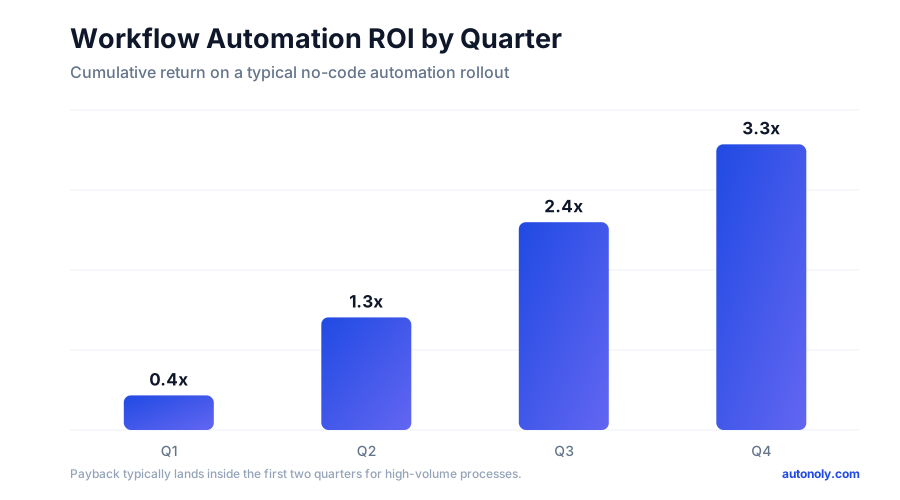
The core ROI formula is simple: (time saved per week x weeks per year x loaded hourly cost) minus (platform cost + build time + maintenance time). The honest version counts the costs people love to ignore — the hours spent building, the ongoing maintenance when a source system changes, and the platform subscription. Many teams quote only the gross time saved and wonder later why the numbers feel optimistic.
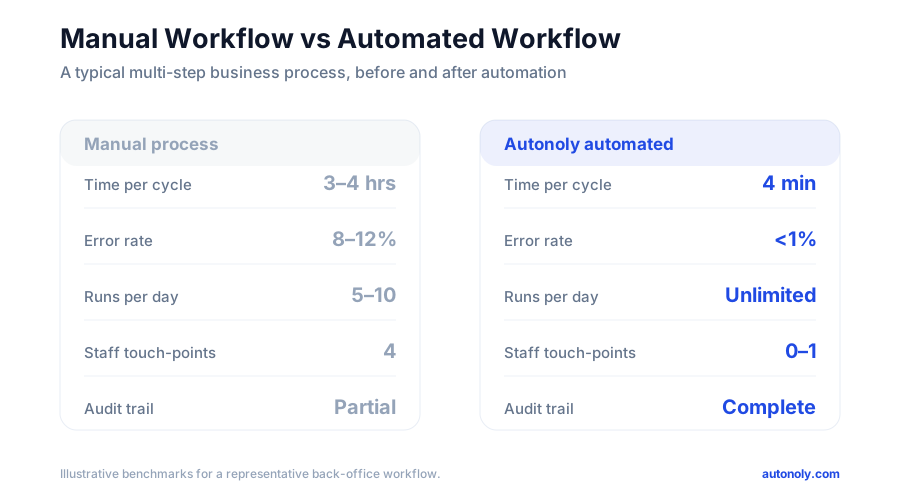
The benchmarks are encouraging when the math is done properly. Low-code workflow and RPA platforms deliver around 248% ROI with payback often under six months, and intelligent automation that combines workflow logic with AI can reach roughly 330%. Around 60% of organizations achieve positive ROI within twelve months. McKinsey's long-running research underpins the opportunity: roughly 60% of occupations have at least 30% of their activities that are technically automatable, which is why automating routine work can return so much time. Error reduction typically lands between 40% and 75% versus manual processing — a benefit that is real but harder to put a dollar figure on.
Track These Metrics
- Hours saved per week across all active workflows — the headline number.
- Error rate in destination systems before and after automation.
- Cycle time — how long the process takes from trigger to completion now versus manually.
- Workflow reliability — success rate and number of silent failures caught.
The Pitfalls That Quietly Kill Programs
Automating a broken process. If the manual process is inefficient, automating it just makes the inefficiency faster and permanent. Simplify first, then automate the simplified version.
No error handling. Workflows that assume everything works are time bombs. Build retries, fallbacks, and alerts from day one.
Ignoring data quality. Automation removes the human who used to catch obvious garbage. Add validation steps, or expect bad data to propagate silently and at scale.
Over-engineering. Building for every edge case before shipping is a classic trap. A simple workflow running today beats a perfect one that never launches.
No documentation or owner. Workflows look obvious the day you build them and become opaque within months. Every workflow needs a named owner and a short note explaining what it does and why. If only one person understands your automations, you have a single point of failure waiting to happen.
Set and forget. Source systems change, APIs update, fields get renamed. Review run history regularly and treat maintenance as part of the cost, not a surprise. For a deeper look at how AI is changing the resilience and intelligence of these workflows, see our guide to AI workflow automation. Get these fundamentals right and workflow automation becomes one of the highest-leverage investments your team can make.