

Why Automate LinkedIn Lead Import?
LinkedIn is the single most valuable platform for B2B prospecting, with over 900 million professional profiles containing self-reported, up-to-date information about job titles, companies, industries, and locations. When importing this data, always operate within LinkedIn's User Agreement and applicable data-protection law, working from connections and exports you are entitled to use. But building a prospect list manually — searching for target titles, clicking into profiles, copying names and companies into a spreadsheet — is excruciatingly slow. A sales rep typically spends two to three hours building a list of 50 prospects. Multiply that across weekly prospecting sessions and you are losing an entire workday each month to mechanical data entry that adds no strategic value.
The manual approach also introduces quality problems. After an hour of copy-pasting, fatigue sets in and reps start cutting corners — skipping profiles that look borderline, missing key details like mutual connections, or introducing typos. The prospect list ends up incomplete and inconsistent, undermining the outreach campaign built on top of it. Some reps resort to purchasing lead databases from third-party providers, but these lists are notoriously outdated — job titles and companies change frequently, and a database that was accurate six months ago may have 20-30% stale records today.
Automating LinkedIn lead import with Browser Automation turns hours of manual work into a hands-off process that runs while you focus on actual selling. The AI agent performs the same searches you would, applies the same filters, scrolls through the same results, and extracts the same data — but it does so consistently, accurately, and without fatigue. The data is delivered to your Google Sheets CRM in a fraction of the time, with every field correctly populated and formatted.
This is particularly valuable for outbound sales teams running account-based marketing campaigns where targeting precision matters. Instead of buying expensive lead databases that are often outdated, you get real-time data directly from LinkedIn profiles that people actively maintain. The freshness of LinkedIn data is unmatched because professionals update their profiles when they change jobs, get promoted, or join new companies — making it the most current source of B2B contact intelligence available.
How the AI Agent Searches LinkedIn
Autonoly's AI Agent Chat logs into LinkedIn with your credentials and executes the search queries you define. You can specify filters like job title ("VP of Engineering"), industry ("Software"), location ("San Francisco Bay Area"), company size ("51-200 employees"), seniority level, and more. The agent applies these filters just like you would, then scrolls through the search results pages methodically, ensuring every result is captured.
The Data Extraction engine reads each search result card and extracts structured fields: full name, headline, current company, location, and LinkedIn profile URL. For deeper prospecting, the agent can click into individual profiles to extract additional details like complete work history, education, skills endorsements, mutual connections, and recent activity posts. This profile-level extraction gives you significantly richer prospect data than what appears on the search results page alone.
Because the agent uses a real Chromium browser through Browser Automation, it handles LinkedIn's JavaScript-heavy interface, dynamic loading, infinite scroll pagination, and anti-scraping protections naturally. The agent behaves like a regular user — scrolling at human speed, pausing between actions, and respecting session limits to maintain natural browsing patterns.
What Data You Get
A typical LinkedIn prospect export includes:
Full Name — First and last name from the profile
Headline — The professional headline (often includes title and company)
Current Company — The most recent employer
Job Title — Current role extracted from the headline or experience section
Location — City and region from the profile
Profile URL — Direct link for follow-up connection requests
Mutual Connections — Number of shared connections for warm intro potential
Industry — The professional's industry classification
About Summary — Key points from their profile summary (when available)
You can customize which fields to extract by telling the agent what you need. The Visual Workflow Builder lets you add post-processing steps like splitting the headline into separate title and company columns, or extracting years of experience from the work history.
Customizing Your Workflow
Build sophisticated prospecting pipelines that go beyond simple extraction. Add a company website lookup step that visits each prospect's company website to gather additional context — tech stack, team size, recent funding announcements, or job openings that signal buying intent. Create conditional branches based on seniority level — C-suite prospects get a different enrichment path than director-level ones. Insert a domain email pattern lookup step that cross-references company domains with common email formats to generate probable email addresses for direct outreach.
Enrichment and Qualification
Once prospects are in your Google Sheets CRM, add Data Processing steps to enrich and qualify the list. Look up company websites to find direct email addresses. Score prospects based on title seniority, company size, industry fit, and mutual connection count. Flag prospects who are mutual connections with your team members for warm introductions — a warm intro converts at 5-10x the rate of cold outreach.
Use Logic & Flow to automatically categorize prospects into tiers — Tier 1 for exact title and industry matches, Tier 2 for adjacent roles, Tier 3 for exploratory outreach. Each tier can feed into a different follow-up sequence with the appropriate messaging intensity.
Integration Options
Connect your LinkedIn prospecting pipeline with downstream workflows. Automatically enroll new prospects into an email drip sequence via Gmail. Post daily prospecting summaries to Slack so your sales manager sees team activity. Sync prospects to Airtable or Notion for teams that prefer richer CRM interfaces. Visit the Integrations page for all supported destinations, or browse the templates library for pre-built LinkedIn prospecting workflows.
Use Cases
Outbound SDR teams building targeted prospect lists for account-based campaigns
Recruiting agencies sourcing candidates matching specific job requirements and experience levels
Consulting firms identifying potential clients by industry, company size, and executive title
Startup founders building investor and advisor outreach lists from VC and angel profiles
Partnership teams finding integration partners and co-marketing opportunities by company type
Responsible Prospecting
The agent operates within LinkedIn's standard user interface and behaves like a regular user. It does not use LinkedIn's API in unauthorized ways or extract data at rates that exceed normal browsing behavior. We recommend keeping extraction volumes reasonable and using the data for legitimate business outreach.
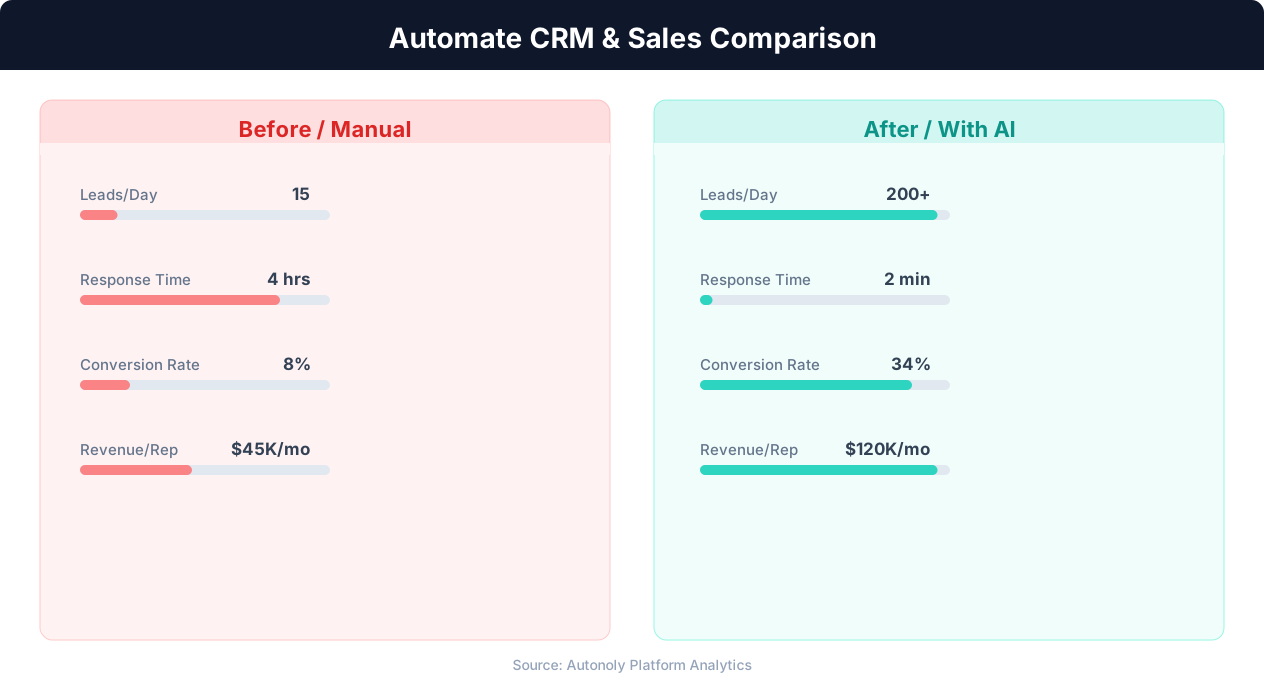
Manual vs automated CRM data entry time comparison
Key Insight: Companies using automated lead capture see 3x more qualified leads entering their pipeline compared to manual processes (Salesforce State of Sales Report).
How the AI Agent Does It
The agent opens a real browser, logs into LinkedIn, and performs your specified search with all filters applied. It scrolls through results pages, extracting prospect data from each profile card. The Data Extraction engine handles LinkedIn's dynamic content loading and pagination. Extracted data is cleaned, structured, and appended to your Google Sheets CRM. The agent manages session cookies and authentication automatically across runs.
Handling LinkedIn's Interface
LinkedIn frequently updates its interface, but because the agent uses AI-powered element detection rather than hardcoded selectors, it adapts to layout changes without workflow maintenance. This makes it significantly more reliable than traditional LinkedIn scraping tools that break with every UI update and require constant developer attention to fix.
Key Insight: Sales reps spend only 28% of their time actually selling — the rest goes to data entry, scheduling, and admin tasks that automation can eliminate (Salesforce Research).
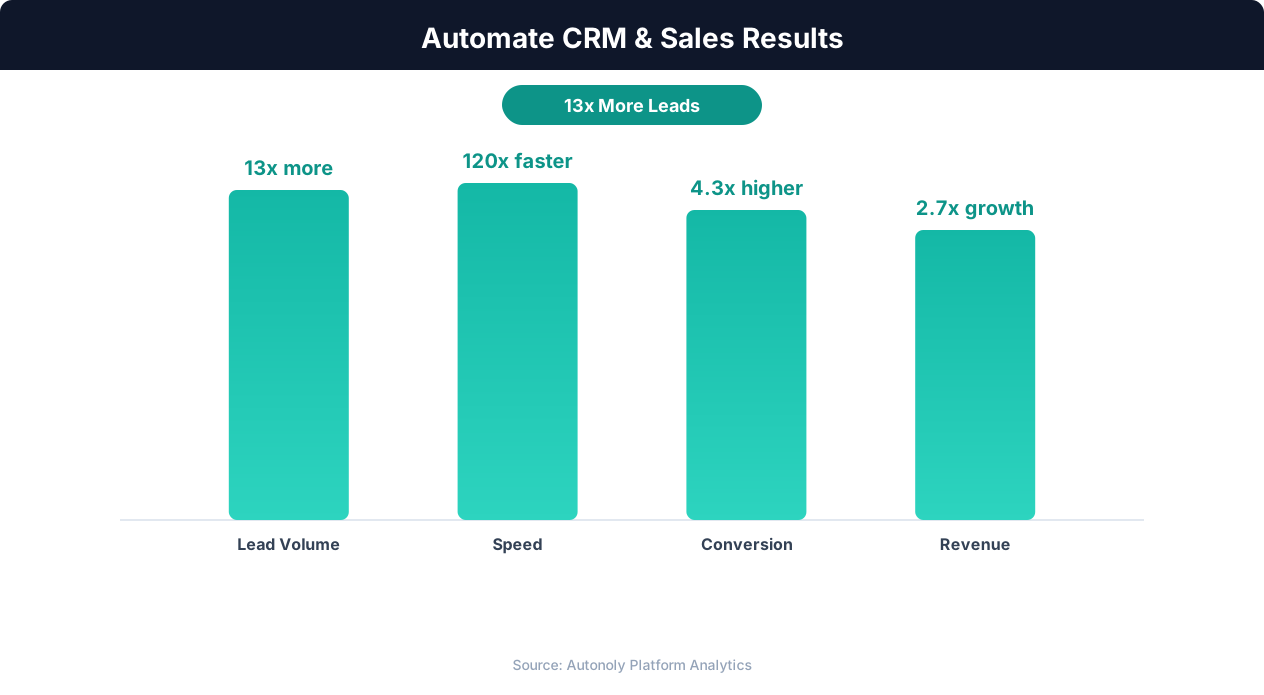
Sales pipeline velocity improvements with automation
Key Insight: Organizations that automate CRM data entry report 41% higher revenue per salesperson and 27% faster deal close rates (Nucleus Research).
Scheduling and Automation
Schedule this workflow to run daily using the Visual Workflow Builder. Define different search queries for each day of the week to build a diverse prospect pipeline — target VPs of Engineering on Monday, Directors of Product on Tuesday, CTOs on Wednesday. The agent deduplicates results against your existing Google Sheets data and posts a summary to Slack with the number of new prospects added. Add Logic & Flow conditions to automatically trigger a follow-up email sequence for newly added high-priority prospects. Check our pricing page for details on daily extraction limits.
Further Reading
Explore more about the tools and techniques used in this workflow: Scrape Linkedin Data, Automate Lead Generation, Linkedin Automation.