Why Excel Data Processing Needs Automation
Every organization runs on spreadsheets. Sales teams export pipeline data from CRMs into Excel. Finance teams reconcile transactions across multiple CSV exports. Marketing teams compile campaign performance metrics from half a dozen platforms into consolidated reports. Operations teams track inventory, orders, and shipments in sprawling workbooks.
The problem is not the data. The problem is what happens between receiving a raw data export and producing a clean, analyzed result. That middle step — data processing — consumes hours of manual work that is repetitive, error-prone, and mind-numbingly tedious.
The Manual Processing Bottleneck
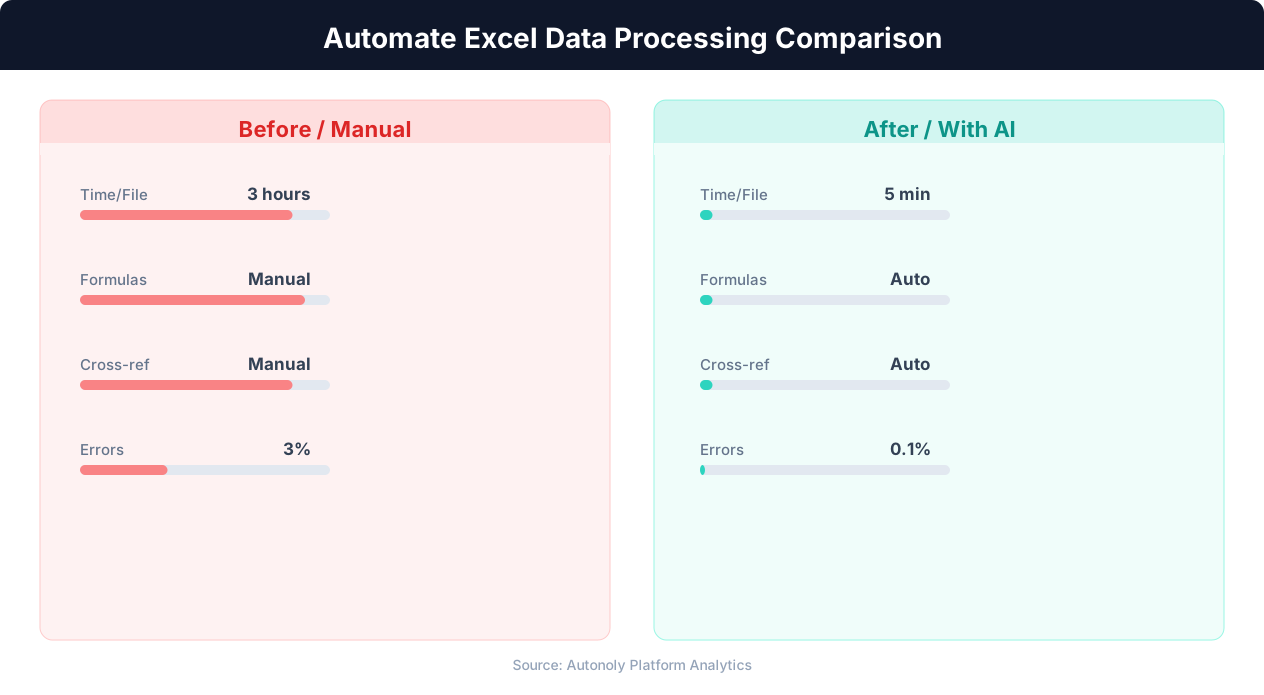
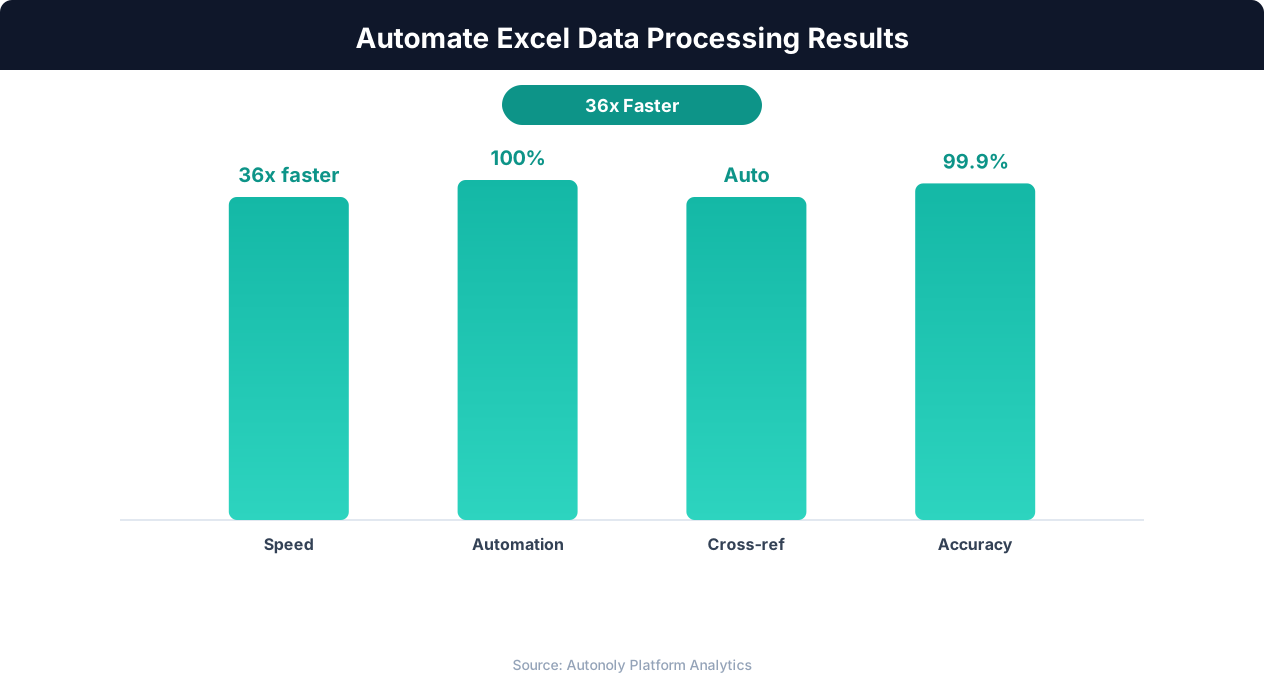
Consider a typical data processing task: you receive a monthly sales report as a CSV file with 10,000 rows. Before you can analyze it, you need to remove duplicate entries, standardize date formats (some rows use MM/DD/YYYY, others use YYYY-MM-DD), clean up inconsistent product names ("Widget Pro" vs "widget-pro" vs "WIDGET PRO"), fill in missing values, convert currency columns from text ("$1,234.56") to numbers, and merge it with last month's data for comparison. This takes 30-60 minutes of careful manual work in Excel, and a single mistake in a formula or filter corrupts the entire analysis.
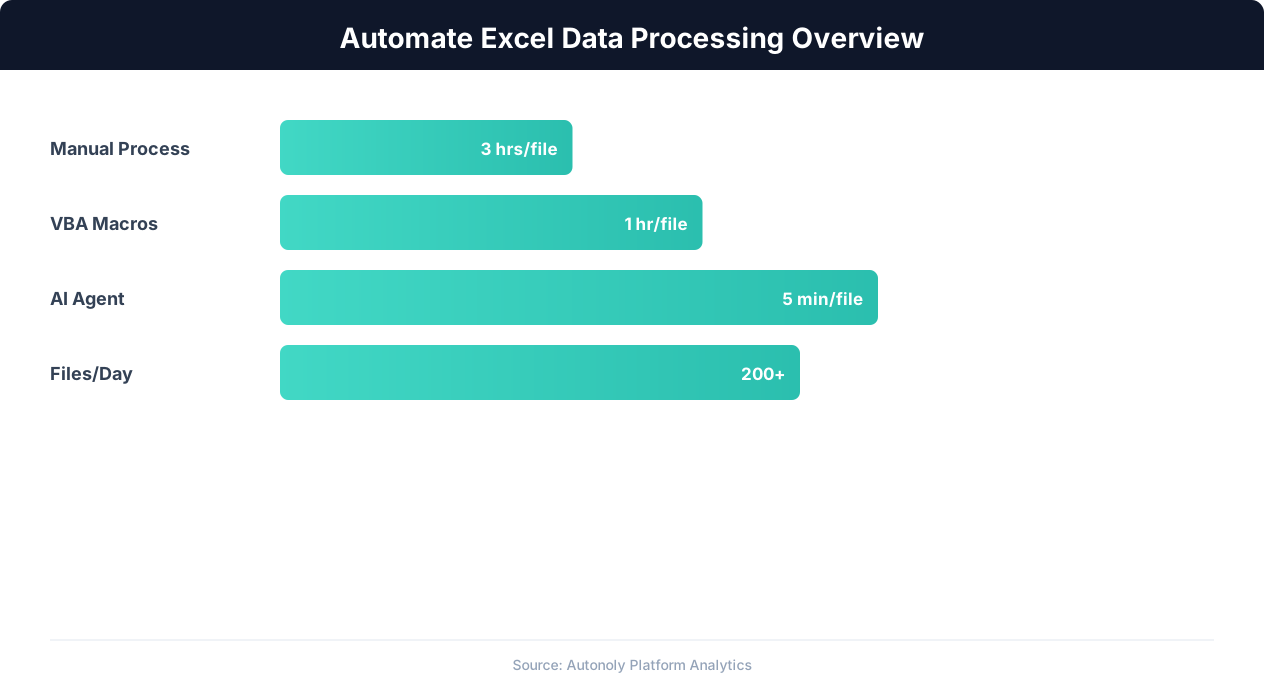
Now multiply that by every report, every data source, every week. Analysts routinely spend 60-80% of their time on data preparation and only 20-40% on actual analysis. This ratio is inverted from what it should be.
Python Pandas: The Right Tool for the Job
Python's pandas library is the gold standard for tabular data processing. It handles everything Excel does and more: reading CSV, Excel, and JSON files; filtering, sorting, and grouping data; merging multiple datasets; statistical analysis; date parsing; string manipulation; and exporting to any format. Pandas processes a 100,000-row spreadsheet in seconds, compared to the minutes or hours it takes in Excel.
The barrier has always been that using pandas requires writing Python code. You need to know the API, handle edge cases, debug errors, and manage the Python environment. This puts pandas out of reach for the analysts who need it most.
AI Removes the Coding Barrier
Autonoly's terminal integration gives you a Python environment with pandas, NumPy, scikit-learn, and other data science libraries pre-installed. The AI agent writes and executes the Python code for you based on plain English instructions. You describe what you want done to your data, and the agent writes the pandas code, runs it, and shows you the results. No Python knowledge required.
Uploading Your Excel and CSV Files
The first step in any data processing workflow is getting your data into the system. Autonoly supports multiple methods for importing spreadsheet data, each suited to different scenarios.
Direct File Upload
The simplest method: drag and drop your Excel (.xlsx, .xls) or CSV file into the Autonoly agent panel. The file is uploaded to the execution environment where the AI agent can access it directly. This works for files up to 50MB, which covers the vast majority of spreadsheet data (a 50MB CSV file contains roughly 500,000-1,000,000 rows depending on column count).
When you upload a file, the agent automatically inspects it and reports back:
- Number of rows and columns
- Column names and data types
- Sample of the first few rows
- Percentage of missing values per column
- File size and encoding
This initial inspection lets you verify that the correct file was uploaded and gives the agent context about your data structure before you issue processing instructions.
Scraping Data Directly from the Web
Sometimes the data you need to process does not exist as a file yet. It lives on a website, behind a login, or in a web application that only offers manual export. Autonoly's browser automation can navigate to the data source, extract the data, and feed it directly into the Python processing pipeline. For example: log into your CRM, export the sales report, and process it — all in one automated workflow.
Google Sheets as Input
If your source data lives in Google Sheets, Autonoly's Google Sheets integration reads the data directly without downloading or uploading files. The agent reads the specified sheet and tab, loads the data into a pandas DataFrame, and proceeds with processing. This is particularly useful for data that is continuously updated in Sheets by other systems or team members.
Multiple File Consolidation
A common processing scenario involves combining data from multiple files: January sales + February sales + March sales into a quarterly report, or North America data + Europe data + Asia data into a global summary. Upload all files, and the agent merges them intelligently:
"I've uploaded three CSV files: sales_jan.csv, sales_feb.csv, and sales_mar.csv. They all have the same columns. Combine them into a single dataset, add a 'month' column based on the file name, and remove any duplicate order IDs."
The agent writes pandas code that reads all three files, concatenates them, adds the derived column, and deduplicates. What would take 15 minutes of manual copy-paste-and-deduplicate in Excel takes 10 seconds.
Cleaning and Transforming Data With Plain English Instructions
Data cleaning is where the bulk of processing time goes. Raw data exports are messy: inconsistent formatting, missing values, duplicate rows, mixed data types, and encoding errors. Here is how the AI agent handles common cleaning tasks through natural language instructions.
Standardizing Formats
Tell the agent what you need in plain English:
- "Convert all dates in the 'order_date' column to YYYY-MM-DD format" — The agent detects the various date formats present in the column (US, European, ISO) and normalizes them all.
- "Clean up the 'product_name' column: trim whitespace, convert to title case, and replace any abbreviations like 'Prod' with 'Product'" — The agent applies string operations across the entire column.
- "Convert the 'revenue' column from text to numbers, removing dollar signs, commas, and any non-numeric characters" — The agent strips formatting and converts the column to a numeric type.
Handling Missing Values
Missing data is inevitable in real-world datasets. Different situations call for different strategies:
- "Fill missing values in the 'region' column with 'Unknown'" — Simple placeholder fill for categorical data.
- "For missing values in 'monthly_revenue', use the average of the previous and next month's values for the same customer" — Interpolation based on context.
- "Drop any rows where 'email' is missing, since we can't contact those leads" — Removing incomplete records when the missing field is essential.
- "Fill missing 'country' values based on the area code in the 'phone' column" — Deriving missing values from other columns.
The agent selects the appropriate pandas methods (fillna(), interpolate(), dropna()) and applies them correctly. For complex derivation logic, it writes custom functions that map between columns.
Removing Duplicates
Duplicate detection in spreadsheets is tricky because duplicates are not always exact matches. The agent handles various deduplication scenarios:
- "Remove exact duplicate rows" — Drops rows where every column matches.
- "Remove duplicates based on 'order_id', keeping the most recent entry" — Deduplicates on a key column while preserving the latest record.
- "Find near-duplicate company names (like 'Acme Corp' and 'Acme Corporation') and standardize them" — Uses fuzzy matching to identify and merge near-duplicates.
Adding Derived Columns
Often you need new columns calculated from existing data:
- "Add a 'profit_margin' column calculated as (revenue - cost) / revenue * 100"
- "Add a 'customer_segment' column: 'Enterprise' if revenue > 100000, 'Mid-Market' if revenue > 10000, otherwise 'SMB'"
- "Add a 'days_since_last_order' column based on the difference between today and 'last_order_date'"
Each instruction translates to pandas operations that the agent writes, executes, and validates. You see the results immediately and can iterate: "Actually, the threshold for Enterprise should be 50000, not 100000."
Running Analysis and Statistical Summaries
Once your data is clean, the real work begins: extracting insights. The AI agent in Autonoly's terminal runs statistical analyses, generates summaries, and identifies patterns using pandas, NumPy, and scipy — all from plain English instructions.
Descriptive Statistics
Start with the basics to understand your dataset:
"Give me a summary of the revenue column: mean, median, min, max, standard deviation, and the 25th/75th percentiles."
The agent runs df['revenue'].describe() and presents the results in a readable format. For categorical columns, it provides value counts and frequency distributions. These summaries often reveal data quality issues (impossible values, extreme outliers) that cleaning missed.
Group-By Analysis
Most business analysis involves comparing metrics across categories:
- "Show me total revenue and average order value by region, sorted by total revenue descending"
- "Calculate the month-over-month growth rate for each product category"
- "Find the top 10 customers by lifetime value (sum of all their orders)"
- "Compare the average deal size for leads that came from organic search vs paid ads"
These translate to pandas groupby() operations with aggregation functions. The agent formats the output as clean tables that you can immediately use in presentations or reports.
Trend Analysis
Time-series data is common in business spreadsheets and the agent handles it naturally:
"Show me weekly revenue trends for the last 12 months. Highlight any weeks where revenue dropped more than 20% compared to the previous week."
The agent resamples the data to weekly intervals, calculates week-over-week changes, and flags the anomalous periods. This kind of analysis takes dozens of Excel formulas and careful cell references to set up manually, but runs in seconds through the terminal.
Correlation and Pattern Detection
For more advanced analysis:
- "Is there a correlation between discount percentage and order size?" — The agent calculates Pearson correlation and explains the result in plain language.
- "Which features are most predictive of customer churn? Run a basic analysis on the 'churned' column." — The agent uses correlation analysis or a simple decision tree to identify the most important features.
- "Cluster our customers into 3-5 segments based on their purchase frequency, average order value, and recency." — The agent runs K-means clustering using scikit-learn and describes each cluster's characteristics.
Pivot Tables Without the Pain
Pivot tables are one of Excel's most powerful features and also one of the most confusing. In Autonoly's terminal, you describe the pivot table you want:
"Create a pivot table with months as rows, product categories as columns, and total revenue as values. Add row and column totals."
The agent uses pd.pivot_table() to generate the result instantly. Modifying the pivot (adding a filter, changing the aggregation function, adding another dimension) is just another English instruction rather than a drag-and-drop puzzle.
Exporting Processed Data Back to Excel, CSV, or Google Sheets
Processed data needs to reach the tools and people who will act on it. Autonoly supports multiple export destinations, each suited to different downstream workflows.
Excel Export
Export your processed DataFrame back to an Excel file with full formatting:
"Export the cleaned data to an Excel file called 'quarterly_report.xlsx'. Put the summary table on Sheet 1, the detailed data on Sheet 2, and the pivot table on Sheet 3."
The agent uses pandas ExcelWriter with the openpyxl engine to create a multi-sheet workbook. It handles column widths, number formatting, and header styling. The exported file is available for download from the Autonoly dashboard.
CSV Export
For data that feeds into other systems (databases, ETL pipelines, other tools), CSV is the universal format:
"Export the processed data as a UTF-8 CSV file with headers."
💡 Key Insight
88% of spreadsheets contain at least one error when processed manually, costing businesses billions annually.
CSV export is fast and produces files compatible with virtually every data tool. The agent handles encoding correctly (UTF-8 by default, with options for other encodings if needed) and properly escapes special characters in fields.
Google Sheets Export
For collaborative analysis, push results directly to Google Sheets:
"Write the processed data to my Google Sheet called 'Q1 Analysis' in the 'Cleaned Data' tab. Replace the existing data."
Autonoly's Google Sheets integration writes the data directly to the specified spreadsheet. This is powerful for workflows where multiple team members need access to the processed results immediately. The Sheets version stays synchronized with the latest processing run.
Automated Report Generation
For recurring reports, combine processing and export into a single scheduled workflow. Upload the raw data (or scrape it from a web source), process it through the terminal, and export to Sheets or email the results — all on a schedule. Monday morning, your team has a fresh report waiting in their inbox without anyone lifting a finger.
The AI agent can also generate PDF reports using Python's fpdf2 library, creating formatted documents with tables, headers, and summary statistics that are ready for distribution to stakeholders who prefer documents over spreadsheets.
Chaining Processing with Other Workflows
Processed data often feeds into further automation. A cleaned and enriched customer list might feed into an email campaign workflow. Processed financial data might feed into an invoicing system. Autonoly's visual workflow builder connects the data processing step to downstream actions, creating end-to-end pipelines that transform raw data into business outcomes.
Real-World Examples: Common Excel Processing Workflows
Abstract capabilities are useful, but concrete examples show how this works in practice. Here are five common Excel processing workflows that teams automate with Autonoly.
Example 1: Monthly Sales Report Consolidation
Input: Four CSV files from regional sales teams (North America, Europe, APAC, LATAM) with different column naming conventions and date formats.
Instructions to the AI agent:
"Combine all four CSV files into one dataset. Standardize column names to: order_id, customer_name, product, quantity, unit_price, total, order_date, region. Convert all dates to YYYY-MM-DD. Calculate total revenue by region. Identify the top 5 products by quantity sold globally. Export to Google Sheets."
Output: A consolidated Google Sheet with the merged data, a summary tab with revenue by region, and a top products tab. Total processing time: under 30 seconds.
Example 2: Customer Data Cleaning for CRM Import
Input: A messy Excel file of 5,000 leads exported from a trade show scanning app. Contains duplicate entries, inconsistent company names, missing email addresses, and phone numbers in various formats.
Instructions:
"Clean this lead list. Remove exact duplicates. Merge near-duplicate company names. Standardize phone numbers to +1-XXX-XXX-XXXX format. Flag rows with missing email addresses. Add a column for company domain extracted from the email address. Sort by company name."
Output: A clean CSV file ready for CRM import, with a separate sheet listing the flagged rows that need manual review.
Example 3: Financial Transaction Reconciliation
Input: Two Excel files — one from the accounting system and one from the bank statement. Need to match transactions and find discrepancies.
Instructions:
"Match transactions between these two files based on amount and date (within 2 days). Flag unmatched transactions from both files. Calculate the total unreconciled amount. Group unmatched transactions by category."
Output: A reconciliation report with matched transactions, unmatched items from each source, and a summary of discrepancies.
Example 4: E-Commerce Inventory Analysis
Input: Product inventory export with columns for SKU, product name, current stock, reorder point, cost, selling price, and units sold in the last 30 days.
Instructions:
"Calculate days of inventory remaining for each product (current stock / daily sales rate). Flag products below their reorder point. Calculate profit margin for each product. Sort by days of inventory remaining ascending to prioritize reorders. Add a column for recommended reorder quantity (30 days of supply minus current stock)."
Output: A prioritized reorder list that the purchasing team can act on immediately.
Example 5: Survey Data Analysis
Input: A CSV export from a survey tool with 2,000 responses, including free-text fields, Likert scale ratings, and demographic data.
Instructions:
"Calculate the average rating for each survey question. Cross-tabulate satisfaction scores by department and job level. Identify the questions with the highest variance (most disagreement). Summarize the free-text responses by counting the most common themes. Export a summary report."
Output: A multi-tab spreadsheet with statistical summaries, cross-tabulations, and theme counts ready for presentation to leadership.
Tips for Getting the Best Results
Working with an AI agent for data processing is different from writing code yourself or using Excel's GUI. These tips help you get accurate, reliable results on the first try.
Be Specific About Column Names
When giving instructions, reference exact column names from your spreadsheet. Instead of "clean up the date column," say "convert the 'Order Date' column to YYYY-MM-DD format." The agent reads your column names during the initial file inspection, so you can ask it to list the columns if you are unsure of the exact names.
Describe the Expected Output
Tell the agent what the end result should look like, not just what operations to perform. "I want a single Excel file with three sheets: raw data, summary statistics, and a pivot table of revenue by month and product category" gives the agent a clear target. This prevents the common issue of getting technically correct output that is not formatted or structured the way you need it.
💡 Key Insight
Automated Excel processing can handle 10,000+ rows in minutes compared to hours of manual work.
Iterate in Small Steps
For complex processing tasks, break the work into stages. First clean the data and review it. Then run the analysis. Then format the output. Each step gives you a checkpoint to verify that the agent understood your instructions correctly before building on top of potentially incorrect results.
Validate with Known Values
If you know what a certain value should be (e.g., total Q1 revenue should be approximately $2.3 million based on your rough calculation), tell the agent: "The total revenue for Q1 should be around $2.3 million. Does the processed data match?" This catches errors in data loading, filtering, or aggregation that might otherwise go unnoticed.
Use the Terminal for Reproducibility
Every command the AI agent runs in the terminal is logged. If you need to re-run the same processing next month, you can reference the previous session's commands. For truly repeatable processing, ask the agent to save the processing steps as a Python script that you can execute on future datasets with minimal modification.
Handle Large Files Strategically
For very large files (100,000+ rows), the agent may process the data in chunks rather than loading everything into memory at once. If you notice slow performance, tell the agent: "This file is large. Process it in chunks of 50,000 rows." Pandas supports chunked reading natively, and the agent applies this optimization when appropriate.
AI-Powered Processing vs. Excel Macros and VBA
The traditional approach to automating Excel processing is VBA macros. Macros have been around for decades and can automate repetitive tasks within Excel. But they come with significant limitations that AI-powered processing eliminates.
Learning Curve
VBA is a programming language with its own syntax, object model, and debugging tools. Learning to write reliable VBA macros takes weeks or months. AI-powered processing requires zero programming knowledge — you describe what you want in English and the agent handles the implementation.
Flexibility
A VBA macro does exactly one thing: the specific sequence of operations coded into it. If your data format changes, the column order shifts, or you need a slightly different analysis, you modify the macro code. With an AI agent, you modify your English instructions. "Actually, also include the 'discount' column in the summary" is a one-sentence change, not a debugging session.
Performance
Excel macros run within Excel, which means they are limited by Excel's row limits (1,048,576 rows), memory management, and single-threaded execution. Python pandas running in Autonoly's terminal handles millions of rows, uses memory efficiently, and runs significantly faster for large datasets. A processing task that takes 10 minutes in VBA completes in seconds with pandas.
Library Ecosystem
VBA has limited statistical and machine learning capabilities. If you need to run a regression, cluster customers, or build a predictive model, you are out of luck. Python has pandas, NumPy, scikit-learn, scipy, statsmodels, and hundreds of other libraries that handle everything from basic statistics to deep learning. The AI agent can use any of these libraries during processing.
Portability
VBA macros are locked inside Excel workbooks. They do not work with Google Sheets, databases, or web data sources. Autonoly's processing pipeline reads from and writes to Excel, CSV, Google Sheets, and databases interchangeably. Your processing logic works regardless of where the data comes from or where it needs to go.
When Macros Still Make Sense
VBA macros are appropriate for simple, repetitive formatting tasks within Excel that will never change: applying consistent cell formatting, running the same formula across a fixed template, or generating a specific chart type. For everything else — data cleaning, analysis, transformation, and multi-source consolidation — AI-powered processing is faster, more flexible, and more powerful.