


Why Monitor Discord Channels?
Discord has evolved from a gaming chat platform into the community hub for technology companies, DAOs, open-source projects, and brands. Product feedback flows through Discord channels in real time. Community sentiment shifts are visible in conversation patterns. And for community managers, understanding what is being discussed — and how members feel — is essential for engagement and retention.
However, Discord's interface is not designed for analysis. Messages scroll past quickly, important conversations get buried, and there is no native way to search across channels and export data. By automating Discord monitoring with Autonoly, you capture every relevant conversation in Google Sheets where it can be searched, filtered, and analyzed. For community managers, this provides quantitative metrics that Discord itself does not offer — message volume trends, active contributor counts, topic frequency analysis, and response time measurements.
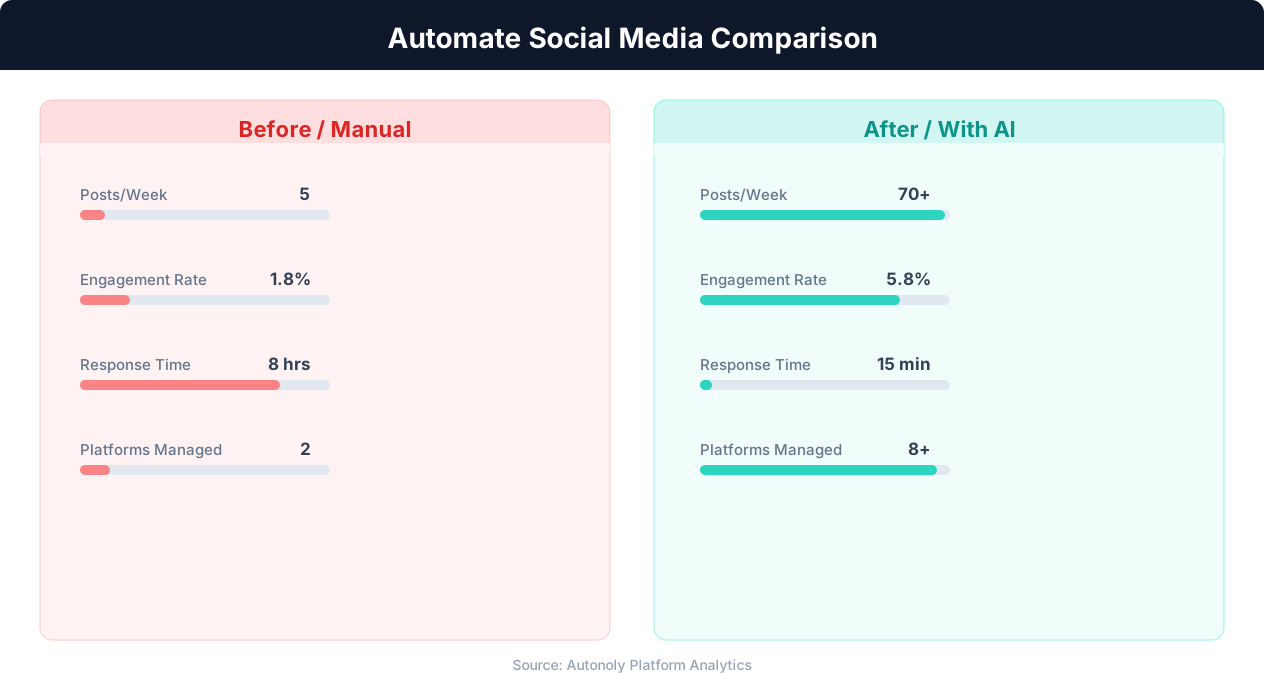
Posting consistency for manual vs automated social media
Key Insight: Brands using social media automation post 3x more consistently and see 47% higher engagement rates due to optimal timing and frequency (Sprout Social Index).
How Autonoly Monitors Discord
The AI Agent Chat lets you describe your monitoring needs. Specify which servers and channels to track, what keywords or topics to focus on, and how you want the data organized. The agent configures the complete monitoring pipeline.
Using Browser Automation, the agent accesses Discord through its web interface and scrolls through messages since the last monitoring run. The Data Extraction engine pulls message content, author information, timestamps, reaction counts, thread details, and attachment references. The agent handles Discord's virtualized message list — where only visible messages are rendered in the DOM — by scrolling through the channel history at a controlled pace, ensuring complete capture without missing messages.
What Gets Captured
Each message entry includes the server name, channel name, author username and role, message text, reaction breakdown (which emoji and how many), thread indicator (if it started or is part of a thread), attachment types, timestamp, and message URL. This level of detail enables both quantitative analysis (engagement trends, activity patterns) and qualitative research (sentiment, topic analysis).
The Data Processing feature categorizes messages automatically — identifying questions (members asking for help), feature requests, bug reports, praise, complaints, and general conversation. This categorization is invaluable for product and community teams.
Filtering for Signal
Discord channels can be noisy. The data processing pipeline helps you extract signal from noise:
Keyword filtering — Only capture messages containing specific terms (bug report, feature request, your product name)
Bot exclusion — Automatically filter out messages from known bot accounts
Minimum length — Skip one-word reactions and keep substantive messages
Reaction threshold — Only capture messages that received at least N reactions, indicating community agreement
The Visual Workflow Builder lets you configure these filters as processing steps between extraction and Google Sheets delivery. Each filter is a discrete node that can be enabled, disabled, or reconfigured independently.
Community Health Metrics
Over time, the accumulated data reveals community health patterns. You can track active member count per week, message volume trends, question-to-answer ratios, average response time for questions, most active channels, and sentiment trends. These metrics tell you whether your community is growing healthily, whether members are getting help, and which channels drive the most engagement.
The workflow can add a summary sheet that auto-calculates these metrics from the raw data, creating a community health dashboard that updates with every monitoring run. For teams that need deeper NLP analysis, SSH & Terminal lets you run topic modeling or sentiment classification on the extracted messages and push results back to a separate sheet tab.
Multi-Server Monitoring
If you need to monitor channels across multiple Discord servers — for example, your own community server plus competitor communities or industry groups — the workflow handles this naturally. Add one extraction step per server-channel combination, then merge all results through a unified data processing node.
Logic & Flow controls enable conditional routing. For example, messages from your own server go to a "Community Feedback" sheet tab, while messages from competitor servers go to a "Competitive Intel" tab. High-urgency messages containing words like "critical", "broken", or "outage" trigger an immediate Slack integration alert.
Use Cases by Role
Community managers use Discord monitoring to identify unanswered questions, spot emerging issues before they escalate, and recognize active community members for champion programs. Product managers use it to aggregate feature requests and bug reports from community channels. Developer advocates find opportunities for helpful engagement. Marketing teams understand community sentiment and identify user stories for case studies.
Scheduling and Coverage
Discord messages are ephemeral in practice — they scroll off screen quickly and most users never scroll back. A daily monitoring schedule ensures you capture every relevant message before it disappears into history. The agent processes messages since its last run, so there is no duplication even with frequent checks. Over months, your Google Sheet builds into a comprehensive community knowledge base.
Explore our templates library for community monitoring workflow starters. The Integrations page covers all Google Sheets configuration options. For background on automated data collection from web platforms, see our web scraping glossary entry. Visit pricing for plan details and usage limits.
Further Reading
Explore more about the tools and techniques used in this workflow: No Code Automation Guide, Schedule Automated Workflows, Scheduled Execution.