

Why Scrape Google Maps for Leads?
Google Maps is one of the richest sources of local business data available, containing millions of verified business listings that are updated by both business owners and Google's own crawlers. Turning that raw data into a qualified pipeline still depends on disciplined outreach — the kind of structured prospecting process that HubSpot documents in its sales playbooks. Every listing contains the business name, address, phone number, website, hours of operation, rating, and review count — exactly the information you need for local outreach campaigns. Whether you are selling marketing services to restaurants, pitching dental practices on new software, building a directory of contractors, or prospecting for franchise development, Google Maps has the data you need and it is updated far more frequently than any purchased lead database.
But manually searching, clicking into each listing, and copying details into a spreadsheet is painfully slow. A search for "plumbers in Dallas" might return hundreds of results that would take hours to process by hand. Even with copy-paste shortcuts, extracting 100 business listings with complete details takes two to three hours of tedious, error-prone work. The data quality suffers too — after an hour of repetitive copying, you start skipping fields, mistyping phone numbers, and overlooking potentially valuable details like review counts and ratings that help you prioritize outreach.
Automating this with Browser Automation and Data Extraction lets you extract hundreds of local business leads in minutes with perfect accuracy and completeness. Every field is captured consistently, every listing is processed, and the data arrives in your spreadsheet clean, structured, and ready for outreach.
This approach is invaluable for local marketing agencies building prospect lists for their sales teams, B2B sales teams targeting specific industries in specific geographies, real estate professionals researching commercial tenants, franchise development teams identifying potential franchise locations, home services companies mapping competitors, and anyone who needs a fresh, accurate, and comprehensive list of local businesses. The data quality advantage alone — having complete, correctly formatted contact details for every listing — makes the automation worthwhile even before considering the time savings.
How the AI Agent Extracts Google Maps Data
Autonoly's AI Agent Chat opens Google Maps in a real Chromium browser, enters your search query, and scrolls through the results panel. Google Maps loads results dynamically as you scroll, and the agent handles this seamlessly — it keeps scrolling until all results are loaded, waiting for each batch of new listings to render before continuing. This patience ensures no listings are missed, even for queries that return hundreds of results.
The Data Extraction engine identifies the repeating structure of map listings and extracts consistent fields from each one. For deeper data, the agent can click into individual business listings to collect additional details like business category, full address with suite numbers, website URL, popular visiting times, Google Maps place ID, and even recent review snippets that reveal customer sentiment.
Because the agent uses Browser Automation with a real browser, it handles Google Maps' complex JavaScript interface, pop-ups, consent dialogs, and dynamic loading that would break simpler scraping approaches. The agent adapts if Google changes the Maps layout, since it uses intelligent element detection rather than brittle CSS selectors, so your workflow keeps running without maintenance.
What Data You Get
A typical Google Maps extraction includes:
Business Name — The official listing name
Address — Full street address including city, state, and zip code
Phone Number — Primary business phone number
Website — The business's website URL for follow-up enrichment
Rating — Average star rating (1-5) as a quality signal
Review Count — Total number of Google reviews indicating business maturity
Category — Business type (Restaurant, Dentist, Plumber, etc.)
Hours — Operating hours for each day of the week
Price Level — Dollar-sign indicators where available
Place ID — Google's unique identifier for the listing
This data goes directly into Google Sheets with one business per row and consistent column headers for easy filtering and sorting.
Customizing Your Workflow
The Visual Workflow Builder lets you build sophisticated lead extraction pipelines beyond basic scraping. Add post-extraction filters to refine your list:
Rating threshold: Only keep businesses with 4+ stars (quality signals for premium services)
Review count minimum: Filter for businesses with 50+ reviews (established, active businesses)
Has website: Only include businesses with a website listed (more likely to need digital services)
Category matching: Remove results that do not match your target industry
Add Data Processing steps to enrich the data further. Visit each business website to extract email addresses from contact pages. Look up social media profiles. Score leads based on review sentiment, review recency, and website quality. Cross-reference against your existing customer list to avoid contacting current clients. The enrichment steps transform a basic listing extraction into a fully qualified, prioritized prospect list.
Covering Multiple Locations
If you need leads across multiple cities or regions, chain multiple searches in a single workflow. Extract "dentists in Austin, TX" followed by "dentists in San Antonio, TX" and "dentists in Houston, TX" — all results feed into one consolidated spreadsheet with a location column for easy segmentation. This geographic scaling is particularly valuable for regional service providers, multi-location franchise brands, and sales teams covering multi-state territories.
Use Logic & Flow to deduplicate across searches, since businesses near city borders sometimes appear in multiple geographic queries. The deduplication matches on business name and address to eliminate genuine duplicates while keeping similarly-named but distinct businesses.
Integration Options
Feed your extracted leads into downstream workflows. Automatically enroll new leads into a follow-up email sequence via Gmail. Post extraction summaries to Slack so your sales team knows when fresh leads are available. Export to Airtable for teams that prefer a richer CRM interface with filtering and Kanban views. Visit the Integrations page for all supported destinations, or browse the templates library for pre-built Google Maps extraction workflows.
Use Cases
Digital marketing agencies building prospect lists of local businesses that need SEO, paid ads, or social media management
Home services companies mapping competitors and identifying underserved neighborhoods
Real estate brokers researching commercial tenants, landlords, and property management firms by area
Franchise development teams identifying high-density business areas for new franchise locations
B2B SaaS companies targeting specific industries (law firms, medical practices, accounting firms) in specific metros
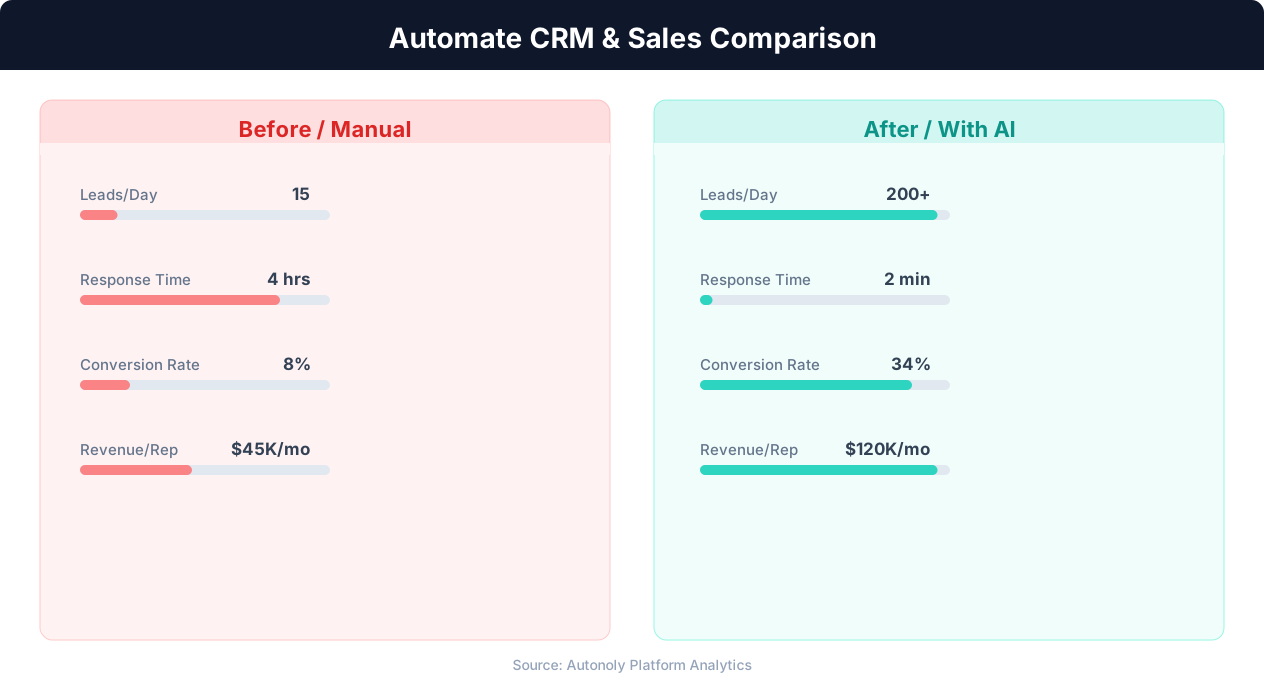
Manual vs automated CRM data entry time comparison
Key Insight: Organizations that automate CRM data entry report 41% higher revenue per salesperson and 27% faster deal close rates (Nucleus Research).
How the AI Agent Does It
The agent opens Google Maps via Browser Automation, enters your search query, and systematically scrolls through all results. The Data Extraction engine identifies each business listing element and extracts structured data fields. For each listing, it captures name, address, phone, website, rating, and category. Results are cleaned, deduplicated, and written to your Google Sheets spreadsheet with proper column formatting.
Handling Large Result Sets
Google Maps can return hundreds of results for broad searches. The agent handles this by scrolling through the entire results panel, waiting for dynamic content to load at each scroll step. For very large extractions, it processes results in batches to ensure no listings are missed. The agent also handles Google Maps' tendency to cluster results and show "More places" links, ensuring comprehensive coverage.
Key Insight: Companies using automated lead capture see 3x more qualified leads entering their pipeline compared to manual processes (Salesforce State of Sales Report).
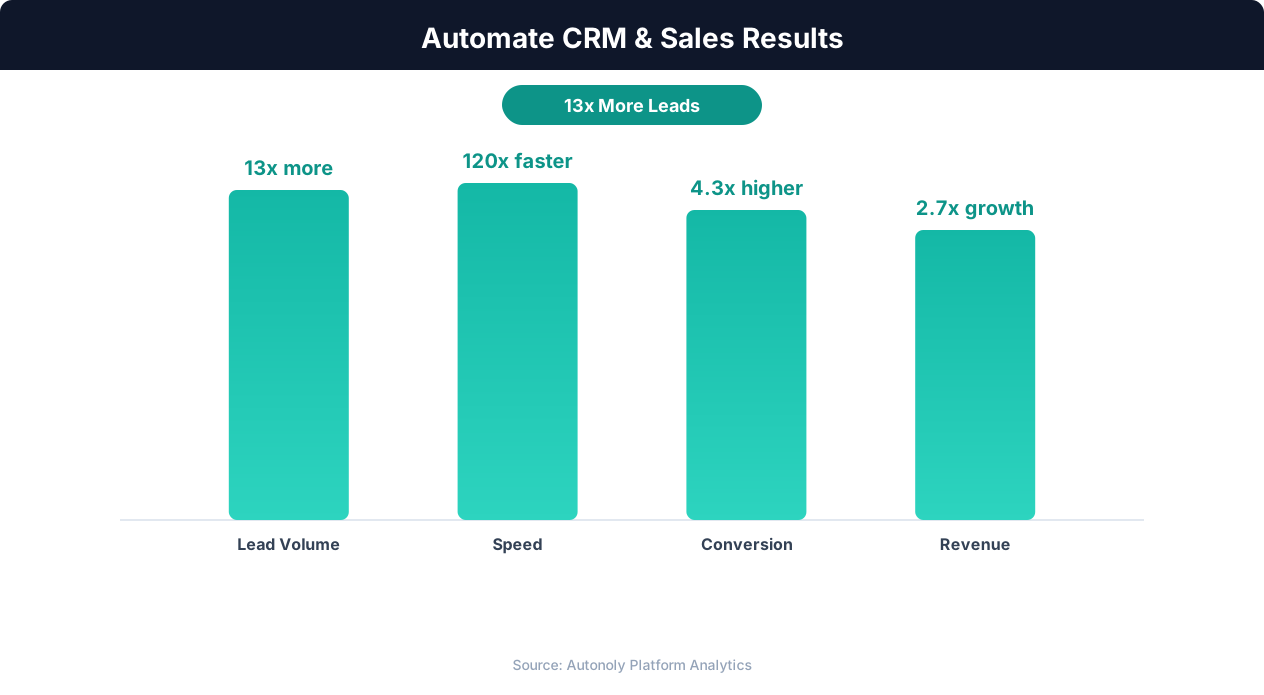
Sales pipeline velocity improvements with automation
Key Insight: Responding to leads within 5 minutes makes you 9x more likely to convert them. Automated capture and routing makes sub-minute response times possible.
Scheduling and Automation
This workflow typically runs as a one-time extraction. Use the Visual Workflow Builder to trigger it on demand whenever you need a fresh lead list. For ongoing monitoring of new businesses in your target area, schedule monthly runs. The agent appends only new listings to your Google Sheets spreadsheet and can send a Slack summary of how many new leads were found. Add Logic & Flow conditions to automatically tag leads by region or category for segmented outreach. See our pricing page for extraction volume details.
Further Reading
Explore more about the tools and techniques used in this workflow: Automate Lead Generation, Best Web Scraping Tools.