Why Your Task Description Is the Most Important Input
When you use an AI browser automation platform like Autonoly, the task description you write is not just a request — it is the entire instruction set. There is no drag-and-drop flowchart. No CSS selectors. No code. Your words are the code. If the model is new to you, our explainer on what automation is and our AI automation guide show why plain-English instructions work.
This is both the greatest strength and the most underestimated challenge of natural language automation. The AI agent genuinely understands English. It can read a web page, figure out which button to click, fill in a form, extract data from a table, and navigate multi-step workflows. But the quality of its output is directly proportional to the quality of your input.
The Core Insight
Think of writing a task description like giving instructions to a new employee on their first day. They are intelligent and capable, but they do not know your systems, your preferences, or the shortcuts you take for granted. The more context and specificity you provide, the better the results — from the very first run.
This matters more than most people realize. In our experience across thousands of automation tasks, the difference between a vague description and a well-structured one is not a marginal improvement — it is the difference between an automation that works on the first attempt and one that requires three or four rounds of correction. A few extra minutes spent on your task description saves hours of back-and-forth.
This guide teaches you a practical framework for writing task descriptions that produce excellent results. You will learn what to include, what to avoid, and how to handle the edge cases that trip up most users. Whether you are automating web scraping, form filling, document downloads, or data transfers between apps, the principles are the same.
What Happens Inside the AI Agent
Understanding how an AI agent processes your instructions helps you write better ones. When you submit a task description to Autonoly's AI agent chat, here is what happens:
- Parsing: The agent reads your description and identifies the goal, the target website, the specific actions, and the desired output.
- Planning: It creates a mental plan for how to accomplish the task — which pages to visit, what to look for, which interactions to perform.
- Execution: It opens a real cloud browser (which you can watch in real time) and starts navigating, reading the page, and acting.
- Adaptation: As it encounters the actual page content — pop-ups, cookie banners, login screens, unexpected layouts — it adjusts its plan.
- Output: It delivers the results in the format you specified, or asks for clarification if it gets stuck.
The key insight: steps 2 through 4 all depend on step 1. If your description is ambiguous, the agent's plan will be ambiguous. If it is precise, the plan will be precise. You are the architect — the agent is the builder.
The WHAT-WHERE-HOW-OUTPUT Framework
After analyzing thousands of successful automation tasks, we have identified four components that consistently produce the best results. We call it the WHAT-WHERE-HOW-OUTPUT framework.
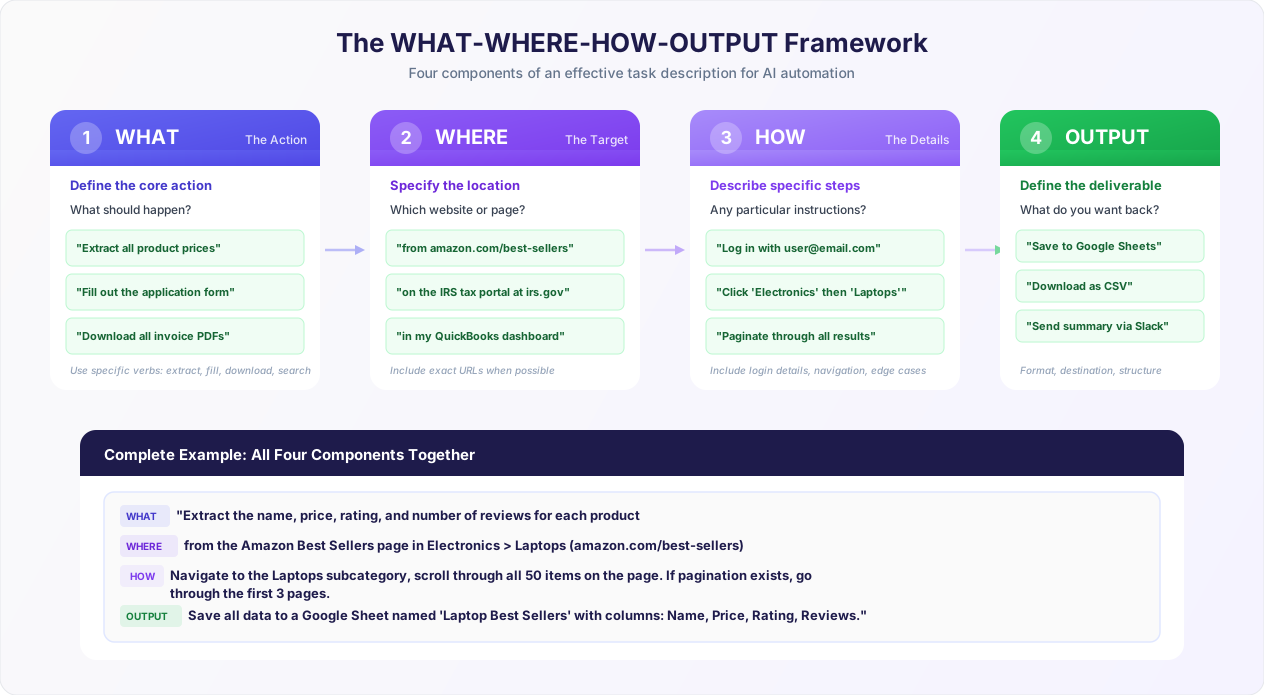
Component 1: WHAT — The Core Action
Start with a clear verb that describes what should happen. This is the single most important sentence in your entire description. It anchors the agent's understanding of the goal.
Strong action verbs for automation:
- Extract — Pull specific data from a page (names, prices, emails, phone numbers)
- Fill — Enter data into form fields
- Download — Save files (PDFs, CSVs, images) from a website
- Search — Find specific items, profiles, or listings
- Monitor — Check a page for changes
- Transfer — Move data from one system to another
- Submit — Complete and submit a form or application
- Compare — Gather information from multiple sources for comparison
Notice that each verb implies a specific type of outcome. "Extract" means data coming out. "Fill" means data going in. "Download" means files saved. This clarity helps the agent plan its approach from the start.
Avoid These Vague Starters
"Automate my work" — What work? "Do something with that website" — Which website? Do what? "Handle the data thing" — What data? What thing? "Look at my competitors" — Look for what? These instructions give the agent almost nothing to work with.
Component 2: WHERE — The Target Location
Specify exactly where the action should take place. The more precise, the better.
Best practices for the WHERE component:
- Include the full URL when possible: "Go to amazon.com/best-sellers/electronics" is better than "Go to Amazon's electronics section."
- Name the specific page or section: "On the Pricing page" or "In the Sales Dashboard tab."
- For login-required sites: Mention that login is required and provide credentials or indicate where the agent can find them.
- For multi-page workflows: Describe the starting point clearly. The agent will navigate from there.
Component 3: HOW — The Specific Steps and Context
This is where most users either under-specify or over-specify. The right level of detail is: enough that a reasonably intelligent person could follow your instructions on their first attempt, but not so much that you are writing pseudo-code.
Include in the HOW component:
- Login credentials if the site requires authentication
- Navigation instructions for complex sites: "Click on Reports, then Monthly Summary"
- Filter or search criteria: "Filter by date range: last 30 days" or "Search for 'wireless headphones under $50'"
- Pagination handling: "Go through all pages of results" or "Only the first 3 pages"
- Specific field values for form filling: "Set Company Name to 'Acme Corp', EIN to '12-3456789'"
- Conditional instructions: "If the page asks for a verification code, enter 123456"
The New Employee Test
Read your HOW section out loud and ask: could a new employee who has never seen this website follow these instructions? If the answer is "they would probably figure it out," your description is good. If the answer is "they would need to ask me three questions first," add those answers to your description.
Component 4: OUTPUT — The Deliverable
Tell the agent exactly what you want to get back and where to put it. This is the component users most frequently forget, leading to results that are technically correct but not in the format they needed.
Specify these output details:
- Format: "Save as a CSV file" or "Create a Google Sheet" or "Send results as a Slack message"
- Structure: "Create columns for Name, Email, Phone, Company" or "One row per product"
- Destination: "Save to my Google Drive" or "Send to [email protected]" or "Add to the existing sheet called 'Q3 Leads'"
- Naming: "Name the file 'competitor-prices-{date}'" if file naming matters
The OUTPUT component connects naturally to Autonoly's integrations — Google Sheets, Slack, email, and more. Mentioning the destination in your description lets the agent deliver results exactly where you need them.
Good vs. Bad: 10 Real Before-and-After Examples
Theory is useful, but examples are better. Here are ten real task descriptions, each shown in both a weak and strong version, with an explanation of what changed and why it matters.
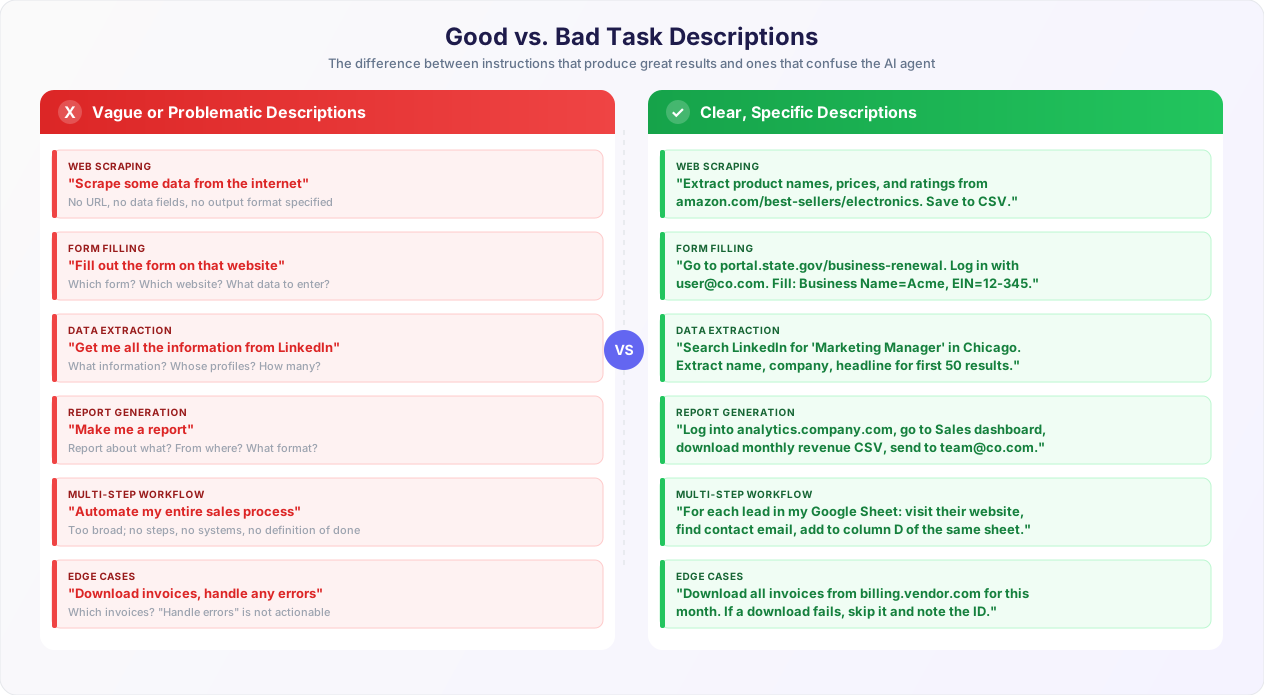
Example 1: Web Scraping — Product Research
Before (Weak)
"Scrape product data from Amazon."
After (Strong)
"Go to amazon.com and search for 'wireless noise canceling headphones'. Extract the product name, price, star rating, number of reviews, and whether it has Prime shipping for each result on the first 3 pages of search results. Save everything to a Google Sheet with those as column headers."
What changed: The strong version specifies the search query, the exact data fields, the scope (3 pages), and the output format. The weak version forces the agent to guess on every single one of those dimensions.
Example 2: Form Filling — Government Portal
Before (Weak)
"Fill out the business renewal form."
After (Strong)
"Go to sos.state.gov/business/renewals. Log in with email [email protected] and password stored in my credentials vault. Navigate to 'Annual Report Filing'. Fill in the following: Entity Name = 'Acme Corporation', Entity ID = 'LLC-00048372', Registered Agent = 'John Smith', Principal Office Address = '123 Main St, Austin, TX 78701'. Review the summary page, then submit. Download the confirmation PDF."
What changed: The strong version provides the exact URL, login method, the specific form to find, every field value, and post-submission instructions. The weak version does not even identify which government website to use.
Example 3: Data Extraction — Competitor Monitoring
Before (Weak)
"Check what our competitors are charging."
After (Strong)
"Visit the pricing pages of these three competitors: competitor-a.com/pricing, competitor-b.com/pricing, competitor-c.io/plans. For each, extract every plan name, the monthly price, the annual price (if listed), and the list of features included in each plan. Create a single Google Sheet with tabs for each competitor, plus a 'Comparison' tab that lists all plans side by side."
What changed: The strong version names the exact competitor URLs, specifies the data fields (monthly vs. annual pricing), and defines a structured multi-tab output. The weak version does not even name the competitors.
Example 4: Document Downloads — Invoice Collection
Before (Weak)
"Download my invoices."
After (Strong)
"Log into billing.vendorname.com with email [email protected]. Go to the Invoices section. Filter by date range: January 1 to March 31 of this year. Download every invoice PDF on the list. If there are multiple pages, go through all of them. Save all PDFs to my Google Drive in a folder called 'Vendor Invoices Q1'."
What changed: The strong version specifies the vendor portal, credentials, date range, pagination handling, and exact storage destination. Note the use of "this year" instead of a hardcoded year — this makes the task description reusable across time periods.
Example 5: Lead Generation — LinkedIn Research
Before (Weak)
"Find me some leads on LinkedIn."
After (Strong)
"Go to LinkedIn and search for people with the title 'VP of Marketing' or 'Head of Marketing' located in the San Francisco Bay Area. For each of the first 50 results, extract their full name, current job title, company name, and LinkedIn profile URL. Skip anyone who works at a company with fewer than 50 employees (you can usually tell from the company page). Save to a Google Sheet called 'SF Marketing Leads'."
What changed: The strong version defines the job titles to search for, the geographic filter, the exact data fields, a filtering criterion, a result limit (50), and the output destination.
Example 6: Report Generation — Pulling Analytics
Before (Weak)
"Get me the analytics report."
After (Strong)
"Log into analytics.google.com with our company account ([email protected]). Navigate to the 'Acquisition' report under 'Reports > Lifecycle > Acquisition > Traffic acquisition'. Set the date range to the last 30 days. Export the table showing Session default channel group, Sessions, Engaged sessions, and Conversions as a CSV. Then go to the 'Pages and screens' report and export that as a separate CSV. Email both CSVs to [email protected] with the subject line 'Monthly Traffic Report'."
What changed: The strong version provides the exact navigation path within Google Analytics (which has a complex, deeply nested interface), specifies which reports and metrics to export, and defines the delivery method.
Example 7: Price Monitoring — Recurring Task
Before (Weak)
"Track prices for me."
After (Strong)
"Visit each of these 5 product URLs: [url1], [url2], [url3], [url4], [url5]. For each product, extract the current price, whether it is marked as 'on sale' or 'discounted', and the stock status (in stock / out of stock / limited). Add one row per product to my existing Google Sheet called 'Price Tracker' in the tab named 'Daily Prices', including today's date in the first column."
What changed: The strong version provides the exact URLs, the data points to capture, and crucially, tells the agent to append to an existing spreadsheet with the date — making this a description that can be scheduled to run daily and build a historical price dataset over time.
Example 8: Multi-Site Workflow — Insurance Quotes
Before (Weak)
"Get insurance quotes from different carriers."
After (Strong)
"I need to get commercial auto insurance quotes for the following vehicle: Ford Transit 250, VIN 1FTBW2CM3NKA12345, used for deliveries, garaged at 456 Oak Ave, Dallas TX 75201. Visit these three carrier portals and fill out their quote request forms with this information: 1) travelers.com/agents — log in with agent ID AG-5521, 2) progressive.com/commercial — log in with agent code PC-8834, 3) nationwide.com/business — log in with broker ID NW-2291. Capture the quoted premium for each carrier and save all three quotes in a Google Sheet called 'Auto Quotes - Transit' with columns: Carrier, Premium, Coverage Limits, Deductible."
What changed: The strong version provides all the vehicle details the forms will ask for, the specific carrier portals with login credentials, and a structured output format for comparison. The weak version gives the agent no vehicle information, no carrier names, and no login details.
Example 9: Data Entry — Spreadsheet to Web Form
Before (Weak)
"Enter the spreadsheet data into the system."
After (Strong)
"Read the Google Sheet called 'New Employees Q1' (shared with the agent). For each row, go to hr-portal.ourcompany.com/onboarding/new-hire, fill out the form with: First Name from column A, Last Name from column B, Email from column C, Department from column D, Start Date from column E, Manager from column F. Click 'Submit' after each entry. After all entries are done, mark column G as 'Entered' for each completed row. If any entry fails, mark column G as 'Error' and continue to the next row."
What changed: The strong version maps spreadsheet columns to form fields, provides the exact URL, includes error handling instructions, and defines a tracking mechanism (marking column G) so you know which entries succeeded.
Example 10: Research — Gathering Specific Information
Before (Weak)
"Research these companies for me."
After (Strong)
"For each of these 10 companies — [company1.com through company10.com] — visit their website and find: (1) what the company does (one sentence summary), (2) their headquarters city from the About or Contact page, (3) approximate employee count from LinkedIn (search LinkedIn for the company name and check their company page), (4) whether they have a public pricing page (yes/no, and the URL if yes). Save all findings to a Google Sheet with one row per company."
What changed: The strong version defines exactly what "research" means — four specific data points per company — and tells the agent where to find each piece of information (company website vs. LinkedIn). The weak version is completely open-ended.
Seven Common Mistakes (And How to Fix Them)
Even with a good framework, certain patterns consistently lead to suboptimal results. Here are the seven most common mistakes we see, with concrete fixes for each.
Mistake 1: Being Too Vague
The problem: Descriptions like "automate my work" or "do something useful with that data" give the agent nothing actionable. It is the equivalent of telling a taxi driver "take me somewhere nice" — they might pick a great restaurant, or they might drive in circles.
The fix: Start with the WHAT-WHERE-HOW-OUTPUT framework. Even a rough description using all four components outperforms a polished but vague one. If you cannot fill in all four components, you may not have a clear enough picture of the task yourself — which is worth resolving before involving automation.
Mistake 2: Writing Pseudo-Code
The problem: Some technical users default to writing instructions like code: "FOR EACH row IN spreadsheet DO: navigate(url); fillField(#name-input, row.name); click(#submit-btn); ENDFOR". This is counterproductive. The AI agent does not execute CSS selectors or programmatic commands — it reads pages visually and semantically, just like a human.
The fix: Write in plain English. "For each row in my spreadsheet, go to the website, fill in the name field with the value from that row, and click Submit" achieves the same result without brittle selectors. The agent will find the right form field by understanding the page layout, not by matching a CSS selector that might change tomorrow.
Why Plain English Beats Selectors
Traditional browser automation (Selenium, Puppeteer) relies on CSS selectors like #email-input or .btn-submit. When the website changes its HTML structure, these break. AI agents understand context: "the email field" or "the blue Submit button" work regardless of the underlying HTML. Writing in natural language produces automation that is more resilient to website changes. See our comparison of traditional automation frameworks for more on this difference.
Mistake 3: Omitting Login Credentials
The problem: "Go to my CRM and export the leads." The agent navigates to the CRM, hits a login page, and has no idea what credentials to use. Now it is stuck.
The fix: Always mention how to log in. You can provide credentials directly ("Log in with [email protected], password: ****"), reference your credential vault ("Use the stored credentials for Salesforce"), or specify that no login is needed ("This page is publicly accessible — no login required"). If the site uses multi-factor authentication, mention that too and describe how to handle it.
Mistake 4: Forgetting Pagination
The problem: "Extract all job listings from Indeed for 'data analyst' in New York." The agent extracts the first page (typically 15-20 results) and stops. There are 500+ results across 25+ pages, but the description did not mention pagination.
The fix: Explicitly state your pagination expectations: "Go through all pages of results" or "Extract results from the first 5 pages" or "Continue until you have at least 200 results." Setting a boundary also prevents the agent from spending excessive time on a task with thousands of pages of results.
Mistake 5: Assuming Context the Agent Does Not Have
The problem: "Fill in the usual fields on the vendor form." You know what the "usual fields" are because you fill out this form every week. The agent has never seen it before.
The fix: Spell out every field value explicitly the first time. Once the agent has completed the task successfully, you can save the description as a template for future runs. Think of the first run as training — be exhaustively specific. Subsequent runs can reference "the same values as before" if you are using the visual workflow builder to create a reusable workflow.
Mistake 6: No Output Specification
The problem: "Get the competitor pricing information." The agent extracts the data — but then what? Should it display it in the chat? Save to a spreadsheet? Send an email? Without output instructions, the agent defaults to showing results in the conversation, which may not be what you wanted.
The fix: Always end your description with explicit output instructions. "Save to a new Google Sheet called 'Competitor Pricing'." "Send the data to #marketing-updates in Slack." "Download as a CSV file." Autonoly integrates with Google Sheets, Slack, email, and more, so specifying the destination is always worth doing.
Mistake 7: Not Handling Edge Cases
The problem: Your description works perfectly for the happy path, but the first time the site shows a pop-up, a CAPTCHA, or an unexpected error, the agent gets stuck.
The fix: Add conditional instructions for foreseeable problems. You do not need to anticipate every possible issue — just the common ones. See the next section for a comprehensive list of edge case handling patterns.
Handling Edge Cases: The "If This, Then That" Patterns
Real websites are messy. Pop-ups appear, pages load slowly, layouts change between visits, and forms have validation rules that are not obvious until you trigger them. The best task descriptions anticipate these situations with conditional instructions.
Here is a library of edge case patterns you can copy and adapt for your own task descriptions.
Pop-ups and Overlays
Nearly every commercial website displays pop-ups — cookie consent banners, newsletter sign-up modals, chat widgets, promotional overlays. These can block the agent from interacting with the underlying page.
Pattern: Pop-up Handling
"If a cookie consent banner appears, click 'Accept All' or 'Accept Cookies'. If a newsletter popup appears, close it by clicking the X button. If a chat widget pops up in the corner, ignore it — it should not block the main content."
Login Failures and Session Timeouts
Login-required sites can fail for various reasons: wrong credentials, expired sessions, MFA challenges, or temporary lockouts.
Pattern: Login Resilience
"Log in with [email protected]. If the login fails with an 'invalid credentials' message, stop and report the error — do not retry. If the session expires mid-task (you get redirected to the login page), log in again and continue from where you left off. If a CAPTCHA appears during login, stop and let me know."
Pagination and Infinite Scroll
Data extraction tasks often involve multiple pages of results, and the pagination mechanism varies between sites.
Pattern: Pagination Control
"After extracting data from the current page, click 'Next' to go to the next page. Continue until there are no more pages or until you have collected data from 10 pages, whichever comes first. If the page uses infinite scrolling instead of page buttons, scroll down until no new items load for 5 seconds."
Missing or Inconsistent Data
When extracting data from multiple listings, some entries may be missing fields that others have.
Pattern: Missing Data Handling
"Extract name, email, phone, and company for each contact. If any field is not available on their profile, put 'N/A' in that cell instead of skipping the row. Every contact should have its own row even if some fields are empty."
Rate Limiting and Slow Pages
Some websites load slowly or throttle requests when they detect rapid automated access.
Pattern: Pacing Instructions
"Wait for each page to fully load before extracting data. If a page takes more than 30 seconds to load, skip it and move to the next one. Do not rush through the pages — wait a few seconds between each page navigation to avoid triggering rate limits."
Large Result Sets
Sometimes you discover the task is much larger than expected — a search returns 10,000 results instead of 100.
Pattern: Result Boundaries
"Extract up to 500 results maximum. If there are more than 500, stop at 500 and note the total number of available results at the top of the spreadsheet. I will run additional passes for the remaining results later."
Form Validation Errors
Web forms often have validation rules that reject certain inputs — date formats, phone number formats, required fields that are not obvious.
Pattern: Validation Error Recovery
"If the form shows a validation error after clicking Submit, read the error message, try to fix the field it mentions (e.g., if it says 'Phone number must include area code', add the area code '512' in front), and submit again. If the error persists after 2 attempts, skip this entry, mark it as 'Form Error' in the spreadsheet, and move to the next one."
Dynamic Content and Loading States
Modern web applications load content dynamically — data tables that take a few seconds to populate, dropdown menus that load options from an API, and dashboards that render charts after the page frame loads.
Pattern: Dynamic Content Waiting
"After selecting the date range filter, wait for the data table to refresh before extracting values. The table shows a loading spinner while it updates — wait until the spinner disappears and actual data rows are visible."
You do not need to include all of these patterns in every task description. Pick the ones relevant to your specific task. Over time, as you refine your descriptions through the iteration cycle, you will naturally add the edge case handling that matters for your particular websites and workflows.
Ready-to-Use Task Description Templates
Copy, customize, and use these templates as starting points for common automation categories. Replace the bracketed placeholders with your specific details.
Template 1: Web Scraping / Data Extraction
Template
"Go to [URL]. Search for [search query / navigate to specific section]. Extract the following data for each [item type]: [field 1], [field 2], [field 3], [field 4]. Go through [number] pages of results, or until there are no more results. If a field is not available for a particular item, enter 'N/A'. Save all data to a Google Sheet called '[sheet name]' with those fields as column headers."
Template 2: Form Filling (Single Form)
Template
"Go to [URL]. Log in with [email/username] and [password / credential reference]. Navigate to [specific page or section]. Fill in the form with these values: [Field Name 1] = '[Value 1]', [Field Name 2] = '[Value 2]', [Field Name 3] = '[Value 3]'. [For dropdown fields: Select '[option]' from the [field name] dropdown.] Review the filled form, then click [Submit button name]. Download or screenshot the confirmation page."
Template 3: Batch Form Filling (From Spreadsheet)
Template
"Read the Google Sheet called '[sheet name]'. For each row starting from row 2 (row 1 is headers): Go to [URL], fill in [Form Field 1] with the value from column [A], [Form Field 2] with column [B], [Form Field 3] with column [C]. Submit the form. If submission succeeds, mark column [G] as 'Done'. If it fails, mark column [G] as 'Error: [error message]' and continue to the next row. Process all rows."
Template 4: Document Download
Template
"Log into [URL] with [credentials]. Go to [section, e.g., Billing > Invoices]. Filter by [date range or other criteria]. Download every [document type, e.g., PDF invoice] on the list. If there are multiple pages, go through all of them. Save all files to [destination, e.g., Google Drive folder 'Q1 Invoices']. If any download fails, note the document name/ID and continue with the rest."
Template 5: Multi-Site Comparison
Template
"Visit each of the following websites: [URL 1], [URL 2], [URL 3]. On each site, go to their [page, e.g., pricing page]. Extract [data fields, e.g., plan names, monthly prices, feature lists]. Save all data to a single Google Sheet with a separate tab for each site, named after the company. Add a final tab called 'Comparison' that has all data side by side."
Template 6: Monitoring and Alerting
Template
"Go to [URL]. Check [specific element, e.g., the price of product X / the stock status / the latest announcement]. Record the current value. Compare it to the previous value stored in my Google Sheet '[sheet name]', column [X]. If the value has changed, send a Slack message to [#channel] saying '[Product] [field] changed from [old] to [new]'. Update the spreadsheet with the new value and today's date."
These templates serve as solid starting points, but the best task descriptions are the ones you refine through iteration. Start with a template, run it, review the results, and adjust. Within 2-3 iterations, you will have a description perfectly tailored to your specific website and workflow.
The Iteration Cycle: Start Simple, Refine Fast
Your first task description does not need to be perfect. In fact, trying to write the perfect description on the first attempt usually wastes more time than just starting with a good-enough version and refining it based on real results.
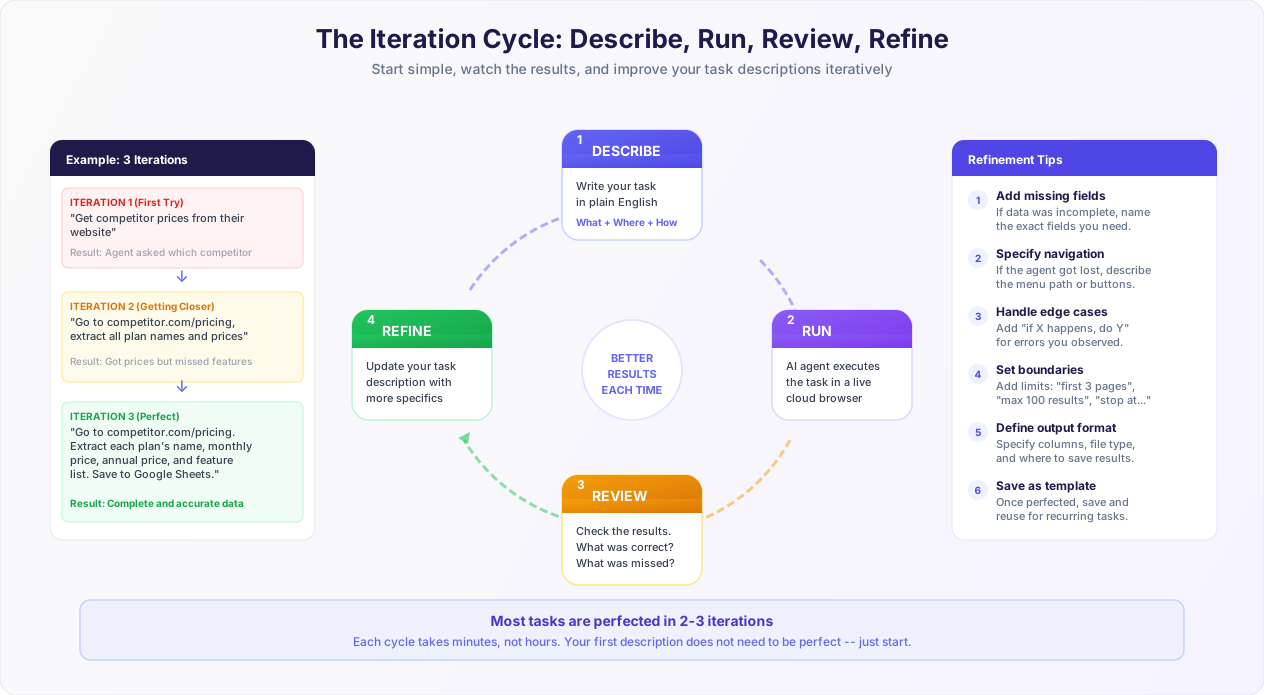
Step 1: Describe (First Draft)
Write your initial task description using the WHAT-WHERE-HOW-OUTPUT framework. Cover the basics: what action, which website, general instructions, and where to save results. Do not agonize over edge cases yet — you will discover them.
Time investment: 2-5 minutes.
Step 2: Run
Submit the description to the AI agent and watch it execute through the live browser view. Watching the agent work is the fastest way to spot gaps in your description. You will see moments where it hesitates, takes a wrong turn, or misses something — those are the areas to refine.
Time investment: depends on task complexity, but you are observing, not working.
Step 3: Review
Examine the results critically. Ask yourself:
- Did it go to the right website and the right page?
- Did it extract or enter all the data fields I needed?
- Is the data accurate and complete?
- Did it handle pagination correctly?
- Is the output in the format and location I specified?
- Were there any errors or unexpected behaviors?
Common findings after the first run:
- Missed a data field you assumed was obvious
- Stopped at the first page when you wanted all pages
- Got blocked by a pop-up or login screen you forgot to mention
- Saved data in the wrong format or location
- Extracted data from the wrong section of the page
Step 4: Refine
Update your task description to address exactly the issues you found. Be specific: if the agent missed the "phone number" field, add "phone number" to your list of fields. If it stopped at one page, add "go through all pages of results." If a pop-up blocked it, add "if a pop-up appears, close it."
Refinement Pro Tip
When refining, add to your description rather than rewriting from scratch. Your first version captured the core intent correctly — you are just filling in the gaps. Over-editing can introduce new ambiguities while fixing old ones.
Step 5: Repeat
Run the refined description and review again. Most tasks are perfected in 2-3 iterations. Some complex multi-step workflows may take 4-5 iterations, but each cycle is fast — minutes, not hours.
Once you have a task description that produces consistent, accurate results, you have something truly valuable: a reusable automation recipe. Save it. You can run it again whenever you need to, schedule it for recurring execution, or use it as the foundation for a visual workflow that chains multiple tasks together.
Real Iteration Example: Competitor Price Monitoring
Here is how a real user refined their task description over three iterations:
Iteration 1: "Get competitor prices from their website."
Result: The agent asked which competitor. No website was specified.
Iteration 2: "Go to competitor.com/pricing and extract all plan names and their prices."
Result: Got plan names and monthly prices, but missed annual pricing and the feature lists that differentiate plans.
Iteration 3: "Go to competitor.com/pricing. For each plan listed on the page, extract: plan name, monthly price, annual price (if available — some plans only have monthly), and the complete list of features included. If features are hidden behind a 'See all features' or 'Compare plans' link, click it to expand. Save everything to a Google Sheet called 'Competitor Pricing Tracker' with columns: Plan Name, Monthly Price, Annual Price, Features."
Result: Complete, accurate data with all pricing tiers and features captured. This description now runs weekly on a schedule.
Total time to reach perfection: roughly 15 minutes across three runs. Time saved per week going forward: 45 minutes of manual research. That is a payback period measured in days.
Advanced Strategies for Complex Tasks
Once you have mastered the basics, these advanced strategies help you tackle more complex automation scenarios.
Strategy 1: Break Large Tasks into Smaller Steps
If your task involves five different websites, three different types of data processing, and output to multiple destinations, consider breaking it into smaller, focused tasks rather than writing one massive description.
Too Complex (Single Task)
"Go to five different job boards, search for 'senior developer' roles, extract all listings, compare salaries, identify which companies are hiring most, cross-reference with Glassdoor reviews, build a summary report, and email it to three people."
Better (Multiple Focused Tasks)
Task 1: "Extract 'senior developer' job listings from indeed.com, linkedin.com/jobs, and glassdoor.com — title, company, salary range, location. Save to Google Sheet 'Dev Jobs Research'."
Task 2: "For each unique company in my 'Dev Jobs Research' sheet, visit their Glassdoor page and extract the overall rating, number of reviews, and the 'Pros' from the most recent 3 reviews. Add this to a new tab called 'Company Reviews'."
Task 3: Use the visual workflow builder to chain these together and send the final spreadsheet via email.
Breaking tasks apart has three benefits: each individual task is simpler and more likely to succeed on the first run, you can debug each step independently, and you can reuse individual tasks in different combinations.
Strategy 2: Use Reference Points Instead of Absolute Positions
Web pages change. Elements move. New sections get added. Instead of describing locations by position ("the third button from the left"), use semantic references that are resilient to layout changes.
| Fragile (Position-Based) | Resilient (Semantic) |
|---|---|
| "Click the second link in the navigation bar" | "Click the 'Products' link in the top navigation" |
| "Extract data from the third table on the page" | "Extract data from the table labeled 'Quarterly Revenue'" |
| "Fill in the fourth text field" | "Fill in the field labeled 'Email Address'" |
| "Click the button at the bottom right" | "Click the 'Submit Application' button" |
Strategy 3: Provide Examples of Expected Output
When the output format matters, show the agent what you expect rather than just describing it.
Example Format Specification
"Save the results to a Google Sheet with the following structure: Column A = Company Name, Column B = Contact Name, Column C = Email, Column D = Phone, Column E = Website URL. Example row: 'Acme Corp | Jane Smith | [email protected] | 512-555-0100 | acme.com'. One row per company."
Showing a concrete example row eliminates ambiguity about formatting, column order, and data granularity (one row per company vs. one row per contact).
Strategy 4: Define Success Criteria
For tasks where accuracy matters more than speed, include a definition of what a successful outcome looks like.
Success Criteria Example
"The task is complete when: (1) all 25 invoices from this month are downloaded as PDFs, (2) each PDF filename includes the invoice number and date, (3) all files are in my Google Drive folder, and (4) a summary row in the spreadsheet lists every invoice number, amount, and download status. If any invoice could not be downloaded, the summary should note which ones and why."
Strategy 5: Include Screenshots or Annotated References
For complex websites with unusual layouts, you can reference specific visual elements in your description. If you have previously visited the site, describe what you see in a way the agent can match:
"The data I need is in the section with the blue header that says 'Account Summary'. It is below the navigation bar and above the 'Recent Transactions' section. The table in this section has columns for Date, Description, Amount, and Balance."
This kind of spatial and visual reference helps the agent identify the right elements on complex dashboards and portals where multiple data tables or sections compete for attention.
Strategy 6: Make Descriptions Time-Independent
If you plan to schedule a task for recurring execution, write the description so it works without modification every time it runs.
| Time-Dependent (Breaks Next Month) | Time-Independent (Always Works) |
|---|---|
| "Download invoices from January" | "Download invoices from the most recent complete month" |
| "Get data for Q1" | "Get data for the current quarter" |
| "Filter by date: 01/01 to 03/31" | "Filter by date: last 90 days" |
| "Search for posts from this week" | "Search for posts from the last 7 days" |
Relative dates and time references ensure your automation runs correctly whether it executes tomorrow or six months from now. This is especially important when you use scheduled workflows that run automatically on a recurring basis.
Putting It All Together: Your Action Plan
You now have a complete toolkit for writing task descriptions that produce excellent automation results. Here is how to put it into practice immediately.
Your First Five Minutes
- Pick one task you currently do manually that is repetitive and web-based. Start with something straightforward — data extraction from a single site or a simple form filling task.
- Write a description using the WHAT-WHERE-HOW-OUTPUT framework. It does not need to be perfect. Cover the basics: what action, which URL, any login details, and where to save the results.
- Run it on Autonoly's AI agent chat and watch through the live browser view.
- Refine based on what you observe. Add missing details, fix any incorrect assumptions, handle edge cases you noticed.
- Save the perfected description for future use.
The Cheat Sheet
Keep these principles visible when writing task descriptions:
| Principle | Do This | Not This |
|---|---|---|
| Be specific | "Extract the product name, price, and rating" | "Get the data" |
| Name the target | "Go to amazon.com/best-sellers" | "Go to the website" |
| Include credentials | "Log in with [email protected]" | "Log in to my account" |
| Handle pagination | "Extract from the first 5 pages" | (say nothing about pages) |
| Define output | "Save to Google Sheet 'Leads Q3'" | (let agent decide) |
| Use plain English | "Click the blue Submit button" | "click(#btn-submit-primary)" |
| Handle failures | "If login fails, stop and report" | "Handle any errors" |
| Set boundaries | "Maximum 200 results" | "Get everything" |
The Scaling Path
Once you are comfortable with single-task descriptions, you can build on this foundation:
- Chain tasks into workflows using the visual workflow builder. One task's output becomes the next task's input.
- Schedule recurring tasks — your perfected descriptions run automatically daily, weekly, or monthly.
- Connect outputs to other tools via integrations — pipe data directly into Google Sheets, send alerts via Slack, or email reports to stakeholders.
- Build a library of task templates your entire team can use. The best descriptions become reusable automation recipes that anyone can run.
The Key Takeaway
Writing a good task description is not about being verbose — it is about being precise. A three-sentence description with the right details outperforms a three-paragraph description full of vague instructions. Focus on specificity over length. Include the WHAT, WHERE, HOW, and OUTPUT, handle the edge cases you can foresee, and let the iteration cycle handle the rest. The AI agent is smart enough to fill in reasonable gaps — your job is to make sure the critical details are not among those gaps.
Ready to try it? Create your free Autonoly account and describe your first automation task. You might be surprised how close the first result gets — and how quickly the second iteration nails it.