The Integration Gap: Why Your Apps Don't Talk to Each Other
The average business uses between 80 and 120 SaaS applications. Each one was chosen because it solves a specific problem well. But here is the uncomfortable reality: most of these applications were never designed to work together. Understanding what automation is and how a solid workflow automation approach bridges disconnected tools is the key to fixing this.
Integration platforms like Zapier and Make have done extraordinary work connecting popular tools. If you need to move data between Salesforce and HubSpot, or between Google Sheets and Mailchimp, those platforms have you covered. But they only work when both apps offer API access and someone has built a connector for them.
What happens when one of your apps is a legacy ERP system from a vendor that never built an API? Or a niche industry tool used by 500 companies worldwide? Or an internal application your company built years ago? Or a government portal that only accepts data through its web form?
The Integration Gap by the Numbers
Zapier connects around 7,000 apps. That sounds like a lot until you realize there are over 30,000 SaaS products on the market and countless internal, legacy, and niche applications. Even among apps that Zapier does support, many only offer limited "triggers" and "actions" that do not cover the specific data transfer you need. The result: teams spend an estimated 25-40% of their data-handling time on manual transfers between disconnected systems.
This is the integration gap. It is the space between what your tools can do individually and what they can do together. And for most organizations, it is filled with spreadsheets, copy-paste, and human data entry.
This guide is about closing that gap. We will walk through every practical approach to transferring data between web apps that do not natively integrate, from the simplest manual methods to AI-powered automation. We will be honest about when each approach makes sense and when it does not.
Who This Guide Is For
This guide is for operations managers, IT administrators, and team leads who spend meaningful time moving data between disconnected systems. If you or your team regularly export CSVs from one application and import or re-enter that data into another, this guide addresses your exact problem.
We assume no coding knowledge. Every approach discussed here is accessible to non-technical users, with the exception of the custom API development section, which we include for completeness but recommend only when you have development resources available.
Common Scenarios: Where the Integration Gap Hits Hardest
The integration gap is not abstract. It shows up in very specific, recognizable scenarios that cost real time and create real errors. Here are the patterns we see most often.
CRM to Legacy ERP
A sales team closes deals in a modern CRM like Salesforce, HubSpot, or Pipedrive. But order fulfillment runs through an ERP system that was built before REST APIs existed. Someone has to manually transfer every new order: customer details, line items, shipping addresses, payment terms. For a company processing 50-200 orders per week, this is a full-time job.
Why it resists integration: The ERP vendor either does not offer an API or charges $20,000+ for API access. The system only accepts data through its web-based form interface.
Old Accounting Software to New
A company migrating from an older accounting platform to a newer one discovers that the old system has no export function that matches the new system's import format. Transaction histories, vendor records, chart of accounts structures, and open invoices all need to be moved — and the field names, date formats, and categorization schemes differ between systems.
Why it resists integration: Accounting migration tools only cover the most popular platforms. If either system is niche, you are on your own.
Niche Industry Tools
Every industry has specialized software that serves a narrow market. Veterinary practice management. Freight brokerage platforms. Property management systems. Cemetery management software. These tools are excellent at their specific function but were built by small teams that prioritize features over integrations.
Why it resists integration: The vendor's market is too small for Zapier or Make to build a connector. The vendor may not even have a public API.
The Niche Tool Problem
If your software serves fewer than 10,000 businesses, the odds of it having Zapier or Make support are low. And even if the vendor offers an API, you still need a developer to build and maintain the integration. For most small and mid-market companies, that cost is not justified for a single data flow.
Internal Tools and Custom-Built Applications
Almost every organization over 50 employees has at least one internal tool — a custom admin panel, a bespoke reporting dashboard, or a homegrown project tracker. These tools were built to solve an internal need, and integrations were not part of the scope. The developer who built it may have left the company years ago.
Why it resists integration: No API was ever built. The codebase may be poorly documented. Adding an API would require significant development effort that competes with other priorities.
Google Sheets to Legacy Inventory System
A warehouse team tracks incoming orders in Google Sheets because it is fast and flexible. But the company's inventory management system — a web application built over a decade ago — is the system of record. Every order in the spreadsheet eventually needs to be entered into the inventory system manually.
Why it resists integration: The inventory system's web interface is the only point of access. There is no import function, no API, and no way to bulk-load data.
Project Management to Time Tracking
A consulting firm uses one tool for project management and a different tool for time tracking and billing. Each consultant needs to ensure their tasks, time entries, and billing codes match across both systems. Every week, someone reconciles discrepancies.
Why it resists integration: The time tracking tool integrates with Jira and Asana but not with the firm's project management tool. Or the integration exists but does not sync the specific fields the firm needs.
| Scenario | Typical Volume | Manual Time per Transfer | Weekly Hours Lost |
|---|---|---|---|
| CRM to Legacy ERP | 50-200 orders/week | 5-15 min each | 8-40 hrs |
| Accounting Migration | 1,000-50,000 records | Varies widely | Project-based |
| Niche Tool Sync | 20-100 records/day | 2-5 min each | 5-15 hrs |
| Internal Tool Entry | 10-50 records/day | 3-10 min each | 5-20 hrs |
| Sheets to Legacy System | 20-100 records/day | 2-8 min each | 5-25 hrs |
| PM to Time Tracking | Ongoing daily | 5-15 min/day | 2-5 hrs |
The Manual Workaround: What Most Teams Actually Do
Before we discuss better solutions, let us be honest about the current state: most teams handle the integration gap with manual workarounds. These methods work. They are just slow, error-prone, and soul-crushing for the people doing them.
The CSV Export-Reformat-Import Cycle
This is the most common pattern. It looks like this:
- Export from source: Log into Application A. Navigate to the data you need. Export as CSV.
- Open and reformat: Open the CSV in Excel or Google Sheets. Rename columns to match Application B's expected format. Reformat dates, phone numbers, currency values. Remove rows that should not be imported. Add columns that Application B requires but Application A does not include.
- Validate: Manually scan for issues — empty required fields, duplicate records, values that fall outside accepted ranges.
- Import into target: Log into Application B. Find the import function (if it exists). Upload the reformatted CSV. Wait for import results. Review the error report. Fix rejected records. Re-import the fixes.
- Verify: Spot-check a sample of records in Application B to confirm the data looks correct.
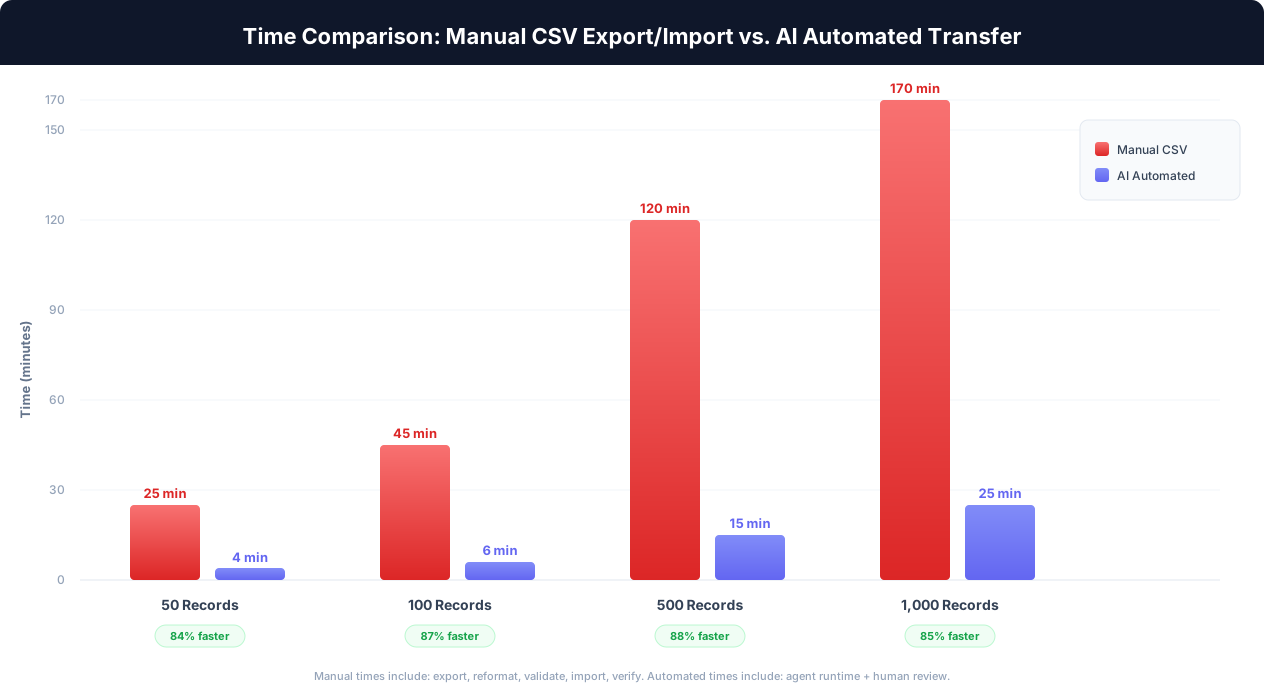
For 100 records, this process takes 30-60 minutes. For 1,000 records, it takes 2-3 hours. And it needs to happen every time data changes.
The Copy-Paste-Retype Method
When Application B has no import function at all — only a web form — the process is even worse:
- Open Application A in one browser tab.
- Open Application B in another tab.
- For each record: read the data from Application A, switch tabs, type or paste the data into Application B's form fields, submit the form, switch back to Application A, move to the next record.
This is the reality for teams dealing with government portals, legacy ERP web interfaces, and internal tools with no import capability. It is pure manual data entry, repeated dozens or hundreds of times per day.
The Hidden Costs of Manual Transfer
Data entry errors: Human error rates for manual data entry are consistently measured at 1-5%. For financial data, even a 1% error rate creates audit issues and customer-facing problems.
Data staleness: If manual transfers happen weekly, the target system is always up to one week behind the source. Decisions made on stale data are decisions made on wrong data.
Staff burnout: Data entry is consistently ranked among the least satisfying work tasks. Teams that spend significant time on it experience higher turnover.
Opportunity cost: Every hour spent on data re-entry is an hour not spent on analysis, customer interaction, or process improvement.
The Spreadsheet Middleman
Some teams create elaborate spreadsheet systems as intermediaries. They build Excel workbooks with macros that reformat data from Application A's export format to Application B's import format. These "integration spreadsheets" become mission-critical infrastructure maintained by one person who understands the formulas.
This approach reduces the per-transfer effort but creates a single point of failure: when the spreadsheet maintainer leaves the company, the integration breaks and no one knows how to fix it.
Four Approaches to Bridging the Integration Gap
There are four realistic approaches to transferring data between web apps that do not natively integrate. Each has fundamentally different prerequisites, costs, and trade-offs.
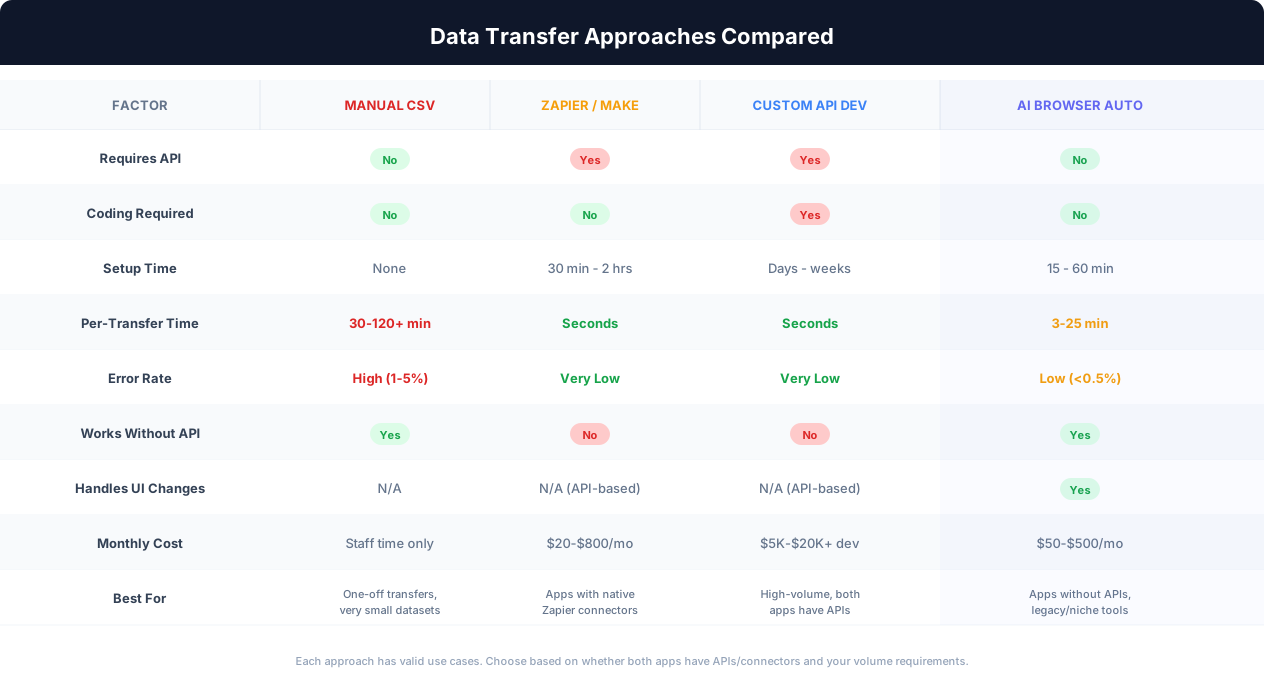
Approach 1: Manual CSV Export and Import
The baseline. Export from one system, reformat, import into the other. We covered this in detail above.
When it makes sense: One-time data migrations. Very small datasets (under 20 records). Transfers that happen less than once per month. Situations where the cost of any automated solution exceeds the cost of doing it manually.
When it does not: Recurring transfers. Datasets over 50 records. Time-sensitive data where staleness matters. Any situation where error rates create downstream problems.
Approach 2: Zapier, Make, or Native Integration
If both applications have Zapier or Make connectors, this is almost always the best choice. These platforms let you set up automated data flows without code, with reliable triggers, error handling, and monitoring built in.
Use Zapier or Make When You Can
We want to be completely direct about this: if both of your apps have Zapier or Make connectors, and those connectors support the specific triggers and actions you need, use Zapier or Make. They are purpose-built for this problem and will give you faster, more reliable data transfers than any UI-based automation. API-to-API integration is fundamentally faster and more reliable than browser-based automation. The approaches discussed below are for when Zapier and Make are not an option.
When it makes sense: Both apps are in Zapier's or Make's connector library. The connectors support the specific data fields you need. You need real-time or near-real-time sync. Transfer volumes are moderate (hundreds to low thousands per day).
When it does not: One or both apps lack Zapier/Make connectors. The connectors exist but do not expose the fields or actions you need. The app only has a web UI with no API. You are dealing with legacy, niche, or internal tools.
Approach 3: Custom API Development
If both applications have APIs (even if no pre-built connector exists), a developer can build a custom integration. This gives you full control over data mapping, transformation, error handling, and scheduling.
When it makes sense: Both apps have well-documented APIs. Transfer volumes are high enough to justify development cost. You have in-house developers or budget for contract development. The integration is mission-critical and needs to be bulletproof.
When it does not: One or both apps lack APIs. Development cost exceeds the value of automating the transfer. You do not have developers available. The integration needs to be operational this week, not this quarter.
Approach 4: AI Browser Automation
AI browser automation works at the UI level. An AI agent opens a real browser, navigates to the source application, reads data from tables, forms, or lists, then navigates to the target application and enters that data into its interface — the same way a human would, but without the errors and without the tedium.
This approach exists specifically for the scenarios where Approaches 2 and 3 are not possible: when one or both applications lack APIs, lack Zapier connectors, or only accept data through their web interface.
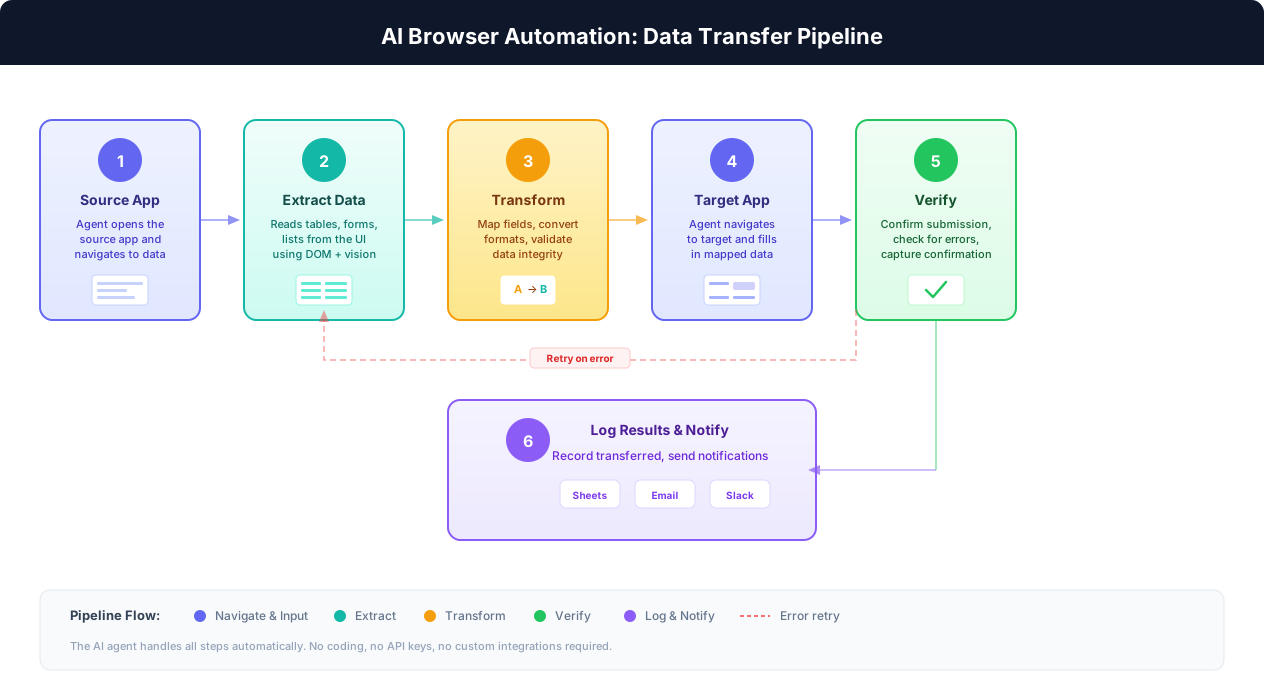
How it works with Autonoly:
- Describe the transfer: Tell the AI agent what data to pull from the source app and where it goes in the target app.
- Watch it work: The agent opens both applications in a cloud browser. You can observe every step through the live browser view.
- Review and refine: After the first run, review the results. Provide corrections if needed. The agent learns from your feedback.
- Schedule or trigger: Once validated, set the transfer to run on a schedule or trigger it manually when needed. Build it into a visual workflow for complex multi-step processes.
When it makes sense: One or both apps lack APIs or Zapier connectors. You are dealing with legacy, niche, or internal web applications. You need a solution operational in hours, not weeks. Transfer volumes are moderate (tens to hundreds of records per run). Your budget for this problem is under $500/month.
When it does not: Both apps have APIs or Zapier connectors (use those instead). You need real-time, sub-second sync. Transfer volumes exceed thousands of records per day. The target app is a native desktop application (not web-based).
Practical Examples: AI Browser Automation in Action
Theory is useful, but specifics are better. Here are concrete examples of data transfers between disconnected web apps, with the practical details of how each one works.
Example 1: Salesforce Leads to a Custom ERP
The problem: A mid-size manufacturer uses Salesforce for sales and a custom-built ERP for order management. When a deal closes in Salesforce, someone needs to create a corresponding order in the ERP — entering customer name, shipping address, line items, quantities, and payment terms. The ERP is a web application with no API, built by a contractor who is no longer available.
The manual process: A sales coordinator opens both systems. For each closed deal, they read the details from Salesforce, switch to the ERP, navigate to the "New Order" form, enter every field, and submit. Each order takes 8-12 minutes. With 40-60 orders per week, this is 6-12 hours weekly.
With AI browser automation: The agent logs into Salesforce, pulls newly closed deals, then for each deal, navigates to the ERP's order creation form and enters the corresponding data. Field mapping is straightforward: Salesforce's "Account Name" maps to the ERP's "Customer" field, "Shipping Street" maps to "Delivery Address," and so on. The agent handles the data transformation (reformatting phone numbers, converting date formats) and submits each order. After submission, it captures the ERP's order confirmation number and logs it back.
Result: 6-12 hours of weekly manual work reduced to approximately 45 minutes of agent runtime plus 15 minutes of human review. Error rate dropped from an estimated 2-3% to under 0.5%.
Example 2: Google Sheets to a Legacy Inventory System
The problem: A distribution company receives orders via email and enters them into Google Sheets for quick processing. But inventory allocation must happen in their legacy inventory management system — a web application that only accepts individual entries through its form interface. There is no import function and no API.
The manual process: A warehouse coordinator opens Google Sheets in one tab and the inventory system in another. For each order row, they read the SKU, quantity, and destination, then switch to the inventory system, search for the SKU, enter an allocation, specify the destination warehouse, and confirm. Fifty orders per day at 3-4 minutes each equals 2.5-3.5 hours daily.
With AI browser automation: The agent reads the day's orders from the Google Sheet, then sequentially processes each one in the inventory system. It searches for the SKU, handles cases where the SKU format differs between systems (the sheet uses dashes, the inventory system uses underscores), enters the allocation quantity, and selects the destination from a dropdown. If inventory is insufficient, the agent flags the row in the sheet rather than proceeding with a partial allocation.
Result: 2.5-3.5 hours of daily work eliminated. The agent runs at 5 AM so allocations are complete before the warehouse team starts their shift.
The Pattern to Notice
Every example follows the same structure: read structured data from System A, navigate to System B's web interface, enter that data into the appropriate form fields, handle format differences along the way, and verify submission. The specific apps change, but the pattern is universal. If you are currently doing this manually, an AI browser agent can do it for you.
Example 3: Project Management to Time Tracking
The problem: A consulting firm uses Wrike for project management and a niche billing platform for time tracking and invoicing. Consultants track their hours in Wrike, but billing requires those entries in the billing platform with specific project codes, task categories, and rate tiers. The billing platform has no Zapier integration.
The manual process: A billing coordinator exports time entries from Wrike weekly, reformats the CSV to match the billing platform's requirements, manually adds billing codes based on a lookup table, and enters each entry. For a 30-person firm, this takes 4-6 hours every Monday.
With AI browser automation: The agent extracts time entries from Wrike, cross-references them with a billing code lookup table (maintained in Google Sheets), and enters each entry into the billing platform with the correct project code, task category, and rate tier. The lookup table serves as the field mapping layer, and the firm's billing coordinator maintains it without needing any technical skills.
Result: Monday's 4-6 hour billing task reduced to 30 minutes of agent runtime plus 20 minutes of human review.
Example 4: Multi-App Data Consolidation
The problem: A regional property management company tracks maintenance requests in one system, tenant communications in another, and financials in a third. None of these systems integrate with each other. Generating a monthly property performance report requires manually pulling data from all three and combining it in a spreadsheet.
With AI browser automation: The agent sequentially logs into all three systems, extracts the relevant data for each property (open maintenance tickets, tenant satisfaction scores, revenue and expense figures), and consolidates everything into a single Google Sheet with one row per property. The agent runs on the first business day of each month.
Result: A report that previously took a full day to compile is generated automatically, with the property manager spending 30 minutes reviewing rather than 8 hours compiling.
Data Mapping, Transformation, and Error Handling
The hardest part of transferring data between disconnected apps is not the transfer itself — it is making sure the data arrives correctly. Fields have different names. Formats differ. Required fields in the target do not exist in the source. This section covers the practical details of handling these challenges.
Field Mapping: Translating Between Systems
Every data transfer requires a mapping between source fields and target fields. In the simplest case, the fields have the same names and formats. In practice, this almost never happens.
| Source App Field | Target App Field | Transformation Needed |
|---|---|---|
| customer_name | Client Name | None (direct mapping) |
| phone | Phone Number | Format: (555) 123-4567 to 5551234567 |
| order_date | Date Placed | Format: MM/DD/YYYY to YYYY-MM-DD |
| total | Order Total | Currency: "$1,234.56" to 1234.56 |
| status | Order Status | Value map: "Closed Won" to "Confirmed" |
| (not in source) | Region Code | Derived from zip code lookup |
With AI browser automation, you describe these mappings in natural language: "The source app's 'phone' field should be entered into the target's 'Phone Number' field, but remove all dashes and parentheses first." The AI agent handles the transformation logic without you needing to write formulas or code.
Format Transformations
The most common transformations between systems include:
- Date formats: MM/DD/YYYY vs. DD/MM/YYYY vs. YYYY-MM-DD. Getting this wrong is a common source of silent errors — January 2nd becomes February 1st.
- Phone numbers: With or without country code, with or without formatting characters.
- Currency: String with symbol vs. raw number. Comma as thousands separator vs. decimal separator (US vs. European format).
- Names: Full name in one field vs. split first/last. Handling middle names, suffixes, and prefixes.
- Addresses: Single field vs. multi-field (street, city, state, zip). Different line break conventions.
- Status values: "Active/Inactive" vs. "1/0" vs. "Enabled/Disabled" vs. dropdown selections.
Why AI Handles Transformations Well
Traditional automation scripts require explicit transformation rules for every field. If you miss one, data arrives malformed. AI agents understand formats contextually — they recognize that "Jan 15" and "01/15" and "15-Jan" are all dates and can convert between them without explicit instructions for every variation. This reduces setup time significantly and catches edge cases that rigid rules miss.
Error Handling: What Happens When Things Go Wrong
Robust data transfers need to handle failures gracefully. Common failure scenarios include:
- Target field rejects the value: The target app's form validation rejects an entry (e.g., a phone number with too many digits, an email in an invalid format). The agent should log the error, skip the record, and continue with the remaining records.
- Record already exists: The target app rejects a duplicate entry. The agent should detect whether to skip, update, or flag for human review.
- Required field missing in source: The source record lacks data for a field the target requires. The agent should flag the record rather than submitting incomplete data.
- Session timeout: The target app's session expires during a long transfer. The agent should detect the timeout, re-authenticate, and resume from where it left off.
- Target app is down: The target application is temporarily unavailable. The agent should retry with exponential backoff.
Verification: Confirming the Transfer Succeeded
Every data transfer should include a verification step. Options include:
- Record count match: Compare the number of records in the source dataset to the number successfully created in the target.
- Spot-check verification: After the transfer, the agent navigates to a sample of records in the target and confirms the data matches the source.
- Confirmation capture: For each record submitted, capture the target app's confirmation (confirmation number, success message, or screenshot).
- Difference report: Generate a report showing which records were transferred, which failed, and why.
With Autonoly, you can configure the visual workflow builder to include verification steps as part of the automated pipeline, so you receive a report of successful and failed transfers without needing to check manually.
Limitations: What AI Browser Automation Cannot Do
We have spent most of this guide explaining how AI browser automation solves the integration gap. Now let us be equally clear about its limitations. Understanding what it cannot do is just as important as understanding what it can.
It Is Not Real-Time Sync
API-based integrations (Zapier, Make, custom code) can trigger transfers within seconds of data changing in the source system. AI browser automation cannot. It works in batch mode: you run a transfer and it processes all records in the batch sequentially. The fastest reasonable cycle for browser automation is every 15-30 minutes, and most use cases run hourly or daily.
What this means in practice: If you need a record created in System B within seconds of it appearing in System A, browser automation is not the right tool. If "within the hour" or "by end of day" is acceptable, it works well.
It Is Slower Per Record Than API Transfers
An API call can create a record in milliseconds. A browser agent navigating a UI, filling in fields, and submitting a form takes 30 seconds to 2 minutes per record, depending on the complexity of the target form. For 50 records, this difference is negligible. For 10,000 records, it matters.
Practical throughput: Expect 30-120 records per hour depending on form complexity. This is dramatically faster than manual data entry but slower than API-based transfers.
Web Apps Only
AI browser automation works with web-based applications — anything accessed through a browser. If your target system is a native desktop application (a Windows-only ERP client, a Java desktop app), browser automation cannot interact with it. Some desktop apps have web interface layers, and those work fine. But pure desktop applications require RPA tools instead.
It Depends on UI Stability
While AI agents handle minor UI changes (a button that moves, a field that gets renamed) automatically, major application redesigns may temporarily disrupt the automation. If the target app completely rebuilds its interface, the agent may need 1-2 supervised runs to re-learn the new layout. This is rare — most web apps do not undergo full redesigns often — but it is a maintenance consideration.
Decision Framework: Which Approach to Use
Both apps have Zapier/Make connectors? Use Zapier or Make. Always.
Both apps have APIs but no pre-built connector? If you have a developer, build a custom integration. If not, AI browser automation is a pragmatic alternative.
One or both apps lack APIs? AI browser automation is likely your best option for recurring transfers. Manual CSV is fine for rare, one-off moves.
Need real-time sync? You need an API-based solution. If the app lacks an API, real-time sync is not possible without the vendor adding one.
Volume exceeds 1,000 records per day? Consider whether the target app has any bulk entry mechanism. If not, run parallel agents or break transfers into scheduled batches.
Authentication Complexity
Some web applications use multi-factor authentication, CAPTCHAs, or complex SSO flows that add friction to automated access. Most of these can be handled with configuration (using service accounts, setting up app-specific passwords, or configuring MFA to use TOTP tokens that the agent can generate). But they require initial setup and occasionally need attention when security policies change.
Sensitive Data Considerations
When transferring sensitive data (financial records, personal health information, customer PII), ensure your automation platform meets the relevant compliance standards. Data passes through the agent's cloud browser, so understand where that browser runs, how data is handled in transit, and what logging occurs. For highly regulated environments, consult your compliance team before automating transfers involving protected data.
Getting Started: Your First Automated Data Transfer
If you have read this far, you probably have a specific data transfer in mind. Here is a practical roadmap for automating it.
Step 1: Audit Your Current Transfers
Before automating anything, catalog the data transfers your team currently does manually. For each one, document:
- Source application: Where the data comes from.
- Target application: Where the data needs to go.
- Frequency: How often does this transfer happen?
- Volume: How many records per transfer?
- Time per transfer: How long does the manual process take?
- Who does it: Which team member(s) handle this today?
- Error impact: What happens when data is transferred incorrectly?
- Integration options: Do both apps have Zapier connectors? APIs?
This audit will immediately reveal which transfers are candidates for Zapier/Make (both apps have connectors) and which require browser automation (one or both apps lack connectors/APIs).
Step 2: Start With Your Highest-ROI Transfer
Pick the transfer that combines high frequency, high time cost, and low complexity. The ideal first automation candidate is one that:
- Happens at least weekly
- Takes 30+ minutes each time
- Follows the same steps every time
- Involves straightforward field mapping (source fields map obviously to target fields)
Do not start with your most complex, highest-volume, multi-system transfer. Start with one that is annoying but well-understood.
Step 3: Document the Manual Process
Write down the exact steps as if you were training a new employee to do this transfer. Include:
- The URLs for both applications
- Login credentials (create a dedicated service account rather than using personal credentials)
- The exact navigation path in each application
- Which fields in the source map to which fields in the target
- Any transformations needed (date formats, phone formats, value mappings)
- What to do when a record fails (skip, retry, flag)
Step 4: Set Up and Test
- Describe the task: In Autonoly's AI agent chat, describe the transfer in plain English using the documentation you created in Step 3.
- Run the first transfer: Start with a small batch (5-10 records). Watch the agent work through the live browser view.
- Verify results: Check every record in the target application. Confirm field mapping is correct and transformations are accurate.
- Iterate: If anything is off, provide feedback to the agent and re-run. Most transfers are dialed in within 2-3 iterations.
- Scale up: Run a full batch. Verify a sample of records.
Step 5: Schedule and Monitor
Once validated, set the transfer to run on your desired schedule. Configure notifications (via email, Slack, or Google Sheets) to receive a summary after each run: how many records transferred, how many failed, and why. Review the first 3-5 automated runs carefully, then shift to exception-based monitoring (only review when failures are reported).
A Realistic Timeline
Day 1: Audit and document your transfers. Pick your first candidate. Set up the agent and run a small test batch.
Days 2-3: Iterate on the test batch until results are consistently accurate. Run a full batch and verify.
Day 4-5: Schedule the automation. Configure monitoring and notifications.
Week 2: Monitor the first few automated runs. Start setting up your second transfer.
Most teams have their first transfer fully automated within a week and are expanding to additional transfers by week two.
Step 6: Expand Strategically
Once your first transfer is running reliably, work through your audit list. Each subsequent automation is faster because you understand the pattern. Look for opportunities to chain transfers into multi-step workflows using the visual workflow builder — for example, pulling data from a CRM, enriching it with data from a second system, and entering the combined record into a third.
For teams dealing with many disconnected systems, the cumulative time savings compound quickly. Automating 5 data transfers that each save 3 hours per week returns 15 hours weekly — nearly two full working days reclaimed for work that actually moves the business forward.
For more context on automating applications that lack APIs, see our comprehensive guide on automating without APIs and our article on automating legacy web apps. If you are evaluating integration platforms, our What Zapier Can't Automate guide covers the specific scenarios where traditional integration tools fall short.