

Why Automate Email Attachment Saving?
Professionals receive dozens of attachments daily — contracts, invoices, reports, design files, spreadsheets, and images. These files sit buried in email threads, making them difficult to find, share, or back up. When you need that specific invoice from three months ago, you end up scrolling through hundreds of emails instead of looking in a well-organized folder. The search becomes even more frustrating when you cannot remember the exact sender or subject line, leaving you to open email after email hoping to stumble across the right attachment. For teams that collaborate across departments, the problem multiplies — one person received the file, but three others need it, and nobody can find the email it was attached to.
The organizational cost is real and measurable. Teams waste an average of 20 minutes per day searching for files that arrived as email attachments. Over a month, that is nearly 7 hours per person spent on something that should be instant. Important files get permanently lost when employees leave the company and their email accounts are deactivated. Attachments that should have been shared with a team sit locked in one person's inbox, invisible to everyone else. And without a centralized filing system, version control becomes impossible — did the client send the updated contract on March 10th or March 15th? Which version of the design brief is current? These questions consume time and create risk every single week.
Automating attachment saving with Gmail and Google Drive integration solves these problems permanently. Every attachment is automatically extracted and filed into a logical folder structure, giving you instant access to any file through Drive's search and sharing capabilities. Files are available to your entire team the moment they arrive, properly named and organized without anyone lifting a finger. The shared Drive folder becomes your team's single source of truth for all incoming documents, eliminating the "can you forward me that attachment?" requests that clutter every team's Slack and email.
Beyond convenience, automated attachment archiving protects your business. Critical documents — signed contracts, insurance certificates, compliance filings — are preserved in Drive even if the original email is accidentally deleted. Your Google Drive becomes a living document library that grows and organizes itself, backed by Google's redundant storage infrastructure. For businesses subject to document retention requirements — and especially those handling personal data under the GDPR — this automated archiving provides a defensible, consistent process that does not depend on individual employees remembering to save files manually.
How the AI Agent Manages Attachments
Autonoly's AI Agent Chat connects to your Gmail account and monitors incoming emails based on your filter criteria. When an email with attachments arrives from a matching sender or with a matching subject, the agent extracts each attachment and prepares it for upload. The agent uses Data Extraction to read the email metadata — sender name, date, subject line, and labels — and uses these signals to determine exactly where each file should be saved. The agent also reads the email body for contextual clues — a mention of "Project Alpha" in the email text can route attachments to the Project Alpha folder even if the subject line is generic.
The agent is intelligent about organization. Rather than dumping all files into a single folder, it creates a folder hierarchy based on rules you define. Common structures include:
By sender:
/Email Attachments/Acme Corp/— all files from a specific client in one placeBy date:
/Email Attachments/March/— chronological archive for easy browsingBy file type:
/Email Attachments/Invoices/,/Email Attachments/Contracts/— categorized by document purposeBy project:
/Projects/Website Redesign/— mapped to active projects using subject-line keywords
If the destination folder does not exist, the agent creates it automatically. File names can be preserved as-is or renamed using a template that includes the sender name, date, or subject — for example, AcmeCorp_Invoice.pdf instead of the original scan001.pdf. This consistent naming convention makes files findable at a glance, even without using search.
Handling Duplicate and Large Files
The agent tracks files it has already saved using email message IDs and attachment checksums. If the same file is forwarded multiple times or appears in a reply chain, it is saved only once. Because attachments are encoded as MIME parts within each message, the agent decodes them reliably regardless of how the sender's client packaged them. For large attachments that exceed Gmail's inline display limit, the agent handles the download seamlessly through the Gmail API. Files up to Gmail's 25MB attachment limit are supported without configuration. When Google Drive links are shared within email bodies instead of traditional attachments, the agent can be configured to copy those linked files to your designated folder as well.
You can also configure file type filters to save only specific formats. For example, save only PDFs and spreadsheets from your accounting team while ignoring signature images, calendar invites (.ics files), and small inline graphics. This keeps your Drive clean and focused on files that matter. Use Logic & Flow conditions to handle edge cases — skip attachments smaller than 10KB (likely email signatures), route files from VIP clients to a priority folder, or flag attachments from unknown senders for manual review. Add Data Processing to extract metadata from saved files — like page count for PDFs or sheet names for spreadsheets — and log it alongside the file record.
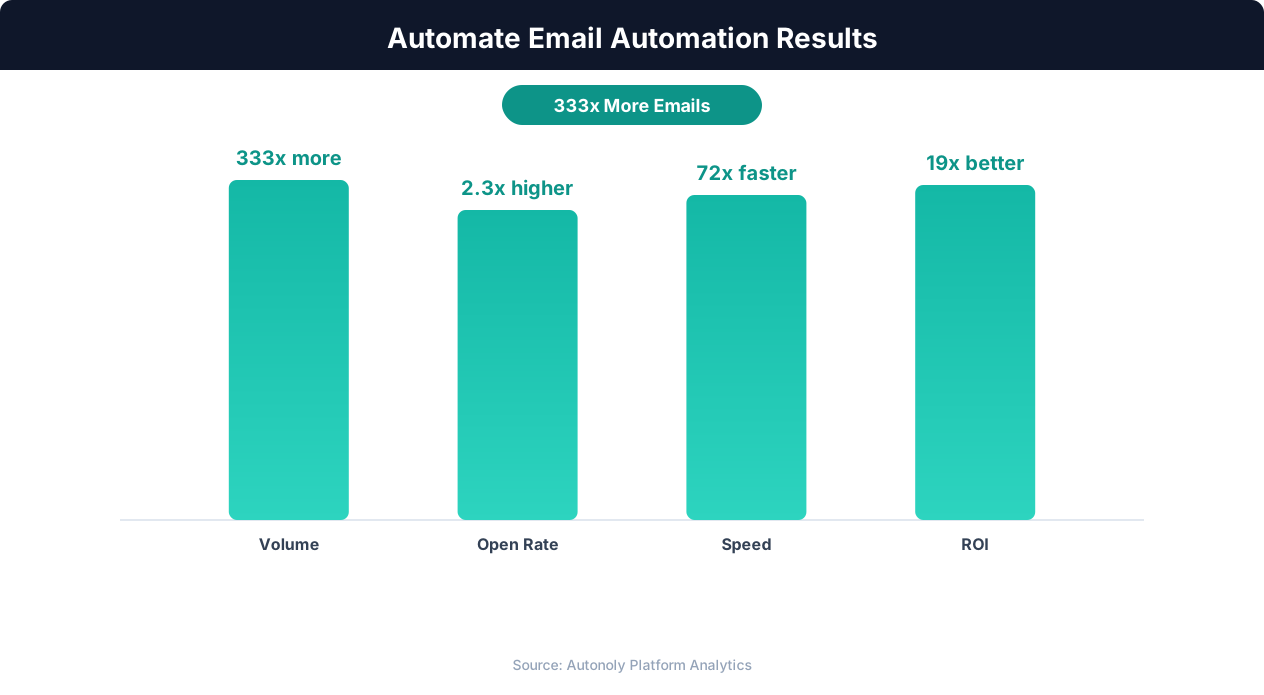
Revenue per email for automated vs manual campaigns
Key Insight: Companies using email automation see a 14.5% increase in sales productivity and a 12.2% reduction in marketing overhead costs (Nucleus Research).
Integrating with Other Workflows
Combine this workflow with Data Processing steps for powerful document pipelines. The Visual Workflow Builder lets you chain attachment saving with downstream automations:
Save invoice PDFs to Drive, then trigger the invoice-to-sheets workflow to extract amounts and due dates into a Google Sheets spreadsheet
Archive contract attachments and send a Slack notification to your legal team when a new contract arrives from a specific sender domain
Save report attachments and distribute them to specific team folders based on the report type or sender department
Forward saved attachments to a Data Extraction pipeline that reads the file contents and logs structured data into a spreadsheet
Use Browser Automation to download attachments from vendor portals and add them to the same Drive archive, unifying files from email and web sources
Browse the templates library for pre-built attachment filing workflows designed for common scenarios like vendor invoice archiving, client deliverable collection, and HR document management.
Use Cases
Accounting teams: Automatically file vendor invoices, receipts, and financial statements into organized Drive folders. Chain with the invoice extraction workflow to simultaneously archive the PDF and log the amounts into your AP spreadsheet. Use Logic & Flow to route invoices above a threshold amount to a manager approval folder.
Legal departments: Archive signed contracts, amendments, and compliance documents the moment they arrive. Set up Slack alerts for the legal team when documents from specific senders or containing keywords like "amendment" or "termination" are saved. Maintain a complete, timestamped record of every legal document received for audit and discovery purposes.
Project managers: Collect all project deliverables — design files, reports, presentations — from client and vendor emails into project-specific Drive folders. Share the folder with stakeholders so everyone has access to the latest files without email forwarding chains. Use Google Sheets to maintain a deliverables tracker that auto-updates when new files are archived.
Scheduling and Monitoring
The workflow runs every 4 hours by default, processing all new attachments since the last run. Each execution logs the number of files saved, their total size, and the destination folders used. You can view this log in the Autonoly dashboard or receive a daily summary via Gmail. The agent uses differential processing — only emails received since the last successful run are evaluated, keeping execution fast even for inboxes with thousands of messages. A processing checkpoint ensures that even if a run is interrupted, the next run picks up exactly where it left off without missing files or creating duplicates.
For high-volume inboxes, increase the frequency to hourly using cron-style scheduling. For archival purposes, set it to run daily. The agent handles any volume — from a few attachments per day to hundreds — scaling automatically without configuration changes. Processed emails are labeled in Gmail so you can quickly see which messages have had their attachments archived. A notification chain can alert you via Slack when files from critical senders are saved, when an unusually large attachment arrives, or when the total storage used crosses a threshold you define. See pricing for run frequency details per plan.
Further Reading
Explore more about the tools and techniques used in this workflow: No Code Automation Guide, Automate Email Reports, Integrations, Logic Flow, Scheduled Execution.