

Why Automate PDF Form Filling?
PDF forms are everywhere — government applications, insurance claims, tax documents, employee onboarding packets, vendor registrations, compliance filings, and permit requests. They persist because they are a universal, format-stable document standard — codified as an open ISO specification — that every institution accepts. But filling them out remains a thoroughly manual, mind-numbing process. When you need to fill out the same form for 50 employees, 200 insurance claims, or 100 vendor registrations, the manual process of opening each PDF, typing in data, checking every field, and saving is excruciating. An HR manager onboarding 20 new employees needs to fill out 5-8 forms per person — that is 100-160 forms, each requiring careful data entry to avoid errors that could delay payroll, benefits, or tax filing. The work is pure transcription — the data already exists in a spreadsheet, but someone has to manually retype every value into every field of every form.
The error rate in manual form filling is surprisingly high. When the same person fills out their 40th form of the day, fatigue sets in. Names get misspelled, dates are transposed, checkboxes are missed, and addresses from the wrong row get copied into the wrong form. These errors have real consequences: an incorrect Social Security number on a W-4 delays tax processing, a wrong address on an insurance claim means the check goes to the wrong place, and a missing signature on a compliance filing means the entire form needs to be redone and resubmitted. Each error triggers a correction cycle that takes longer than filling the form correctly would have in the first place.
The opportunity cost is equally significant. The hours your team spends filling forms are hours they are not spending on work that requires human judgment — interviewing candidates, reviewing claims, advising clients, or developing policy. Form filling is pure data transcription, and it is the kind of repetitive work that AI handles with perfect consistency regardless of volume. There is no scenario where a human filling their 200th form is faster or more accurate than an AI filling its 200th form.
Autonoly's AI agent automates this entirely. Store your data in Google Sheets, upload the blank form, and the agent generates a correctly filled PDF for every row in your spreadsheet. What used to take a full day of data entry now completes in minutes. Every form is filled with the same precision — the 500th form is just as accurate as the first. Your team transitions from data entry to quality review, spending their time verifying outputs rather than producing them.
How the AI Agent Fills Forms
The AI Agent Chat begins by analyzing the blank PDF form to detect all interactive fields:
Text fields: Name, address, phone number, email, dates, and any free-text entry
Checkboxes: Boolean selections like "Yes/No" or "Agree/Disagree"
Radio buttons: Single-select options from a group
Dropdowns: Selection lists with predefined options
Date fields: Date pickers with specific format requirements
Signature blocks: Identified and optionally populated with a digital signature image
Calculated fields: Fields that depend on values entered in other fields
The agent reads field names, labels, and tooltip text embedded in the PDF to understand what each field expects. It then maps these fields to columns in your Google Sheet. For example, a field labeled "Full Name" maps to your "Name" column, and "Date of Birth" maps to your "DOB" column. The agent suggests mappings based on field names and column headers, and you confirm or adjust them before the first run. Once mappings are confirmed, they are saved and reused for all future batches — you configure once and generate forever.
Using Data Extraction, the agent handles format conversions automatically. If the form expects dates as "MM/DD/YYYY" but your sheet has "March 24, 2026," the agent converts the format. Currency values, phone numbers, Social Security numbers, and ZIP codes are formatted to match the form's expected patterns. Data Processing handles computed fields — if the form has a "Total" field that should be the sum of line items in your spreadsheet, the agent calculates it automatically. Multi-line address fields are populated correctly by combining street, city, state, and ZIP from separate spreadsheet columns.
Handling Non-Interactive PDFs
Not all PDF forms have fillable fields — many are flat PDFs designed to be printed and filled by hand. Government agencies and older institutions frequently distribute forms in this non-interactive format. The agent handles these too. It identifies the visual layout of the form, locates blank lines and boxes where data should go, and overlays text at the correct positions. The output is a PDF that looks like it was filled by hand (with typed text), maintaining the original form's visual integrity. This capability means you can automate form filling regardless of how the form was created — interactive or flat, modern or legacy.
For forms that mix interactive fields with static sections (a common pattern in government documents), the agent handles both seamlessly in a single pass, filling interactive fields through form APIs and overlaying text on flat sections visually.
Batch Processing at Scale
The real power of form automation is scale. Your Google Sheet can have hundreds or thousands of rows, and the agent generates a separate completed PDF for each one. All forms use the same template but contain unique data from each row. A batch of 500 forms typically completes in under 15 minutes. There is no practical upper limit — process 50 or 5,000 forms with the same workflow.
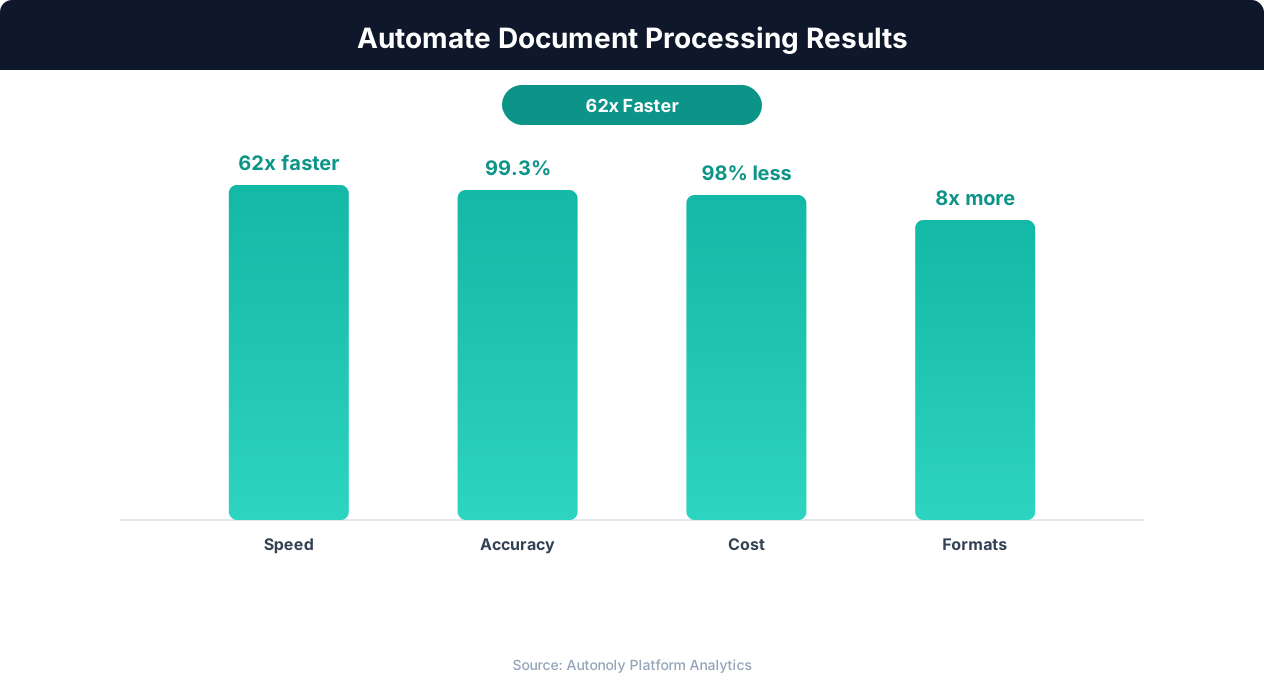
ROI timeline for document automation implementation
Key Insight: AI-powered document extraction achieves 96% accuracy on structured documents — surpassing the 88% accuracy of manual data entry (AIIM Research).
The Visual Workflow Builder lets you add validation before generation: check that all required fields have values, verify that dates are within acceptable ranges, and ensure numeric fields contain valid numbers. Use Logic & Flow to skip rows that fail validation and log them for manual review. This pre-generation validation catches data quality issues in your spreadsheet before they become incorrect forms that need to be regenerated. Validation rules can be as specific as your forms require — checking that state abbreviations are valid two-letter codes, that phone numbers have the correct digit count, or that amounts fall within expected ranges.
Each generated PDF is named systematically — by a key field like the applicant name, application number, or row ID — for easy organization and retrieval.
Distribution and Archiving
After generation, the agent can:
Save to Google Drive: Upload all completed forms to a designated folder, organized by date, category, or form type
Email individually: Send each form to the person it was filled for (using the email column in your sheet) via Gmail with a personalized cover message
Batch download: Package all forms into a ZIP archive for download from the Autonoly dashboard
Notify via Slack: Send a Slack notification when the batch is complete, with a summary of forms generated and any that failed validation
For compliance and audit purposes, each generated form is logged with a timestamp, the data used to fill it, and the source row reference. This audit trail lives in a separate sheet tab or Airtable base, providing documentation for regulatory reviews and internal audits. The log ensures you can always trace any generated form back to its source data, which is critical during audits. Browse the templates library for pre-built form filling workflows for common document types. Use SSH & Terminal to push generated forms to internal document management systems or compliance platforms.
Use Cases
HR onboarding: Fill W-4s, I-9s, benefits enrollment forms, and direct deposit authorizations for new hires from your HR spreadsheet. Process an entire cohort of new employees in minutes instead of hours. Use Browser Automation to submit completed forms to government portals where electronic filing is required.
Insurance: Complete claim forms, application packets, and coverage documents using policyholder data. Handle seasonal enrollment surges without temporary staff. Generate renewal documents for your entire policyholder base in a single batch run.
Government compliance: Fill regulatory filings, permit applications, and tax forms using data from your compliance database. Meet filing deadlines without the last-minute rush of manual form preparation. The consistent, validated output reduces rejection rates from agencies that return incorrectly completed forms.
Real estate: Generate disclosure forms, lease agreements, and inspection checklists from property and tenant data. Process multiple closings simultaneously without bottlenecking on document preparation.
Scheduling and Execution
This task runs as a one-time operation by default — upload your form, connect your data, and generate the batch. For ongoing needs, schedule it to run daily or weekly using cron-style scheduling, processing only new rows added to your spreadsheet since the last run. The agent uses differential processing to track which rows have been completed, ensuring no duplicate forms are generated. A status column in your sheet updates automatically as each form is generated and distributed, giving you real-time visibility into batch progress.
Each run produces a completion summary showing forms generated, validation failures, and delivery status, available in the Autonoly dashboard or via Slack notification. The summary includes the total number of fields filled across all forms, providing a concrete measure of the manual work the automation replaced. See pricing for batch size limits per plan.
Further Reading
Explore more about the tools and techniques used in this workflow: Automate Data Entry, No Code Automation Guide, Pdf Ocr, Form Automation.