


Why Automate PDF Table Extraction?
PDFs are the standard format for financial reports, research publications, government filings, and regulatory documents. These documents are packed with valuable tabular data — financial statements, statistical tables, comparison matrices, and data appendices — but that data is trapped in a format designed for printing, not analysis. When you need to analyze, compare, or visualize data from a PDF, you face a fundamental problem: the data is locked behind a presentation layer that makes it almost impossible to work with programmatically. You can see the numbers, but you cannot compute with them, sort them, or feed them into your models without first liberating them from the PDF format.
Copying tables from PDFs manually is painfully slow and error-prone. Simple copy-paste usually destroys the table structure, merging cells and misaligning columns into an unrecognizable mess. A table with 10 columns and 50 rows that looks clean in the PDF becomes a jumbled block of text in your spreadsheet, requiring manual reconstruction of every cell boundary. Retyping the data from scratch avoids the formatting problem but introduces transcription errors — a study of manual data entry found a 1-2% character error rate, which means a table with 500 data points will have 5-10 errors even with careful typing. For financial data, a single misplaced decimal point can invalidate an entire analysis.
For professionals who regularly work with data-heavy PDFs — financial analysts reviewing annual reports, researchers compiling data from academic publications, accountants processing regulatory filings, and compliance officers extracting data from government documents — this work consumes hours every week. An analyst who needs to extract tables from a 100-page annual report can easily spend an entire day on manual transcription and cleanup. Multiply that by the number of reports they process per quarter, and the time cost becomes staggering. The irony is that these professionals were hired for their analytical skills, not their typing speed.
Automating table extraction with Autonoly eliminates both the time burden and the error risk. The AI agent reads each PDF, identifies every table, and produces clean spreadsheet output with correct column alignment, proper data types, and header identification — all in minutes instead of hours. Your team gets analysis-ready data without touching a keyboard, freeing them to focus on the insights that the data reveals rather than the mechanics of extracting it.
How the AI Agent Extracts PDF Tables
Autonoly's AI Agent Chat uses document intelligence that goes far beyond basic text extraction. When you provide a PDF, the agent:
- Scans for table structures: The agent analyzes each page visually, identifying rectangular table regions by detecting gridlines, column alignment patterns, and repeating row structures
- Maps rows and columns: For each detected table, the agent determines the exact cell boundaries, handling both lined tables (with visible gridlines) and lineless tables (aligned by whitespace)
- Handles merged cells: Cells that span multiple columns or rows are detected and properly represented in the spreadsheet output
- Identifies headers: The first row (or multiple header rows) are identified and set as column headers in the output spreadsheet
- Preserves data types: Numbers remain numbers, dates remain dates, and text remains text — no universal string conversion that breaks downstream calculations
- Extracts footnotes: Footnote markers within cells are captured and linked to the corresponding footnote text at the bottom of the table
The Data Extraction engine handles complex layouts that trip up simpler tools: tables that span multiple pages, tables with footnotes interspersed between rows, nested sub-tables, and tables with varying column counts across sections. The agent processes each table independently, so a document with 20 tables produces 20 clean, separate data sets even if some tables have unusual formatting. The independence means one problematic table does not block extraction of all others in the same document.
Handling Difficult PDF Formats
Not all PDFs are created equal. The agent handles:
Scanned documents: PDFs created from scans or photos have their text recognized via OCR before table detection runs — minimum 200 DPI recommended, 300 DPI for best results
Multi-page tables: Tables that flow across pages are stitched together into a single continuous table in the output, with page-break artifacts and repeated headers removed
Rotated or landscape tables: Tables in landscape orientation or rotated pages are detected and corrected automatically
Dense financial reports: Annual reports and SEC filings with dozens of tables per document are processed systematically, each table placed in its own sheet tab
Protected PDFs: Documents with copy protection that prevents manual text selection are handled through the agent's rendering pipeline
For research papers and academic publications, the agent distinguishes data tables from figure captions, bibliography entries, and formatting artifacts. Only actual data tables are extracted, not visual elements that happen to have a tabular appearance. Use Browser Automation to download PDFs from government databases, SEC EDGAR, PubMed, or financial data sites automatically before extraction, creating a fully automated data pipeline from source to spreadsheet.
Output Formatting and Customization
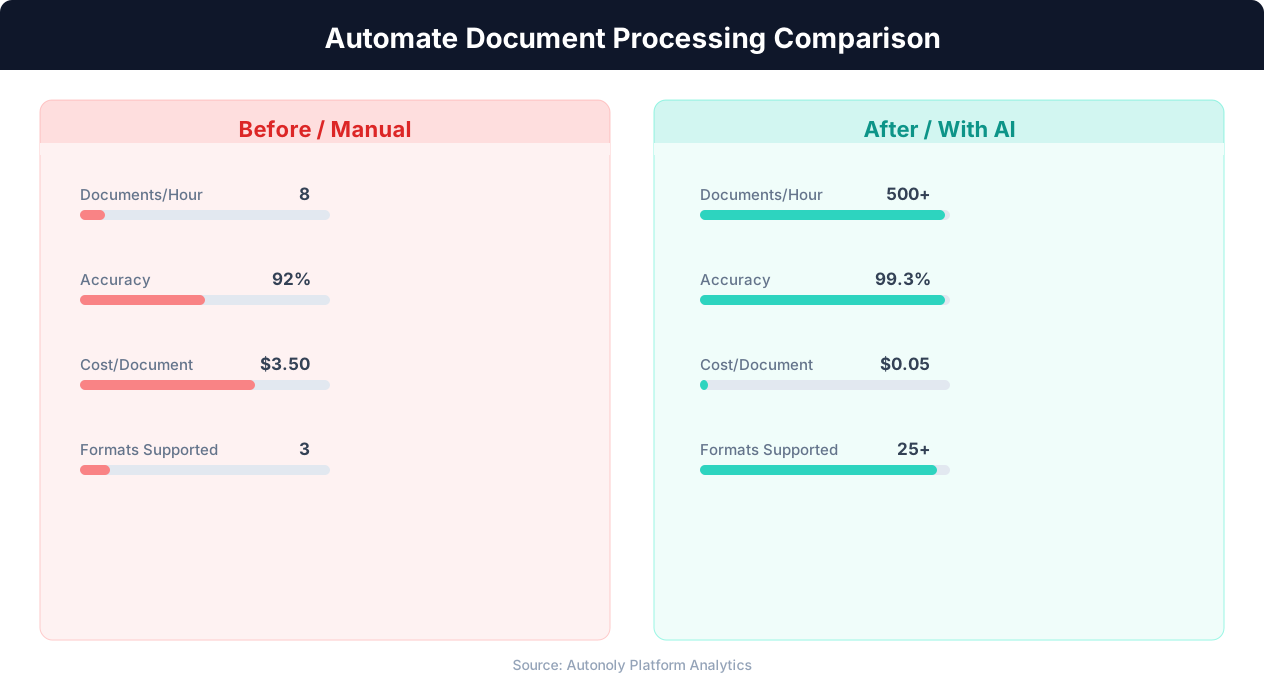
Accuracy comparison between manual and AI document processing
Key Insight: Knowledge workers spend 2.5 hours per day searching for and managing documents. Automation reduces this to under 30 minutes (IDC Research).
Each extracted table is placed in a separate tab within the output Excel file, named by page number and table position (e.g., "Page 3 - Table 1"). You can customize the output through the Visual Workflow Builder:
Column type enforcement: Force specific columns to numeric, date, or text format
Header row selection: Specify how many rows constitute the header
Filtering: Extract only tables that match certain criteria — minimum number of columns, presence of specific header names, or data that contains certain keywords
Merging: Combine tables from multiple PDFs into a single master spreadsheet for cross-document analysis
Naming: Custom tab naming rules based on table headers or page titles
Add a Data Processing step to clean the extracted data — remove footnote markers from cells, standardize number formats (converting "$1,234.56" to a numeric value), or fill in values from merged cells that span multiple rows. Use Logic & Flow to route extracted tables based on content — financial tables to one sheet, statistical tables to another. For research workflows, add a step that normalizes column names across papers that use different terminology for the same metrics.
What Data You Get
The output spreadsheet preserves the full structure of each source table: column headers, row labels, cell values with correct data types, and table metadata (source PDF name, page number, table position). A summary tab lists all extracted tables with row counts, column counts, and header names for quick navigation. For large extraction jobs, a processing log records which PDFs were processed, how many tables were found in each, and any tables that could not be extracted cleanly. A confidence score accompanies each extracted table, helping you prioritize which outputs to verify manually.
Integration with Analysis Workflows
Feed the extracted tables into downstream analysis:
Push to Google Sheets for collaborative review and pivot table analysis
Chain with the PDF report generation workflow to produce new reports from extracted data
Use SSH & Terminal to load extracted data directly into a database for SQL analysis
Feed into Data Processing pipelines that merge extracted data with your internal datasets
Browse the templates library for pre-built extraction workflows for common document types like SEC filings, academic papers, and financial reports. Use Gmail to automatically receive extracted spreadsheets as email attachments for stakeholders who prefer email delivery.
Scheduling and Execution
This task runs as a one-time operation by default — upload your PDFs and get spreadsheets back. For recurring needs (e.g., extracting tables from monthly regulatory filings), schedule the workflow on a daily or weekly cadence using cron-style scheduling. The agent uses differential processing to scan your designated Drive folder for new PDFs, process each file once, and archive it after extraction. Processed files are moved to a "Completed" subfolder so you always know which documents have been handled.
Each run produces a summary of files processed, tables extracted, and any documents that require manual review, delivered via Slack notification. The notification includes total tables extracted and total rows across all tables, giving you a quick sense of the data volume produced. For teams processing large document sets on a recurring schedule, the cumulative extraction log becomes a valuable index of all tabular data extracted from your document library. See pricing for document volume and processing limits per plan.
Further Reading
Explore more about the tools and techniques used in this workflow: Automate Data Entry, No Code Automation Guide, Pdf Ocr.