Who This Guide Is For (And Who It Is Not For)
This guide is written for people who have never automated anything before and do not consider themselves technical. If you are a marketing manager, sales rep, HR coordinator, operations specialist, office manager, or any other professional who spends too much time on repetitive computer tasks — this is for you.
This guide is not for developers. If you can write Python scripts, you have different and faster options available. This guide assumes zero programming knowledge and explains everything in plain language.
💡 Key Insight
A 2025 survey by HubSpot found that 76% of non-technical professionals believe their repetitive tasks could be automated, but only 14% have actually automated anything. The gap is not capability — modern tools make it genuinely easy. The gap is knowledge: people do not know where to start. This guide closes that gap.
What You Will Be Able to Do After Reading This Guide
- Identify which of your tasks are automation candidates (and which are not)
- Choose the right automation tool for your skill level and budget
- Build your first automation from scratch in under 10 minutes
- Avoid the five mistakes that cause most first-time automators to give up
- Scale from one automation to a system that saves 10-20 hours per week
The Roles That Benefit Most
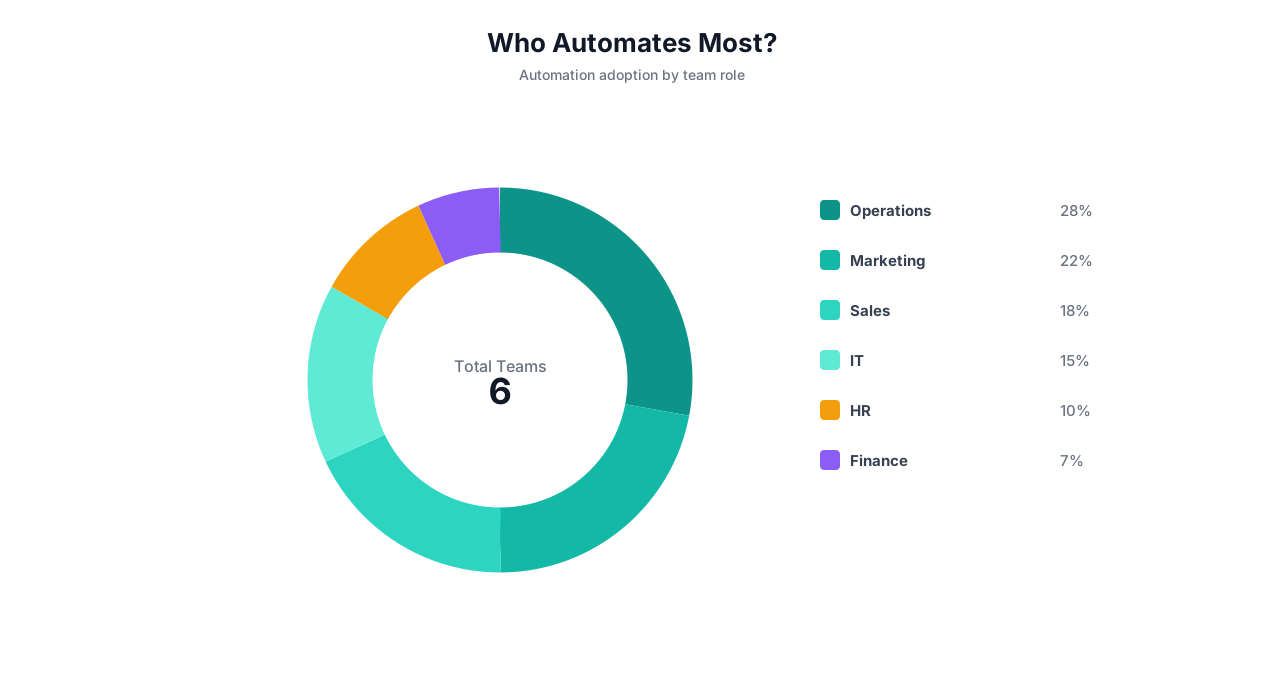
Automation saves time for everyone, but some roles see dramatically higher returns because their work involves more repetitive patterns:
| Role | Top Automatable Tasks | Typical Hours Saved/Week |
|---|---|---|
| Marketing Manager | Reporting, content distribution, competitor monitoring | 8-15 hours |
| Sales Representative | Lead research, CRM updates, follow-up emails | 8-12 hours |
| Operations Coordinator | Data entry, system syncing, status tracking | 10-18 hours |
| HR Coordinator | Job posting, screening, onboarding tasks | 8-15 hours |
| Accounts Payable Clerk | Invoice processing, expense coding, reconciliation | 12-20 hours |
| Executive Assistant | Scheduling, travel booking, report compilation | 6-12 hours |
| Customer Support Lead | Ticket routing, FAQ responses, status updates | 5-10 hours |
| Real Estate Agent | Listing monitoring, lead follow-up, document prep | 8-14 hours |
If your role appears in this table, automation can meaningfully change your work life. But even if it does not, any repetitive task that follows a pattern — go to this website, copy this data, paste it here, repeat — can be automated.
The Automation Mindset Shift: Think Like a Delegator, Not a Doer
The biggest barrier to automation is not technology. It is mindset. Most people think about their work as a sequence of actions they perform: "I go to this website, I copy the data, I paste it in the spreadsheet, I format it, I send the email." Automation requires a different perspective: thinking about what needs to happen rather than how you do it.
The Delegation Analogy
Imagine you hired a new assistant. You would not say, "Move your mouse to coordinates 450,320 on the screen, click the left button, wait 2 seconds, then move to coordinates 200,150." You would say, "Go to the competitor's website, grab their pricing, and put it in our tracking spreadsheet."
Automating with AI works exactly the same way. You describe the outcome, not the process. The AI figures out the process.
📊 By the Numbers
Users who adopt the "delegation mindset" — describing outcomes rather than steps — build successful automations 3.4x faster than users who try to specify every click and keystroke. The AI agent is your assistant, not a remote-controlled mouse.
Three Questions to Identify Automatable Tasks
Not every task should be automated. Here is a simple test. For each repetitive task you do, ask:
1. Does it follow the same pattern every time? If you do roughly the same steps in the same order each time (even if the specific data changes), it is automatable. If every instance requires genuinely different judgment, it probably is not.
2. Does it involve a computer? Automation handles digital tasks — things you do on websites, in apps, with spreadsheets, email, and documents. If the task involves physical actions (sorting mail, organizing shelves), it is not a candidate for digital automation.
3. Do you do it more than twice a week? There is a setup cost for every automation (typically 5-10 minutes). If a task happens only once a month and takes 5 minutes, the automation is not worth it. If it happens daily and takes 30 minutes each time, the ROI is enormous.
| Task | Same Pattern? | Digital? | Frequent? | Automate? |
|---|---|---|---|---|
| Copy data from emails to spreadsheet | Yes | Yes | Daily | Absolutely |
| Write personalized sales strategy | No (unique each time) | Yes | Weekly | Not yet |
| Post job to 5 job boards | Yes | Yes | 3x/week | Yes |
| Negotiate with vendor | No (judgment-heavy) | Partially | Monthly | No |
| Update CRM after calls | Yes | Yes | 10x/day | Absolutely |
| Organize physical office supplies | Yes | No | Weekly | Not digital |
The Automation Spectrum
Tasks do not have to be fully automated or not automated at all. There is a spectrum:
- Full automation: No human involvement. Data entry, report generation, data syncing.
- Assisted automation: AI does 90% of the work, human reviews and approves. Invoice processing, email drafting, lead qualification.
- Triggered automation: Human starts the process, AI handles the execution. Multi-platform posting, data enrichment, document assembly.
Start with full automation for low-risk tasks (data sync, monitoring). Use assisted automation for medium-risk tasks (financial data, customer communications). Keep human-only processes for high-judgment tasks (hiring decisions, contract negotiations).
10 Tasks Non-Technical Teams Automate First (With Exact Setup Instructions)
These ten tasks are the most common first automations for non-technical users, ordered by ease of setup. Each one can be configured in under 10 minutes.
1. Website Monitoring With Alerts
What it does: Checks specified websites on a schedule and alerts you when something changes (prices, availability, content updates).
Who uses it: Marketing teams (competitor monitoring), e-commerce (price tracking), real estate agents (listing monitoring), anyone tracking external data.
How to set it up: Tell the AI agent: "Check [URL] every [morning/hour/day] and send me a [Slack message/email] if [the price changes / new content appears / the status changes]."
2. Data Extraction From Websites to Spreadsheets
What it does: Visits websites, extracts specific data (prices, names, descriptions, contact info), and puts it in a Google Sheet or Excel file.
Who uses it: Sales (lead lists), marketing (competitor data), operations (vendor pricing), research (data collection).
How to set it up: Tell the AI agent: "Go to [URL], extract [data fields], and put them in [Google Sheet link] in columns [A, B, C]." For a detailed walkthrough, see how to scrape any website to Google Sheets.
3. Email Data Extraction
What it does: Monitors an inbox for specific types of emails, extracts data from the body or attachments, and routes it to the right destination.
Who uses it: Finance (invoice extraction), operations (order confirmations), HR (application tracking).
How to set it up: Tell the AI agent: "Watch [email address] for emails from [sender/with subject line]. Extract [invoice number, amount, date] and add to [spreadsheet/system]."
4. Multi-Platform Content Posting
What it does: Takes content you have created and posts it across multiple platforms — LinkedIn, Twitter, Facebook, email newsletter — adapting the format for each platform.
Who uses it: Marketing teams, social media managers, content creators.
How to set it up: Tell the AI agent: "When I add a new row to [Google Sheet] with a post title, body, and image link, post it to [LinkedIn, Twitter, Facebook] with appropriate formatting for each platform."
5. Report Generation From Multiple Sources
What it does: Pulls data from multiple tools/websites, combines it into a formatted report, and delivers it on schedule.
Who uses it: Everyone. Marketing reports, sales dashboards, financial summaries, operations status reports.
How to set it up: Tell the AI agent: "Every [Friday at 9 AM], pull [specific metrics] from [tools/websites], compile into [a Google Sheet/email/PDF], and send to [recipients]." See the automated email reports guide for detailed instructions.
6. CRM Data Entry and Updates
What it does: Automatically creates and updates CRM records based on triggers — new form submissions, email replies, deal stage changes.
Who uses it: Sales teams, customer success, business development.
How to set it up: Tell the AI agent: "When [trigger event] happens, create/update a [CRM] record with [these fields]."
7. Form Filling on Web Portals
What it does: Reads data from a spreadsheet and fills out forms on websites — government portals, vendor systems, industry databases.
Who uses it: Operations, compliance, HR, insurance agents. See the form filling from spreadsheets guide.
How to set it up: Tell the AI agent: "Read each row from [spreadsheet], go to [website], fill out the [form name] form with the data, submit, and log the confirmation number back in the sheet."
8. Invoice and PDF Processing
What it does: Extracts data from PDF invoices, receipts, and documents and enters it into your accounting system or spreadsheet.
Who uses it: Finance, accounts payable, operations. See the invoice processing guide.
How to set it up: Tell the AI agent: "When a new PDF arrives in [inbox/folder], extract [invoice number, vendor, line items, total] and add to [accounting system/spreadsheet]."
9. Lead Enrichment
What it does: Takes basic lead info (name, email, company) and enriches it with additional data from LinkedIn, company websites, and data providers.
Who uses it: Sales, marketing, business development. See the lead generation automation guide.
How to set it up: Tell the AI agent: "For each new lead in [CRM/spreadsheet], look up their LinkedIn profile and company website. Add their title, company size, industry, and LinkedIn URL to the lead record."
10. Cross-Platform Data Synchronization
What it does: Keeps data consistent across multiple tools — when a record updates in one system, all other systems update automatically.
Who uses it: Operations, IT, anyone managing data across multiple tools.
How to set it up: Tell the AI agent: "When a contact's [field] changes in [System A], update the same contact in [System B] and [System C] with the new value."
💡 Key Insight
The most important automation is the first one. Once you see a task you used to spend 30 minutes on happen automatically in 2 minutes, your perspective on every repetitive task changes permanently. Start with whichever task from this list annoys you most.
Tool Comparison for Non-Engineers: Choosing the Right Automation Platform
Choosing an automation tool can feel overwhelming. There are dozens of options, each with different pricing, capabilities, and learning curves. This comparison focuses on what matters for non-technical users: ease of use, the ability to automate without coding, and how quickly you can get started.
| Platform | Ease of Use (1-10) | True No-Code? | Works Without APIs? | Starting Price | Best For |
|---|---|---|---|---|---|
| Zapier | 8/10 | Mostly (JS needed for advanced) | No | Free / $29.99/mo | Simple app-to-app triggers |
| Make (Integromat) | 6/10 | Mostly (complex UI) | No | Free / $10.59/mo | Complex multi-step workflows |
| n8n | 4/10 | No (code often needed) | Limited | Free (self-hosted) | Technical teams wanting control |
| IFTTT | 9/10 | Yes | No | Free / $3.49/mo | Simple personal automations |
| Power Automate | 5/10 | Mostly | Limited (desktop flows) | $15/user/mo | Microsoft-heavy organizations |
| Autonoly | 9/10 | Yes (AI builds it for you) | Yes (browser automation) | Free / $49/mo | Any task, especially without APIs |
How to Choose
If your tasks involve only popular apps with Zapier integrations (Gmail, Google Sheets, Slack, Salesforce, HubSpot), Zapier is a solid choice. Simple trigger-action workflows are easy to set up. Read our full Zapier comparison for details.
If your tasks involve websites without integrations (government portals, competitor websites, legacy systems, niche industry tools), you need a platform with browser automation. Traditional no-code tools cannot help here. Autonoly uses AI agents that interact with any website through a real browser.
If you use mostly Microsoft tools (Outlook, Excel, SharePoint, Teams), Power Automate has the deepest native integration. But its learning curve is steep for non-technical users.
If you want the easiest possible experience, AI-powered platforms eliminate the builder entirely. Instead of dragging and connecting nodes, you describe what you want in English and the AI builds the workflow. The AI workflow builder guide covers this approach in depth.
⚠️ Important Note
Price is not the most important factor. A free tool that takes you 2 hours to set up costs more in your time than a $49/month tool that sets up in 5 minutes. Calculate the total cost including your time, not just the subscription price. At $50/hour, every hour you spend fighting a difficult tool costs more than a month of most platform subscriptions.
The One Factor That Matters Most
For non-technical users, the single most important factor is: How quickly can you go from idea to working automation?
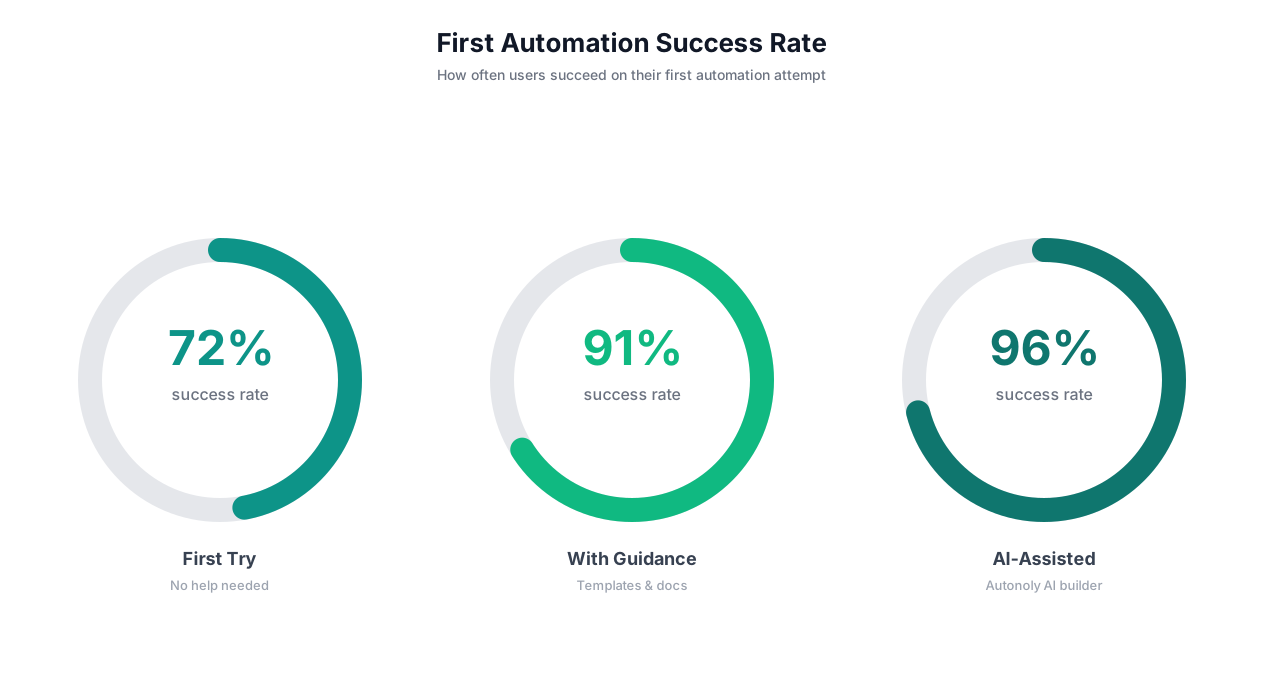
Time-to-first-automation by platform (for non-technical users):
| Platform | Time to First Working Automation | Success Rate (First Attempt) |
|---|---|---|
| IFTTT | 5-10 minutes | 85% |
| Zapier | 15-30 minutes | 72% |
| Autonoly | 3-5 minutes | 89% |
| Make | 30-60 minutes | 54% |
| Power Automate | 45-90 minutes | 41% |
| n8n | 1-3 hours | 28% |
The success rate column tells the real story. Nearly half of non-technical users fail on their first attempt with complex visual builders. AI-powered platforms that accept natural language descriptions have the highest success rates because they do not require users to learn a new interface.
Step-by-Step: Build Your First Automation Right Now (10-Minute Walkthrough)
Stop reading and start doing. This walkthrough takes you from zero to a working automation in 10 minutes. We will build the most universally useful automation: extracting data from a website into a Google Sheet.
What You Will Build
A workflow that visits a website of your choice, extracts specific data, and puts it into a Google Sheet. This can be competitor prices, job listings, news headlines, real estate listings, product reviews — any structured data from any website.
Minute 1-2: Choose Your Target
Pick a website with data you regularly copy manually. Good choices:
- A competitor's pricing page
- A job board with listings in your industry
- A news site with articles relevant to your work
- An e-commerce site with products you track
Open the website and identify the specific data you want: product names, prices, dates, descriptions, URLs, etc.
Minute 3-4: Write Your Description
Open the AI agent chat and write a clear description. Use this format:
"Go to [URL]. Extract [specific data fields]. Put them in [my Google Sheet / new spreadsheet]. [Do this once / every morning / every hour]."
Example: "Go to news.ycombinator.com. Extract the title, URL, score, and number of comments for the top 30 stories. Put them in a new Google Sheet with columns for Title, URL, Score, and Comments. Do this every weekday morning at 8 AM."
Minute 5-6: Review the Workflow
The AI agent shows you the workflow it created. Read through each step:
- Navigate to the target URL
- Identify and extract the specified data fields
- Format data into the specified columns
- Write to Google Sheet
- Schedule for the specified frequency
If anything looks wrong, tell the agent: "Change the schedule to 7 AM" or "Also extract the submission time."
Minute 7-8: Run the Test
Click "Run Now" and watch through the live browser view. You will see the agent:
- Open a browser and navigate to your target site
- Scan the page and identify the data you requested
- Extract each data point
- Create or populate your Google Sheet
When it finishes, open your Google Sheet and verify the data looks correct.
Minute 9-10: Deploy
If the test data looks good, confirm the schedule. Your automation is now live. It will run automatically at the specified time, and you will never need to manually copy this data again.
💡 Key Insight
You just built your first automation. If this task previously took you 15 minutes per day, you will save approximately 65 hours this year — over 8 full workdays — from a single 10-minute setup. Now imagine automating 5-10 more tasks like this.
Troubleshooting Common First-Run Issues
| Issue | Likely Cause | Fix |
|---|---|---|
| Data is incomplete or wrong fields | Description was too vague | Be more specific: "extract the price shown in bold next to each product name" |
| Agent cannot find data on page | Data loads dynamically (JavaScript) | AI agents handle dynamic pages — specify "wait for the page to fully load" |
| Google Sheet is not updating | Sheet permissions issue | Ensure the sheet is not restricted to view-only |
| Wrong number of rows extracted | Page has pagination | Specify: "extract from all pages, not just the first page" |
5 Common Mistakes That Kill First-Time Automations (And How to Avoid Them)
Most people who give up on automation do so because of one of these five mistakes. All are easily avoidable.
Mistake 1: Starting Too Complex
The mistake: Your first automation is a 15-step workflow that spans 6 tools, includes conditional logic, and has three different output destinations.
Why it fails: Complex workflows have more points of failure. When something goes wrong (and it will on the first try), you cannot tell which step caused the problem. You get frustrated, assume automation is unreliable, and go back to manual work.
The fix: Start with a 2-3 step workflow. Website to spreadsheet. Email to spreadsheet. Spreadsheet to notification. Once that works reliably, add steps one at a time.
⚠️ Important Note
The number one predictor of automation success is starting simple. Users who begin with a 2-3 step automation have an 89% success rate. Users who begin with a 10+ step automation have a 34% success rate. Build confidence with easy wins, then tackle complex workflows.
Mistake 2: Vague Descriptions
The mistake: "Automate my marketing reporting." "Keep our data in sync." "Monitor competitors."
Why it fails: The AI agent (or any automation tool) needs specifics. Which marketing report? What data? Which competitors? What metrics? Vague instructions produce vague results.
The fix: Always specify three things: the source (where data comes from), the action (what to do with it), and the destination (where results go).
| Vague (Will Fail) | Specific (Will Work) |
|---|---|
| "Monitor competitors" | "Every Monday, extract plan names and prices from competitor.com/pricing and add to Sheet row" |
| "Automate invoices" | "Extract invoice number, vendor, and total from PDF attachments in [email protected] and add to 'Invoices' Sheet" |
| "Sync our CRM" | "When a contact's email changes in HubSpot, update the same contact's email in Mailchimp and Intercom" |
| "Help with social media" | "When I add a row to 'Social Posts' Sheet, post the Title column as a LinkedIn post and Body column as a tweet" |
Mistake 3: Not Testing Before Deploying
The mistake: Setting up an automation and immediately scheduling it to run unsupervised without ever running a test.
Why it fails: First runs almost always need minor adjustments. If you deploy untested, the automation runs at 2 AM, produces incorrect results, and you do not find out until the next morning — with wrong data already sent to clients or entered into systems.
The fix: Always run at least one test execution and verify the output before scheduling. Use the live browser view to watch the first execution in real time.
Mistake 4: Automating the Wrong Tasks
The mistake: Automating a task that does not actually follow a consistent pattern, or automating a task that takes 2 minutes and happens once a month.
Why it fails: Tasks that require different judgment each time will produce inconsistent results. Tasks that barely consume time produce negligible ROI — and the automation's occasional errors cost more than the manual time saved.
The fix: Use the three-question test from the Automation Mindset section. Prioritize tasks that are repetitive, digital, and frequent. Focus on tasks that consume at least 1 hour per week.
Mistake 5: Not Iterating
The mistake: The first test produces 85% accurate results. You declare automation unreliable and go back to manual work.
Why it fails: Every automation benefits from refinement. The first test is almost never perfect — but it is usually 80-90% right. Two minutes of feedback to the AI agent ("the price field was wrong — it should extract the number next to the dollar sign, not the old price in strikethrough") brings accuracy to 95-99%.
The fix: Give the AI agent specific feedback after the first test. Describe exactly what was wrong and what the correct result looks like. Most automations need 1-2 rounds of refinement to reach production quality.
Scaling From 1 to 100 Automations: The Growth Playbook
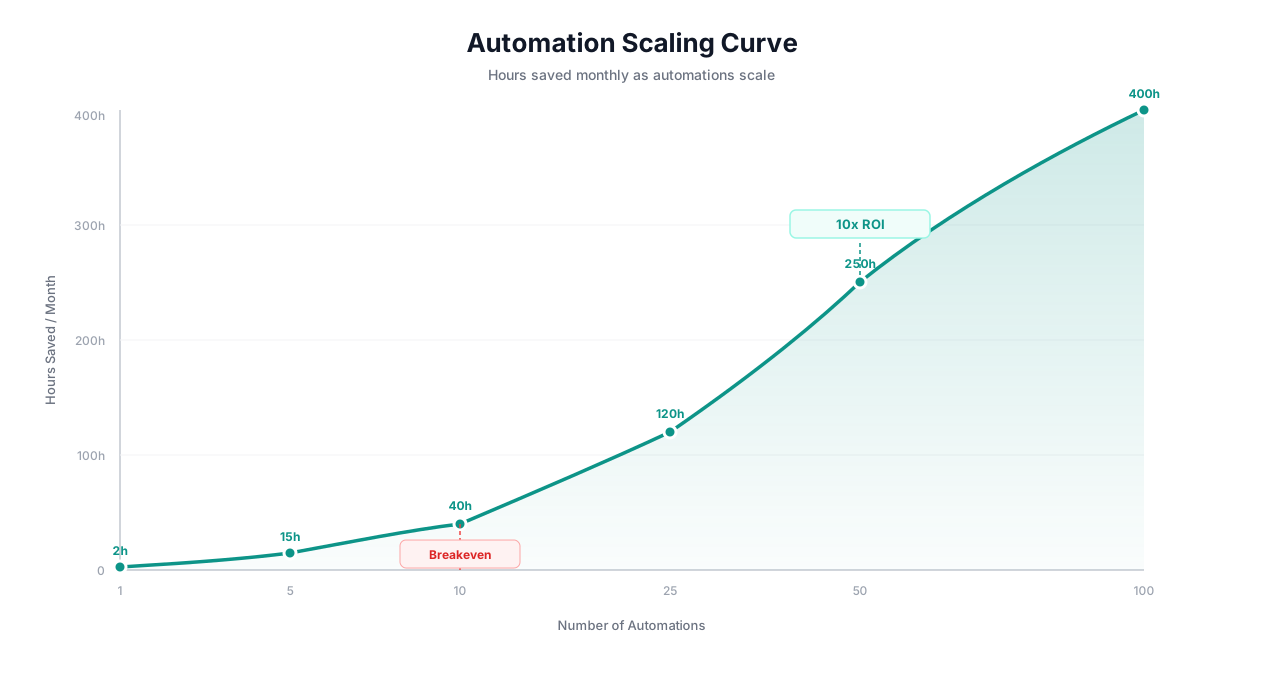
Your first automation saves you 30 minutes a day. Great. But the real transformation happens when you scale to 10, 20, 50+ automations that collectively reshape how your entire team works. Here is the playbook.
Phase 1: Individual Quick Wins (Automations 1-5)
Timeline: Week 1-2
Focus: Your own tasks. Automate the 5 most repetitive things you personally do each week. Do not worry about team-wide adoption yet — prove the value to yourself first.
Target savings: 5-10 hours per week
What to automate: Data extraction, monitoring/alerts, email processing, report generation, form filling.
Phase 2: Team Adoption (Automations 6-20)
Timeline: Week 3-6
Focus: Share your results with teammates. Show them specific before/after comparisons: "This report used to take me 2 hours. Now it takes 3 minutes." Help each teammate set up 2-3 automations of their own.
Target savings: 20-50 hours per week (across team)
Key action: Designate an "automation champion" — someone on the team (maybe you) who helps others identify and set up automations.
📊 By the Numbers
Teams with a designated automation champion deploy 4.2x more automations in the first 90 days than teams without one. The champion does not need to be technical — they just need to be the person who answers "can you show me how you set that up?" questions.
Phase 3: Process Automation (Automations 21-50)
Timeline: Month 2-3
Focus: Move from individual tasks to end-to-end processes. Instead of automating isolated steps, connect entire workflows: lead comes in -> gets researched -> gets qualified -> gets added to CRM -> rep gets notified -> follow-up email drafts -> meeting scheduled.
Target savings: 50-100 hours per week (across team)
Key action: Map out your team's core processes end-to-end. Identify which steps are already automated and which gaps remain. Build automations to fill the gaps.
Phase 4: Cross-Team Orchestration (Automations 51-100+)
Timeline: Month 3-6
Focus: Connect automations across departments. Sales automations trigger marketing automations. Customer success automations trigger engineering alerts. Finance automations pull data from every department.
Target savings: 100-200+ hours per week (across organization)
Key action: Present the cumulative ROI to leadership. At this scale, automation is saving the equivalent of 3-5 full-time employees. This is no longer a productivity hack — it is an operational transformation.
| Phase | Automations | Scope | Weekly Hours Saved | Monthly Value (at $50/hr) |
|---|---|---|---|---|
| 1. Quick wins | 1-5 | Just you | 5-10 hrs | $1,000-2,000 |
| 2. Team adoption | 6-20 | Your team | 20-50 hrs | $4,000-10,000 |
| 3. Process automation | 21-50 | End-to-end processes | 50-100 hrs | $10,000-20,000 |
| 4. Cross-team | 51-100+ | Entire organization | 100-200+ hrs | $20,000-40,000+ |
How to Track What You Have Automated
As you scale, keep a simple tracking spreadsheet:
| Column | What to Track |
|---|---|
| Automation name | Clear description (e.g., "Daily competitor price check") |
| Owner | Person who set it up and monitors it |
| Frequency | How often it runs (daily, hourly, on trigger) |
| Hours saved/week | Estimated time savings |
| Status | Active, paused, or needs attention |
| Last reviewed | When someone last verified it is working correctly |
Review this list monthly. Pause automations that are no longer needed. Update ones that have drifted. Celebrate the total hours saved — it is a number that only goes up.
Frequently Asked Questions
Answers to the most common questions from non-technical users starting with automation.
I am not technical at all. Can I really automate tasks without coding?
Yes, genuinely. AI-powered automation platforms accept plain English descriptions. If you can write an email explaining what you need, you can set up an automation. The AI handles all the technical details — connecting to websites, extracting data, handling errors. You just describe the what, not the how.
What if I break something?
Automations run in isolated environments. They cannot break your existing tools or corrupt your data. The worst case is that an automation produces wrong output (which you catch during testing) or fails to run (which triggers an alert). Start with low-risk tasks like data monitoring, and add write operations (posting, updating records) only after you are comfortable.
How much does this cost?
Most platforms offer free tiers. Paid plans start at $10-49/month. If an automation saves you just 1 hour per week, that is worth $200-250/month in your time (at $50-65/hour). A $49/month tool that saves you 5 hours per week delivers $1,000+/month in value. The ROI is typically 1,000%+ in the first month. See our platform comparison for detailed pricing.
What happens when the website I am automating changes its layout?
This is the key advantage of AI-powered automation over traditional scripting. AI agents understand the structure and meaning of web pages, not just pixel positions. When a website redesigns, the AI agent recognizes the new layout and adapts. Traditional scripts break; AI agents self-heal.
Can I automate tasks on websites that require me to log in?
Yes. AI agents can handle authenticated sessions — logging in, maintaining sessions, and navigating member-only content. Your credentials are stored securely and used only for the workflows you authorize.
What is the best first automation for someone who has never automated anything?
Start with website monitoring. Pick a website you check manually every day (competitor pricing, job boards, news site) and set up an automation to check it for you and send alerts when something changes. It is low-risk, immediately useful, and proves the concept. Then move to data extraction, then to more complex workflows.