Why Automate Form Filling From Spreadsheets?
Every organization that relies on web-based systems encounters the same bottleneck: transferring data from spreadsheets into web forms. Whether it is entering employee records into an HR portal, submitting product listings to an e-commerce platform, filing regulatory reports, or updating CRM records, the process is fundamentally the same — a human reads a row from a spreadsheet and manually types each value into the corresponding field on a website. This manual process is slow, error-prone, and demoralizing for the people assigned to do it.
The Scale of the Problem
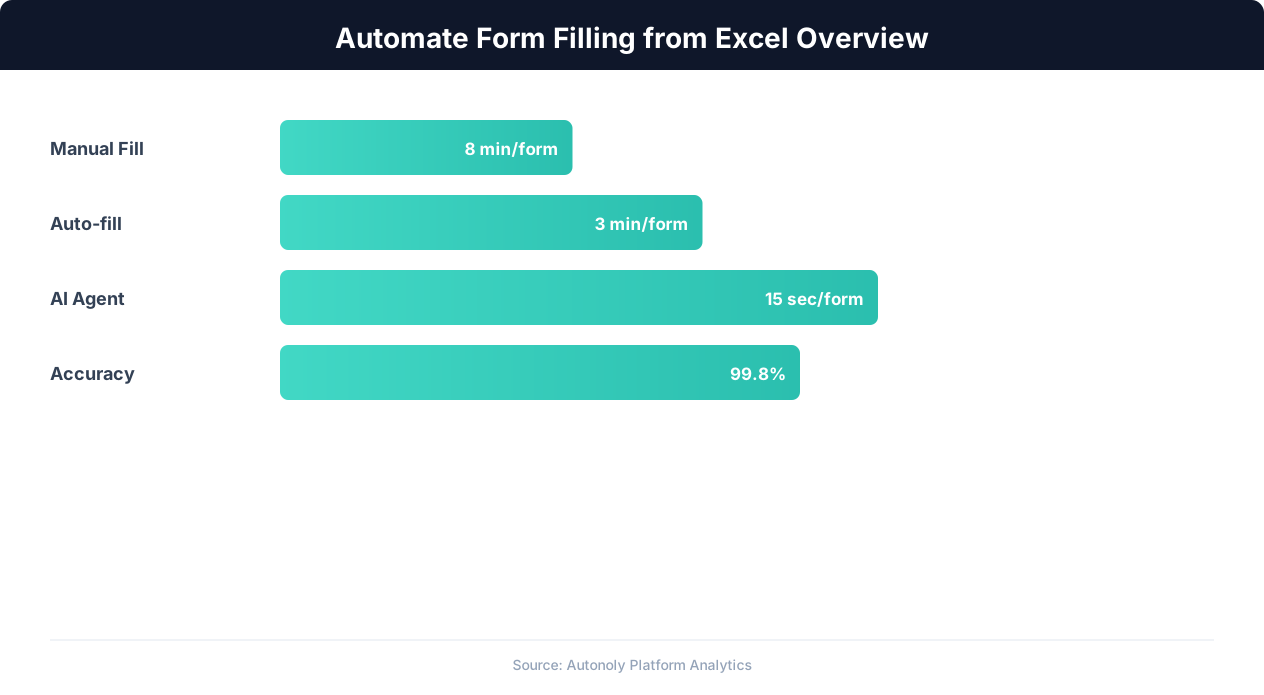
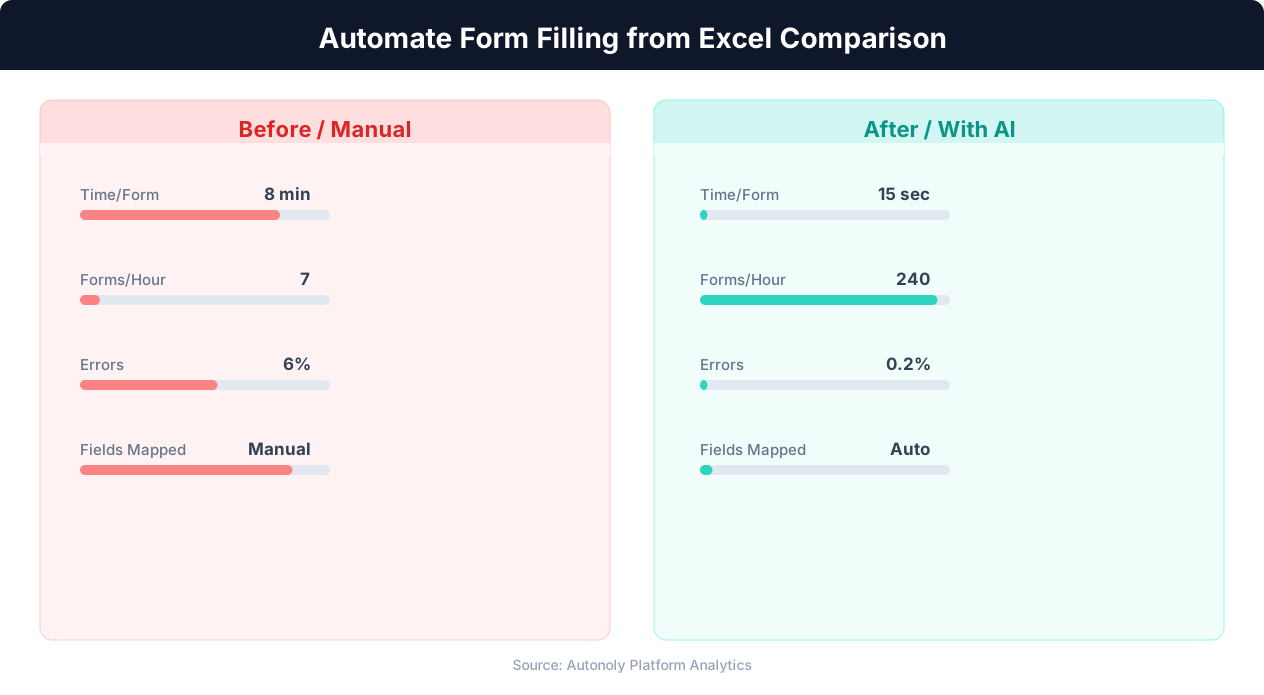
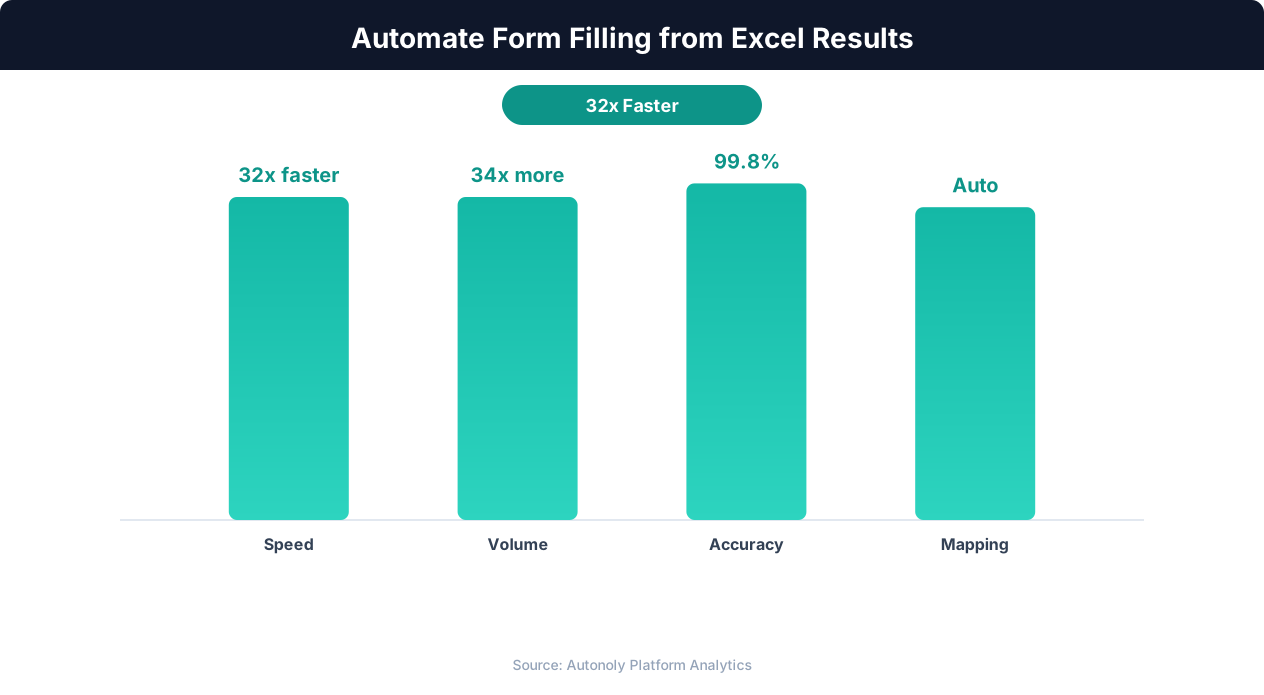
Consider the numbers. A data entry specialist can typically fill one web form in 2-5 minutes depending on complexity. For 500 records, that is 17-42 hours of focused, repetitive work. At average labor costs, this represents hundreds of dollars spent on a task that adds zero strategic value. Worse, manual data entry has an error rate of approximately 1-3% per field, which means a 500-record batch with 10 fields per form will contain 50-150 errors that need to be found and corrected.
Automation eliminates both problems. An automated form-filling workflow processes each row in 10-30 seconds (depending on page load times and form complexity), reducing a 40-hour task to under 4 hours. And because the automation reads data directly from the spreadsheet without manual transcription, the error rate drops to near zero — the only errors are those that already exist in the source data.
Common Use Cases
Form-filling automation applies across virtually every industry and department:
- HR and payroll: Entering new employee records, updating benefits selections, filing compliance reports across multiple state portals
- E-commerce: Creating product listings on marketplaces, updating inventory counts, submitting catalog data to distributor portals
- Finance: Filing tax forms, submitting insurance claims, entering invoice data into accounts payable systems
- Healthcare: Registering patients across multiple systems, submitting prior authorization requests, filing lab results
- Real estate: Listing properties on MLS systems, submitting rental applications, filing property management reports
- Government and compliance: Filing regulatory reports, submitting permit applications, entering environmental monitoring data
In each case, the pattern is identical: structured data in a spreadsheet needs to reach a web form. The only variable is the complexity of the form and the volume of submissions. Tools like Autonoly's form automation are purpose-built to handle this exact workflow.
How Spreadsheet-to-Form Automation Works
Form-filling automation connects two endpoints: a data source (your spreadsheet) and a data destination (the web form). Between these endpoints, the automation tool handles reading, mapping, navigation, input, validation, and error handling. Understanding each step helps you design reliable workflows that handle real-world complexity.
The Automation Pipeline
A typical form-filling workflow follows this sequence:
- Read source data: The workflow reads your Excel file or Google Sheet, parsing each row into a structured record with named fields (columns).
- Navigate to the form: A browser automation tool opens the target website, logs in if required, and navigates to the form page.
- Map fields: Each column in your spreadsheet maps to a corresponding field on the web form. The mapping defines which spreadsheet value goes into which form input.
- Fill and submit: For each row, the automation enters the mapped values into the form fields, handles any special input types (dropdowns, checkboxes, date pickers, file uploads), and clicks the submit button.
- Capture confirmation: After submission, the automation captures the confirmation message, reference number, or success indicator and logs it alongside the source row.
- Repeat: The workflow moves to the next row and repeats the fill-submit-confirm cycle until all rows are processed.
Reading From Excel vs. Google Sheets
Both Excel files and Google Sheets work as data sources, but they connect differently:
| Feature | Excel (.xlsx) | Google Sheets |
|---|---|---|
| Connection method | File upload or local path | Google account OAuth |
| Real-time updates | Requires re-upload | Reads live data |
| Collaboration | Single user at a time | Multiple simultaneous editors |
| Row limit | 1,048,576 rows | 10,000,000 cells |
| Automation trigger | Manual or scheduled | On-change or scheduled |
Google Sheets is generally preferred for form-filling automation because the workflow can read live data without file transfers. When a team member adds new rows to the shared Google Sheet, the next scheduled workflow run automatically picks them up. Autonoly's Google Sheets integration handles the connection natively.
Field Mapping
Field mapping is the core of form-filling automation. Each column header in your spreadsheet corresponds to a field on the web form. Simple text fields are straightforward — the automation types the cell value into the input. But web forms contain many input types that require different handling:
- Text inputs: Direct text entry. Clear any existing value before typing to avoid concatenation with placeholder text.
- Dropdown menus: The automation must click the dropdown, search or scroll to the matching option, and select it. The spreadsheet value must match the dropdown option text exactly.
- Date pickers: Some date pickers accept typed input; others require clicking through a calendar widget. The automation must handle whichever method the specific form uses.
- Checkboxes and radio buttons: Map to boolean values (true/false, yes/no) in the spreadsheet. The automation clicks the appropriate option based on the cell value.
- File uploads: The automation must locate the file on disk or download it from a URL and attach it to the file input field.
Step-by-Step: Building a Form-Filling Workflow with Autonoly
Here is a complete walkthrough for creating an automated form-filling workflow that reads data from a Google Sheet and submits it to a web form. This example uses a job application portal, but the same approach works for any web form.
Step 1: Prepare Your Spreadsheet
Structure your Google Sheet with one column per form field and one row per submission. Use clear column headers that describe each field. For a job application form, your sheet might have columns: First Name, Last Name, Email, Phone, Position, Start Date, Resume URL.
Data quality at this stage is critical. Ensure phone numbers follow a consistent format, dates use the format the form expects (MM/DD/YYYY vs. YYYY-MM-DD), and dropdown values match the exact options available on the form. Mismatched values cause submission failures.
Step 2: Create the Workflow
In Autonoly, create a new workflow and open the AI Agent panel. Describe your automation goal:
"Read rows from my Google Sheet 'Job Applications' and for each row, go to https://careers.example.com/apply, fill in the application form with the data from each row, and submit it. Track the confirmation number for each submission."
The agent connects to your Google Sheet, reads the column headers to understand your data structure, and navigates to the target form to analyze its fields.
Step 3: Map Fields
The agent automatically maps spreadsheet columns to form fields based on matching names and data types. It presents the proposed mapping for your review:
- "First Name" (Sheet) → "First Name" (Form input)
- "Last Name" (Sheet) → "Last Name" (Form input)
- "Email" (Sheet) → "Email Address" (Form input)
- "Phone" (Sheet) → "Phone Number" (Form input)
- "Position" (Sheet) → "Position Applied For" (Dropdown)
- "Start Date" (Sheet) → "Available Start Date" (Date picker)
Review and adjust any mappings the agent did not match correctly. For dropdown fields, the agent shows you the available options so you can verify your spreadsheet values match.
Step 4: Test With One Row
Before running the full batch, test with a single row. The agent fills the form using the first row of your spreadsheet and pauses before submitting so you can verify every field is filled correctly. Check for:
- Text truncation (form field too short for your data)
- Format mismatches (phone number or date format rejected)
- Dropdown mismatches (spreadsheet value does not match any option)
- Required fields that are empty in your spreadsheet
Fix any issues in your spreadsheet or field mapping before proceeding.
Step 5: Run the Full Batch
Once the single-row test succeeds, run the full batch. The agent processes each row sequentially, filling the form, submitting, capturing the confirmation, and navigating back to the empty form for the next submission. Progress is tracked in real time through the agent panel.
Step 6: Review Results
After the batch completes, the agent writes results back to your Google Sheet — adding columns for submission status (Success/Failed), confirmation number, and any error messages. This gives you a complete audit trail of every submission and makes it easy to identify and retry failed rows.
Step 7: Schedule Recurring Runs
For ongoing data entry needs (new employees, new product listings, new applications), schedule the workflow to run daily or weekly. The workflow automatically processes any new rows added since the last run, using a status column to track which rows have been submitted.
Handling Complex Form Types
Real-world web forms are rarely simple. Multi-step wizards, dynamic fields, CAPTCHA challenges, conditional logic, and authentication requirements all add complexity that a form-filling automation must handle gracefully.
Multi-Step and Wizard Forms
Many web applications split long forms into multiple pages or steps. An insurance quote form might have Step 1 (personal info), Step 2 (coverage details), Step 3 (vehicle info), and Step 4 (review and submit). The automation must fill each step, click "Next," wait for the next step to load, and continue. The agent tracks which step it is on and which spreadsheet columns map to fields on each step.
Some multi-step forms validate each step before allowing progression. If Step 1 has a validation error, Step 2 never loads. The automation must detect validation errors, determine which field failed, and either fix the value or log the error and skip to the next row.
Dynamic and Conditional Fields
Many modern forms show or hide fields based on previous selections. Selecting "Yes" for "Do you have prior experience?" might reveal additional fields for employer name, dates, and job title. The automation must handle these dynamic fields by detecting when new inputs appear after a selection and filling them with the appropriate spreadsheet values.
Autonoly's AI agent handles dynamic forms naturally because it interacts with the form visually, just as a human would. When a selection reveals new fields, the agent sees them appear and fills them. This is a significant advantage over traditional automation tools that rely on static field lists.
CAPTCHA and Anti-Bot Challenges
Some forms include CAPTCHA challenges, particularly for public-facing submissions (job applications, government portals, contact forms). These present a challenge for automation because they are specifically designed to block bots. Options for handling CAPTCHAs include:
- AI-powered solving: Autonoly's browser automation includes built-in CAPTCHA handling that solves common challenge types automatically.
- Session-based approaches: Log in to the site manually once, then use the authenticated session for automated form filling. Many sites skip CAPTCHAs for authenticated users.
- API submissions: Some web forms have underlying APIs that accept form data directly without CAPTCHA checks. When available, API submission is faster and more reliable than browser-based form filling.
File Upload Fields
Forms that require file attachments (resumes, documents, images) add another layer of complexity. The automation must locate the file, trigger the file upload dialog, and attach the correct file for each row. Your spreadsheet can contain file paths or URLs, and the automation downloads or locates the file before attaching it.
Autonoly supports file uploads from URLs, Google Drive links, and S3 paths. Include the file URL in your spreadsheet, and the workflow downloads and attaches the file automatically for each submission.
Authentication and Session Management
Many business forms require login access. The automation must log in before starting form submissions and handle session timeouts during long batch runs. Best practice is to log in at the start of each batch run and check session validity before each submission. If the session expires mid-batch, the automation re-authenticates and continues from where it left off.
For portals with two-factor authentication, you may need to authenticate manually once and preserve the session cookies for the automation to use. Autonoly's browser automation supports session persistence across workflow runs.
Error Handling and Retry Strategies
Batch form filling will inevitably encounter errors. Network timeouts, validation failures, unexpected page layouts, and server errors all disrupt the automation flow. Robust error handling is the difference between a workflow that requires constant babysitting and one that runs reliably unattended.
Common Error Types
Understanding the errors you will encounter helps you build appropriate handling:
| Error Type | Cause | Recovery Strategy |
|---|---|---|
| Validation error | Form rejects a field value (wrong format, out of range) | Log error, skip row, continue batch |
| Network timeout | Page fails to load within expected time | Retry after 30 seconds (max 3 retries) |
| Session expired | Login session timed out during batch | Re-authenticate, resume from current row |
| Element not found | Form layout changed or loaded differently | Refresh page, retry; if persistent, pause and alert |
| CAPTCHA block | Anti-bot measure triggered after many submissions | Solve CAPTCHA or pause and retry after delay |
| Server error (500) | Target website is experiencing issues | Pause batch, retry after 5 minutes |
| Duplicate rejection | Form rejects a record that already exists | Log as duplicate, skip row, continue |
Row-Level Error Isolation
The most important error handling principle is isolation: a failure on one row should never prevent the remaining rows from being processed. When a submission fails, the automation should:
- Capture the error message and any relevant details
- Log the error against the specific row in the spreadsheet
- Navigate back to a clean form (or refresh the page)
- Continue with the next row
💡 Key Insight
Employees spend an average of 4.5 hours per week on repetitive form filling tasks that could be automated.
After the batch completes, you have a clear log of which rows succeeded and which failed, along with the specific error for each failure. Failed rows can then be fixed in the spreadsheet and re-processed in a targeted retry run.
Retry Logic
Not all errors should be retried. Validation errors (wrong data format, missing required fields) will fail again with the same data — retrying is pointless. Network errors and server errors are transient and worth retrying. Implement tiered retry logic:
- Transient errors (network, timeout, server 500): Retry up to 3 times with exponential backoff (10 seconds, 30 seconds, 90 seconds).
- Validation errors: Do not retry. Log and skip immediately.
- Session errors: Re-authenticate once and retry. If authentication fails, pause the entire batch.
- CAPTCHA blocks: Solve and retry. If solving fails repeatedly, pause the batch and alert the user.
Progress Tracking and Resumption
For large batches (hundreds or thousands of rows), the automation should track progress so it can resume from where it stopped if interrupted. Autonoly tracks which rows have been processed using a status column in the source spreadsheet. If the workflow is interrupted (network outage, machine restart, manual pause), the next run automatically skips already-processed rows and continues with unprocessed ones. This prevents duplicate submissions and avoids re-doing completed work.
Monitoring and Alerts
For unattended batch runs, configure alerts that notify you when the error rate exceeds a threshold. If more than 10% of rows are failing, something systemic is likely wrong — the form layout changed, the session expired, or the site is down. An early alert lets you investigate and fix the issue before the entire batch fails. Autonoly supports email and Slack notifications for workflow errors and completions.
Optimizing Speed and Throughput
While accuracy is more important than speed for form filling, optimizing throughput matters when you are processing thousands of records. Smart optimization reduces batch processing time without sacrificing reliability.
Batch Size Planning
Not every form-filling task needs to happen in a single batch. Consider the target website's tolerance for rapid submissions. Submitting 500 forms to a government portal in 30 minutes might trigger rate limiting or security blocks. Splitting the same 500 forms into 5 batches of 100, spread across a day, is more reliable and less likely to cause issues.
For internal systems (your company's HR portal, your own CRM), throughput constraints are usually minimal, and you can process hundreds of rows per hour. For external websites, especially those with anti-bot measures, slower is safer. Add 5-10 seconds of delay between submissions and monitor for signs of rate limiting.
Pre-Validation
The most impactful optimization is preventing submission failures before they happen. Before starting the batch, validate every row against known form constraints:
- Required fields are not empty
- Email addresses follow valid formats
- Phone numbers match the expected pattern
- Date values use the correct format
- Dropdown values match available options exactly
- Text fields do not exceed character limits
Pre-validation catches data quality issues in bulk before the batch starts, rather than discovering them one at a time during submission. This alone can cut error rates by 80% or more.
Parallel Processing Considerations
Some form-filling tasks can theoretically be parallelized — running multiple browser instances that each process a subset of rows simultaneously. However, parallelism introduces complications: most websites track submissions per session, and multiple simultaneous sessions from the same IP may trigger security alerts. Parallel processing is best reserved for internal systems where you control the infrastructure and can configure the system to accept multiple simultaneous sessions.
For external websites, sequential processing with optimized page load times and minimal delays between field entries is the most reliable approach. Autonoly optimizes each form interaction to minimize wasted time (unnecessary waits, redundant navigations) while maintaining natural-looking browsing patterns.
Caching and Session Reuse
If your form-filling workflow requires authentication, logging in once and reusing the session for the entire batch is significantly faster than authenticating before each submission. Similarly, if the form URL is consistent across submissions, keep the browser on that page and simply clear the fields between submissions rather than navigating away and back.
These micro-optimizations compound. Saving 3 seconds per submission across 500 submissions reduces total runtime by 25 minutes. Over recurring scheduled runs, these time savings are substantial.
Real-World Form Automation Examples
Form-filling automation applies to a wide range of industries and workflows. These real-world examples illustrate how organizations use spreadsheet-to-form automation to eliminate manual data entry and reduce operational costs.
E-Commerce Product Listing
An online retailer lists products on multiple marketplaces (Amazon Seller Central, eBay, Etsy). Each marketplace has its own product listing form with different field structures. The retailer maintains a master product catalog in Google Sheets with all product details: title, description, price, SKU, dimensions, weight, images, and category. An Autonoly workflow reads each row and fills the product listing form on each marketplace, adapting the field mapping for each platform's unique form structure. This reduces product listing time from 15 minutes per product per platform to under 2 minutes.
Insurance Claims Processing
An insurance agency processes claims by entering data from claim documents into the carrier's web portal. Each claim has 30-40 fields across a multi-step form. The agency extracts claim data into a Google Sheet using PDF OCR tools, then uses form-filling automation to enter each claim into the portal. Processing time drops from 20 minutes per claim (manual) to 3 minutes per claim (automated), and data entry errors are eliminated.
💡 Key Insight
AI-powered form filling achieves 98% accuracy on first attempt, reducing correction cycles by 85%.
HR Onboarding
A company onboards 50-100 new employees per month. Each new hire requires records in the HRIS (Workday, BambooHR), benefits portal, payroll system, and IT ticketing system. HR prepares a single spreadsheet with all new hire data, and automated workflows fill forms in each system. What previously took HR coordinators 2-3 days of data entry per month now completes in a few hours of automated processing.
Government Regulatory Filing
A compliance team files monthly reports across multiple state regulatory portals. Each state has a different form with different fields and submission requirements. The team maintains compliance data in spreadsheets and uses form-filling automation to submit to each state's portal. This is particularly valuable because government portals often have outdated, inflexible interfaces that do not support bulk data import — form filling through a browser is the only option.
Real Estate Listings
A real estate agency lists properties on the MLS system by filling detailed listing forms with property details, descriptions, and photos. Each listing form has 50+ fields including property features, HOA details, tax information, and showing instructions. Reading from a standardized property data spreadsheet, the automation fills each listing form and uploads associated photos, reducing listing creation from 30 minutes to 5 minutes per property.
Combining with Data Extraction
Form-filling automation becomes even more powerful when combined with data extraction. For example: scrape competitor product listings into a spreadsheet, modify the data (adjust prices, rewrite descriptions), then automatically submit the updated listings to your own marketplace portal. Or extract data from incoming emails and PDFs, structure it in a spreadsheet, then auto-fill it into your business systems. Autonoly's visual workflow builder chains these steps into end-to-end pipelines that eliminate manual data handling entirely.
Security and Compliance Considerations
Form-filling automation often handles sensitive data — personal information, financial records, health data, and authentication credentials. Ensuring this data is handled securely throughout the automation pipeline is critical for compliance and risk management.
Data in Transit
When your automation reads data from a Google Sheet and submits it to a web form, the data passes through multiple stages: the Sheet API, the automation platform, and the target website. Each stage should use encrypted connections (HTTPS/TLS). Autonoly encrypts all data in transit and does not store form data after submission — the data flows through the automation pipeline without persistent storage on Autonoly's servers.
Credential Management
Many form-filling workflows require logging into the target website. Storing login credentials securely is essential. Never put passwords directly in your spreadsheet. Instead, use Autonoly's encrypted credential storage, which stores authentication details separately from your workflow data and injects them at runtime without exposing them in logs or workflow history.
PII and Compliance
If your spreadsheet contains personally identifiable information (names, Social Security numbers, health records), your automation workflow must comply with applicable regulations:
- HIPAA: Health data requires encrypted handling and audit logging. Ensure your automation platform meets HIPAA requirements before processing health records.
- GDPR/CCPA: Personal data processing requires a lawful basis, and data subjects have rights to access and deletion. Maintain records of what data was processed and when.
- SOC 2: Organizations with SOC 2 compliance requirements should verify that the automation platform's security practices align with their control framework.
Audit Trails
For compliance-sensitive workflows, maintain a complete audit trail: which rows were submitted, when, by which workflow, and what response was received. Autonoly logs every form submission with timestamps, status codes, and confirmation data. These logs serve as evidence of proper data handling during audits and provide traceability if issues are discovered later.
Access Controls
Limit access to form-filling workflows to authorized personnel only. The automation tool should support role-based access so that workflow creators, editors, and viewers have appropriate permission levels. This prevents unauthorized users from modifying workflows that handle sensitive data or triggering submissions without approval.
Security is not an afterthought — it should be part of your workflow design from the beginning. For organizations handling regulated data, review your automation platform's security documentation and compliance certifications before deploying form-filling workflows in production. See our no-code automation guide for additional best practices on building secure, maintainable automation workflows.