
The Hidden Tax on Every Small Business: Manual Browser Work
Every small business runs on the browser. Invoices live in vendor portals. Customer data sits in CRM dashboards. Inventory counts are scattered across three different e-commerce platforms. Government filings happen on state websites. Lead lists come from directories. Reports get downloaded from SaaS tools one at a time.
And every single one of these tasks is done by a person sitting at a computer, clicking through web pages, copying data from one tab to another, downloading files, uploading files, filling out forms, and doing it all again tomorrow. Or next week. Or every single month without fail.
This is the hidden tax on small businesses. It is not a line item on your P&L, but it costs real money. A business with 5 to 20 employees easily burns 100 or more hours every month on repetitive browser tasks that require no judgment, no creativity, and no decision-making. They just require someone to click, type, copy, paste, download, and upload — over and over and over.
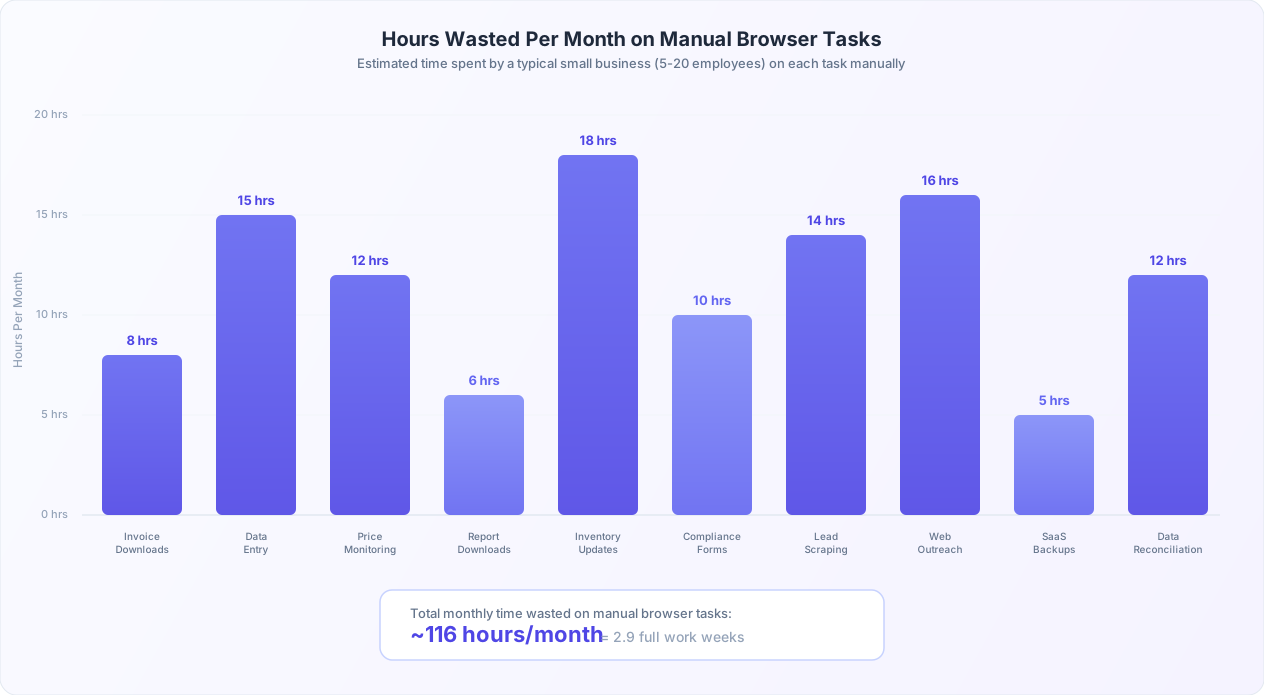
At $25 to $40 per hour (the typical fully loaded cost of an administrative employee at a small business), 100 hours per month translates to $30,000 to $48,000 per year. That is not a rounding error. For many small businesses, that is the equivalent of a full-time employee whose entire job is logging into websites and clicking buttons.
The good news: every one of these tasks can be automated with AI browser automation. Not someday. Not with a six-month IT project. Today, using tools that require zero coding and work by describing what you want done in plain English.
What Is AI Browser Automation?
AI browser automation uses an intelligent agent that controls a real cloud browser — the same kind of browser you use every day. You describe a task in plain English ("Go to this website, log in, download the latest invoice, and save it to my Google Drive"), and the AI agent navigates the site, clicks buttons, fills forms, and completes the task exactly like a human would. The difference: it works faster, does not make typos, never forgets a step, and can run on a schedule while you sleep. Platforms like Autonoly let you watch the agent work in real time through live browser control, so you always know exactly what it is doing.
This article covers the 10 browser tasks that eat the most time at small businesses and explains, for each one, exactly how AI browser automation handles it. These are not theoretical possibilities — they are specific, practical tasks that real businesses automate every day. For each task, you will see how much time it wastes when done manually, how the automation works, and an example of what to tell the AI agent to get started.
Let us get into it.
Task 1: Downloading Invoices from Vendor Portals
What It Is and Why It Is Done Manually
Every business pays vendors, and every vendor has a different web portal where invoices live. Your telecom provider uses one system. Your shipping company uses another. Cloud hosting, office supplies, utilities, software subscriptions, insurance — each one has its own login page, its own navigation structure, and its own "download invoice" button buried somewhere different.
A typical small business with 10 to 25 vendors sends an office manager or bookkeeper on a monthly tour of these portals: log in, navigate to billing, find the latest invoice, download the PDF, rename it, save it to the correct folder, and repeat for the next vendor. Each portal takes 10 to 30 minutes depending on its complexity, which adds up to 4 to 8 hours every month of pure mechanical clicking.
How Much Time It Wastes
For 15 vendors at an average of 20 minutes each, you are looking at 5 hours per month — 60 hours per year. And that only counts the download itself, not the downstream consequences of missed invoices: late payment fees, lost early-payment discounts (typically 1-3% of the invoice total), and the scramble during month-end close when someone realizes a vendor invoice was never collected.
How AI Browser Automation Handles It
You tell the AI agent which vendor portals to visit, provide the login credentials (stored in an encrypted vault), and describe what to download. The agent opens each portal in a cloud browser, logs in, navigates to the billing section, downloads the invoice PDF, renames it according to your naming convention, and saves it to Google Drive, SharePoint, or wherever your files live. When a portal updates its design, the AI adapts because it reads the page like a human — it does not break because a CSS class changed.
Schedule the entire batch to run on the 3rd of each month, and you never think about vendor invoices again.
What to Tell the AI Agent
Example Prompt
"Log into our FedEx billing portal at fedex.com/billing using the stored FedEx credentials. Go to the invoice history section. Download all invoices from last month as PDFs. Rename each file to FedEx_Invoice_[date]_[amount].pdf and save them to Google Drive in the Invoices/FedEx folder."
For a deep dive on this task, including handling MFA, managing dozens of vendors, and building a complete invoice pipeline, see our full guide: How to Automate Invoice Downloads from Vendor Portals.
Task 2: Entering Data from Spreadsheets into Web Forms
What It Is and Why It Is Done Manually
Small businesses constantly need to move data from spreadsheets into web-based systems. A list of new customers in Excel needs to go into the HubSpot CRM. Product details from a supplier spreadsheet need to be entered into the e-commerce platform. Employee information from an HR spreadsheet needs to be typed into the payroll system. Order details from a CSV export need to go into the shipping platform's web forms.
This data entry is done manually because the web systems rarely have bulk import features that actually work with your data format, or they charge extra for API access, or the import tool is so picky about column names and data formats that it rejects half your rows. So someone sits down and types each row into the web form, one field at a time, tabbing between cells and hitting submit over and over.
How Much Time It Wastes
A skilled data entry person can handle about 60 to 80 form submissions per hour for simple forms. For a small business entering 200 to 400 records per month across various systems, that is 5 to 15 hours of pure typing. Factor in corrections for the inevitable typos and that number climbs higher. One study found that manual data entry has an error rate of 1% to 4%, meaning for every 100 records, 1 to 4 contain mistakes that need to be found and fixed later.
How AI Browser Automation Handles It
You give the AI agent your spreadsheet (or point it to a Google Sheet) and tell it which web form to fill out. The agent reads each row, opens the web form, maps the spreadsheet columns to the form fields, enters the data, submits, and moves to the next row. It handles dropdowns, date pickers, checkboxes, multi-step forms, and even forms that require scrolling or clicking through tabs to reach all the fields.
The key advantage over traditional automation: you do not need to map fields manually with CSS selectors or XPath. The AI understands that a column named "Customer Email" goes in the form field labeled "Email Address" — it figures out the mapping by understanding the context, not by matching HTML element IDs.
What to Tell the AI Agent
Example Prompt
"Open the Google Sheet called 'New Leads Q2' in my Drive. For each row, go to our HubSpot CRM at app.hubspot.com, click 'Create Contact,' and enter the first name, last name, email, company, and phone number from the spreadsheet. Set the lead source to 'Trade Show' for all entries. Submit each form and move to the next row."
For detailed strategies on spreadsheet-to-form automation, including handling validation errors and multi-page forms, see: How to Automate Data Entry.
Task 3: Monitoring Competitor Prices on Their Websites
What It Is and Why It Is Done Manually
If you sell products or services, you need to know what your competitors charge. A landscaping company checks what other local landscapers list on their websites. An e-commerce shop monitors Amazon, Walmart, and direct competitors for the same products. A consulting firm reviews competitor pricing pages quarterly. A restaurant checks DoorDash and UberEats to see how nearby restaurants price similar menu items.
This monitoring happens manually because competitor websites are not designed to share their pricing data with you. There is no API, no export button, and no RSS feed for price changes. Someone has to actually visit each competitor's website, find the products or services that overlap with yours, record the prices in a spreadsheet, and compare them to your own. Then do it all again next week or next month.
How Much Time It Wastes
Tracking prices across 10 to 20 competitors for a catalog of 20 to 50 products takes 8 to 12 hours per month when done manually. And that is assuming you only check once per month. If you want weekly monitoring (which is what you need to be competitive in fast-moving markets), multiply that by four. Most small businesses skip weekly monitoring because they simply do not have the hours, which means they miss pricing changes until a customer points them out.
How AI Browser Automation Handles It
You tell the AI agent which competitor websites to visit and which products or services to check. The agent navigates to each competitor's product pages, extracts the current prices, and records them in a Google Sheet or your internal system. It handles dynamic pricing pages that load with JavaScript, pagination through product catalogs, and even different pricing tiers (monthly vs. annual, basic vs. premium).
Schedule it to run weekly (or daily for high-velocity markets), and you get a living price comparison spreadsheet that updates itself. Set up a workflow to monitor competitor prices and post alerts to Slack when a competitor drops their price by more than 5%, and you can respond the same day instead of finding out weeks later.
What to Tell the AI Agent
Example Prompt
"Go to competitor-store.com/products. For each product on the first 3 pages, extract the product name, current price, and any sale/discount price. Record everything in my Google Sheet called 'Competitor Pricing' in a new tab with today's date. If any price is more than 10% lower than what's listed in the 'Our Prices' tab, highlight that row in yellow."
A Note on Ethics and Legality
Monitoring publicly available prices on competitor websites is generally legal and is standard business practice. However, do not scrape data behind login walls you do not have authorized access to, do not violate a website's terms of service in ways that could expose your business to legal risk, and always respect rate limits — do not hammer a competitor's site with hundreds of requests per minute. AI browser automation naturally behaves like a human user (one page at a time, at human speed), which keeps your monitoring within ethical bounds.
Task 4: Pulling Reports from SaaS Dashboards
What It Is and Why It Is Done Manually
Small businesses rely on a growing stack of SaaS tools: Google Analytics for web traffic, Stripe or Square for payment processing, Mailchimp for email marketing, QuickBooks for accounting, Shopify for e-commerce, HubSpot for CRM, Meta Ads Manager for advertising, and so on. Each tool generates reports that the business owner or manager needs to review regularly.
The problem is that each tool has its own dashboard, its own report builder, and its own export process. To get a weekly summary of business performance, someone logs into five or six different platforms, configures the date range, generates the report, waits for it to process (some take 30 seconds, others take several minutes), downloads the CSV or PDF, and repeats for the next platform. By the time all reports are collected, the morning is half gone.
How Much Time It Wastes
Pulling reports from 5 to 8 SaaS platforms weekly takes 3 to 6 hours per month. For businesses that need daily reports (common for e-commerce and advertising-heavy businesses), it can reach 10 to 15 hours per month. The time is not just in the download — it is in the login, the navigation, the date selection, the waiting for the report to generate, and the inevitable "session expired, please log in again" interruption.
How AI Browser Automation Handles It
You tell the AI agent which SaaS dashboards to visit and which reports to pull. The agent logs into each platform, navigates to the reporting section, sets the date range, generates the report, downloads it, and saves it to your designated location. It handles the quirks of each platform: Stripe's report that takes 45 seconds to generate, Google Analytics' export dropdown hidden behind a menu icon, the Meta Ads Manager's tendency to load slowly and require scrolling before the export button appears.
The real power is in scheduling. Set the workflow to run every Monday at 6 AM, and by the time you open your laptop, all your weekly reports are organized in a folder, ready for review. No logins, no clicking, no waiting.
What to Tell the AI Agent
Example Prompt
"Log into our Stripe dashboard at dashboard.stripe.com. Go to Reports, select 'Balance summary' for last month, and download the CSV. Then log into Google Analytics at analytics.google.com, go to Reports > Acquisition overview, set the date to last month, and export as PDF. Save both files to my Google Drive in the Monthly Reports folder with the format [Platform]_Report_[Month]."
For a complete walkthrough on automating report collection from any SaaS platform, see: How to Automate Report Downloads from SaaS Dashboards.
Task 5: Updating Inventory Across Multiple E-Commerce Platforms
What It Is and Why It Is Done Manually
Many small businesses sell on multiple platforms: their own Shopify or WooCommerce store, Amazon, eBay, Etsy, and maybe a wholesale portal. When a product sells on one platform, the inventory count needs to be updated on all the others. When a new product is added, it needs to be listed on every platform. When a price changes, it needs to change everywhere simultaneously.
Dedicated inventory management software (like Sellbrite, ChannelAdvisor, or Linnworks) exists for this, but these tools cost $50 to $500+ per month and still require significant setup and ongoing maintenance. Many small businesses, especially those with fewer than 100 SKUs, find that the cost and complexity of these tools outweighs the benefit. So they do it manually: open each platform in a separate browser tab, navigate to the product listing, update the inventory count, update the price, and move on to the next product and the next platform.
How Much Time It Wastes
A business with 50 products across 3 platforms that updates inventory twice a week spends 12 to 18 hours per month on manual inventory management. And the manual process is error-prone in a way that costs money: if Platform A sells the last 3 units but Platform B still shows them in stock, the business either oversells (and has to cancel orders, damaging their seller rating) or has to keep extra safety stock (tying up capital).
How AI Browser Automation Handles It
The AI agent can read your master inventory spreadsheet (or your primary platform's inventory data) and propagate changes across all other platforms. Sold 5 units on Shopify? The agent logs into Amazon Seller Central, finds the product listing, and updates the inventory count. Added a new product? The agent can create the listing on each platform, entering the title, description, price, images, and inventory count from your master product data.
This works even for platforms without APIs or with APIs that require expensive developer plans. The agent fills in the same web forms a human would, but faster and without mistakes. You can schedule inventory syncs to run every few hours, keeping all platforms aligned throughout the day.
What to Tell the AI Agent
Example Prompt
"Open my Google Sheet 'Master Inventory.' For each product where the 'Updated' column is 'Yes,' log into Amazon Seller Central at sellercentral.amazon.com. Search for that product by SKU in Manage Inventory. Update the 'Available' quantity to match the sheet. Then log into our Etsy shop manager at etsy.com/your/shops/manage and update the same product's quantity there. After updating each product on both platforms, change the 'Updated' column to 'Synced' in the sheet."
Pro Tip: Start with Price Changes
If full inventory sync feels overwhelming, start by automating just price updates. A price change on one platform that is not reflected on others can lead to channel conflict and confused customers. The AI agent can scan your master price sheet and ensure all platforms show the same price — a simpler task that builds your confidence before tackling full inventory management.
Task 6: Submitting Government and Compliance Forms
What It Is and Why It Is Done Manually
Small businesses deal with a steady stream of government and regulatory forms: quarterly tax filings, annual renewals (business license, permits, registrations), workers' compensation reports, unemployment insurance filings, sales tax remittance, industry-specific compliance reports, and more. These forms live on government websites that were typically built by the lowest bidder and last redesigned before the smartphone era.
The forms themselves are often long, repetitive, and unforgiving. A state unemployment insurance quarterly report might require entering the same company information (name, EIN, address, SUTA number) that you entered last quarter and the quarter before that. A business license renewal asks for information that has not changed in five years. A sales tax filing requires pulling numbers from your accounting system and typing them into a web form one field at a time.
How Much Time It Wastes
The time varies dramatically by industry and jurisdiction, but a typical small business spends 6 to 10 hours per month on government forms when you average across quarterly and annual filings. Heavily regulated industries (food service, healthcare, construction, financial services) can spend 15 to 20 hours per month. And the cost of errors is high: a mistake on a tax filing can trigger an audit, a missed deadline on a license renewal can shut down your operations, and an incorrect compliance report can result in fines.
How AI Browser Automation Handles It
You provide the AI agent with the data for the filing (from your accounting system, payroll provider, or a preparation spreadsheet) and tell it which government website to submit on. The agent navigates the government portal, fills in each field with the correct data, handles the validation checks (those infuriating "invalid format" errors that government sites love), and submits the form. It can also download the confirmation page or receipt as proof of filing.
The key benefit for government forms is consistency. The agent enters the same company information the same way every time — no typos in your EIN, no transposed digits in your address, no accidentally selecting the wrong tax period. And for forms you file repeatedly (like quarterly taxes), you set up the workflow once and reuse it each quarter with updated numbers.
What to Tell the AI Agent
Example Prompt
"Go to the state Department of Revenue website at revenue.state.gov. Log in with our business credentials. Navigate to 'File a Return' and select 'Sales and Use Tax.' For the reporting period, select last quarter. Enter the gross sales as $142,580, taxable sales as $128,300, and tax due as $8,980.50 from the preparation spreadsheet. Review the summary, submit the filing, and download the confirmation page as a PDF. Save it to Google Drive in the Tax Filings folder."
For a comprehensive guide to automating government filings, including handling multi-step forms and managing multiple jurisdictions, see: How to Automate Government Form Submissions.
Always Review Before Submitting
For government and compliance forms, we recommend running the automation with a human review step before final submission. The AI agent fills in all the fields and pauses before clicking "Submit," giving you a chance to verify the data in the live browser view. Once you confirm the data looks correct, the agent completes the submission. This safety net takes 30 seconds of your time while eliminating 99% of the manual work.
Task 7: Scraping Leads from Directories and Social Platforms
What It Is and Why It Is Done Manually
Every small business needs new customers, and the internet is full of them. Industry directories, business listing sites, professional networks, review platforms, and niche communities all contain potential leads — people and companies that might need your product or service. The problem is getting those leads into a usable format.
A marketing manager at a B2B services company might spend an afternoon browsing industry directories, clicking on each listing, copying the company name, contact person, email, phone, and website into a spreadsheet, then moving to the next listing. A local service business might search Google Maps for potential B2B clients (offices, restaurants, gyms) in their service area, visiting each listing and recording the contact information. A recruiter might browse professional profiles on industry forums, extracting candidate information one profile at a time.
How Much Time It Wastes
Building a lead list of 200 to 500 contacts from web sources takes 10 to 14 hours per month when done manually. That is because each lead requires visiting a profile or listing page, reading through the information, and typing it into a spreadsheet — a process that takes 1 to 3 minutes per lead. And the quality tends to degrade as the person gets fatigued: the 300th lead gets less attention than the 30th.
How AI Browser Automation Handles It
You tell the AI agent which directories or platforms to search, what criteria to filter by, and which data points to capture. The agent visits each listing or profile, extracts the structured data (company name, contact name, email, phone, website, location, industry, size), and compiles it into a spreadsheet or pushes it directly to your CRM — for example, extracting Yelp businesses straight into Google Sheets.
The AI handles pagination (clicking through pages of results), filtering (applying search criteria within the directory), and deduplication (skipping contacts that are already in your list). It can also enrich basic listings — for example, after finding a company in a directory, it can visit that company's website to extract additional information like employee count, specialties, or recent news.
What to Tell the AI Agent
Example Prompt
"Go to yelp.com and search for 'restaurants' in 'Austin, TX.' For each restaurant in the search results (first 10 pages), extract the business name, address, phone number, website URL, Yelp rating, number of reviews, and the listed owner or manager name if available. Save all the data to a new Google Sheet called 'Austin Restaurant Leads.' Skip any restaurant with fewer than 3 stars."
Quality Over Quantity
The biggest mistake in automated lead scraping is collecting thousands of unqualified leads. Instead, use the AI agent's filtering capabilities to narrow your list: filter by location, industry, company size, rating, or any other criteria visible on the directory page. A list of 200 highly qualified leads is worth more than a list of 2,000 random contacts. You can also have the agent visit each lead's website and capture additional qualifying information before adding them to your list.
Task 8: Sending Personalized Outreach Through Web Platforms
What It Is and Why It Is Done Manually
Outreach does not just happen through email. Small businesses send messages through LinkedIn, submit contact forms on potential clients' websites, respond to RFP postings on procurement portals, leave personalized comments on relevant industry discussions, and submit partnership inquiries through web-based forms. Each of these interactions happens in a browser, on a different website, with a different form layout, and requires enough personalization that a generic copy-paste approach feels (and is) impersonal.
A sales rep doing outreach might spend two hours per day visiting potential clients' websites, finding their contact or inquiry form, crafting a message that references something specific about that company, filling in the form fields, and submitting. On LinkedIn, the process involves visiting each prospect's profile, writing a connection request with a personalized note, and sending it. On procurement portals, it means logging in, finding relevant RFPs, and submitting interest forms with company details.
How Much Time It Wastes
For a small business doing 10 to 20 personalized web outreach messages per day, the time commitment is 12 to 16 hours per month. And that is just the sending — it does not include the time spent finding the right contacts or crafting the message templates. The challenge is that outreach through web forms cannot be batched the way email can: each form is different, each site has a different layout, and each message needs to be slightly personalized.
How AI Browser Automation Handles It
You provide the AI agent with a list of target companies or contacts, a message template with personalization variables, and instructions for where to submit the message. The agent visits each target's website, finds the contact or inquiry form, fills in the form fields with the personalized message (inserting the company name, a reference to their industry, or a specific detail about their business), and submits. For LinkedIn, the agent visits each prospect's profile and sends a connection request with a customized note.
The personalization is the critical piece. The AI does not just mail-merge a name into a generic template — it can read the prospect's website or profile and generate genuinely personalized elements. "I noticed you recently expanded to a second location in Denver" is the kind of personalization that gets responses, and the AI can pull that detail from the company's website during the outreach process.
What to Tell the AI Agent
Example Prompt
"Open my Google Sheet 'Outreach Targets.' For each company in the list, visit their website URL in column B. Find their contact form or 'Get in Touch' page. Fill in our company name, my name, my email, and the message from the 'Message' column in the spreadsheet. Before submitting, check the company's About page and add one specific detail about them to the message — something about their location, team size, or recent news. Submit the form and note the date submitted in column F of the spreadsheet."
Respect Platform Limits and Terms of Service
Automated outreach must respect the platform's rate limits and terms of service. On LinkedIn, this means staying well within the daily connection request limits and spacing messages naturally throughout the day. On websites, it means not submitting hundreds of contact forms in rapid succession. AI browser automation naturally operates at human speed, but you should still set reasonable daily limits (10-20 outreach messages per day is a good starting point) and ensure your messages provide genuine value to the recipient.
Task 9: Backing Up Data from SaaS Tools That Lack Export Features
What It Is and Why It Is Done Manually
You trust your SaaS tools with critical business data: customer records, project histories, financial transactions, support tickets, design files, and more. But what happens when the SaaS provider goes down, gets acquired, changes their pricing, or simply decides to discontinue the product? If you cannot export your data, you lose it.
Many SaaS tools provide limited or no export functionality. Some offer a basic CSV export that misses important fields or relationships. Others require you to export data one section at a time (contacts separately from deals separately from activities). Some legacy tools have no export feature at all — the only way to get your data out is to view it on screen and copy it manually.
Small businesses rarely think about SaaS data backups until it is too late. The CRM vendor sends a "we're shutting down in 30 days" email, and suddenly you are scrambling to copy 5,000 customer records out of a system that has no export button.
How Much Time It Wastes
Regular manual data backups from SaaS tools with poor export features take 3 to 5 hours per month when done consistently (which they rarely are). For businesses that wait until a crisis forces their hand, the emergency data extraction can take 20 to 40 hours — and by then, some data may be inaccessible.
How AI Browser Automation Handles It
The AI agent logs into each SaaS tool, navigates through the data sections, and extracts the information page by page. For a CRM with no export button, the agent can open each contact record, extract the fields, and build a comprehensive spreadsheet. For a project management tool that only exports basic data, the agent can capture the full detail — including comments, attachments, and custom fields — that the native export misses.
Schedule weekly or monthly backup runs, and you always have a recent copy of your critical SaaS data. Store the backups in your own cloud storage (Google Drive, Dropbox, S3), and you are protected against vendor lock-in, service disruptions, and data loss.
What to Tell the AI Agent
Example Prompt
"Log into our project management tool at app.projecttool.com. Go to the Projects section. For each active project, export the project name, status, all tasks (with assignee, due date, status, and description), and all comments. If the tool has a native export, use it and download the file. If not, visit each project page and extract the data into a Google Sheet. Save everything to my Google Drive in the Backups/ProjectTool folder with today's date in the filename."
Do Not Wait for the Crisis
The best time to set up SaaS data backups is before you need them. Identify your 3-5 most critical SaaS tools, set up automated monthly backups, and test that the exported data is complete and usable. When (not if) you need to migrate away from a tool, you will already have a clean copy of your data. The 15 minutes it takes to set up the backup automation will save you days of panic when a vendor pulls the rug.
Task 10: Reconciling Data Across Disconnected Systems
What It Is and Why It Is Done Manually
Small businesses run on disconnected systems. The CRM has customer data. The accounting system has payment data. The e-commerce platform has order data. The support tool has ticket data. The shipping platform has fulfillment data. And none of these systems talk to each other natively (or if they do, the integration is basic and misses important fields).
Reconciliation means comparing data across these systems to find discrepancies: orders in the e-commerce system that do not have corresponding entries in the accounting system, customer records in the CRM that have different addresses than the shipping platform, invoices in the accounting system that do not match payments in the bank, or support tickets that reference orders that do not exist in the fulfillment system.
This reconciliation is done manually because the data lives in different web applications with different data structures and no shared identifiers. Someone opens two browser tabs side by side, looks up a record in one system, finds the corresponding record in the other, compares the fields, and flags discrepancies. Then does it again for the next record. And the next. For hundreds or thousands of records.
How Much Time It Wastes
Monthly reconciliation across 3 to 5 disconnected systems takes 8 to 12 hours per month for a typical small business. Quarterly reconciliation (common for businesses that defer this unpleasant task) can take 20 to 30 hours per session because discrepancies accumulate and become harder to trace the older they are. And the cost of not reconciling is real: unreconciled data leads to incorrect financial statements, missed customer issues, and decisions made on bad data.
How AI Browser Automation Handles It
The AI agent can log into each system, extract the relevant records, and compare them programmatically. For example: pull all orders from Shopify for the month, pull all corresponding entries from QuickBooks, match them by order number or amount, and flag any orders that exist in one system but not the other. The agent outputs a reconciliation report highlighting discrepancies, missing records, and mismatched fields.
This is especially powerful with Autonoly's integrations and visual workflow builder, which let you create multi-step workflows that pull data from multiple systems and compare them automatically. What used to be a full-day manual exercise becomes a scheduled workflow that runs overnight and presents you with a clean discrepancy report in the morning.
What to Tell the AI Agent
Example Prompt
"Log into our Shopify admin at mystore.myshopify.com. Go to Orders and export all orders from last month as a CSV. Then log into QuickBooks Online at app.qbo.intuit.com. Go to Sales > Invoices and export all invoices from last month. Compare the two lists by matching Shopify order numbers to QuickBooks invoice reference numbers. Create a Google Sheet called 'Monthly Reconciliation' with three tabs: 'Matched' (orders in both systems), 'Missing from QuickBooks' (Shopify orders with no matching invoice), and 'Missing from Shopify' (QuickBooks invoices with no matching order)."
For detailed strategies on moving data between disconnected web applications, see: How to Transfer Data Between Web Apps That Do Not Integrate.
Which Tasks to Automate First: Difficulty and ROI Compared
Not all 10 tasks are equally easy to automate or equally valuable to your business. The chart below shows the difficulty of automating each task with AI browser automation, rated on a scale of 1 (trivial) to 10 (very complex).
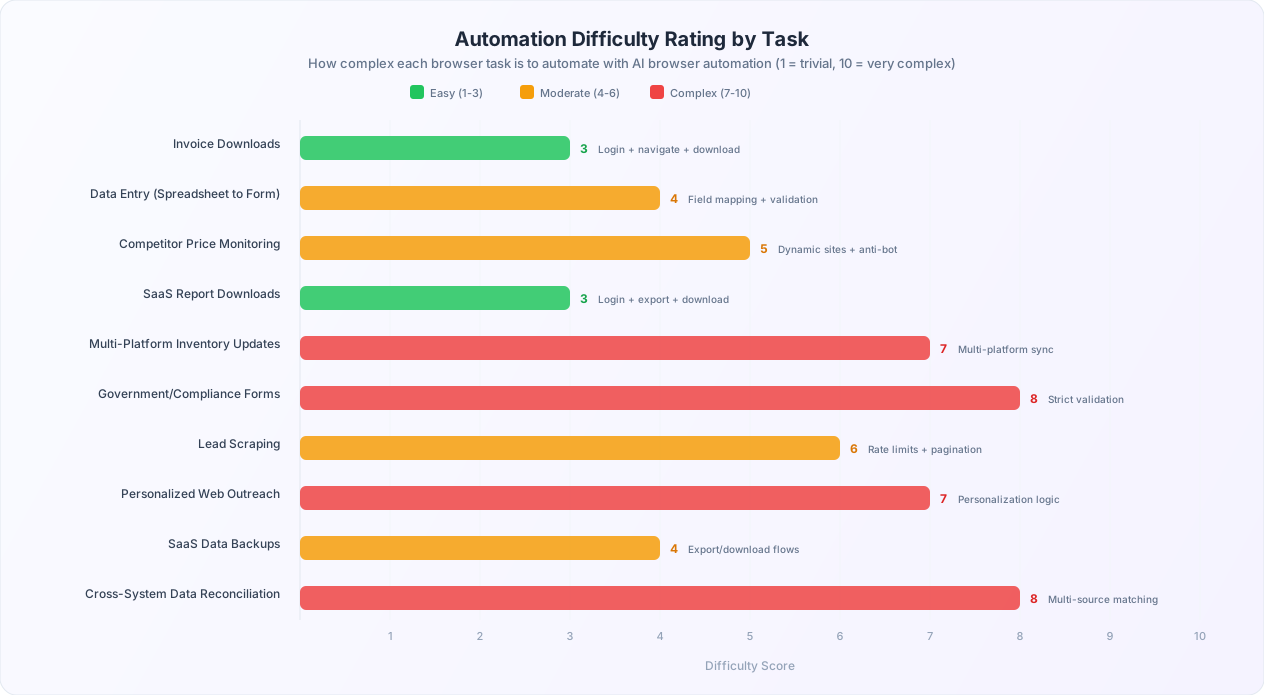
The difficulty rating reflects how much setup effort each task requires, not how hard it is for the AI agent to execute. Even the most complex tasks (government forms, multi-platform inventory, data reconciliation) take minutes to set up — you just describe the task in plain English. The "difficulty" is about edge cases: government forms have strict validation rules, inventory updates require coordinating across multiple platforms, and data reconciliation involves matching records that may use different identifiers.
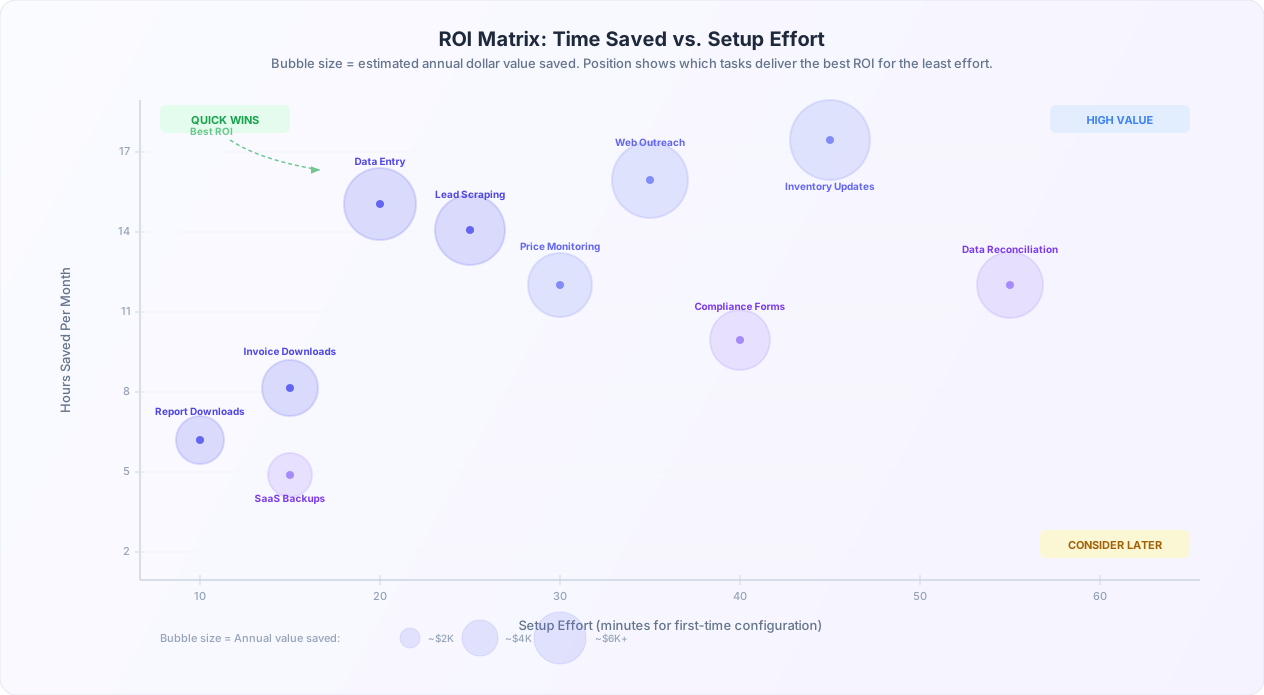
But difficulty is only half the equation. You also want to know the return on investment: how much time each automation saves relative to the effort of setting it up.
The Recommended Starting Order
Based on the difficulty and ROI data, here is the order we recommend for small businesses starting their automation journey:
- Report Downloads (Task 4): Easiest to set up, runs immediately, and gives you visible results (organized reports in your Drive) on day one. A confidence builder.
- Invoice Downloads (Task 1): Low difficulty, high recurring value, and the financial impact (capturing early-payment discounts, avoiding late fees) makes the ROI case obvious.
- Data Entry (Task 2): Moderate setup but massive time savings. If your team spends hours typing spreadsheet data into web forms, this automation pays for itself within a week.
- SaaS Backups (Task 9): Easy setup, peace-of-mind value. Does not save hours per month but prevents catastrophic data loss.
- Price Monitoring (Task 3): Moderate complexity but high strategic value. Knowing what competitors charge, updated weekly, is a competitive advantage most small businesses lack.
- Lead Scraping (Task 7): Moderate complexity with high revenue potential. A clean, qualified lead list generated automatically is a direct pipeline to sales.
- Compliance Forms (Task 6): Higher complexity but high-stakes value. Start with your most frequent filing and expand from there.
- Web Outreach (Task 8): Higher complexity and requires thoughtful execution. Automate after you have a proven message template and qualified lead list.
- Inventory Updates (Task 5): Higher complexity due to multi-platform coordination. Worth it for businesses selling on 3+ platforms, but set up incrementally (one platform at a time).
- Data Reconciliation (Task 10): Highest complexity but highest strategic value for businesses drowning in disconnected systems. Build toward this after you are comfortable with simpler automations.
Start with One, Then Stack
Do not try to automate all 10 tasks in your first week. Pick the one that wastes the most time for your specific business, set it up, run it for a full cycle to verify it works correctly, and then move to the next one. Each successful automation builds your confidence and your understanding of how to describe tasks effectively to the AI agent. By the end of the first month, most businesses have 3 to 4 automations running and are seeing 20+ hours of time savings.
Getting Started: Your First Browser Task Automated in 15 Minutes
You do not need weeks of planning, a technical background, or an IT department to start automating browser tasks. Here is the fastest path from reading this article to reclaiming hours of your time every month.
Step 1: Pick Your Most Painful Task (2 Minutes)
Look at the 10 tasks above and ask yourself: which one makes me or my team groan every time it comes up? That is your starting point. If you are not sure, start with report downloads (Task 4) — it is the easiest to set up and the most immediately satisfying.
Step 2: Describe the Task in Plain English (3 Minutes)
Write down what you or your team member actually does to complete this task, step by step. Do not worry about technical language — just describe it the way you would explain it to a new employee. "First, I go to this website. Then I log in. Then I click on Reports. Then I select last month. Then I click Export..." That description is your automation prompt.
Step 3: Set Up the Automation (10 Minutes)
Open Autonoly's AI agent chat, paste your task description, and watch the AI agent execute it in real time through the live browser control panel. If the agent takes a wrong turn, correct it conversationally ("No, click the 'Billing' tab, not the 'Settings' tab"). Once it completes the task successfully, save the workflow using the visual workflow builder and set a schedule.
Step 4: Verify and Expand
Let the automation run for one complete cycle (one week or one month, depending on the task's frequency). Verify the output: Did it download the right files? Did it enter the correct data? Did it capture all the records? If everything checks out, move to the next task on your priority list.
The Compound Effect
Here is what happens when you automate browser tasks incrementally over a quarter:
| Week | Tasks Automated | Monthly Hours Saved | Annual Value (at $30/hr) |
|---|---|---|---|
| Week 1 | Report Downloads | 6 hours | $2,160 |
| Week 2 | + Invoice Downloads | 14 hours | $5,040 |
| Week 3-4 | + Data Entry | 29 hours | $10,440 |
| Month 2 | + Price Monitoring + Lead Scraping | 55 hours | $19,800 |
| Month 3 | + Compliance + Inventory + Outreach | 95 hours | $34,200 |
By the end of three months, you are saving the equivalent of more than half a full-time employee — without hiring anyone, without writing code, and without a six-month implementation timeline. That is the compound effect of automating browser tasks one at a time.
Your browser is not just a tool for browsing. It is the operating system of your business.
Every hour you spend clicking through web portals, downloading files, entering data, and copying information between tabs is an hour you are not spending on the work that actually grows your business: talking to customers, improving your product, closing deals, and making strategic decisions. AI browser automation does not replace your judgment — it replaces the clicking. And that is exactly the trade you should make.
Pick a task. Describe it in plain English. Let the AI handle the rest. Your first automation takes 15 minutes. The time it saves will compound every single month.