The Invoice Processing Problem
Invoice processing is one of the most labor-intensive, error-prone, and universally dreaded tasks in business operations. Every company that buys goods or services receives invoices, and every one of those invoices must be received, read, verified, approved, entered into the accounting system, and paid. For a company processing 500 invoices per month, this represents a staggering amount of manual work.
The Manual Invoice Workflow
A typical manual invoice processing workflow looks like this:
- Receive the invoice: Invoices arrive by email (PDF attachments), postal mail (paper), vendor portals (download), or electronic data interchange (EDI). A single company may receive invoices through all of these channels.
- Open and read: Someone opens the email or envelope, finds the invoice, and reads it — identifying the vendor, invoice number, date, line items, amounts, tax, and total.
- Match to purchase order: The invoice is compared against the original purchase order to verify that the quantities, prices, and terms match. Discrepancies require investigation.
- Route for approval: The invoice is sent to the appropriate manager for approval, based on amount, department, or vendor. This often involves email chains, physical routing slips, or shared folders.
- Data entry: After approval, someone enters the invoice data into the accounting system — vendor name, invoice number, date, line items, amounts, GL codes, tax amounts, and payment terms.
- Payment scheduling: The entered invoice is scheduled for payment based on the payment terms (Net 30, Net 60, etc.).
- Filing: The original invoice is filed — digitally or physically — for audit and reference purposes.
The Cost of Manual Processing
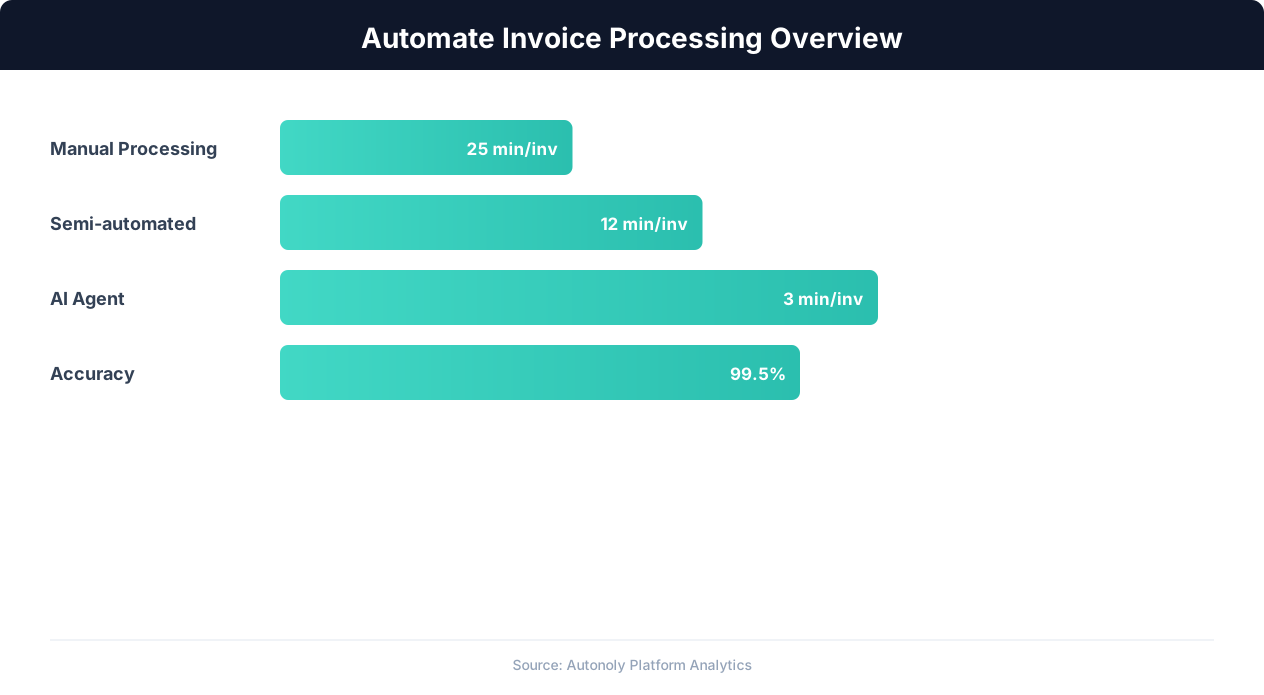
Industry research consistently shows that manual invoice processing costs $12-30 per invoice when accounting for labor time, error correction, and late payment penalties. For a company processing 500 invoices per month, that is $6,000-15,000 per month — $72,000-180,000 per year — in processing costs alone.
Beyond direct costs, manual processing creates cascading problems:
- Late payments: Slow processing leads to missed payment deadlines, resulting in late fees and damaged vendor relationships. Companies that pay late often lose early payment discounts (typically 1-2% of the invoice total).
- Errors: Manual data entry has a 1-4% error rate. For invoice processing, this means incorrect amounts, wrong GL codes, duplicate payments, and misallocated expenses — all of which require time-consuming corrections.
- Lost visibility: When invoices are scattered across inboxes, desks, and approval chains, nobody has a clear picture of outstanding obligations, cash flow impact, or processing bottlenecks.
- Audit risk: Incomplete records, missing approvals, and inconsistent filing create compliance risks during financial audits.
How AI and OCR Transform Invoice Processing
The combination of Optical Character Recognition (OCR) and Artificial Intelligence (AI) has made it possible to automate the most time-consuming parts of invoice processing: reading, understanding, and extracting data from invoice documents.
OCR: Reading the Invoice
OCR technology converts images of text (scanned documents, photographs, PDF pages) into machine-readable text. Modern OCR engines achieve 95-99% accuracy on clean, printed documents. For invoices, OCR reads every piece of text on the document — vendor name, address, invoice number, dates, line items, quantities, unit prices, totals, tax amounts, and payment terms.
However, raw OCR output is just text — it does not understand what each piece of text means. "$1,234.56" is recognized as text, but OCR alone does not know whether it is the subtotal, tax amount, or total. This is where AI enters.
AI: Understanding the Invoice
AI models trained on thousands of invoices understand invoice structure. They know that:
- A number in the top-right corner labeled "Invoice #" or "Invoice No." is the invoice number
- A date near the invoice number is the invoice date
- A name and address at the top is usually the vendor ("Bill From") or the customer ("Bill To")
- A table with columns for description, quantity, unit price, and amount contains line items
- Numbers labeled "Subtotal," "Tax," and "Total" are summary amounts
- Terms like "Net 30" or "Due upon receipt" indicate payment terms
This semantic understanding allows AI to extract structured data from invoices regardless of format variations. A hand-written invoice, a professionally designed PDF, and a plain-text email invoice all contain the same logical information — the AI identifies and extracts it from any format.
Autonoly's Approach: AI Vision + OCR + Browser Automation
Autonoly combines multiple capabilities to handle the full invoice processing pipeline:
- PDF OCR: Extracts text from PDF invoices, including scanned documents and image-based PDFs that lack selectable text.
- AI Vision: Understands invoice layout and structure visually, identifying fields by their position and context rather than relying solely on text labels.
- Data Extraction: Structures the extracted information into a clean, usable format — JSON, spreadsheet row, or direct database entry.
- Browser Automation: Enters the extracted data into accounting systems, ERPs, and web portals that may not have APIs.
- Integrations: Connects to Google Sheets, Slack, email, and other tools for notifications, approvals, and data routing.
Building the Invoice Data Extraction Pipeline
The data extraction pipeline takes raw invoice documents (PDFs, images, emails) and produces structured data records ready for entry into your accounting system. Here is how to build each stage.
Stage 1: Invoice Ingestion
Invoices need to be collected from all channels into a single processing queue:
- Email monitoring: Set up a rule to forward invoice emails (or emails from known vendor addresses) to a dedicated processing inbox. Autonoly can monitor this inbox using Gmail or email protocol integrations, detecting new invoices as they arrive.
- Shared folder monitoring: For invoices received by mail and scanned, or downloaded from vendor portals, monitor a designated Google Drive or Dropbox folder for new files.
- Vendor portal download: Some vendors require logging into their portal to download invoices. Autonoly's browser automation can log into vendor portals on a schedule, download new invoices, and add them to the processing queue.
Stage 2: Document Classification
Not every document that arrives is an invoice. The inbox may contain statements, receipts, quotes, remittance advices, and general correspondence. The AI classifies each document as an invoice or non-invoice before processing, preventing non-invoice documents from entering the data entry pipeline.
Stage 3: Data Extraction
For each classified invoice, the AI extracts key fields:
| Field | Source Location | Validation Rule |
|---|---|---|
| Vendor Name | Header / "Bill From" | Match against vendor master list |
| Invoice Number | Header, typically top-right | Unique (no duplicates) |
| Invoice Date | Near invoice number | Valid date, not in the future |
| Due Date | Below invoice date or calculated from terms | After invoice date |
| PO Number | Reference section | Match against open PO list |
| Line Items | Item table body | Quantities and prices are positive numbers |
| Subtotal | Below line items | Equals sum of line item amounts |
| Tax Amount | Below subtotal | Reasonable percentage of subtotal |
| Total Amount | Bottom of invoice | Equals subtotal + tax |
| Payment Terms | Footer or terms section | Recognized format (Net 30, etc.) |
Stage 4: Validation and Matching
Extracted data is validated before entry:
- Math validation: Do line items sum to the subtotal? Does subtotal + tax equal the total? Mathematical discrepancies indicate extraction errors or invoice errors.
- Duplicate detection: Has this invoice number from this vendor been processed before? Duplicate invoices are one of the most common (and costly) AP errors.
- PO matching: Does the invoice reference a valid purchase order? Do quantities and prices match the PO? Three-way matching (PO, invoice, and goods receipt) catches discrepancies before payment.
- Vendor validation: Is the vendor in the approved vendor list? Does the bank account match what is on file? This catches both data errors and potential fraud.
Invoices that pass all validations proceed to automatic entry. Those that fail are flagged for human review with specific error details.
Entering Extracted Data Into Accounting Systems
After extraction and validation, the invoice data must be entered into your accounting system. The approach depends on whether your system offers an API or only a web interface.
API-Based Entry
Major accounting platforms provide APIs for invoice creation:
- QuickBooks Online: The QuickBooks API supports creating bills (vendor invoices) with line items, GL coding, and payment terms. Autonoly's API/HTTP node connects directly to QuickBooks, transforming extracted invoice data into API calls.
- Xero: Xero's API similarly supports creating invoices with full line item detail, tax calculations, and contact matching.
- NetSuite: NetSuite's SuiteTalk API handles invoice creation for enterprise-level ERP systems.
- FreshBooks, Wave, Sage: Most modern accounting platforms offer invoice creation APIs.
API-based entry is the preferred approach — it is faster, more reliable, and handles validation at the system level. The automation sends a structured API request, the accounting system creates the invoice, and the response confirms success or reports errors.
Browser-Based Entry for Systems Without APIs
Many businesses use accounting systems or ERPs that lack adequate APIs — legacy systems, industry-specific platforms, government accounting systems, or older versions of popular software. For these systems, browser automation enters data through the web interface:
- Log into the accounting system: The AI agent opens the browser, navigates to the login page, and authenticates.
- Navigate to the invoice entry form: Click through menus to reach "New Bill" or "Enter Invoice."
- Fill the header fields: Select the vendor from a dropdown (searching by name), enter the invoice number, date, and due date.
- Add line items: For each line item, enter the description, quantity, unit price, and GL account code. Some systems require selecting GL codes from dropdowns; the agent matches the code to the nearest option.
- Enter totals and tax: Fill in tax amounts, verify the calculated total matches the invoice total.
- Submit and verify: Click Save/Submit and verify the invoice was created by checking for a confirmation message or new entry in the invoice list.
This browser-based approach works with any accounting system that has a web interface, regardless of whether it provides an API. It is slower than API-based entry (30-60 seconds per invoice vs. 1-2 seconds) but eliminates manual data entry entirely.
GL Code Assignment
One of the most time-consuming aspects of invoice entry is assigning General Ledger (GL) codes to each line item. AI assistance can automate this based on:
- Vendor defaults: If this vendor always supplies office supplies, default to the office supplies GL code.
- Description matching: Match line item descriptions to GL categories using keyword analysis. "Printer paper" → Office Supplies, "Web hosting" → IT Services, "Consulting" → Professional Services.
- Historical patterns: Analyze how similar invoices were coded in the past and apply the same coding. Over time, the system learns your company's specific GL coding patterns.
GL code suggestions reduce the reviewer's work from making coding decisions to confirming or correcting AI suggestions — dramatically faster.
Building Invoice Approval Workflows
Most businesses require managerial approval before paying invoices, especially those above a certain amount. Automating the approval routing eliminates the most common bottleneck in invoice processing: waiting for approvals.
Designing Approval Rules
Approval rules determine who needs to approve each invoice and in what order. Common rule structures:
- Amount-based thresholds: Invoices under $500 auto-approve. $500-5,000 require department manager approval. Over $5,000 require VP approval. Over $25,000 require CFO approval.
- Department-based routing: Marketing invoices go to the marketing director. IT invoices go to the IT manager. Facilities invoices go to the operations manager.
- Vendor-based rules: Invoices from approved recurring vendors (monthly SaaS subscriptions, utilities) auto-approve if the amount matches the expected amount within 5%.
- Sequential vs. parallel: Some approvals require sequential sign-off (manager then VP). Others allow parallel approval (any of three authorized approvers can approve).
Implementing Approval Routing With Autonoly
Build the approval workflow using Autonoly's logic flow capabilities:
- Condition check: After data extraction and validation, evaluate the invoice against approval rules. Use conditional nodes to determine the approval path.
- Notification: Send the approver a Slack message or email containing the invoice summary — vendor, amount, line items, and any flags (new vendor, amount exceeds PO, etc.). Include approve/reject action links.
- Wait for response: The workflow pauses until the approver responds. Set a timeout — if no response within 24 hours, escalate to a backup approver or send a reminder.
- Process response: If approved, proceed to accounting system entry. If rejected, notify the submitter and move the invoice to a review queue with rejection notes.
💡 Key Insight
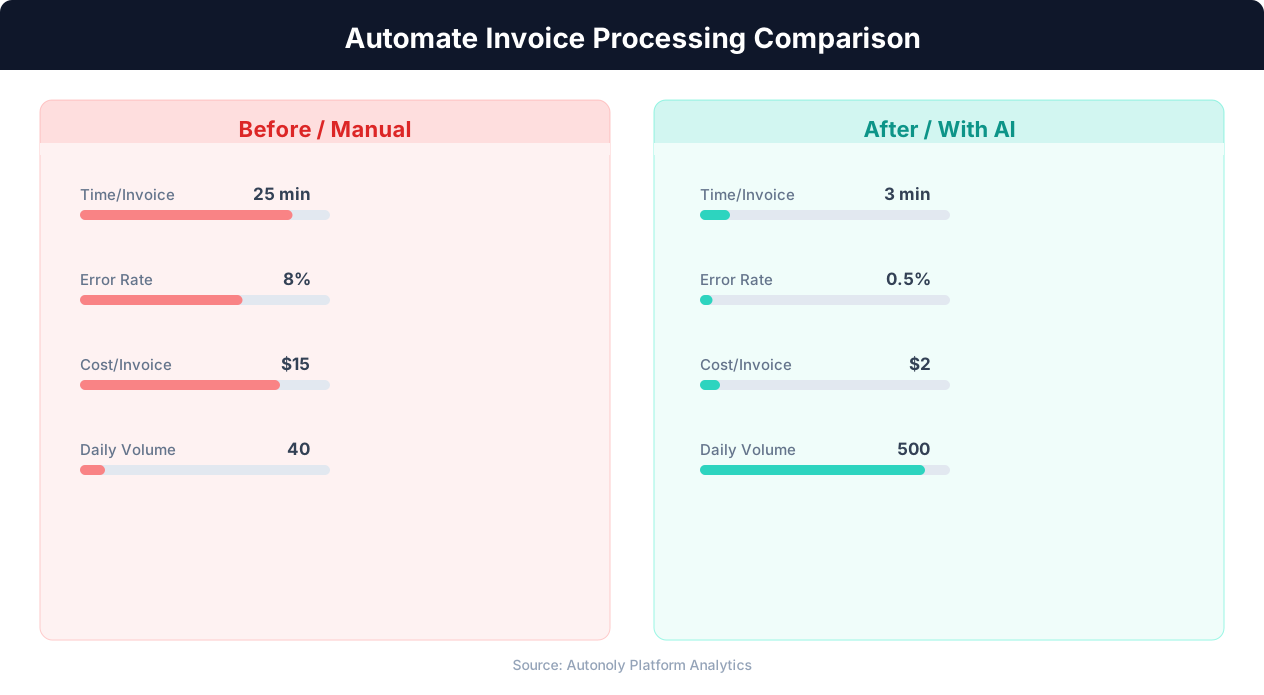
Manual invoice processing costs $15-$40 per invoice, while automated processing reduces this to $1-$3 per invoice.
Slack-Based Approval Flows
For teams that live in Slack, approval workflows that operate entirely within Slack are the fastest path to reduced processing time:
- The automation posts an invoice summary to a designated Slack channel or DMs the approver.
- The message includes the invoice PDF as an attachment and key details: vendor, amount, PO match status.
- The approver reacts with a check mark (approve) or X (reject), or replies with "approve" or "reject."
- The automation detects the response and routes the invoice accordingly.
This keeps the approval process within the tool the approver already uses, eliminating the friction of logging into a separate system. Autonoly's Slack integration supports message posting, reaction detection, and reply monitoring for building interactive approval flows.
Escalation and Exception Handling
Not every invoice follows the happy path. Build escalation rules for common exceptions:
- No matching PO: Route to the department head for verification before processing.
- Amount exceeds PO by more than 10%: Flag for review with both the original PO approver and the finance team.
- Unknown vendor: Route to the vendor management team for onboarding before payment.
- Duplicate invoice number: Block processing and alert the AP team to investigate.
Handling Email Invoices and PDF Attachments
Email is the most common invoice delivery channel. Building an automated pipeline from email to processed invoice requires handling multiple email formats, attachment types, and edge cases.
Monitoring the Invoice Inbox
Set up a dedicated email address for invoices ([email protected] or [email protected]) and configure vendors to send invoices there. This centralizes incoming invoices and simplifies automation. If vendors send invoices to individual employee inboxes, set up forwarding rules to copy invoice emails to the central address.
Autonoly monitors the inbox using the Gmail integration or standard email protocols (IMAP/POP3). The workflow triggers when a new email arrives, processing each email automatically.
Extracting Invoices From Emails
Invoice emails come in several formats:
- PDF attachment: The most common format. The automation downloads the PDF attachment and processes it through the OCR/AI extraction pipeline.
- Invoice in the email body: Some vendors include invoice details directly in the email text rather than as an attachment. The AI extracts data from the email body HTML.
- Link to download: Some vendors send an email with a link to their portal where the invoice can be downloaded. Browser automation navigates to the link, downloads the PDF, and processes it.
- Image attachment: Occasionally invoices are sent as JPEG or PNG images (photos of paper invoices). The OCR engine processes image formats as well as PDFs.
Processing PDF Invoices
PDF invoices fall into two categories:
Text-based PDFs: Created digitally (from accounting software, Word, or online invoice generators). These contain selectable text that can be extracted directly without OCR. Processing is fast and highly accurate.
Image-based PDFs: Created by scanning paper invoices. These contain only an image of the text, requiring OCR to convert the image to machine-readable text. Processing is slower and accuracy depends on scan quality.
The automation should detect which type each PDF is and route accordingly. Text extraction from text-based PDFs is nearly 100% accurate. OCR accuracy on scanned PDFs depends on scan resolution, print quality, and document condition — typically 95-99% for clean scans and 85-95% for poor quality scans. Low-confidence extractions should be flagged for human verification.
Handling Multi-Page and Multi-Invoice PDFs
Some vendors send multi-page invoices or combine multiple invoices into a single PDF. The automation must:
- Detect page boundaries between separate invoices in a single PDF
- Handle line item tables that span multiple pages
- Correctly associate page 2's line items with page 1's header information
AI understanding of document structure handles these cases — it recognizes that a continued table on page 2 belongs to the invoice started on page 1, and that a new header on page 3 indicates a separate invoice.
Measuring ROI and Scaling Your Invoice Automation
Invoice processing automation delivers measurable, quantifiable returns. Tracking these metrics justifies the investment and identifies opportunities for further optimization.
Key Metrics to Track
| Metric | Before Automation | After Automation | Impact |
|---|---|---|---|
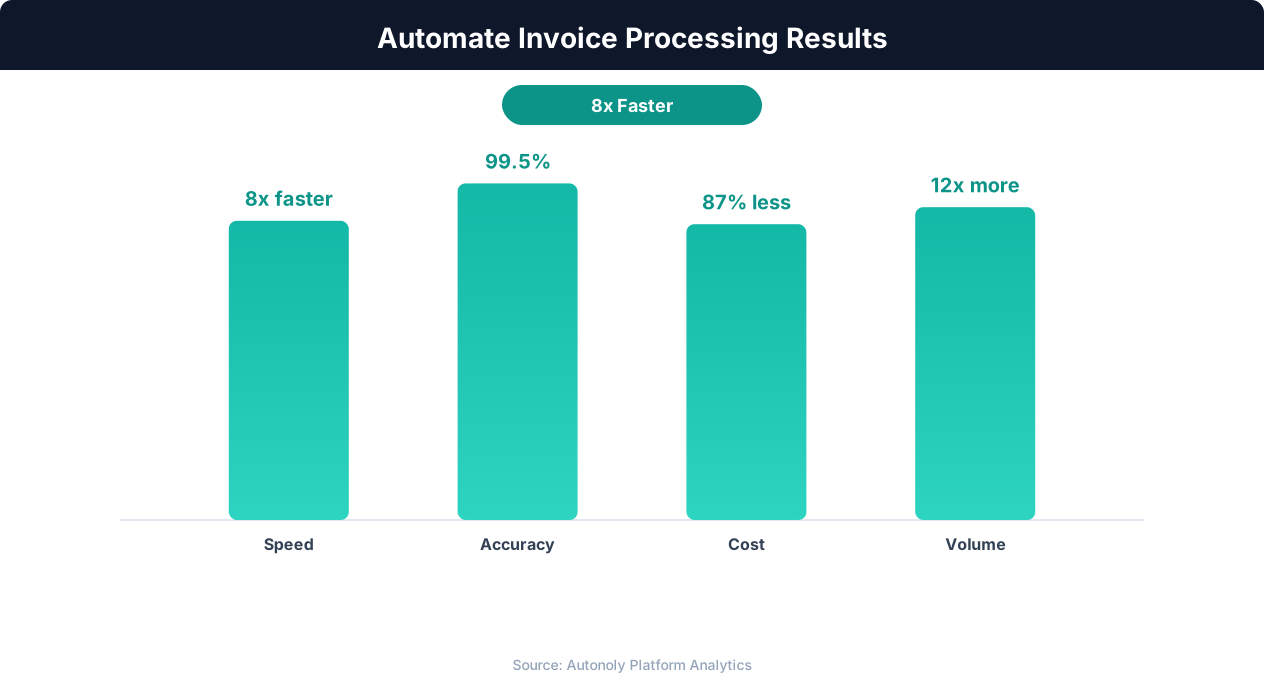
| Cost per invoice | $12-30 | $2-5 | 70-85% cost reduction |
| Processing time | 5-15 days | 1-2 days | 80-90% faster |
| Error rate | 1-4% | 0.1-0.5% | 90%+ error reduction |
| Late payment rate | 15-25% | 2-5% | 80% fewer late payments |
| Early payment discount capture | 20-40% | 80-95% | 2-3x more discounts captured |
Calculating Your Savings
Use this formula to estimate annual savings:
Annual savings = (Monthly invoices) x (Cost reduction per invoice) x 12
For a company processing 500 invoices per month with a $15 cost reduction per invoice (from $20 to $5): 500 x $15 x 12 = $90,000 per year in direct processing cost savings. Add captured early payment discounts (typically 1-2% of invoice value) for additional savings.
💡 Key Insight
Automated invoice processing reduces cycle time from 14 days to 3 days on average, improving cash flow management.
Scaling From Pilot to Full Deployment
Start with a pilot: automate invoices from your top 10 vendors by volume. These vendors' invoices have consistent formats, making extraction more reliable. Measure accuracy and processing time during the pilot. Once extraction accuracy exceeds 95% for pilot vendors, expand to additional vendors.
Scaling follows a predictable curve:
- Phase 1 (Month 1-2): Top 10 vendors, supervised automation. Human reviews every extracted invoice. Goal: validate extraction accuracy.
- Phase 2 (Month 3-4): Top 30 vendors, exception-based review. Human reviews only flagged invoices (validation failures, low-confidence extractions). Goal: reduce manual review by 70%.
- Phase 3 (Month 5+): All vendors, full automation with exception handling. Human intervention only for genuinely ambiguous or problematic invoices. Goal: 95%+ straight-through processing.
Continuous Improvement
Monitor extraction accuracy by vendor and invoice format. If a specific vendor's invoices consistently produce extraction errors, analyze the cause — it may be an unusual format, poor scan quality, or a newly changed template. Address systematic issues to steadily increase automation coverage.
Build automated reports that track processing volumes, accuracy rates, exception counts, and processing times. Share these dashboards with finance leadership to demonstrate the automation's value and justify continued investment. Combine with other AP automations like automated spreadsheet updates and vendor communication workflows for a comprehensive accounts payable automation strategy.
Tools and Platforms for Invoice Processing Automation
The invoice automation market includes specialized AP automation platforms, general-purpose automation tools, and custom solutions. Here is how they compare.
Dedicated AP Automation Platforms
Bill.com, Tipalti, AvidXchange, Stampli: These platforms are purpose-built for accounts payable automation. They include invoice ingestion, OCR, approval workflows, payment processing, and accounting system integration in a single product. Pricing is typically per-invoice ($1-5 per invoice) or per-user ($50-200/month per user).
Pros: Best-in-class AP-specific features, dedicated support, compliance features, direct payment processing. Cons: Expensive at scale, limited customization, separate system to manage, minimal flexibility for non-AP automation.
General-Purpose Automation With AI
Autonoly: Combines AI document understanding, OCR, browser automation, and workflow building in a single platform. Unlike dedicated AP tools, Autonoly handles the full pipeline — from email monitoring and PDF extraction to browser-based accounting system entry and Slack-based approvals. The AI agent can be directed to handle vendor-specific quirks and adapt to format changes without reconfiguration.
Pros: Handles systems without APIs (browser automation), highly customizable, combines AP automation with other workflow automation needs, AI adapts to format variations. Cons: Requires workflow building (not pre-built for AP specifically), no built-in payment processing.
Custom Development
Python + Tesseract/AWS Textract + custom code: Developers can build invoice processing pipelines using open-source OCR (Tesseract), cloud AI services (AWS Textract, Google Document AI, Azure Form Recognizer), and custom integration code.
Pros: Maximum control, no per-invoice costs, handles any format or system. Cons: Significant development time (weeks to months), ongoing maintenance, requires developer resources for every change.
Choosing the Right Approach
| Approach | Best For | Typical Monthly Cost |
|---|---|---|
| Dedicated AP Platform | Large AP teams, 1,000+ invoices/month | $500-5,000 |
| Autonoly | SMBs needing flexible automation, systems without APIs | $29-149 |
| Custom Development | Tech companies with developer resources | Infrastructure only |
For most small and mid-size businesses, Autonoly provides the best balance of capability and cost. Its AI handles the document understanding, its browser automation handles systems without APIs, and its visual workflow builder makes the processing pipeline visible and maintainable. For enterprises with dedicated AP teams processing thousands of invoices monthly, a dedicated AP platform may justify its higher cost with specialized features and payment processing integration.