Why Scrape Website Data Directly Into Google Sheets?
Google Sheets has become the default data layer for small and mid-size teams. It is free, collaborative, accessible from anywhere, and integrates with hundreds of other tools through native connectors and APIs. When you scrape website data directly into Google Sheets, you eliminate the intermediate export-import step that plagues traditional scraping workflows, creating a live data pipeline that flows from any website straight into your team's working spreadsheets.
The Traditional Scraping Bottleneck
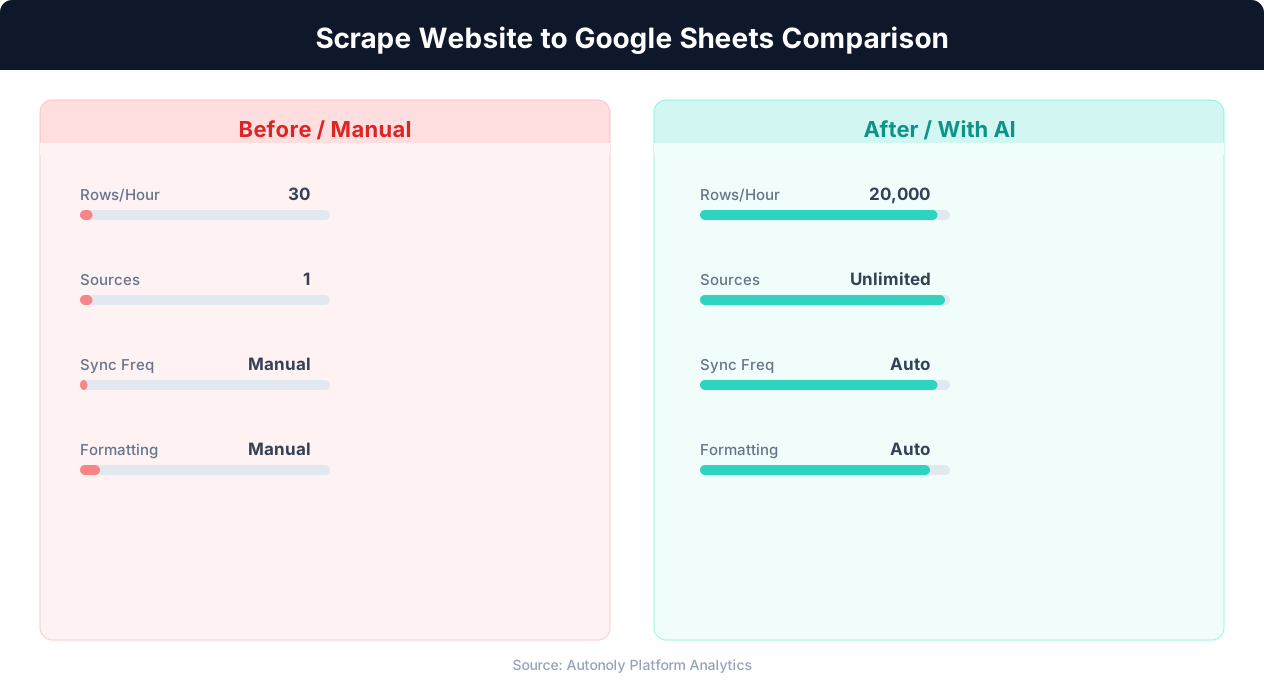
Most web scraping tools follow a disconnected workflow: you configure a scraper, run it, download a CSV file, open it in Excel, clean the data, and then manually paste or import it into whatever system needs it. Each step introduces delay, manual effort, and potential errors. If you need the data updated regularly, you repeat this entire process every time. For teams that already work in Google Sheets — tracking competitors, managing inventory, building reports, or maintaining contact lists — the CSV intermediary is an unnecessary bottleneck.
The Direct-to-Sheets Advantage
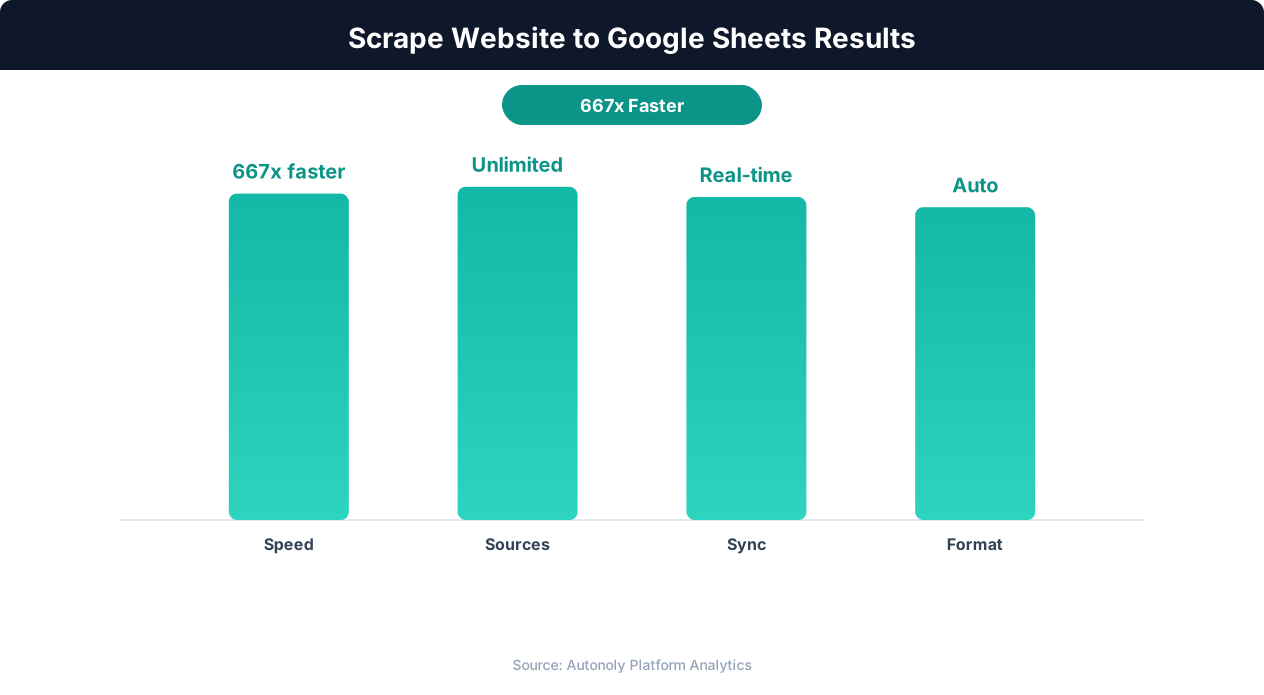
A direct website-to-Sheets pipeline eliminates the bottleneck entirely. Data flows from the source website through the scraping tool and into a specific Google Sheet, tab, and cell range with no manual steps. This creates several advantages:
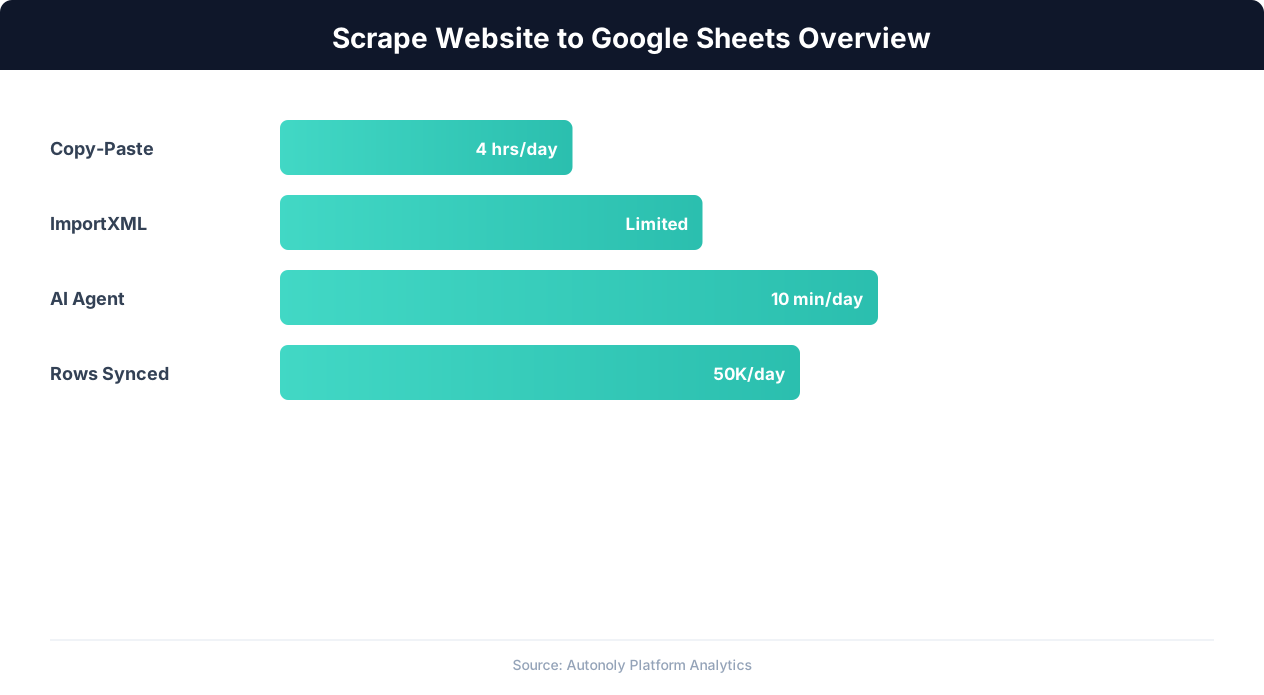
- Zero-touch updates: Schedule the scrape to run daily, and your Google Sheet always has fresh data without anyone downloading or importing files.
- Immediate collaboration: As soon as the scrape completes, everyone with access to the Sheet can see and work with the data. No file sharing or version confusion.
- Live dashboards: Google Sheets formulas, charts, and connected tools (Looker Studio, Tableau, Zapier) update automatically when new data arrives, creating live dashboards powered by scraped data.
- Audit trail: Google Sheets version history tracks every data update, so you can see exactly when data was added and what changed.
Common Use Cases
Direct-to-Sheets scraping powers a wide variety of business workflows:
- Price monitoring: Scrape competitor prices daily into a Sheet that calculates price gaps and triggers alerts when competitors change pricing.
- Lead generation: Scrape business directories, LinkedIn profiles, or Google Maps listings into a Sheet that feeds your sales pipeline.
- Market research: Scrape product listings, job postings, or real estate listings into Sheets for trend analysis and market sizing.
- Content monitoring: Scrape news sites, blogs, or social media for brand mentions and trending topics.
- Inventory tracking: Scrape product availability across multiple supplier websites into a single Sheet for procurement decisions.
If the data exists on a website and you need it in a spreadsheet, a direct scraping pipeline is the most efficient path from source to destination.
Why IMPORTXML and Built-In Sheets Functions Fall Short
Google Sheets includes several built-in functions for pulling data from the web: IMPORTXML, IMPORTHTML, IMPORTDATA, and IMPORTFEED. These seem like the obvious solution, but they have severe limitations that make them unsuitable for serious web scraping.
IMPORTXML and IMPORTHTML
The IMPORTXML function fetches an HTML page and extracts data using XPath expressions. IMPORTHTML extracts tables and lists from a page. These functions work for simple, static HTML pages, but fail in most real-world scenarios:
- No JavaScript rendering: These functions fetch raw HTML only. Modern websites load data through JavaScript (AJAX calls, React rendering, client-side APIs), and the raw HTML contains none of this dynamic content. Most e-commerce sites, social media platforms, and business applications render data via JavaScript, making IMPORTXML useless.
- No authentication: You cannot log into websites through Sheets functions. Any data behind a login wall is inaccessible.
- No pagination: Each function call fetches a single page. Scraping across multiple pages requires manual formula management that becomes unwieldy at scale.
- Rate limiting and blocking: Google's servers make the HTTP requests, so all IMPORTXML calls share Google's IP pool. Popular scraping targets actively block Google's IP ranges, causing the functions to return errors.
- Unreliable refresh: Google controls when IMPORTXML re-fetches data, and the refresh schedule is unpredictable (anywhere from minutes to hours). You cannot force a refresh on demand.
- Quota limits: Google Sheets limits external data function calls to prevent abuse. Heavy use of IMPORTXML across many cells triggers quota errors that break your spreadsheet.
Google Sheets API Scripts
Google Apps Script provides more flexibility — you can write custom JavaScript functions that fetch and parse web data. However, Apps Script has its own limitations: a 6-minute execution time limit, no browser rendering capability, limited HTTP request options, and no built-in handling for cookies, sessions, or authentication. Building a robust scraper in Apps Script requires significant programming effort and still cannot handle JavaScript-rendered sites.
The Right Approach: External Scraping with Sheets Output
The reliable solution is using an external scraping tool that handles the complexity of modern web scraping — JavaScript rendering, authentication, pagination, anti-bot measures — and writes the results directly to Google Sheets through the Sheets API. This separates the scraping complexity from the data storage, letting each tool do what it does best. Autonoly's Google Sheets integration follows this approach, combining powerful browser automation for extraction with native Sheets API output for seamless data delivery.
Step-by-Step: Scraping a Website Into Google Sheets with Autonoly
This walkthrough demonstrates scraping product data from an e-commerce website directly into a Google Sheet. The same approach works for any website and data type.
Step 1: Create Your Target Google Sheet
Create a new Google Sheet (or use an existing one) where you want the scraped data to land. Create column headers in the first row that match the data fields you plan to extract. For e-commerce product scraping, typical headers might be: Product Name, Price, Original Price, Rating, Review Count, URL, Availability, Scraped Date.
Having headers in place before running the scrape ensures the data is organized correctly from the first row. You can always add or rename columns later, but starting with a clean structure saves time.
Step 2: Connect Google Sheets in Autonoly
In your Autonoly dashboard, go to Integrations and connect your Google account. The OAuth flow takes about 30 seconds — you authorize Autonoly to read and write to your Google Sheets, and the connection is saved for all future workflows. You only need to do this once.
Step 3: Create a New Workflow and Describe Your Task
Create a new workflow and open the AI Agent panel. Describe the complete end-to-end task:
"Go to example-store.com/products/laptops and extract all laptop listings. For each product, get the product name, current price, original price, star rating, number of reviews, product URL, and availability status. Write the results to my Google Sheet named 'Laptop Price Tracker' in the 'Data' tab, starting from row 2."
The agent navigates to the website, analyzes the page structure, identifies the product listings, and plans the extraction.
Step 4: Handle Dynamic Content and Pagination
If the website loads products via JavaScript or uses infinite scroll, the agent handles this automatically through its live browser. For paginated results, the agent identifies the pagination controls and navigates through all pages, extracting data from each one.
You can watch the agent work in real time through the browser preview panel. If it misidentifies any data fields, provide corrections: "The price you're getting is the member price. Use the regular price shown above it."
Step 5: Preview and Confirm
Before writing to your Google Sheet, the agent shows a preview of the extracted data. Review the first several rows to confirm all fields are captured correctly. Check for data quality issues like missing values, incorrect formatting, or misidentified fields. Once you confirm, the agent writes the full dataset to your Google Sheet.
Step 6: Verify in Google Sheets
Open your Google Sheet and verify the data. Check that column alignment is correct, data types are appropriate (numbers are stored as numbers, not text), and all rows were written successfully. The agent reports the total row count and any errors encountered during writing.
Step 7: Add Formulas and Formatting
With the raw data in place, add Google Sheets formulas for analysis. Calculate price discounts with =(C2-B2)/C2, flag high-rated products with conditional formatting, or create charts showing price distribution. These formulas update automatically whenever the scrape runs again and new data arrives.
Step 8: Schedule Recurring Updates
For ongoing data needs, schedule the workflow to run on your preferred cadence (daily for price monitoring, weekly for market research). Each run appends new data to the Sheet with timestamps, building a historical dataset that grows over time. Your formulas and charts update automatically with each new data load.
Structuring Scraped Data for Google Sheets
How you structure data in Google Sheets determines how useful it is for analysis, reporting, and downstream integrations. Well-structured scraped data requires minimal post-processing and supports complex analysis through standard Sheets formulas.
Column Design Principles
Follow these principles when designing your Sheets structure:
- One data point per column. Do not combine address components ("123 Main St, Dallas, TX 75201") into a single column if you will need to filter by city or state. Split into Street, City, State, ZIP columns for maximum flexibility.
- Consistent data types per column. A "Price" column should contain only numbers, not mixed strings like "$29.99" and "Out of Stock." Use a separate column for availability status.
- Timestamp every row. Include a "Scraped Date" or "Last Updated" column so you know when each data point was captured. This is essential for time-series analysis and data freshness tracking.
- Include source URLs. For every row, include the URL of the page where the data was scraped. This enables verification, re-scraping of specific items, and click-through from the spreadsheet to the source.
Data Type Formatting
Google Sheets handles data types automatically, but scraped data often needs explicit formatting:
| Data Type | Raw Scraped Value | Clean Sheets Value | Format Setting |
|---|---|---|---|
| Price | "$1,299.99" | 1299.99 | Number, 2 decimals |
| Rating | "4.5 out of 5" | 4.5 | Number, 1 decimal |
| Review count | "1,247 reviews" | 1247 | Number, 0 decimals |
| Date | "March 15, the current year" | the current year-03-15 | Date, ISO format |
| Percentage | "15% off" | 0.15 | Percentage |
| Boolean | "In Stock" | TRUE | Checkbox |
Autonoly's data processing nodes can clean and format data during extraction, so the values arriving in Google Sheets are already in the correct format for analysis.
Append vs. Overwrite Strategies
How you handle data updates in Google Sheets depends on your use case:
- Append (add new rows): Best for time-series data where you want historical records. Each scrape run adds new rows below existing data. Use this for price monitoring, stock tracking, and any scenario where you need to analyze trends over time.
- Overwrite (replace all data): Best for snapshot data where you only care about the current state. Each scrape run clears the existing data and writes fresh results. Use this for leaderboards, current inventory lists, and status dashboards.
- Upsert (update existing, add new): Best for maintaining a master list where items change over time. The scraper matches rows by a unique key (product URL, SKU, business name) and updates existing rows while adding new ones. This is the most complex but most useful for CRM-style data management.
Sheet Organization for Multiple Scraping Targets
When scraping multiple websites or data types, organize your Google Sheets workbook with a dedicated tab per source or data type. A competitive intelligence workbook might have tabs: "Amazon Prices," "Walmart Prices," "eBay Prices," and a "Summary" tab with formulas that pull from all three. This keeps raw data separate while enabling cross-source analysis in a single view.
Scraping Dynamic and JavaScript-Heavy Websites
The majority of modern websites load data dynamically through JavaScript rather than serving complete HTML pages. Single-page applications (SPAs), infinite scroll, AJAX-loaded content, and client-side rendering are the norm, not the exception. Scraping these sites into Google Sheets requires tools that render JavaScript and interact with the page as a real browser would.
Why Dynamic Sites Break Simple Scrapers
When a browser loads a modern website, the initial HTML is often a skeleton — a minimal page structure with empty containers that JavaScript fills with actual content after the page loads. If you fetch this HTML with a simple HTTP request (like Python's requests library or Google Sheets' IMPORTXML), you get the empty skeleton. The product listings, prices, reviews, and other data you want simply are not present in the raw HTML.
Common dynamic loading patterns that require browser-based scraping:
- Single-page applications (React, Vue, Angular): The entire site runs as a JavaScript application. The HTML source contains only a root div and script tags.
- Infinite scroll: Products or search results load as you scroll down. Without scrolling, only the first batch is visible.
- Lazy loading: Images and content below the fold load only when you scroll near them.
- AJAX pagination: Clicking "Next" or "Load More" fetches additional data via API calls without reloading the page.
- Tab and accordion content: Data hidden behind tabs or expandable sections requires clicking to reveal.
💡 Key Insight
Teams automating web-to-Sheets workflows save an average of 10 hours per week on data collection and formatting.
Browser-Based Scraping with Autonoly
Autonoly uses real Chromium browser automation to scrape dynamic websites. The browser executes all JavaScript, renders the page fully, and waits for dynamic content to load before extracting data. This means Autonoly can scrape any website that works in a browser — if you can see the data on screen, Autonoly can extract it.
The AI agent handles dynamic content intelligently:
- Automatically scrolls through infinite scroll pages until all results are loaded
- Clicks "Load More" buttons and waits for new content to appear
- Navigates through tabbed interfaces to access hidden data
- Waits for AJAX requests to complete before extracting data
- Handles client-side rendering by monitoring DOM changes
Dealing with Anti-Bot Protections
Websites that invest in dynamic rendering often also invest in anti-bot measures. Cloudflare protection, reCAPTCHA, bot detection scripts, and fingerprinting are common on e-commerce sites, social media platforms, and business directories. Autonoly's browser automation operates as a real browser with authentic fingerprints, which bypasses most automated detection. For a deeper dive into handling anti-bot systems, see our guide on bypassing anti-bot detection.
Performance Considerations
Browser-based scraping is inherently slower than HTTP-based scraping because each page must be fully rendered. A page that takes 2-3 seconds to load in a browser adds up across hundreds of pages. For Google Sheets output, this is rarely a problem — even at 3 seconds per page, scraping 500 pages takes about 25 minutes, which is perfectly acceptable for most business use cases. The tradeoff of slower speed for reliable dynamic content handling is almost always worthwhile.
Automating Scraping Runs With Schedules and Triggers
A one-time scrape gives you a data snapshot. Automated recurring scrapes give you a continuously updated dataset that powers live dashboards, trend analysis, and proactive alerting. Setting up automated scraping runs transforms your Google Sheet from a static document into a live data feed.
Scheduled Execution
The most common automation pattern is scheduled execution — your scraping workflow runs automatically at a set time and frequency. Autonoly's scheduling feature supports:
- Hourly: For time-sensitive data like stock prices, flash sales, or real-time inventory monitoring.
- Daily: For price monitoring, news aggregation, and lead generation where same-day freshness is sufficient.
- Weekly: For market research, competitive analysis, and reporting data that does not change rapidly.
- Monthly: For long-cycle data like real estate listings, job market analysis, and regulatory filings.
- Custom cron: For specific schedules like "every Tuesday and Thursday at 9 AM" or "first Monday of each month."
Webhook Triggers
For event-driven scraping, webhook triggers start a scrape in response to an external event. Examples include:
- A new row added to a Google Sheet triggers a scrape of the URL in that row
- A Slack message mentioning a competitor name triggers a competitive pricing scrape
- An email alert from a supplier triggers an inventory availability scrape
Webhook-triggered scraping is more efficient than scheduled scraping when the data you need is event-dependent rather than time-dependent.
Incremental vs. Full Scraping
For large datasets, scraping everything on every run is wasteful. Incremental scraping only processes items that are new or changed since the last run. Implementation approaches include:
- Timestamp-based: Only scrape items published or modified after the last run timestamp.
- Hash-based: Compare a hash of each item's data with the previously stored hash. Only update rows where the hash changed.
- URL-list-based: Maintain a list of known URLs. On each run, check for new URLs to add and scrape only those.
Incremental scraping reduces processing time, minimizes load on the target website, and keeps your Google Sheet focused on meaningful changes rather than redundant data.
Building Live Dashboards on Scraped Data
With automated scraping populating your Google Sheet on a schedule, you can build live dashboards that update automatically:
- Google Sheets charts: Create charts directly in the Sheet that visualize price trends, availability patterns, or lead volumes. Charts update automatically when new data arrives.
- Looker Studio (Data Studio): Connect your Google Sheet to Looker Studio for more sophisticated visualizations. Dashboards refresh automatically when the Sheet data updates.
- Conditional formatting alerts: Use conditional formatting to highlight rows that meet alert conditions (price drop > 10%, new competitor detected, stock out). This provides a visual alerting system directly in the spreadsheet.
- Email digests: Combine scheduled scraping with automated email reports to send daily or weekly summaries of key data changes to stakeholders.
The combination of automated scraping, Google Sheets storage, and dashboard visualization creates a complete business intelligence pipeline — all without writing code or managing databases.
Troubleshooting Common Issues
Even well-configured scraping workflows encounter issues. Knowing the most common problems and their solutions helps you maintain reliable data pipelines with minimal downtime.
Empty or Missing Data Fields
The most common issue is fields that return empty or null values. Causes include:
- Content not loaded: The data is rendered by JavaScript but the scraper did not wait long enough for it to appear. Solution: increase wait times or add explicit waits for specific elements.
- Variant page layouts: The website uses different layouts for different products or categories. Solution: the AI agent adapts to layout variations automatically, but you may need to provide guidance for unusual layouts.
- Data behind interactions: Prices or details are hidden behind "Show More" buttons or hovering. Solution: instruct the agent to click expansion controls before extracting.
Google Sheets Write Failures
Occasionally, writing to Google Sheets fails. Common causes:
- Token expiration: The Google OAuth token expired. Solution: re-authenticate your Google connection in Autonoly settings.
- Sheet permissions: The Sheet was moved, deleted, or sharing permissions changed. Solution: verify the Sheet exists and Autonoly has edit access.
- Rate limits: The Google Sheets API has rate limits (300 requests per minute per project). Writing thousands of rows very rapidly can hit these limits. Solution: Autonoly batches writes to stay within limits, but extremely large datasets may need throttling.
- Cell limits: Google Sheets has a maximum of 10 million cells per spreadsheet. If your scraped data approaches this limit, split across multiple spreadsheets or archive old data.
💡 Key Insight
Automated pipelines update Google Sheets with fresh web data 24/7, eliminating 100% of manual copy-paste errors.
Data Quality Issues
Scraped data sometimes contains quality problems:
- HTML entities in text: Characters like
&or appear in extracted text. Solution: configure the extraction to strip HTML entities. - Extra whitespace: Leading, trailing, or excessive internal whitespace in text fields. Solution: apply text trimming during extraction or in Sheets with
=TRIM(). - Mixed number formats: Some prices have currency symbols, others do not. Solution: standardize formatting in the data processing step.
- Encoding issues: Special characters appear as garbled text. Solution: ensure UTF-8 encoding throughout the pipeline.
Scraping Blocked or Detected
If the target website blocks your scraping attempts:
- Add delays: Slow down the scraping speed. 3-5 seconds between page loads is a safe baseline.
- Rotate sessions: Use different browser profiles or sessions across scraping runs.
- Reduce volume: Scrape fewer pages per run and increase frequency instead (5 runs of 100 pages vs. 1 run of 500 pages).
- Check for layout changes: The website may have updated its frontend, changing the layout your workflow was configured for. The AI agent typically adapts automatically, but verify the extraction is still working correctly.
For persistent blocking issues on specific websites, refer to our detailed guide on scraping dynamic websites for advanced techniques.
Advanced Techniques: Formulas, Alerts, and Cross-Sheet Pipelines
Once your basic scraping-to-Sheets pipeline is working, advanced techniques unlock significantly more value from the same data. Combining Google Sheets' native capabilities with automated scraping creates powerful analytical tools that would otherwise require custom software.
Price Change Detection Formulas
For price monitoring, formulas that compare current prices to historical data enable automated alerting:
=IF(B2<>VLOOKUP(A2,'Previous Run'!A:B,2,FALSE),"CHANGED","SAME")
This formula compares the current price (B2) against the price from the previous scrape run (stored in a "Previous Run" tab), flagging any changes. Combined with conditional formatting (red for price increases, green for decreases), this creates a visual price change dashboard.
Cross-Source Price Comparison
When you scrape the same products from multiple websites (Amazon, Walmart, Target), use VLOOKUP or INDEX/MATCH to create a comparison matrix:
| Product | Amazon Price | Walmart Price | Target Price | Best Price |
|---|---|---|---|---|
| Sony WH-1000XM5 | $278 | $295 | $289 | Amazon ($278) |
| AirPods Pro 2 | $199 | $189 | $199 | Walmart ($189) |
The "Best Price" column uses =MIN(B2:D2) to identify the lowest price and =INDEX($B$1:$D$1,MATCH(MIN(B2:D2),B2:D2,0)) to identify which store offers it. This automates competitive price analysis across any number of sources.
Automated Alert Emails
Google Sheets can trigger email notifications using Apps Script, but a more robust approach is connecting your scraped Sheet to Autonoly's alerting workflow. Set up a secondary workflow that reads the Sheet on a schedule, checks for alert conditions (price below threshold, new products detected, stock-out changes), and sends notifications via Slack or email. This creates a complete monitor-and-alert system powered entirely by scraped data.
Multi-Stage Data Pipelines
Advanced use cases chain multiple scraping and processing steps together:
- Stage 1: Scrape a directory for a list of URLs (e.g., all product URLs on a category page)
- Stage 2: Visit each URL and scrape detailed data from individual pages
- Stage 3: Enrich with data from a second source (e.g., match products with review data from another site)
- Stage 4: Write the combined dataset to Google Sheets
Autonoly's visual workflow builder supports these multi-stage pipelines through connected workflow nodes. Each stage reads from the previous stage's output, enabling complex data processing without code.
Data Archiving and Rotation
For long-running scraping pipelines, Google Sheets rows accumulate and eventually impact performance. Implement a data rotation strategy:
- Keep the most recent 30 days of data in the active Sheet
- Automatically move older data to an archive Sheet or export to CSV
- Maintain a "Latest" tab that always shows only the most recent scrape results
This keeps your working Sheet fast and responsive while preserving historical data for trend analysis. With scheduled automated workflows, the archiving process itself can be automated alongside your scraping runs.