The Vendor Portal Problem: Why AP Teams Are Drowning in Logins
Every business pays vendors. And every vendor has a different portal where your invoices live. The telecom provider uses one system. The shipping company uses another. Your cloud hosting bill sits in a third. Office supplies in a fourth. Utilities, software subscriptions, janitorial services, equipment leases, insurance, professional services — each one has its own login page, its own navigation structure, its own billing section, its own download button.
For a typical mid-size company with 15 to 30 active vendors, the monthly invoice download routine looks something like this: an accounts payable clerk opens a browser, navigates to the first vendor portal, enters a username and password, handles a multi-factor authentication prompt, clicks through to the billing section, finds the most recent invoice, downloads the PDF, renames the file to match the company's naming convention, saves it to the correct folder, and then repeats the entire process for the next vendor. And the next. And the next.
This process takes between 10 and 30 minutes per vendor, depending on how complex the portal is. For 20 vendors, that is 3 to 8 hours of pure mechanical clicking every single month. It is not analytical work. It is not strategic work. It is logging in and clicking download, over and over, in portals that were each designed by a different team with a different idea of where the billing section should go.
The Real Costs Go Beyond Wasted Time
The time cost is obvious, but the hidden costs are worse. When invoice downloads are manual, invoices get missed. The AP clerk is sick one week, or busy with quarter-end close, or simply forgets that the company added a new SaaS vendor three months ago. A missed invoice means a missed payment. A missed payment means a late fee. And in many cases, it means losing an early-payment discount that the vendor offered — a discount that can range from 1% to 3% of the invoice total.
For a company spending $500,000 annually across its vendors, losing a 2% early-payment discount on even half of those invoices costs $5,000 per year. That is not a rounding error — that is real money walking out the door because someone did not log into a portal on time.
The Hidden Cost of Manual Downloads
Beyond time, manual invoice downloads lead to missed early-payment discounts (typically 1-3% of invoice value), late payment penalties, incomplete audit trails, and inconsistent filing that makes month-end reconciliation a nightmare. For a company with 25 vendors, the total annual cost of manual invoice collection often exceeds $15,000 when you factor in labor, penalties, and lost discounts.
Why Each Vendor Portal Is a Unique Puzzle
If every vendor used the same portal layout, this problem would be annoying but manageable. The real headache is that every portal is different. Consider the variety an AP team typically encounters:
- AT&T Business: Login requires a separate business account ID plus password. Billing is under "View & Pay Bill" in the account management section. Invoices are listed by billing cycle date and must be individually opened and downloaded as PDF.
- FedEx: The billing center is at fedex.com/billing, separate from the main site. It requires a FedEx account number and web password. Invoices can be downloaded individually or in bulk, but the bulk download option creates a ZIP file with cryptic filenames.
- AWS: The billing dashboard is a dense, information-heavy page. Invoices are buried under "Bills" in the Billing and Cost Management console. Each month's bill must be opened and the PDF downloaded separately. The console frequently updates its interface.
- Verizon Business: Uses a My Business portal with a different login system than consumer Verizon. Bill history is under "Bill" in the top navigation, but the page loads slowly and requires waiting for account data to populate.
- UPS: Invoices are in the UPS Billing Center, which requires a separate login from the standard UPS tracking account. The billing center shows invoices by week, and each must be opened individually.
- Amazon Business: Invoices are under "Business Order History" and then "Download order reports." The process involves generating a report, waiting for it to process, and then downloading the result — a multi-step asynchronous flow.
- Utility companies: Each utility (electric, gas, water, internet) has its own portal, its own login, and its own labyrinthine path to the PDF invoice. Some utilities only show the current month by default and require navigating to a "Bill History" section.
- SaaS subscriptions: Stripe-based billing portals, custom dashboards, email-only invoices that require digging through Gmail — every SaaS vendor handles billing differently.
An AP clerk has to memorize (or maintain a cheat sheet for) the login URL, credentials, navigation path, and download method for every single one of these portals. When a portal updates its interface — which happens regularly — the clerk has to figure out the new path. When a new vendor is added, the clerk has to learn another portal from scratch.
The Scale Problem
As companies grow, the vendor count grows with them. A 10-person startup might have 8 vendors. A 50-person company might have 25. A 200-person company could easily have 60 or more. The manual download process does not scale linearly — it scales worse than linearly because each new vendor adds not just download time but also cognitive overhead: another set of credentials to manage, another portal layout to remember, another potential point of failure.
At some point, the AP team either hires additional staff specifically to handle invoice collection (an expensive solution to a mechanical problem), or invoices start falling through the cracks (an expensive consequence of understaffing). Neither outcome is acceptable when the core task — logging in and clicking download — is the definition of work that should be automated.
How AI Browser Automation Downloads Invoices from Any Portal
The reason vendor invoice downloads have resisted automation for so long is that every portal is different. Traditional automation tools — browser macros, scripts, basic RPA — require building a custom integration for each vendor portal. When you have 20 vendors, you need 20 separate automations, each one brittle and likely to break when the portal updates.
AI browser automation takes a fundamentally different approach. Instead of recording fixed click sequences, an AI agent controls a real cloud browser and navigates portals the way a human would — by understanding what it sees on screen. Tell it "log into the AT&T Business portal and download this month's invoice," and it figures out where to click, what to type, and how to navigate the specific layout of that portal. When the portal updates its design, the AI adapts because it is reading the page, not replaying a recording.
The Six-Step Automation Pipeline
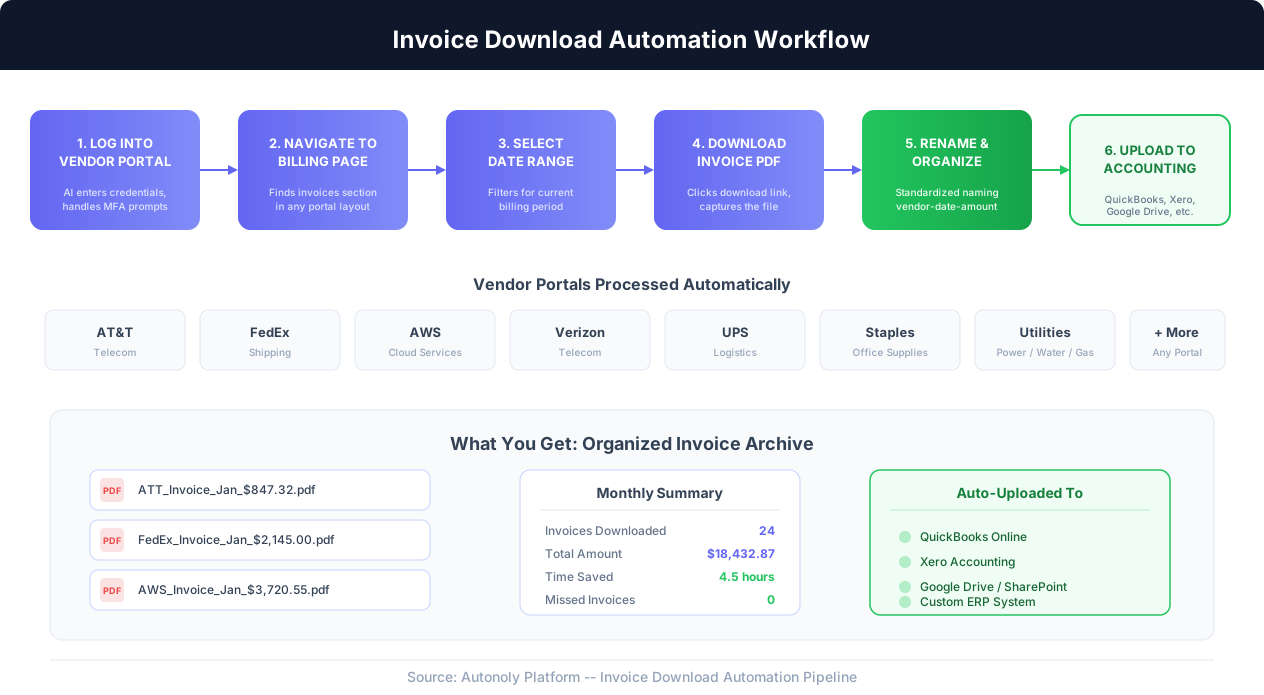
An automated invoice download workflow follows six steps, regardless of which vendor portal is involved:
- Log into the vendor portal. The AI agent opens the vendor's login page, enters the stored credentials, and handles any multi-factor authentication prompts. For portals that use SMS or email-based MFA codes, the agent can be configured to retrieve the code from the appropriate channel. For portals with CAPTCHA challenges, the AI's visual understanding can handle standard challenges, and more complex ones can be flagged for human assistance.
- Navigate to the billing section. This is where AI shines compared to script-based automation. The AI reads the portal's navigation menu, identifies the billing or invoices section (which might be labeled "Billing," "Invoices," "Statements," "Payment History," or any of a dozen other names), and clicks through. If the billing section is nested two or three levels deep in the navigation, the AI follows the path.
- Select the correct date range. Many portals default to showing the current month or the most recent billing cycle. If you need invoices from a specific period — say, the previous month for month-end close — the AI sets the appropriate date filters. Some portals use calendar pickers, others use dropdown menus, and others use text fields. The AI handles all of these input methods.
- Download the invoice PDF. The AI identifies the download link or button for the invoice, clicks it, and captures the downloaded file. Some portals serve the PDF directly; others open it in a preview pane with a separate download button; others generate the PDF asynchronously and require waiting for it to be ready. The AI handles each of these patterns.
- Rename and organize the file. Raw invoice filenames from vendor portals are often meaningless strings like
bill_20260401_acct78923.pdfor simplyinvoice.pdf. The automation renames each file according to your company's naming convention — for example,ATT_Invoice_Apr_$847.32.pdforFedEx_2026-04_INV-27841.pdf— and saves it to the appropriate folder in your file system or cloud storage. - Upload to your accounting system. The final step pushes the downloaded, renamed invoice to wherever your accounting team needs it: QuickBooks Online, Xero, Google Drive, SharePoint, Dropbox, or a custom ERP system. This step can also include extracting key data from the invoice (amount, date, vendor name, invoice number) and entering it into the accounting system's records.
What Makes This Different from Writing Scripts
A developer could, in theory, write a Selenium or Playwright script to download invoices from each vendor portal. But there are critical differences between that approach and AI browser automation:
- No programming required. With Autonoly's AI agent chat, you describe the task in plain English. "Go to fedex.com/billing, log in with these credentials, and download all invoices from last month." The AI handles the rest. No CSS selectors, no XPath expressions, no code to write or maintain.
- Self-healing when portals change. When FedEx redesigns its billing portal (which happens every year or two), a Selenium script breaks immediately. The AI adapts because it identifies elements by their visual context and semantic meaning, not by their HTML structure. A button labeled "Download PDF" is still a button labeled "Download PDF" even if its CSS class changes.
- Works across any portal without custom integration. Adding a new vendor takes minutes, not days. You provide the login URL, credentials, and a plain-English description of what to download. There is no per-vendor development cost.
How Autonoly Handles Vendor Portals
Autonoly's live browser control lets you watch the AI agent navigate each vendor portal in real time. You can see it log in, click through to billing, find the invoice, and download it — exactly as a human would, but faster and without errors. If anything looks wrong, you can intervene mid-process. Once the workflow runs successfully, you can save it as a visual workflow that runs on a monthly schedule without any further input.
Handling the Tricky Portals
Some vendor portals throw curveballs that trip up simpler automation tools. The AI agent handles these gracefully:
- Session timeouts: Some portals aggressively time out sessions after a few minutes of inactivity. If the agent is processing multiple invoices from the same vendor and the session expires, it automatically re-authenticates and picks up where it left off.
- Dynamic content loading: Portals built with modern JavaScript frameworks often load billing data asynchronously. The AI waits for the content to fully load before attempting to interact with it, rather than trying to click elements that have not rendered yet.
- Download confirmation dialogs: Some portals show a confirmation dialog ("Are you sure you want to download?") or a terms-of-use checkbox before allowing the download. The AI handles these intermediate steps automatically.
- Multiple invoice formats: A single vendor might offer invoices in PDF, CSV, or HTML format. The AI can be instructed to always download the PDF version, even when the portal defaults to showing an HTML preview.
- Split invoices: Some vendors (particularly utilities) split charges across multiple invoices or statements. The AI downloads all relevant documents for the billing period, not just the first one it finds.
Four Approaches to Invoice Downloads: Manual, Macros, RPA, and AI Compared
Not every team needs AI browser automation. Depending on your vendor count, portal complexity, and budget, different approaches make sense. Here is an honest comparison of the four main options for automating invoice downloads.
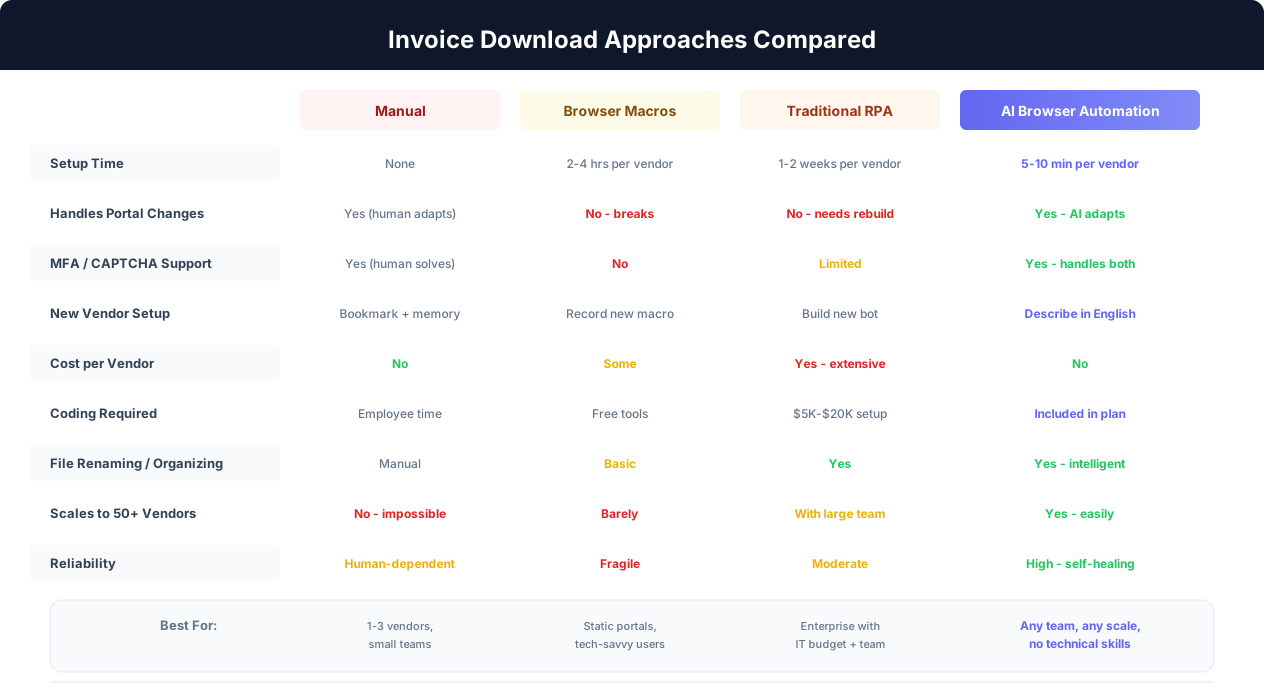
1. Manual Downloads: The Baseline
The simplest approach: a person logs into each portal and downloads each invoice. No setup required, no tools to learn, no technical skills needed.
Strengths: Works immediately, handles any portal without preparation, naturally adapts to portal changes, can deal with edge cases on the fly.
Weaknesses: Does not scale beyond 5 to 10 vendors without consuming significant staff time. Error-prone — humans make mistakes when repeating the same task dozens of times. Inconsistent filing and naming. Dependent on a specific employee's knowledge of each portal. Falls apart during vacations, sick days, and turnover.
Best for: Very small businesses with fewer than 5 vendors, where the total monthly time commitment is under 30 minutes.
2. Browser Macros and Recorders
Tools like browser extensions or macro recorders capture a sequence of clicks and replays them. You record yourself downloading an invoice from a portal, and the macro replays those exact clicks next time.
Strengths: Free or very low cost. No coding required. Can handle simple, static portals that rarely change their layout.
Weaknesses: Extremely fragile. Any change to the portal's layout, button placement, or page structure breaks the macro. Cannot handle MFA prompts, CAPTCHAs, dynamic content, or portals that load data asynchronously. Each vendor requires a separate macro that must be maintained independently. No error handling — if the macro fails halfway through, it stops without recovery. Cannot rename or organize downloaded files.
Best for: A few vendors with very stable, simple portals — but be prepared for frequent breakage and manual intervention.
3. Traditional RPA (UiPath, Automation Anywhere, Blue Prism)
Enterprise RPA platforms use software robots that interact with desktop and web applications by mimicking human clicks and keystrokes. They are more sophisticated than browser macros, with support for variables, conditional logic, and error handling.
Strengths: Robust, enterprise-grade, with logging, audit trails, and scheduling. Can handle complex workflows with branching logic. Integrates with enterprise systems (SAP, Oracle, etc.). Suitable for regulated industries that require detailed activity records.
Weaknesses: Expensive — license costs typically start at $5,000 to $10,000 per year per bot, plus implementation costs of $10,000 to $50,000 per workflow. Requires trained developers ("RPA developers") to build and maintain each bot. Each vendor portal still needs a custom bot. When portals change, the bot breaks and requires an RPA developer to fix it. Implementation timelines measured in weeks or months per vendor.
Best for: Large enterprises with dedicated IT budgets, existing RPA infrastructure, and enough vendor volume (50+) to justify the investment.
4. AI Browser Automation (Autonoly)
AI-powered browser automation uses an intelligent agent that understands web pages visually and semantically. Instead of replaying recorded click sequences, it navigates portals the way a human would — by reading the page and deciding what to do next.
Strengths: No coding or technical skills required — you describe tasks in plain English. Self-healing: adapts when portals change their layout without breaking. Adding a new vendor takes minutes, not weeks. Handles MFA, CAPTCHAs, dynamic content, and complex multi-step download processes. Includes file renaming, organization, and upload to accounting systems. Runs on cloud browsers, so nothing to install on your local machine.
Weaknesses: Requires trusting your vendor credentials to the platform (mitigated by enterprise-grade credential encryption). AI is not infallible — very unusual portal designs may occasionally need human guidance on the first run. Relatively new technology category, so some teams may need to be convinced to try it.
Best for: Teams of any size that want to automate invoice downloads without writing code, hiring developers, or spending months on implementation. Especially valuable for companies with 10 or more vendors or portals that change frequently.
The Decision Is Usually Simple
If you have fewer than 5 vendors and simple portals, manual downloads are fine. If you have 5 to 15 vendors, AI browser automation eliminates hours of monthly grunt work with minimal setup. If you have 15 or more vendors, automation is not optional — it is a business necessity. The only question is whether you invest six figures in enterprise RPA or get the same result with AI browser automation at a fraction of the cost and setup time.
Step-by-Step: Setting Up Automated Invoice Downloads
This section walks through the practical process of setting up automated invoice downloads using AI browser automation. The specifics use Autonoly as the platform, but the general approach applies to any AI-driven automation tool.
Step 1: Inventory Your Vendors
Before automating anything, build a complete list of every vendor whose invoices you download manually. For each vendor, document:
- Portal URL: The login page URL (not the main website — the actual billing portal). For example, Amazon Business billing is at
business.amazon.com, notamazon.com. - Credentials: Username/email and password. Note whether the portal uses a separate business account ID, a customer number, or just an email address.
- MFA method: Does the portal use SMS codes, email codes, an authenticator app, or no MFA at all?
- Invoice location: Describe the navigation path from login to the invoice download page. For example: "After login, click 'Account,' then 'Billing,' then 'Invoice History.'"
- Invoice format: PDF, CSV, or other? Does the portal offer multiple formats?
- Billing frequency: Monthly, weekly, quarterly? When do invoices typically become available?
- File naming convention: What should the downloaded file be named? Define a consistent pattern like
[Vendor]_Invoice_[Month]_[Amount].pdf.
This inventory serves as the blueprint for your automation. A typical inventory for a mid-size company looks like this:
| Vendor | Portal | MFA | Frequency | Manual Time |
|---|---|---|---|---|
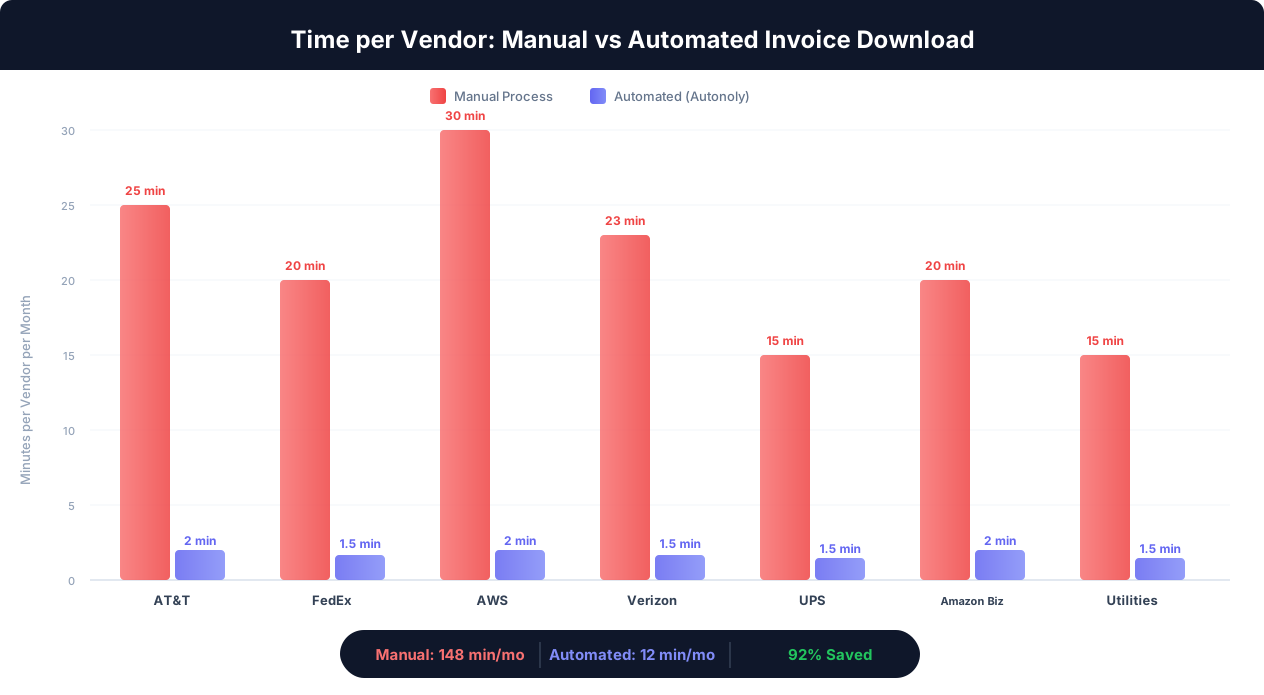
| AT&T Business | att.com/mybiz | SMS | Monthly | 25 min |
| FedEx | fedex.com/billing | None | Weekly | 20 min |
| AWS | console.aws.amazon.com | Authenticator | Monthly | 30 min |
| Verizon Business | mybusiness.verizon.com | SMS | Monthly | 23 min |
| UPS | ups.com/billing | None | Weekly | 15 min |
| Amazon Business | business.amazon.com | Monthly | 20 min | |
| City Electric Co. | cityelectric.com/myaccount | None | Monthly | 15 min |
Step 2: Store Credentials Securely
Once your vendor inventory is complete, store each vendor's credentials in Autonoly's encrypted credential vault. The platform uses AES-256 encryption for stored credentials, and they are never exposed in logs or workflow definitions. Each credential entry includes the portal URL, username, password, and any additional authentication fields (account numbers, PINs, etc.).
For vendors that use MFA, configure the appropriate handling method. Options include:
- TOTP (authenticator app): Store the TOTP secret key so the agent can generate codes automatically. This is the most seamless option.
- Email-based codes: Configure the agent to check a designated email inbox for the MFA code, retrieve it, and enter it into the portal.
- SMS-based codes: For portals that insist on SMS, you can set up a notification that pauses the workflow and asks you to enter the code. This requires a brief human interaction but only takes a few seconds.
Step 3: Create the First Automation
Start with one vendor — ideally the one with the simplest portal. Open Autonoly's AI agent chat and describe the task conversationally:
"Go to fedex.com/billing. Log in with the FedEx credentials I stored. Navigate to the invoice history section. Download all invoices from last month as PDF. Rename each file to FedEx_Invoice_[date]_[amount].pdf and save them to my Google Drive in the folder Invoices/FedEx."
The AI agent will open a cloud browser, navigate to the FedEx portal, and execute each step. You can watch the entire process in real time through Autonoly's live browser control panel. If the agent takes a wrong turn — clicks the wrong menu item or misidentifies the download button — you can correct it, and the agent learns from the correction for future runs.
Step 4: Expand to All Vendors
Once the first vendor works correctly, set up automations for the remaining vendors in your inventory. The process is the same for each vendor: describe the task, watch the first run, make corrections if needed, and save the workflow.
Most teams can set up 5 to 8 vendors in a single working session. Complex portals (like AWS with its dense console interface) may take slightly longer on the first run as the AI learns the navigation. Simple portals (like utility company sites with a straightforward "Download PDF" button) may take under five minutes to set up.
Step 5: Configure Scheduling
Once all vendors are set up and confirmed working, use scheduled execution to run each automation at the appropriate time:
- Monthly invoices: Schedule for the 3rd to 5th of each month (giving vendors time to post the previous month's invoice).
- Weekly invoices: Schedule for Monday morning, downloading the previous week's charges.
- Quarterly invoices: Schedule for the first week of each quarter.
Stagger the schedules so all vendors do not run simultaneously, which avoids resource contention and makes it easier to troubleshoot if a specific vendor's portal has issues on a given day.
Step 6: Set Up Notifications and Error Handling
Configure the automation to send you a summary notification after each run cycle. A good notification includes: which vendors were processed, which invoices were downloaded, any vendors that failed (with error details), and a link to the downloaded files.
For failed vendors, set up retry logic: if a download fails due to a transient issue (page timeout, temporary server error), the automation retries after 30 minutes. If it fails again, you receive an alert so you can investigate manually. The goal is zero missed invoices, and the notification system acts as your safety net.
The ROI of Automating Invoice Downloads: Time, Money, and Sanity
Automating invoice downloads is one of the highest-ROI automation projects an AP team can undertake. The time savings are immediate and measurable, the error reduction is significant, and the financial benefits compound as you add more vendors.
Time Savings: The Numbers
Based on real-world usage data across companies using AI browser automation for invoice collection, here is what the time savings look like:
| Vendor Count | Manual Time/Month | Automated Time/Month | Time Saved/Month | Annual Savings |
|---|---|---|---|---|
| 5 vendors | 1.5 hours | 8 minutes | 1.4 hours | 17 hours |
| 10 vendors | 3.3 hours | 15 minutes | 3 hours | 36 hours |
| 20 vendors | 6.5 hours | 30 minutes | 6 hours | 72 hours |
| 40 vendors | 13 hours | 1 hour | 12 hours | 144 hours |
For a company with 20 vendors, automation saves 72 hours annually — nearly two full work weeks. At an average AP clerk hourly cost of $25 to $35, that is $1,800 to $2,520 in direct labor savings every year from this single automation. And that calculation only counts the time spent on the download itself, not the time spent dealing with downstream consequences of missed or late invoices.
Financial Impact Beyond Time Savings
The financial case for automation extends well beyond labor costs:
- Early-payment discounts captured: Many vendors offer 1% to 3% discounts for paying within 10 days. When invoices are downloaded on the day they are posted (rather than whenever the AP clerk gets around to it), you capture these discounts consistently. For $300,000 in annual vendor spend eligible for early-payment discounts, capturing a 2% discount saves $6,000 per year.
- Late-payment penalties avoided: Missed invoices lead to missed payments, which lead to late fees. A single late payment to a major vendor can incur $50 to $500 in penalties, depending on the vendor and the amount. Eliminating missed invoices eliminates these penalties entirely.
- Audit readiness: Automated downloads create a complete, consistently named, chronologically organized archive of every invoice from every vendor. When auditors ask for vendor invoices from a specific period, you pull them from a single organized directory instead of hunting through email inboxes, desktop folders, and half-remembered portal bookmarks.
- Cash flow visibility: When invoices arrive in your accounting system on the day they are issued (instead of days or weeks later), your accounts payable aging reports are accurate. You know exactly what you owe, to whom, and when it is due. This visibility enables better cash management and more accurate financial forecasting.
The Compounding Benefit
Invoice download automation is not a one-time benefit — it compounds. Every new vendor you add increases the time savings. Every month the automation runs, it prevents another round of manual downloads. Over a year, the cumulative savings are substantial; over five years, they are transformative. And unlike hiring an additional AP clerk, the automation does not take sick days, does not need training, and does not leave the company with institutional knowledge locked in their head.
Total Annual ROI for a 20-Vendor Company
Labor savings: $2,000+. Early-payment discounts captured: $3,000-$6,000. Late fees avoided: $500-$2,000. Audit preparation time saved: $1,000+. Total annual benefit: $6,500 to $11,000+, growing with every vendor you add.
Security: Handling Vendor Credentials and Sensitive Financial Data
Invoice downloads involve two categories of sensitive data: vendor portal credentials (usernames, passwords, MFA secrets) and financial documents (invoices containing payment amounts, account numbers, and vendor details). Any automation solution that handles these must take security seriously.
Credential Storage and Encryption
The most common concern teams have about automating vendor portal logins is: "How are our passwords protected?" This is a legitimate concern, and it should be a dealbreaker if the platform cannot answer it convincingly. Here is what proper credential security looks like:
- Encryption at rest: Credentials must be encrypted using industry-standard algorithms (AES-256 or equivalent) when stored. They should never be stored in plaintext, in configuration files, or in workflow definitions where they could be exposed in logs or backups.
- Encryption in transit: All communication between the automation platform and vendor portals must use TLS 1.2 or higher. Credentials should never be transmitted over unencrypted connections.
- Access controls: Only authorized users should be able to view or modify stored credentials. Ideally, credentials are write-only: users can add or update them, but cannot view the password after it has been stored. The automation agent retrieves credentials programmatically without exposing them in the interface.
- Isolation: Credentials for one customer account should be isolated from credentials for other customer accounts. A multi-tenant platform should use per-tenant encryption keys so that a breach of one tenant's data does not expose another's.
Autonoly uses AES-256 encryption for all stored credentials, with per-tenant encryption keys and strict access controls. Credentials are injected into the cloud browser session at runtime and are never logged, displayed in the UI after storage, or included in workflow exports.
Cloud Browser Security
Because Autonoly runs vendor portal sessions in cloud browsers (not on your local machine), additional security considerations apply:
- Ephemeral sessions: Each automation run creates a fresh browser session that is destroyed after the task completes. No cookies, cache, or session data persists between runs. This prevents session hijacking and eliminates the risk of leftover authentication tokens.
- Network isolation: Cloud browser instances run in isolated network environments. They cannot access your internal network — they only access the public internet to reach vendor portals. This means even if the cloud browser were compromised, it could not be used to pivot into your corporate network.
- No local data exposure: Downloaded invoices are stored in the cloud and transferred to your designated destination (Google Drive, accounting system, etc.) over encrypted connections. The files never touch an uncontrolled local machine where they could be exposed to malware or unauthorized access.
What About Shared Accounts?
Many vendor portals use shared credentials — a single username and password that the entire AP team uses. This is a common security antipattern that creates problems regardless of whether you automate:
- No audit trail for who accessed the portal or when.
- When someone leaves the company, the password must be changed everywhere.
- If the password is compromised, there is no way to determine which user was responsible.
Automation actually improves this situation. Instead of sharing credentials across the AP team, store them once in the automation platform. The agent accesses the portals, and human team members never need to know the passwords. When you need to rotate a password, you update it in one place instead of notifying every team member. And every access is logged by the automation platform with timestamps and outcomes.
Security Best Practices for Automated Invoice Downloads
1. Use unique, strong passwords for each vendor portal. 2. Enable MFA on every portal that supports it and configure the automation to handle it. 3. Rotate vendor portal passwords quarterly. 4. Review automation logs monthly to confirm expected access patterns. 5. Set up alerts for failed login attempts, which may indicate a credential issue. 6. Use the principle of least privilege: the vendor portal account used for automation should have read-only billing access, not full administrative access.
Compliance Considerations
For companies in regulated industries (healthcare, finance, government contracting), invoice automation must comply with relevant standards:
- SOC 2: The automation platform should be SOC 2 Type II certified, demonstrating that it meets standards for security, availability, and confidentiality.
- GDPR: If any vendor invoices contain personal data (employee names on utility bills, for example), the automation must comply with data protection requirements including data minimization and access controls.
- Document retention: Automated invoice archives should align with your company's document retention policy. Configure the automation to maintain invoices for the required period (typically 7 years for tax purposes) and to purge them afterward.
Advanced Workflows: Beyond Basic Invoice Downloads
Once the basic invoice download automation is running, you can extend it into more sophisticated AP workflows. The invoice download is the foundation; what you build on top of it determines how much value you extract from the automation.
Invoice Data Extraction
Downloading a PDF is only the first step. The real value comes from extracting structured data from that PDF: invoice number, date, amount due, payment terms, line items, tax amounts, and vendor details. This extracted data can be fed directly into your accounting system, eliminating manual data entry.
AI-powered extraction handles the challenge that every vendor's invoice has a different layout. One vendor puts the total at the top right, another at the bottom left, a third embeds it in a table. Traditional OCR-based extraction requires templates for each format; AI-based extraction understands the semantic meaning of invoice fields regardless of layout. Autonoly can extract data from downloaded invoices using the same PDF OCR and data extraction capabilities that navigated the portal — the same approach behind turning invoice PDFs into a structured spreadsheet — and you can route the extracted data to your accounting system through built-in integrations.
Three-Way Matching
In accounts payable, three-way matching verifies that the invoice amount matches the purchase order amount and the goods receipt amount. This is a critical control that prevents overpayment and fraud. An automated workflow can:
- Download the invoice from the vendor portal.
- Look up the corresponding purchase order in the accounting system.
- Check the goods receipt or delivery confirmation.
- Compare amounts across all three documents.
- Flag discrepancies for human review and auto-approve matches.
This workflow transforms invoice processing from a fully manual task into an exception-based task: humans only get involved when something does not match, which typically applies to fewer than 10% of invoices.
Multi-Entity Invoice Collection
Companies with multiple subsidiaries, branches, or legal entities often have separate vendor accounts for each entity. A parent company with 5 subsidiaries, each with 15 vendors, is not managing 15 vendor portals — it is managing 75. The automation scales effortlessly because each vendor-entity combination is simply another task in the schedule. One automation run can process all 75 vendor portals in sequence, organizing downloaded invoices by entity and vendor.
Invoice Approval Workflows
After downloading and extracting invoice data, trigger an approval workflow:
- Invoices under $500 are auto-approved and queued for payment.
- Invoices between $500 and $5,000 are routed to the department manager for approval.
- Invoices over $5,000 require VP approval.
The approval notification includes the invoice PDF, extracted data, the corresponding PO number, and a one-click approve/reject button. This compresses the approval cycle from days (waiting for the manager to find the email and review the attachment) to hours or minutes.
Vendor Statement Reconciliation
In addition to individual invoices, many vendors issue monthly statements that summarize all charges. The automation can download both invoices and statements, then reconcile them: verify that every line item on the statement has a corresponding invoice in your system, and flag any discrepancies. This is a tedious, error-prone task when done manually — and trivial when automated.
Connecting to the Accounting Pipeline
The invoice download is the first stage of a larger invoice processing pipeline. The full pipeline typically looks like this:
- Download invoices from vendor portals (this article's focus).
- Extract key data from each invoice (amount, date, vendor, line items).
- Match against purchase orders and receipts.
- Route for approval based on amount thresholds.
- Enter into the accounting system (QuickBooks, Xero, NetSuite, SAP).
- Schedule for payment based on terms and cash flow strategy.
- Archive the original PDF in a compliance-friendly document management system.
Each step can be automated individually, and each step builds on the previous one. Starting with the download step is the fastest way to prove value and build confidence in the automation before tackling the more complex steps downstream.
Start Simple, Expand Gradually
Do not try to automate the entire AP pipeline at once. Start with the invoice download step, get it running reliably for all your vendors, and then layer on data extraction, matching, and approval routing one step at a time. Each layer adds value independently, and a phased approach reduces risk. Most teams see enough value from the download step alone to justify the investment.
Common Challenges and How to Solve Them
Automating invoice downloads from vendor portals is more reliable than most people expect, but challenges do arise. Here are the most common issues and their solutions.
Challenge 1: Portals That Require Interactive MFA Every Login
Some vendor portals (particularly financial institutions and government contractors) require MFA on every login, not just new devices. If the MFA method is TOTP (authenticator app), the automation can generate codes automatically using the stored seed. If the MFA is SMS or phone-call based, you have three options:
- Virtual phone number: Use a virtual phone service (like Google Voice) that the automation can query for SMS codes programmatically.
- Email fallback: If the portal offers email-based MFA as an alternative, use that — the automation can read the code from a monitored inbox.
- Human-in-the-loop: The automation pauses, sends you a push notification asking for the MFA code, and resumes when you enter it. This adds 10 to 15 seconds of human interaction per vendor but still saves the other 15 to 25 minutes of manual navigation.
Challenge 2: Vendor Portal Redesigns
Vendor portals are redesigned periodically. When a portal changes significantly, even AI-based automation may need guidance on the first run with the new layout. Here is how to handle it:
- Detection: The automation detects when it cannot find expected elements (like the billing section) and sends you an alert rather than failing silently or downloading the wrong file.
- Quick correction: You open the live browser view, see the new layout, and guide the AI to the correct location. The AI updates its understanding of that portal's layout for future runs.
- Frequency: In practice, major portal redesigns happen once every one to two years for most vendors. Minor layout changes (button moved, section renamed) are handled automatically by the AI without any intervention.
Challenge 3: Portals with CAPTCHAs
Some vendor portals present CAPTCHA challenges, especially after multiple login attempts or when detecting automated access. AI browser automation handles standard CAPTCHAs (image selection, text recognition) using visual AI. For advanced CAPTCHAs (like reCAPTCHA v3 with behavior scoring), the fact that the AI controls a real browser with human-like interaction patterns — clicking, scrolling, typing at natural speeds — helps pass behavior-based checks that trip up headless scripts.
Challenge 4: Invoices Behind Email Delivery
Some vendors do not host invoices on a portal at all — they email the PDF as an attachment. For these vendors, the automation can monitor a designated email inbox, identify invoice emails by sender and subject line, download the attachment, rename it, and file it alongside portal-downloaded invoices. This gives you a unified invoice archive regardless of delivery method.
Challenge 5: Multiple Account Numbers per Vendor
Large companies often have multiple accounts with a single vendor — different account numbers for different offices, departments, or cost centers. The automation handles this by running the download process once per account number, logging into the same portal with different credentials or switching between accounts within a single session. Each account's invoices are filed in the appropriate subfolder.
Challenge 6: Inconsistent Invoice Availability Dates
Not all vendors post invoices on the same day. Some post on the first of the month, others on the billing cycle date (which varies by account), and others take a few days after the billing period ends. The automation handles this with flexible scheduling: run the download on the 5th of the month for vendors that typically post by then, and configure a second pass on the 10th to catch stragglers. If an invoice is not yet available, the automation notes the absence and tries again on the next scheduled run rather than flagging it as a failure.
Challenge 7: Large Invoice Volumes from a Single Vendor
Shipping vendors like FedEx and UPS can generate dozens of invoices per month for companies with heavy shipping volume. The automation handles bulk downloads by paginating through invoice lists, downloading each one, and continuing until all invoices for the billing period are captured. This is actually where automation shines brightest — manually downloading 40 FedEx invoices takes an hour or more, while the automation handles it in minutes.
Do Not Over-Automate at First
The most common mistake is trying to automate all vendors simultaneously and connect every downstream system on day one. Start with your five highest-volume vendors, get the downloads working reliably, and verify the output for two monthly cycles before expanding. This approach catches edge cases early and builds trust in the automation before you rely on it for every vendor.
Getting Started: Your First Automated Invoice Download in Under 30 Minutes
You do not need weeks of planning or a technical background to start automating invoice downloads. Here is the shortest path from reading this article to having your first vendor portal fully automated.
The 30-Minute Quick Start
Minutes 1 to 5: Choose your first vendor. Pick a vendor portal you log into frequently — one where you know the login process well. Utility company portals and shipping portals (FedEx, UPS) are good starting points because they have straightforward billing sections without excessive security hurdles.
Minutes 5 to 10: Set up the credential. Create an Autonoly account and store the vendor portal credentials in the credential vault. Enter the portal URL, username, password, and any additional login fields.
Minutes 10 to 20: Run the first automation. Open the AI agent chat and describe the task: "Go to [portal URL], log in, navigate to the billing or invoices section, and download last month's invoice as a PDF. Save it to my Google Drive." Watch the AI navigate the portal in the live browser view. If it takes a wrong turn, provide guidance.
Minutes 20 to 25: Verify the result. Check your Google Drive (or whichever destination you specified) for the downloaded invoice. Open the PDF and confirm it is the correct document. Check the filename and folder location.
Minutes 25 to 30: Save and schedule. Save the workflow using Autonoly's visual workflow builder and set it to run monthly. Configure a notification to email you after each run with the download status.
Week One: Expand to Five Vendors
After confirming the first vendor works correctly, add four more vendors over the next few days. Spend 10 to 15 minutes per vendor on the initial setup and first run. By the end of the first week, you should have five vendor portals fully automated.
Week Two to Four: Complete the Rollout
Add the remaining vendors in your inventory. At this point, you are experienced with the setup process and each new vendor takes 5 to 10 minutes. Handle any tricky portals (complex MFA, unusual navigation) with extra attention during the first run.
Month Two: Review and Optimize
After the first full monthly cycle, review the results:
- Were all invoices downloaded successfully?
- Were any vendors missed due to scheduling issues?
- Are the file names and folder structures working for your team?
- Do you need to adjust any date range settings (some vendors post invoices on different dates than expected)?
Make any necessary adjustments and let it run. From this point forward, invoice downloads are no longer on your to-do list. They happen automatically, and you spend your time reviewing results rather than performing downloads.
Beyond Invoice Downloads
Once you experience the time savings from automated invoice downloads, you will inevitably find other AP tasks that are equally ripe for automation: data entry from invoices into your accounting system, vendor statement reconciliation, payment scheduling, and reporting on AP metrics. Each additional automation builds on the confidence and infrastructure you established with invoice downloads.
The Best Time to Start Is Now
Every month you wait is another month of manual downloads, another month of missed discount opportunities, and another month of AP team time that could be spent on higher-value work. The setup takes less than 30 minutes per vendor, the ROI is positive from the first month, and the automation keeps running whether you are in the office or on vacation. Pick a vendor, describe the task, and let the AI handle the rest.