Why Automate PDF Data Extraction?
PDFs are the standard format for business documents — invoices, financial reports, purchase orders, contracts, regulatory filings, bank statements, and medical records all arrive as PDFs. Yet the data trapped inside these documents is often exactly what needs to go into a spreadsheet, database, or business system for analysis and processing. The gap between PDF and spreadsheet is one of the most persistent manual bottlenecks in business operations.
The Manual PDF Problem
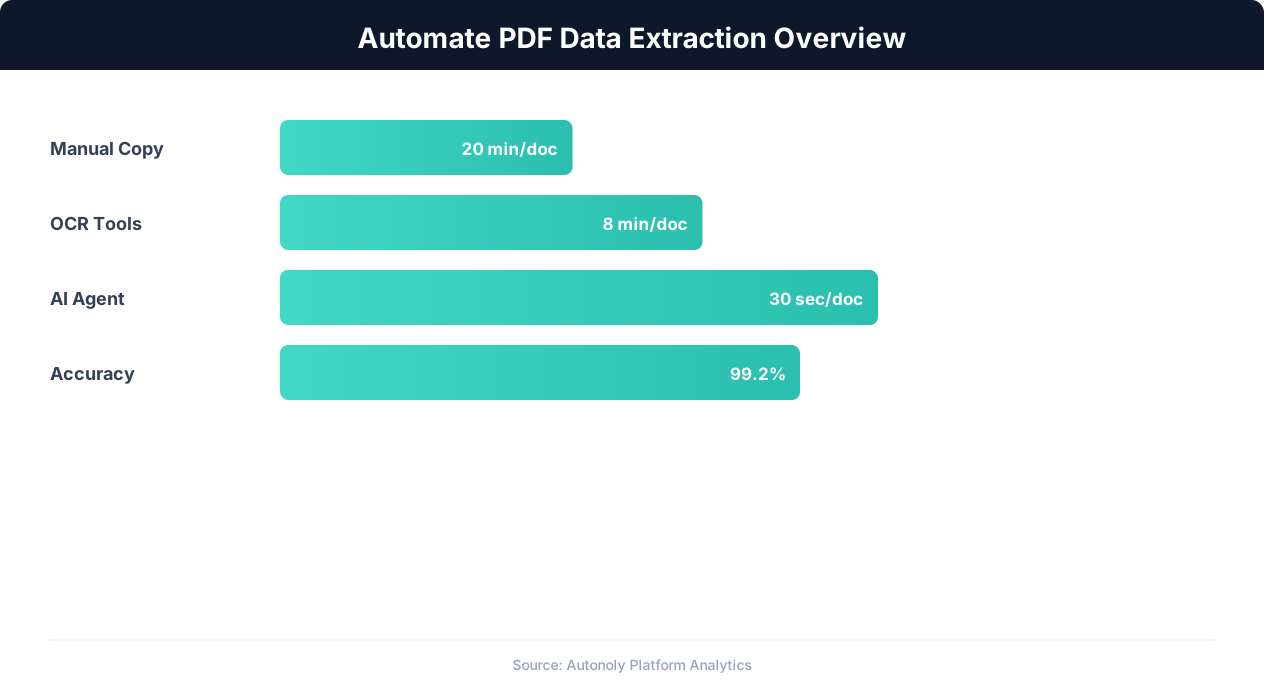
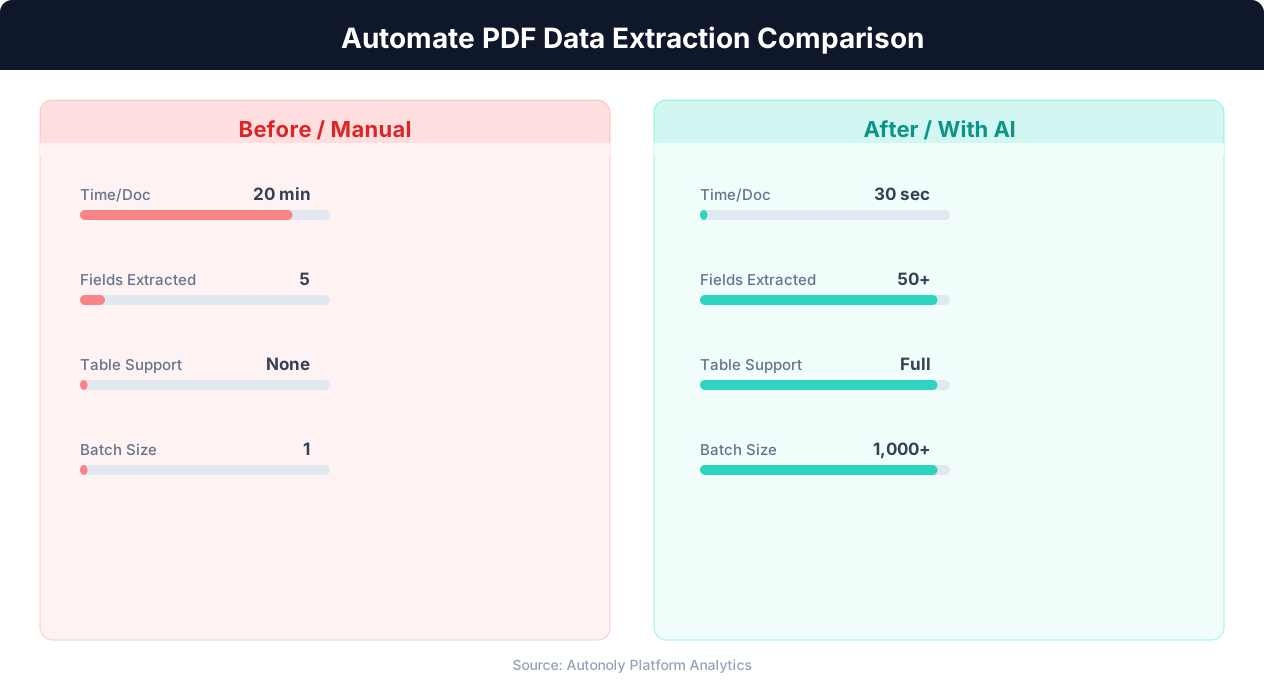
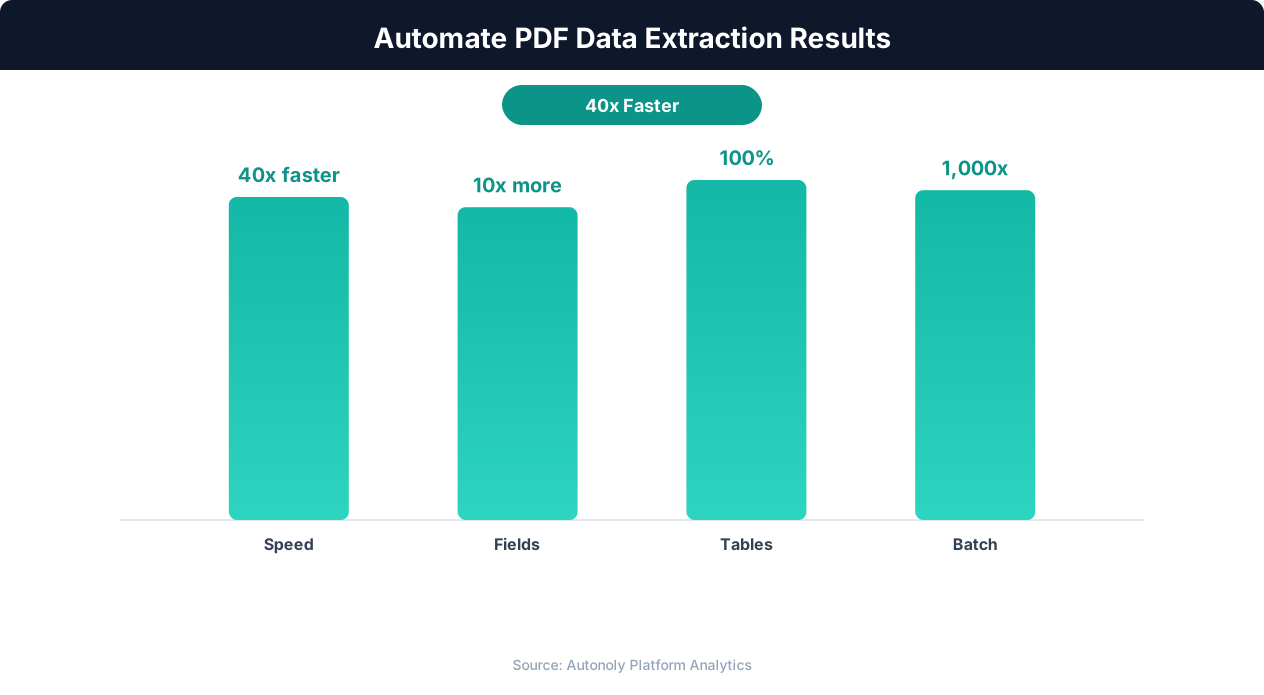
Without automation, extracting data from PDFs means a human opens each document, reads the content, identifies the relevant data points, and manually types them into a spreadsheet or form. For a single PDF, this takes 5-30 minutes depending on document complexity. For an accounts payable team processing 500 invoices per month, that is 40-250 hours of manual data entry — an entire full-time position dedicated to reading PDFs and typing numbers.
Manual PDF extraction also introduces errors. Studies on manual data entry show error rates of 1-4% per field. When extracting 10 fields from 500 invoices, that is 50-200 errors per month that cascade through financial calculations, reporting, and compliance. Each error requires time to detect and correct, often more time than the original data entry.
Why PDFs Are Hard to Parse
PDFs were designed for visual presentation, not data extraction. Unlike HTML or CSV files where data has a clear structure, PDFs store content as positioned text and graphics on a visual canvas. A table that looks perfectly structured to a human reader is actually a collection of independent text fragments with x/y coordinates — the "table" structure exists only visually, not in the underlying data. This is why copy-pasting from PDFs produces mangled, unstructured text.
Scanned PDFs add another layer of difficulty. When a document is scanned (or photographed), the PDF contains an image, not text. There are no text characters to extract at all — the content is pixels. Extracting data from scanned PDFs requires Optical Character Recognition (OCR) to convert the image into machine-readable text before any data extraction can begin.
Business Impact of Automation
Automating PDF data extraction transforms a cost center into a competitive advantage:
- Speed: Process 500 invoices in hours instead of weeks. Data enters your systems the same day documents arrive.
- Accuracy: Eliminate transcription errors. Automated extraction reads data exactly as it appears in the document.
- Scalability: Processing 5,000 documents takes the same effort as 500 — you do not need to hire additional data entry staff to handle volume increases.
- Auditability: Every extraction is logged and traceable, providing a complete audit trail from source document to spreadsheet row.
- Employee satisfaction: Free your team from mind-numbing data entry so they can focus on analysis, decision-making, and higher-value work.
Types of PDFs and How They Affect Extraction
Not all PDFs are created equal. The extraction approach and achievable accuracy depend heavily on the type of PDF you are working with. Understanding these types helps you choose the right tools and set realistic expectations.
Native (Digital) PDFs
Native PDFs are created digitally — exported from software like Word, Excel, accounting systems, or web browsers. The text in these PDFs is stored as actual character data with font information, making it directly readable by extraction tools without OCR. Native PDFs are the easiest to extract from and produce the highest accuracy results.
Common native PDFs include:
- Invoices generated by accounting software (QuickBooks, Xero, FreshBooks)
- Bank statements downloaded from online banking portals
- Financial reports exported from ERP systems
- Contracts created in Word and saved as PDF
- Government forms with fillable fields
Scanned PDFs
Scanned PDFs contain images of documents rather than actual text. They are created by scanning paper documents with a flatbed scanner, multifunction printer, or document camera. The PDF file contains one image per page, and extracting data requires OCR to convert the image to text first.
OCR accuracy on scanned PDFs depends on scan quality, document condition, font clarity, and language. High-resolution scans (300 DPI or higher) of clean, well-printed documents achieve 95-99% character accuracy. Poor scans of faded, handwritten, or damaged documents may achieve only 80-90% accuracy, requiring manual review.
Mixed PDFs
Some PDFs contain both native text and embedded images. A financial report might have digital text for the body content but scanned images for attached receipts or signatures. Extraction tools must handle both types within a single document, using direct text extraction for native content and OCR for image-based content.
Image-Based PDFs With Text Layers
Some document management systems scan documents and run OCR at scan time, embedding an invisible text layer behind the scanned image. These PDFs look like scanned documents but actually contain extractable text. This is the best of both worlds — the visual fidelity of a scan with the extractability of native text. Check for this by trying to select text in the PDF — if you can highlight and copy text, there is an existing text layer.
PDF/A and Structured PDFs
PDF/A is an archival format that includes structural information (tagged PDF) alongside the visual content. Tagged PDFs explicitly identify headings, paragraphs, tables, and lists, making extraction significantly more accurate. Government agencies and regulated industries increasingly require PDF/A format, which is a positive trend for data extraction. When working with PDF/A documents, extraction tools can leverage the structural tags for near-perfect accuracy.
Choosing the Right Extraction Approach
| PDF Type | Extraction Method | Expected Accuracy | Processing Speed |
|---|---|---|---|
| Native (digital) | Direct text extraction | 99%+ | Fast (seconds) |
| Scanned (high quality) | OCR + extraction | 95-99% | Medium (seconds per page) |
| Scanned (low quality) | OCR + manual review | 80-95% | Slow (requires review) |
| Mixed | Hybrid approach | 90-99% | Medium |
| Tagged PDF/A | Structure-aware extraction | 99%+ | Fast |
PDF Data Extraction Techniques
Multiple techniques exist for extracting data from PDFs, each suited to different document types and data structures. Understanding these techniques helps you select the right approach for your specific documents.
Text Extraction
The simplest approach extracts all text from the PDF in reading order. This works well for unstructured text (paragraphs, descriptions) but poorly for tabular data. When you extract text from a table, the column structure is lost — you get a stream of text where "Product A" followed by "$29.99" followed by "50 units" loses the column associations that make the data meaningful.
Text extraction is most useful as a preprocessing step: extract the full text, then use pattern matching or AI to identify and structure specific data points within the text.
Table Extraction
Table extraction specifically targets tabular data within PDFs — identifying rows, columns, headers, and cell values. This is the most commonly needed extraction type for business documents because invoices, financial statements, and reports are inherently tabular.
Table extraction algorithms work by detecting visual patterns:
- Rule-based detection: Looks for horizontal and vertical lines (borders) that define table cells. Works well for tables with visible gridlines but fails on borderless tables.
- Whitespace analysis: Analyzes the spatial positioning of text to infer column boundaries from consistent whitespace gaps. Works for borderless tables but struggles with complex multi-line cells.
- Machine learning detection: AI models trained on thousands of table layouts detect table regions, headers, and cell boundaries regardless of visual style. This is the most robust approach but requires significant computational resources.
Autonoly's PDF and OCR processing combines all three approaches, starting with the most efficient method and falling back to more sophisticated techniques when simpler methods fail.
OCR (Optical Character Recognition)
OCR converts images of text into machine-readable characters. Modern OCR engines (like Tesseract, Google Vision, and AWS Textract) achieve high accuracy on clean documents but still require careful handling of edge cases:
- Handwritten text: OCR accuracy drops significantly for handwriting, especially cursive. Handwritten forms may need specialized handwriting recognition models.
- Multi-language documents: Documents mixing languages (e.g., English and Japanese) require OCR engines configured for all languages present.
- Low contrast: Faded text, colored backgrounds, or watermarks reduce OCR accuracy. Pre-processing (contrast enhancement, de-skewing) improves results.
- Special characters: Currency symbols, mathematical notation, and domain-specific symbols may be misrecognized. Post-processing rules can correct common misreadings.
AI-Powered Extraction
The most advanced approach uses AI models (large language models or specialized document AI) to understand document layout and extract data based on semantic meaning rather than visual patterns. Instead of looking for a table with specific formatting, AI understands that the number next to "Total Due" is the invoice total, regardless of where it appears on the page or how it is formatted.
AI-powered extraction excels at:
- Invoices with varying layouts from different vendors
- Contracts where key terms appear in unpredictable locations
- Forms with inconsistent formatting across versions
- Documents where the same data type appears in different contexts
Autonoly's AI vision capabilities enable this semantic extraction approach, allowing you to describe what data you need in plain language rather than defining extraction rules manually.
Step-by-Step: Extracting PDF Data to Google Sheets with Autonoly
This walkthrough demonstrates extracting invoice data from multiple PDFs into a structured Google Sheet. The same approach works for any document type — bank statements, purchase orders, reports, or regulatory filings.
Step 1: Prepare Your Documents
Collect the PDFs you want to process. They can be stored locally, in Google Drive, in email attachments, or at URLs. For this example, assume you have 50 vendor invoices in a Google Drive folder that need to be extracted into an accounts payable spreadsheet.
Step 2: Define Your Target Schema
Create a Google Sheet with columns matching the data you want to extract from each invoice:
| Column | Description | Example |
|---|---|---|
| Vendor Name | The company that sent the invoice | Acme Supplies Inc. |
| Invoice Number | Unique invoice identifier | INV-the current year-0847 |
| Invoice Date | Date the invoice was issued | the current year-03-15 |
| Due Date | Payment due date | the current year-04-15 |
| Subtotal | Pre-tax total | 4250.00 |
| Tax | Tax amount | 340.00 |
| Total | Total amount due | 4590.00 |
| Line Items | Number of line items | 8 |
| Source File | Original PDF filename | acme-march-invoice.pdf |
Step 3: Create the Extraction Workflow
In Autonoly, create a new workflow and describe your extraction task to the AI Agent:
"I have 50 PDF invoices in my Google Drive folder 'Invoices/March'. For each PDF, extract the vendor name, invoice number, invoice date, due date, subtotal, tax amount, total amount, and count of line items. Write the results to my Google Sheet 'AP Tracker' in the 'March Invoices' tab."
The agent connects to your Google Drive, reads the first PDF, and analyzes its layout to identify the data fields.
Step 4: Review the First Extraction
The agent extracts data from the first invoice and presents the results for your review. Check that each field is mapped correctly. Common issues at this stage:
- The agent found the vendor name in the wrong location (e.g., extracting the "Bill To" company instead of the vendor)
- Date formats need standardization (the PDF shows "March 15, the current year" but you want "the current year-03-15")
- The subtotal includes shipping but you want it without shipping
Provide corrections and the agent adjusts its extraction logic for all subsequent documents.
Step 5: Process All Documents
Once the extraction logic is confirmed, the agent processes all 50 invoices. Progress is tracked in real time — you can see which document is being processed, how many are complete, and whether any errors occurred. Documents with unusual layouts or low-quality scans may need manual review, which the agent flags rather than guessing incorrectly.
Step 6: Review and Validate
After processing, review the results in your Google Sheet. The agent highlights any rows where it had low confidence in the extraction, allowing you to check those specific invoices manually. For a batch of 50 well-formatted invoices, expect 45-48 to extract perfectly on the first pass, with 2-5 requiring minor corrections.
Step 7: Automate Ongoing Processing
For recurring invoice processing, set up a scheduled workflow that monitors your Google Drive folder for new PDFs and processes them automatically. When a vendor sends a new invoice and you save it to the folder, the next scheduled run picks it up and adds it to your spreadsheet without manual intervention.
Handling Complex Document Types
While the basic extraction flow works well for standardized documents, real-world PDF processing often involves complex layouts, multi-page documents, and varying formats that require specialized handling.
Multi-Page Tables
Financial statements, purchase orders, and detailed invoices often have tables that span multiple pages. The table header appears on page 1, data rows continue across pages 2-5, and a summary row appears on the last page. Extraction must recognize that these are all part of the same table, carry the header context across pages, and merge the rows into a single continuous dataset.
Autonoly handles multi-page tables by tracking the table context across page boundaries. When a table extends to the next page, the agent recognizes the continuation and appends rows to the same data structure.
Invoices With Line Item Details
Many extraction use cases need both header-level data (vendor, invoice number, total) and line-item detail (individual products, quantities, prices). This produces a nested data structure that does not map neatly to a flat spreadsheet row. Two common approaches:
- Flattened format: One spreadsheet row per line item, with header data repeated on each row. Produces a larger spreadsheet but is easy to filter and analyze.
- Two-sheet format: One sheet for invoice headers (one row per invoice) and another for line items (multiple rows per invoice, linked by invoice number). More normalized but requires joining sheets for analysis.
💡 Key Insight
Organizations process an average of 10,000+ PDF documents monthly, with 70% still handled manually.
Choose the format that matches your downstream processing needs. For accounts payable import into QuickBooks or Xero, the flattened format is usually required.
Inconsistent Layouts Across Vendors
If you receive invoices from 50 different vendors, you may encounter 50 different layouts. Some place the invoice number at the top right, others at the bottom. Some include tax as a separate line, others embed it in the total. Traditional template-based extraction requires defining a separate template for each vendor layout — a maintenance nightmare at scale.
AI-powered extraction with Autonoly avoids this problem entirely. The AI vision system understands document semantics: it knows that the number labeled "Invoice #" or "Invoice Number" or "Inv No." or "Bill Number" is the invoice identifier, regardless of where it appears on the page. This semantic understanding handles layout variations automatically without vendor-specific templates.
Bank Statements and Financial Reports
Bank statements present unique extraction challenges: transaction tables with date, description, debit, credit, and balance columns; running balances that must be verified; and multiple account sections within a single document. The extraction must maintain the chronological order of transactions and correctly assign debits and credits.
For financial reports with nested sections (e.g., an income statement with Revenue > Cost of Goods > Gross Profit > Operating Expenses > Net Income), the extraction must understand the hierarchical structure and preserve parent-child relationships in the output.
Forms With Checkbox and Handwritten Data
Government forms, medical intake forms, and compliance documents often contain checkboxes, radio buttons, and handwritten entries alongside printed text. These require specialized recognition:
- Checkbox detection: AI models identify checked vs. unchecked boxes based on visual analysis (filled, crossed, or empty)
- Handwriting recognition: Specialized OCR models trained on handwritten text extract handwritten entries with reasonable accuracy, though manual review is recommended for critical fields
- Signature detection: Signatures can be detected as present/absent without attempting to transcribe them
Ensuring Extraction Accuracy and Data Validation
Automated PDF extraction is not infallible. Even the best AI-powered systems occasionally misread characters, misidentify fields, or struggle with unusual layouts. Building validation and quality controls into your extraction pipeline ensures that errors are caught before they enter your business systems.
Confidence Scoring
Sophisticated extraction tools assign confidence scores to each extracted value. A vendor name extracted with 99% confidence from a clear, well-formatted native PDF is almost certainly correct. A total amount extracted with 72% confidence from a poorly scanned, faded invoice should be flagged for manual review. Configure your workflow to auto-accept extractions above a confidence threshold (e.g., 95%) and flag everything below for human review.
Cross-Field Validation
Financial documents contain mathematical relationships that enable automatic validation:
- Subtotal + Tax = Total: If the extracted subtotal ($4,250), tax ($340), and total ($4,590) are mathematically consistent, the extraction is almost certainly correct. If they do not add up, at least one value was misread.
- Line item sum = Subtotal: The sum of individual line item amounts should equal the subtotal. Discrepancies indicate a missed or misread line item.
- Unit price x Quantity = Line total: Each line item's extended price should equal the unit price times quantity.
Implement these validation checks as post-extraction rules. When a document fails validation, it is flagged for manual review rather than entering your system with incorrect data.
Format Validation
Extracted data should conform to expected formats:
- Invoice numbers match the vendor's known format (e.g., "INV-YYYY-NNNN")
- Dates are valid dates within a reasonable range
- Phone numbers have the correct number of digits
- Dollar amounts are positive numbers with two decimal places
- Email addresses follow valid email format
Format validation catches OCR errors like "O" misread as "0", "l" misread as "1", or "$" misread as "S" — common OCR confusion characters that produce syntactically invalid data.
Duplicate Detection
When processing documents on an ongoing basis, duplicate detection prevents the same document from being extracted twice. Use the invoice number (or equivalent unique identifier) as a duplicate check. Before writing a new row to your Google Sheet, verify that the invoice number does not already exist. If it does, either skip the document or update the existing row rather than creating a duplicate.
Human-in-the-Loop Review
For high-stakes documents (large invoices, legal contracts, regulatory filings), implement a human review step even when extraction confidence is high. The workflow extracts data into a "Pending Review" sheet. A human reviewer verifies the extraction, makes any corrections, and marks the row as approved. Approved rows are then automatically moved to the production sheet or imported into the business system. This hybrid approach combines automation speed with human accuracy for critical data.
Building End-to-End PDF Processing Pipelines
Individual PDF extraction is useful, but the real power comes from building automated pipelines that handle the entire document processing lifecycle: receiving documents, extracting data, validating results, routing to business systems, and archiving originals.
Email-to-Spreadsheet Pipeline
The most common PDF processing pipeline starts with email. Vendors send invoices as email attachments, banks send statements, and clients send signed contracts. An automated pipeline:
- Monitors an email inbox for messages with PDF attachments (filtered by sender, subject line, or label)
- Downloads the PDF attachment to a processing location
- Extracts data using OCR and AI-powered field identification
- Validates the extraction against business rules and mathematical checks
- Writes validated data to the appropriate Google Sheet or Excel file
- Archives the original PDF in Google Drive with a standardized filename
- Sends a notification summarizing what was processed and flagging any items that need manual review
Autonoly's email and Google Drive integrations support this entire pipeline without code.
Batch Processing Pipeline
For organizations that receive documents in batches (monthly financial statements, quarterly regulatory filings, annual audit documents), a batch pipeline processes all documents in a folder:
- Upload all PDFs to a designated Google Drive folder
- The workflow scans the folder for new (unprocessed) PDFs
- Each PDF is extracted according to document type (auto-detected or folder-based)
- Results are written to type-specific Google Sheets tabs (invoices in one tab, receipts in another)
- A summary email reports the batch processing results
💡 Key Insight
AI-powered PDF extraction achieves 96% accuracy on complex layouts, compared to 75% for traditional OCR.
Multi-System Output
Extracted PDF data often needs to reach multiple systems. An invoice might need to go to Google Sheets for review, then to QuickBooks for payment processing, and to a Slack channel for team notification. Autonoly's visual workflow builder supports branching outputs where the same extracted data feeds into multiple destinations simultaneously.
Combining PDF Extraction With Web Scraping
Some workflows combine PDF extraction with web scraping for enrichment. For example:
- Extract vendor names from invoices, then scrape the vendor's website for updated contact information
- Extract product SKUs from purchase orders, then scrape the supplier's catalog for current pricing
- Extract company names from contracts, then scrape business registries for corporate status verification
These hybrid pipelines leverage both PDF extraction and web data extraction to create comprehensive datasets that neither source could provide alone.
Archiving and Compliance
For regulated industries, the extraction pipeline must maintain a complete audit trail. Key compliance requirements include:
- Document retention: Archive original PDFs for the required retention period (7 years for tax documents, varies by industry)
- Extraction logging: Log every extraction with timestamp, confidence scores, and any manual corrections
- Access controls: Limit who can view extracted data, especially for documents containing PII or financial information
- Data lineage: Every spreadsheet value should trace back to a specific location in a specific PDF
Autonoly's workflow logging and security features support these compliance requirements, making automated PDF processing viable even in heavily regulated environments.
Comparing PDF Extraction Approaches
Several categories of tools can extract data from PDFs. Understanding their strengths and limitations helps you choose the right approach for your specific needs.
Manual Copy-Paste
The baseline approach — opening each PDF and manually copying data into a spreadsheet. Zero setup cost, but does not scale beyond a handful of documents per day. Error-prone and tedious. Only appropriate for occasional, ad-hoc extraction of a few documents.
Python Libraries (tabula-py, camelot, pdfplumber)
Open-source Python libraries provide programmatic PDF extraction. tabula-py excels at extracting tables from native PDFs. camelot handles complex table layouts with lattice and stream detection modes. pdfplumber provides fine-grained text extraction with position information.
Strengths: Free, customizable, good for developers who need precise control over extraction logic.
Limitations: Require Python programming knowledge, need separate OCR setup for scanned documents, no native spreadsheet output (you must write the export code yourself), brittle when document layouts vary.
Cloud OCR Services (AWS Textract, Google Document AI, Azure Form Recognizer)
Cloud AI services provide powerful OCR and document understanding capabilities through APIs. They handle scanned documents, extract tables, and identify form fields with high accuracy. Pricing is per-page (typically $0.01-$0.10 per page depending on the service and features used).
Strengths: High accuracy, handles scanned documents well, no infrastructure to maintain, pre-trained on millions of documents.
Limitations: Require API programming, cost scales linearly with document volume, data leaves your environment (privacy consideration), still need additional code to write results to spreadsheets.
Desktop Software (Adobe Acrobat, ABBYY FineReader)
Desktop applications provide GUI-based PDF extraction with built-in OCR. Adobe Acrobat's "Export PDF" feature converts PDFs to Excel, Word, or other formats. ABBYY FineReader provides advanced OCR and document comparison.
Strengths: No coding required, good OCR quality, handles batch processing.
Limitations: Expensive licenses, manual processing (each document must be opened individually or configured for batch), no direct Google Sheets integration, limited automation capabilities.
AI-Powered No-Code Platforms (Autonoly)
Platforms like Autonoly combine AI-powered extraction with no-code workflow building and native spreadsheet integration. You describe what data to extract in plain language, the AI handles document analysis and field identification, and results flow directly to Google Sheets or Excel.
Strengths: No coding, handles varying layouts through AI understanding, built-in OCR for scanned documents, native Google Sheets output, scheduling for automated runs, works alongside other automation workflows.
Limitations: SaaS pricing, requires internet connection, depends on AI model accuracy (which is continuously improving).
Choosing the Right Approach
| Scenario | Recommended Approach |
|---|---|
| Occasional extraction (1-10 docs/month) | Adobe Acrobat or manual |
| Developer with Python skills, consistent layouts | Python libraries |
| High volume, scanned documents, API integration | Cloud OCR services |
| Ongoing business process, no coding, needs Sheets output | Autonoly |
| Regulated industry, on-premise requirement | ABBYY FineReader or Python |